
APPS • DAILYTECH.ID - Google Docs provides a seamless, integrated tool for adding footnotes, essential for academic citations, source referencing, or providing supplementary material within a document. Understanding the proper mechanics of insertion is key for streamlining the research and writing process for students, academics, and professional writers alike.
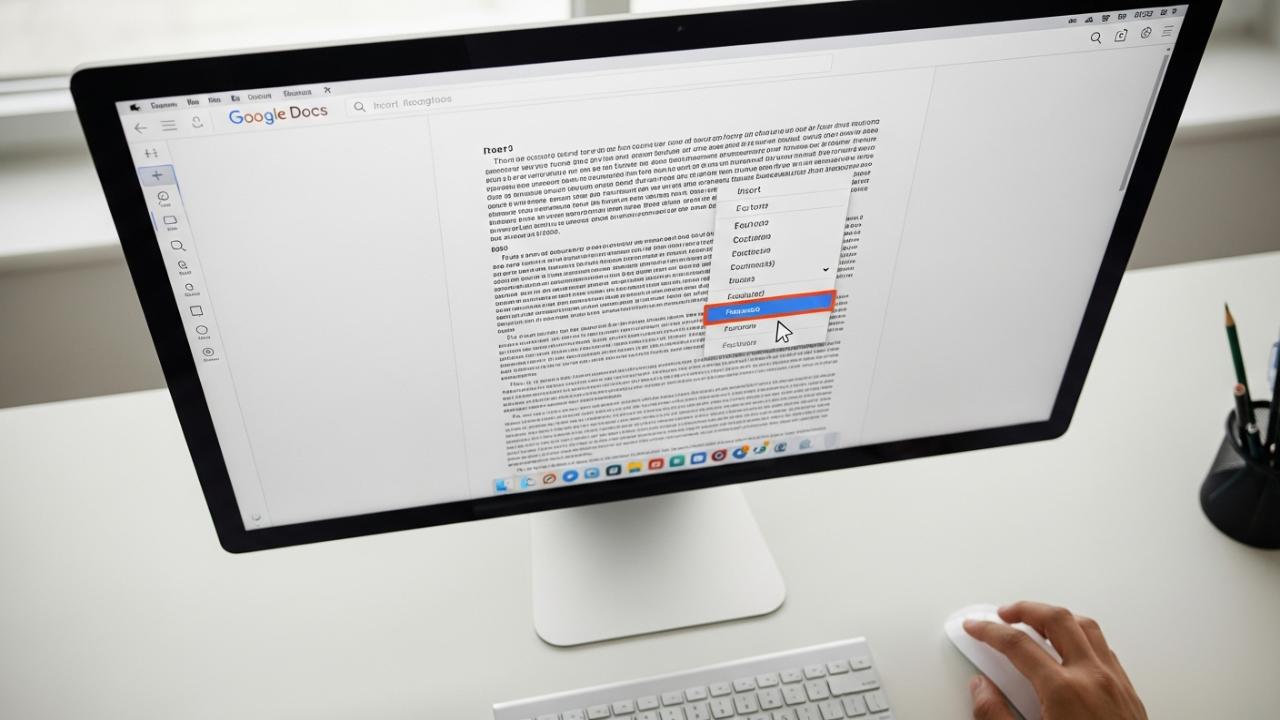
To insert a footnote in Google Docs, place your cursor where the reference is needed, navigate to the Insert menu, and select Footnote. Google Docs automatically generates a superscript number and moves the cursor to the bottom of the page to input the corresponding text. Alternatively, use the keyboard shortcut: Ctrl + Alt + F (Windows/Chrome OS) or Cmd + Option + F (Mac). Understanding both manual insertion and keyboard commands ensures efficient document creation regardless of the complexity of your citation needs.
The Standard Method: Inserting Footnotes via the Menu
Footnotes function by creating a numerical marker at the precise point of reference in the running text, which is subsequently linked to the full citation or explanatory text presented at the bottom margin of the page. This method is the foundational approach to incorporating source attribution or auxiliary data, and the procedure remains uniform across all desktop browser versions of Google Docs, whether accessed via a Windows PC, a Mac, or a Chromebook. This ensures consistent integration of the feature, regardless of the user’s operating system environment.
The fundamental benefit of utilizing the built-in Google Docs footnote feature is its capacity for automatic numbering and rearrangement. If a writer inserts a new footnote between existing citations, Google Docs intelligently renumbers the entire sequence throughout the document, mitigating the tedious manual adjustments that older word processing systems once required. This robust functionality is crucial when attempting to maintain adherence to strict academic standards where continuous numerical sequence is mandatory.
Step-by-Step Guide for Desktop Users
For anyone asking, “how do you do footnotes in google docs,” the manual menu approach provides the clearest pathway and ensures precision in cursor placement, which is critical for accurate citation placement.
- Placement: The initial step requires positioning your cursor immediately after the word, phrase, or punctuation mark (often after the period, but adhering to specific style guide rules) that necessitates a reference or supplementary citation. Precision in placement ensures that the superscript number appears correctly within the flow of the argument.
- Accessing the Menu: Locate the main horizontal menu bar positioned at the top of the Google Docs interface and click on the
Inserttab. This action reveals a comprehensive list of elements that can be integrated into the document structure. - Inserting the Footnote: Scroll down the resulting dropdown menu until you find and select the option explicitly labeled
Footnote. Executing this command triggers two simultaneous actions: Google Docs automatically generates the next sequential superscript number at the cursor’s position in the main text body, and simultaneously, the view scrolls down, placing your cursor at the document’s bottom border in the designated footnote entry field. - Inputting Content: Once the cursor is positioned at the bottom of the page, type your citation, bibliographical entry, or explanatory text in the designated footnote area. The text entered here is automatically formatted with the appropriate size and font, although final stylistic requirements (like line spacing or hanging indents) may need manual adjustment depending on the academic standard being utilized.
Keyboard Shortcuts for Footnote Efficiency
For academic researchers and professional editors who frequently manage documents demanding dense citation, relying solely on the mouse and menu navigation can significantly impede workflow. Utilizing keyboard shortcuts drastically speeds up the process, making the insertion of citations swift and efficient. This addresses the key transactional intent of users seeking “how to add footnotes in google docs shortcut.”
Windows and Chrome OS Shortcut
The most direct and fastest method for users operating within Windows or Chrome OS environments (including dedicated Chromebook users) to insert a footnote instantaneously is through the use of the three-key combination:
Pressing this combination simultaneously skips the entire menu navigation process, generating the superscript number and moving the cursor directly to the footnote input area at the bottom of the page within milliseconds. Mastering this shortcut is essential for anyone dealing with extensive documents containing hundreds of citations.
Mac OS Shortcut
Macintosh users (on MacBook Pro, MacBook Air, or Mac desktops) utilize the corresponding combination which adheres to Apple’s primary command key structure. For those searching “how to insert footnote in docs mac,” the functional equivalent is:
(Note: On certain non-standard Mac keyboards, the Option key may be labeled Alt, in which case the shortcut functions as Cmd + Alt + F). Consistency in using this command ensures that Mac users maintain the same high level of efficiency as their Windows counterparts. This command instantly executes the “Insert Footnote” function, facilitating rapid academic document creation.
Managing Footnotes on Mobile and Tablet Devices
While the full desktop interface offers the most robust control, the necessity to edit or add sources often arises when writers are away from their primary workstation. The Google Docs application, available on both iOS (iPhone, iPad) and Android platforms, fully supports the functionality to add and edit footnotes, adapting the interface for touch-screen navigation. Addressing “how to add footnotes in google docs on phone” or “how to add footnotes in google docs on ipad” requires understanding the mobile app’s specific workflow.
Adding Footnotes in the Google Docs App (iOS and Android)
The mobile experience streamlines the input process by utilizing the context-sensitive insertion icon.
- Select Insertion Point: Open your Google Docs application and load the necessary document. Tap on the screen precisely to place the blinking insertion point where the footnote marker is required within the running text.
- Accessing the Insert Menu: Unlike the desktop version that uses a text menu, the mobile app uses an icon-based system. Locate and tap the
+icon (the Insert icon) typically situated in the top toolbar of the application screen. This action opens a drawer of insertion options. - Initiating the Footnote: Scroll through the list of insertion elements—which includes images, tables, and links—and select the option explicitly labeled
Footnote. The application processes the request, automatically placing the next superscript number at the chosen location and immediately opening a dedicated footnote editor field at the bottom of the mobile viewport, often pushing the main document text upward temporarily. - Inputting Citation: Type the required citation or supplementary information into the provided field. Once completed, tapping away from the field or selecting the back function saves the footnote and returns you to the main document text.
Advanced Formatting and Citation Styles
Google Docs manages the sequence of numbering automatically, providing a crucial organizational layer. However, the system does not automatically format the content of the citation itself. Users must possess independent knowledge of the required academic style guides—such as Chicago Manual of Style (CMS), Modern Language Association (MLA), or American Psychological Association (APA)—to correctly input the required information into the footnote area.
Applying Chicago Style Footnotes (The Manual Process)
The Chicago Manual of Style (CMS), particularly its Notes-Bibliography system (or Turabian), relies heavily on footnotes for primary citation. This system demands specific formatting for both full notes (first reference) and short notes (subsequent references). When users ask “how to use chicago style footnotes in google docs,” the answer lies in manual adherence to content structure.
- Insertion: Use the standard
Insert > Footnotetool (or the keyboard shortcut) to generate the sequential number. - Content Adherence: Users must manually ensure the text entered into the footnote area adheres strictly to the CMS format guidelines. A full note includes the author’s first and last name, the title of the work (italicized for books, in quotes for articles), specific publication details in parentheses, and the page number.
- Short-Form Management: For subsequent citations of the same source, users must manually type the abbreviated, short-form note (e.g., Author, Short Title, Page Number). Google Docs does not automate the shift from a full note to a short note, placing the responsibility entirely on the writer to maintain stylistic accuracy.
Adapting for MLA and APA Citation Formats
MLA and APA styles primarily utilize parenthetical in-text citations (e.g., Author, Year, Page), reducing the reliance on numerical notes for source attribution. However, footnotes still serve a critical function in these styles: they are designated for supplementary explanations that might clutter the main text.
If using MLA or APA, the notes inserted through the Google Docs function are categorized as explanatory footnotes. These notes provide peripheral data, tangential discussions, copyright acknowledgements, or definitions that do not fit naturally into the core argument. Users must ensure that any source citation within the explanatory note itself follows the formatting rules (e.g., using the reference list structure or full title information), and that the note does not function as the primary mechanism for source attribution, thus avoiding conflict with the required parenthetical system.
Customizing Footnote Appearance
Google Docs defaults standard footnote numbering to continuous Arabic numerals (1, 2, 3…) in superscript font. In rare cases, academic or professional requirements might necessitate the use of symbols, such as an asterisk (*), a dagger (†), or double daggers (‡), especially when the notes are not citations but rather supplementary markers used only on a single page. This addresses the question of “how to insert asterisk footnote in google docs.”
To use a symbol instead of the automatic number, you must not use the Insert > Footnote function. Instead, you must:
- Manually type the desired symbol (*, †, etc.) directly into the text body where the reference is needed.
- Format that symbol manually as a superscript using
Format > Text > Superscript. - Manually move the cursor to the bottom of the page and insert the corresponding symbol and the footnote text, ensuring the symbol here is aligned with the required formatting standard.
Using this manual method, however, bypasses Google Docs’ automatic linking and renumbering mechanism, meaning if a symbol is added, it must be tracked and managed manually by the user.
Editing, Deleting, and Reusing Footnotes
The lifecycle of a research paper involves constant revision, making the management of citations as important as their initial insertion. Users frequently need to modify content, remove obsolete references, or cite the same source repeatedly using efficient short-hand methods.
How to Delete or Remove a Footnote in Google Docs
A common point of confusion for users is how to properly remove a footnote reference. Simply deleting the text that appears at the bottom of the page will not remove the superscript number in the document body, nor will it eliminate the reserved space at the footer. The remaining number will simply point to an empty entry, disrupting the entire numerical sequence. This often leads to users asking “how to delete footnotes in google docs” when the content is gone but the marker remains.
To successfully remove a footnote, the user must:
- Locate the superscript reference number (e.g., ⁵) within the body of the main text.
- Place the cursor immediately after the superscript number.
- Press the Backspace or Delete key to erase the number itself.
Deleting the number in the main text automatically triggers Google Docs to delete both the numerical marker and the associated text at the bottom of the page, ensuring the remaining footnotes are automatically renumbered to maintain a continuous, correct sequence.
Tips for Renumbering and Restarting Footnotes
Google Docs is designed to handle continuous, sequential numbering throughout an entire document. This design assumes that the work is a single cohesive unit, like a long essay or dissertation. If a writer needs to force a renumbering sequence—for instance, starting each new chapter or section with footnote 1—Google Docs does not provide a native “restart numbering” function within its standard settings menu. This leads to questions like “how to restart footnotes in google docs.”
To simulate a restart, writers have two primary, albeit imperfect, options:
- Section Management: If the document uses proper section breaks, some users report success in forcing a renumbering by manipulating the section boundaries, though this outcome is not guaranteed or officially supported by Google Docs for footnotes specifically.
- Add-ons: Utilizing sophisticated third-party Google Docs Add-ons designed for academic formatting (often citation managers) may offer advanced numbering control, allowing the writer to dictate where the sequence should break and restart. However, relying on add-ons requires external integration and management.
For most standard academic papers, continuous numbering is the default and preferred method, making manual renumbering unnecessary.
Using the Same Footnote Reference Multiple Times
In citation styles that heavily utilize notes (like CMS/Turabian), the same source is often referenced multiple times throughout the text. When addressing “how to use same footnote in google docs,” the procedure involves inserting a new footnote marker every time the source is cited, even if it is the immediate preceding source.
- Insert New Marker: Always use
Insert > Footnoteto generate a new, unique superscript number (, , , etc.) for every instance of citation. - Content Management: Rather than repeating the entire bibliographic entry, the content of the footnote should transition to a short-form citation.
- If the source is identical to the one in the immediately preceding footnote, use the Latin abbreviation “Ibid.” (meaning “in the same place”). If the page number is also the same, just use “Ibid.” If the page number changes, use “Ibid., 45.”
- If the source is different from the preceding one but has been cited before, use the Author/Short Title/Page Number format (e.g., Smith, The Long Road, 112).
This practice ensures the integrity of the automatic numbering sequence while providing clarity and conciseness for the reader regarding repeated source material.
FAQs – Use Footnotes In Google Docs
To remove a footnote completely, you must delete the superscript number found in the main body of your text. Locate the small reference number (e.g., ₃) and use the Backspace key to erase it. This action automatically removes both the marker and the associated text at the bottom of the document, renumbering the sequence.
Yes, you can use the footnote feature for both styles. However, Google Docs only provides the number placement and text box. You must manually type the citation content, ensuring it strictly adheres to the specific formatting rules required by Chicago (Notes-Bibliography) or MLA (Explanatory Notes).
Yes, the designated keyboard shortcut for immediately inserting a footnote on a Mac device is Cmd + Option + F. This command bypasses the menu navigation, instantly creating the superscript number in your text and moving your cursor to the corresponding entry area.
In the Google Docs mobile app, first, place the insertion cursor in your text. Then, tap the + icon (Insert icon) usually located at the top of the screen. Scroll through the available insertion options and select Footnote. The app will automatically manage the numbering and open the input field.
Google Docs defaults to continuous numbering because it treats the document as a single, coherent academic work, which is the standard requirement for most journals and theses. The platform lacks a native function to automatically restart the sequence based on section or page breaks.



