IPHONE • DAILYTECH.ID - Trying to adjust volume for each app on iPhone? You can’t—at least not directly. iOS uses a single system volume for most apps, so everything shares the same sound level. That’s why music, games, and videos often clash. But there are a few practical workarounds that let you control app audio more precisely without jailbreaking or complicated setup.
Quick Answer: Adjust Volume for Each App on iPhone
You can’t adjust volume for each app on iPhone directly because iOS uses a single system volume. The only way to control app sound individually is through workarounds like in-app volume settings, media volume control, or using external devices.
Why You Can’t Adjust Volume for Each App on iPhone
iOS uses a system-wide volume, which means all apps share the same sound level. There is no built-in feature to control volume per app like on other platforms.
Apple keeps audio control simple and consistent across the system, but this also means you can’t fine-tune sound for individual apps without using workarounds.
Method 1: Use In-App Volume Controls
Some apps have their own built-in volume settings. This is the closest way to adjust volume for each app on iPhone without using external tools.
- Open the app you’re using
- Go to its settings or audio menu
- Adjust the volume inside the app
This works best for games, music apps, and video players that provide their own sound controls.
Method 2: Use Media Volume Control
iPhone separates media volume from ringer and alerts, which can help you control certain types of sound more precisely.
- Play music, video, or any media
- Use the volume buttons while media is playing
- This adjusts media volume without affecting ringtones
This doesn’t fully adjust volume per app, but it helps control how loud media apps are compared to system sounds.
Method 3: Use Focus Mode to Limit App Sounds
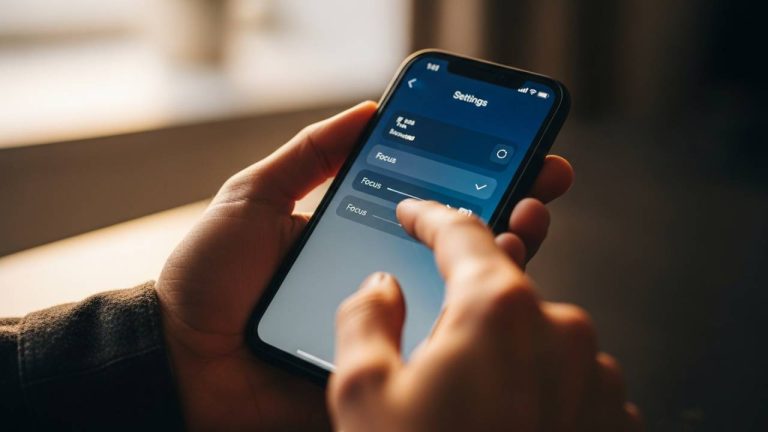
Focus Mode doesn’t change volume per app, but it helps control which apps can interrupt you with sound.
- Open Settings
- Tap Focus
- Choose a mode like Do Not Disturb
- Customize allowed apps and notifications
This is useful if certain apps are too disruptive, even though it doesn’t directly adjust their volume.
Method 4: Use Bluetooth Devices with Separate Volume
Some Bluetooth headphones and speakers have their own independent volume controls. This lets you adjust sound without relying entirely on the iPhone’s system volume.
- Connect your Bluetooth device
- Play audio from any app
- Adjust volume using the buttons on the device
This doesn’t create true per-app volume control, but it gives you more flexibility when managing audio levels.
Method 5: Use Third-Party Apps (Limited Workaround)
Some third-party apps can help manage audio, but only within their own environment. They don’t provide full system-wide control for each app.
- Use apps like equalizers or audio players
- Adjust sound settings inside those apps
- Control playback and volume within the app itself
This method is limited because iOS doesn’t allow apps to control audio from other apps.
When These Workarounds Are Useful
- When one app’s audio is too loud compared to others
- When you want to reduce notification sounds from certain apps
- When using multiple apps like music and games at the same time
- When you need better control without changing overall system volume
These situations make the available workarounds more practical, even without true per-app volume control.
FAQ – How to Adjust Volume for Each App on iPhone
No, iPhone does not support per-app volume control natively.
iOS uses a system-wide audio design to keep sound consistent across apps.
No, due to system limitations, third-party apps cannot control audio from other apps.
Conclusion
iPhone doesn’t allow per-app volume control directly, but the available workarounds still help you manage sound more effectively. By using in-app controls, media volume, or system features like Focus Mode, you can get better control over how your audio behaves across different apps.