PC • DAILYTECH.ID - Mac doesn’t let you adjust volume for individual apps out of the box. Everything shares the same system volume, which becomes a problem when one app is too loud and another is too quiet. To fix this, you need a simple workaround using third-party tools that let you control sound per app without complicated setup.
Quick Answer: Adjust Volume for Individual Apps on Mac
To adjust volume for individual apps on Mac, you need a third-party tool since macOS doesn’t support this feature by default. Use apps like Background Music or Sound Control to control volume for each app separately in real time.
How to Adjust Volume for Individual Apps on Mac (Free Method)
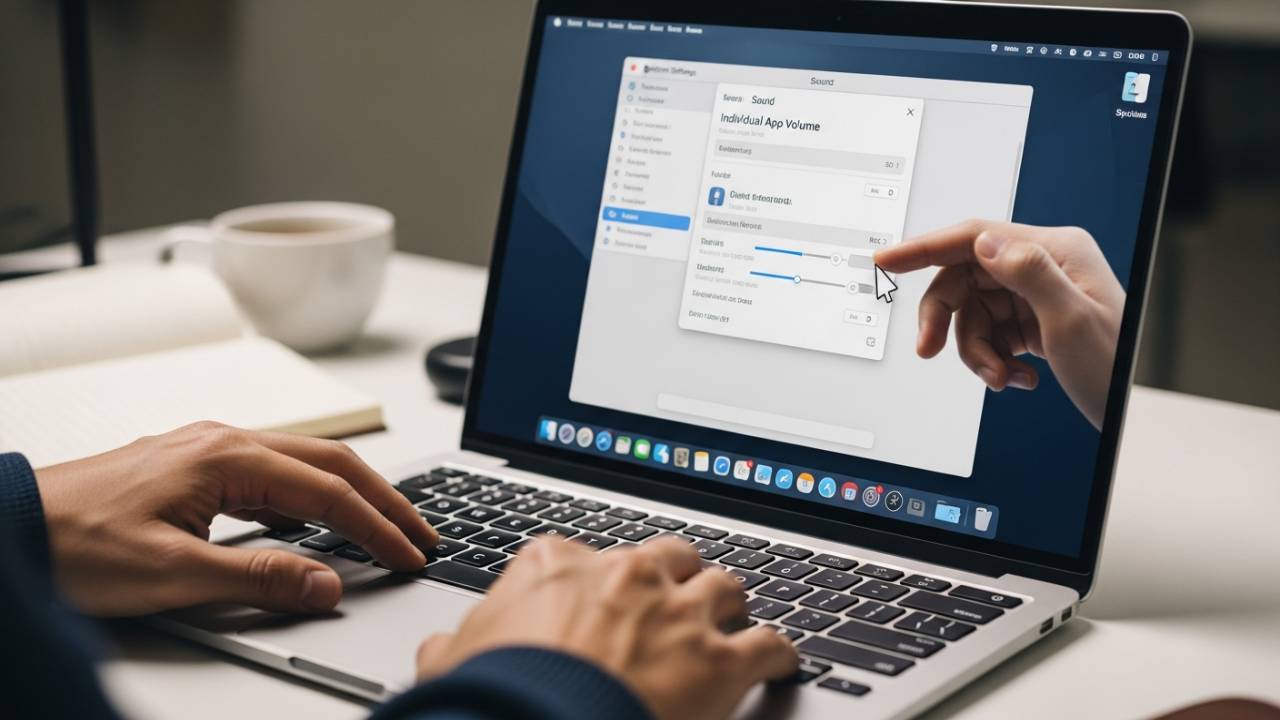
The easiest way to control volume for individual apps on Mac is by using a free tool called Background Music. It adds a simple volume mixer so you can manage sound levels per app.
Steps:
- Download and install Background Music
- Open the app after installation
- Play audio from different apps
- Adjust the volume slider for each app
Once installed, it works automatically in the background and lets you control app volume in real time.
How to Adjust Volume for Individual Apps on Mac (Paid Method)
If you want more control and a better interface, you can use Sound Control. This tool offers a cleaner UI and more advanced audio settings compared to free options.
Steps:
- Download and install Sound Control
- Open the app
- Play audio from different apps
- Adjust volume for each app using the sliders
This method is better if you want a more stable experience and additional features like device control and audio profiles.
Why macOS Doesn’t Support Per-App Volume Control
macOS uses a system-wide volume system, which means all apps follow the same audio level. Unlike Windows, there is no built-in Volume Mixer to control sound per app.
Because of this limitation, you can’t directly adjust volume for individual apps without using additional tools. Apple keeps audio control simple by default, but this also limits flexibility for users who want more precise control.
When to Use Each Tool
- Use Background Music if you want a free and simple way to control volume per app
- Use Sound Control if you need more advanced features and a more polished interface
Choosing the right tool depends on how much control you need and whether you prefer a free or premium solution
Fix: App Volume Control Not Working on Mac
If you can’t control volume for individual apps on Mac, the issue is usually related to permissions or the audio tool itself.
- Restart the app you’re trying to control
- Make sure the audio tool is running in the background
- Reinstall Background Music or Sound Control if needed
- Check macOS permissions for audio access
- Update macOS to the latest version
These steps usually fix most issues with per-app volume control on Mac.
FAQ – How to Adjust Volume for Individual Apps on Mac
No, macOS does not support per-app volume control by default, so you need a third-party tool.
Background Music is the best free option, while Sound Control offers more advanced features.
Yes, as long as you download from official sources, these apps are safe to use.
Conclusion
You can adjust volume for individual apps on Mac using third-party tools like Background Music or Sound Control. While macOS doesn’t offer this feature by default, these apps make it easy to control sound per app and improve your overall audio experience.