
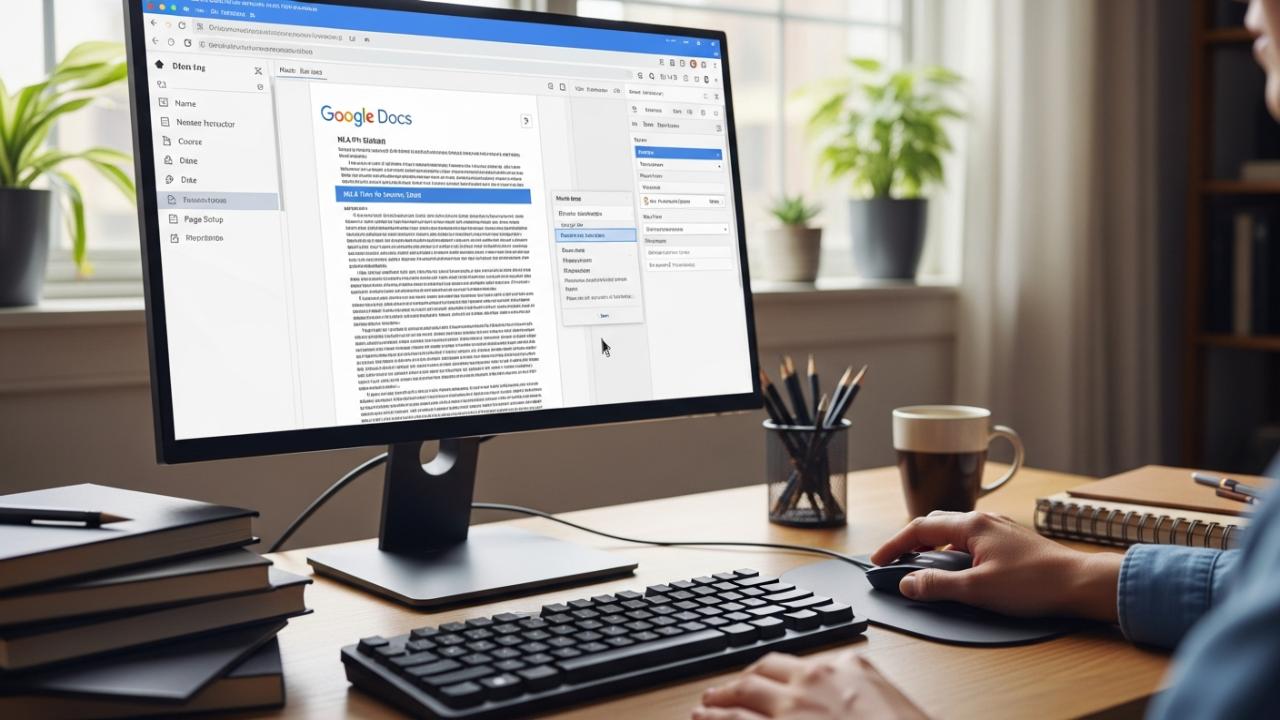
APPS • DAILYTECH.ID - Applying MLA formatting (specifically MLA 9th Edition) to a Google Docs file requires precise adjustments to margins, font, line spacing, and the inclusion of a running header. Mastering how to use mla format on google docs ensures your academic submission meets professional and institutional standards.
To use MLA format on Google Docs, set the document to 1-inch margins, 12pt Times New Roman, and double-spacing. Create a running header with your last name and page number, then add the four-line MLA heading (name, instructor, course, date) to the first page. For citations, use the built-in ‘Tools > Citations’ feature for automatic Works Cited entries and in-text citations. These essential steps provide the foundational structure for your paper, making it easy to transition into citing sources and adding content.
Setting Up the MLA Document Structure
This section details how to set up a google doc in mla format to conform to the 9th edition standards, ensuring consistency across all pages. Successfully applying these settings is the critical first step in professional academic writing.
Fundamental Document Settings (Font, Spacing, and Margins)
The integrity of an MLA-formatted paper rests on three basic document settings that must be standardized immediately upon opening a new document.
Font and Size
The MLA 9th Edition requires easily readable fonts, typically 12-point. The accepted standard remains Times New Roman, although other traditional serif fonts like Georgia or recognizable sans-serif fonts may be accepted if specified by the instructor. To change the font:
- Navigate to the font selection drop-down menu on the main toolbar.
- Select “Times New Roman” and ensure the size is set to “12.”
It is best practice to set the font before typing any content, as this guarantees uniformity.
Margins
MLA requires 1-inch margins on all four sides (top, bottom, left, and right). Google Docs often defaults to 1-inch margins, but verification is necessary.
- Go to the “File” menu.
- Select “Page setup.”
- Under the “Margins” header, manually confirm that all four fields are set to ‘1’ inch.
- Ensure the “Apply to” field is set to “Whole document.”
Line Spacing
The entire document, including the MLA heading, title, body paragraphs, and the Works Cited page, must be double-spaced. This critical step ensures proper visual separation and allows room for instructor annotations. This addresses how to put a google doc in mla format quickly.
- Select all existing text in the document (Ctrl+A or Cmd+A).
- Navigate to the “Format” menu.
- Select “Line spacing.”
- Choose “Double.”
- Important Note: Ensure that there is no extra space added between paragraphs. After setting “Double,” revisit the “Line spacing” menu and verify that “Add space before paragraph” and “Add space after paragraph” are not checked.
Creating the Running Header and Page Numbers
The running header is a strict requirement for MLA papers, appearing in the upper right corner of every page, containing the writer’s last name followed by the automatic page number. This addresses how to do mla format page numbers on google docs.
- Header Access: Navigate to the “Insert” menu, then select “Header & page number,” and choose “Header.” This will activate the header box at the top of the page.
- Page Number Insertion: While inside the header box, go back to the “Insert” menu, select “Header & page number,” and choose the option for page numbers that start numbering on the first page (usually the first option). This ensures the numbers automatically increment.
- Last Name Requirement: Once the number placeholder appears, type your last name immediately preceding the page number, followed by a single space (e.g., Smith 1).
- Alignment Check: Ensure the entire header text (Last Name and Page Number) is right-aligned. Google Docs usually defaults to this alignment within the header, but confirmation is advised.
Formatting the MLA Heading and Title
The MLA heading is specific to the first page and appears left-aligned, double-spaced, and contains four essential lines of information.
- The Four-Line Heading: Starting on the first line of the document (below the running header), type the following four items, each on its own double-spaced line:
- Your Full Name (e.g., Jane M. Doe)
- Instructor’s Name (e.g., Professor Johnson)
- Course Name and Number (e.g., English 101)
- Date (formatted as Day Month Year, e.g., 26 January 2026)
- Centering the Title: Hit Enter once after the date line. Center the cursor using the alignment tools. Type your paper’s title. The title should use standard title capitalization (capitalize major words) but should not be bolded, underlined, italicized, or placed in quotation marks (unless it includes the title of another work).
- Starting the Body: Hit Enter once after the title, return the cursor to left alignment, and begin typing your introduction.
Applying the First Line and Hanging Indent
Two types of indentation are critical for an MLA paper: the standard first-line indent and the specialized hanging indent.
Body Paragraph Indentation
All body paragraphs must begin with a half-inch indent.
- Application: Place the cursor at the beginning of the first sentence of a paragraph and press the “Tab” key once. This automatically creates the half-inch indent (how to indent for mla format on google docs).
- Consistency: Ensure you use the Tab key only once at the beginning of each new paragraph, not five spaces.
Hanging Indent Preparation
The hanging indent is unique to the Works Cited page and requires the first line of an entry to be flush left, while all subsequent lines of that entry are indented a half-inch. While the Google Docs citation tool usually manages this automatically, preparation is key.
If you are formatting the Works Cited page manually, or if the auto-tool fails, you will need to master how to do hanging indent mla format on google docs using the ruler:
- Highlight all the text on the Works Cited page.
- Go to the “View” menu and ensure “Show ruler” is checked.
- On the left margin of the ruler, there are two small markers: the upper inverted triangle (First Line Indent) and the lower rectangle (Left Indent).
- Drag the lower rectangle (Left Indent) to the 0.5-inch mark on the ruler.
- Then, drag the upper inverted triangle (First Line Indent) back to the 0-inch mark. This separates the two markers and forces the hanging indent pattern.
Utilizing Automatic Tools for Citations and Works Cited
Learning how to do automatic mla format on google docs is crucial for streamlining the citation process using Google Docs’ native features, ensuring that sources, in-text citations, and the bibliography are correctly formatted according to MLA 9 guidelines.
Enabling the Citation Tool
Google Docs provides a powerful, integrated citation manager that simplifies the process of creating both parenthetical citations and the final Works Cited list.
- Accessing Tools > Citations: Navigate to the “Tools” menu in the top navigation bar.
- Select “Citations.” A sidebar panel titled “Citations” will appear on the right side of your document.
- Selecting MLA 9th Edition: At the top of the sidebar, find the drop-down menu labeled “Style.” Ensure that “MLA 9th Edition” is selected. This ensures all generated citations adhere to the current formatting rules.
Adding Sources to the Citation Manager
Before you can generate citations, you must input the source data into the manager.
- Adding a Source: Click the “+ Add citation source” button within the sidebar.
- Source Type Selection: The tool prompts you to select the type of source you are citing (e.g., Book, Website, Journal Article, Film). Accurate selection is vital because required input fields vary significantly by source type.
- Data Entry: Fill in the required fields with the necessary publication details (author, title, publisher, date, URL, etc.). Be meticulous, as the quality of the generated citation relies entirely on the accuracy of your input. Once all information is entered, click “Add citation source.”
The source will now appear in your list within the citation sidebar. You can repeat this process for every source you reference in your paper. This addresses how to use the mla format in google docs efficiently for source management.
Generating In-Text Citations
In-text parenthetical citations (e.g., (Smith 42)) are necessary whenever you quote, paraphrase, or summarize material from a source.
- Placing the Cursor: Position your cursor in the paper immediately following the material you are citing, but before the period or concluding punctuation mark.
- Inserting Parenthetical Citations: In the Citations sidebar, locate the source you wish to cite. Hover over the source listing until the “Cite” button appears.
- Click “Cite.” A bracketed parenthetical citation will appear in your text.
- Customization: Google Docs allows you to adjust the details if necessary. For instance, if you only need the page number, the tool will provide a text box where you can input the exact page range, ensuring you know how to do a mla citation on google docs precisely.
Creating the Works Cited Page
The Works Cited list must appear on a separate page at the end of the document and contain every source cited in the body of the paper. This is the final and most critical step in completing the formatting.
- Page Break Preparation: Place your cursor at the very end of your paper’s main text. Navigate to “Insert” > “Break” > “Page Break.” This ensures the Works Cited list always starts on a fresh page, regardless of how much you write.
- Formatting the Works Cited Title: On the new page, type the phrase “Works Cited.” Center this title using the alignment tools. Do not bold, italicize, or increase the font size. Ensure this title is double-spaced, just like the rest of the paper.
- Generating the List: Return to the Citations sidebar. Scroll to the very bottom and click the button labeled “Insert Works Cited.”
Google Docs automatically generates the bibliography list immediately below the centered title. Crucially, the tool handles:
- Alphabetical Order: Sources are arranged alphabetically by the first element listed (usually the author’s last name or the title).
- Hanging Indents: The required hanging indent is applied to every entry, ensuring conformity to how to do mla format on google docs works cited.
You must review the automatically generated list for common errors, such as missing capitalization (which Google Docs cannot correct) or incorrect dates, before final submission.
MLA Formatting on Mobile and Other Devices
While a desktop computer offers the easiest access to comprehensive formatting tools, students often need to manage how to use mla format on google docs on mobile devices or Chromebooks.
Formatting on the Google Docs Mobile App
The Google Docs mobile app (available on iOS and Android) is fully functional for editing but requires knowing where to find the desktop-standard controls. This addresses how to do mla format on google docs app.
- Accessing Formatting Controls: To change font, size, and line spacing, select the text you wish to format, and tap the “A” icon (Format) usually located in the top toolbar or within the three-dot menu. This opens the text and paragraph formatting menus where you can set Times New Roman 12pt and Double spacing.
- Handling Headers and Page Numbers on Mobile: Inserting the specialized running header is often the most challenging part on mobile.
- Navigate to “Insert” (the plus symbol, ‘+’).
- Select “Page number.” Choose the style that places the page number in the header starting on page 1.
- To add your last name, you must manually double-tap the header area to open the editing box. Type your last name and a space before the page number placeholder. Note: The full functionality of the Citations tool is generally only available on the desktop version; mobile users may need to input citations manually or use the desktop version for generating the final Works Cited page.
Tips for Chromebook and iPad Users
Chromebooks and iPads utilize physical keyboards, which significantly ease the formatting process, even if they access the web or app versions of Google Docs.
- Keyboard Shortcuts: Utilizing shortcuts can save immense time compared to tapping through menus.
- Select All: Ctrl + A (Chromebook) or Cmd + A (iPad with external keyboard).
- Double Spacing: Ctrl + Shift + 2 (Chromebook) or Cmd + Option + 2 (iPad).
- Undo/Redo: Ctrl + Z / Ctrl + Y (or Cmd equivalents).
- Screen Differences: When dealing with how to get mla format on google docs ipad, the ruler for manual hanging indent adjustment (as detailed earlier) can be highly sensitive. It is often easier to set the hanging indent using a brief desktop session or relying solely on the automatic generator tool.
- Document Upload: For complex formatting elements like complex tables or specific formatting instructions, it is advisable to complete the foundational MLA setup on a desktop browser first, then use the mobile device only for text input and minor edits.
FAQs – How to Use MLA Format on Google Docs
Yes, Google Docs offers built-in MLA templates when you start a new document, but these often adhere to older MLA editions or may require updates. Always verify that the margins, font (Times New Roman 12pt), and header setup match the current MLA 9th Edition standards before starting to write.
If the automatic citation tool fails to apply the hanging indent, highlight the affected entries. Go to View > Show Ruler. Then, use the ruler controls: drag the bottom rectangular marker (Left Indent) to 0.5 inches, and drag the top inverted triangle (First Line Indent) back to 0 inches.
The primary difference lies in the emphasis on flexibility and citing new media formats, especially social media and digital texts. MLA 9 formalizes the Core Elements list and recommends inclusive language guidelines, but the basic document layout (margins, header, spacing) remains largely identical to MLA 8.
Go to Insert > Header & page number > Page numbers. Choose the option that starts on page 1. Once the page number appears in the header box, place your cursor before it, type your last name, and add a single space. Ensure the content is right-aligned.
The citation tool is available under the main ‘Tools’ menu and is titled ‘Citations.’ If you cannot locate it, ensure you are using the full desktop version of Google Docs in a web browser (not a stripped-down enterprise edition or the mobile app, which sometimes hides advanced features).



