APPS • DAILYTECH.ID - Mastering how to do find and replace in Google Docs is essential for editing long documents efficiently across desktop and mobile devices. Whether you are using a keyboard shortcut or the menu navigation, this tool allows you to swap words or phrases instantly throughout your entire file.
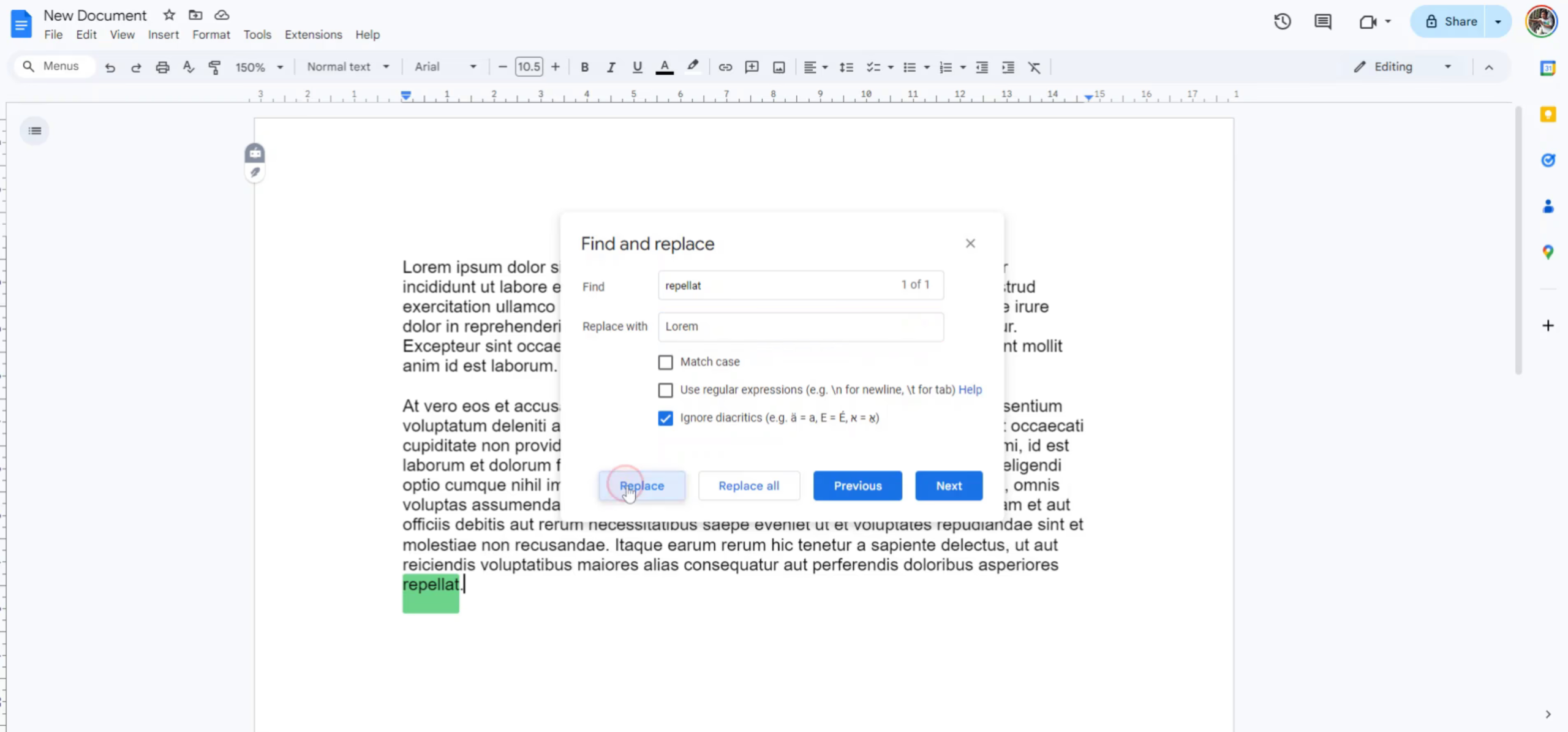
To find and replace in Google Docs, press Ctrl + H on Windows/ChromeOS or Command + Shift + H on Mac. Alternatively, go to Edit > Find and replace. Enter the text you want to find and the new text, then select Replace or Replace all to update your document instantly. Follow the detailed steps below to learn how to activate find and replace in google docs on any device.
How to Find and Replace in Google Docs on Computer
Using a desktop browser is the most efficient way to access find and replace in google docs on pc or Mac. This method gives you full control over your text edits with just a few clicks. When you are working on a laptop or a desktop, you have the advantage of a full keyboard and a mouse, making complex document manipulation much smoother than on a smaller touchscreen.
Keyboard Shortcuts for Desktop
The fastest way to search and replace in google docs is by using a keyboard shortcut. These combinations allow you to bypass the top navigation menus and jump straight into the editing process. For Windows and Chromebook users, the find and replace in google docs shortcut is Ctrl + H. If you are wondering how to find and replace in google docs mac, the shortcut is slightly different: Command + Shift + H.
It is important to distinguish these from the standard “Find” shortcut, which is simply Ctrl + F (Windows) or Command + F (Mac). While the standard “Find” tool allows you to highlight specific words in the document, it does not provide the “Replace” field. To get the full find and replace functionality, you must include the “H” or the “Shift” modifier depending on your operating system. These commands immediately open the find and replace dialog box in the center of your screen.
Using the Menu Navigation
If you prefer not to use shortcuts or simply cannot remember them, you can manually activate find and replace in google docs. Simply click on the Edit menu in the top toolbar. From the dropdown list that appears, select Find and replace at the very bottom. This will bring up the same search box where you can input your text. This manual method is helpful if you are using a public computer or a device with a keyboard layout that makes shortcuts difficult to execute.
How to Find and Replace in Google Docs App (Mobile & iPad)
If you are working on the go, you can still use find and replace in google docs mobile. The process is slightly different on a touchscreen interface compared to a computer, as mobile browsers and apps often hide advanced editing tools to save screen real estate.
Steps for Android and iPhone Users
To access this tool on a smartphone, open your document in the Google Docs app. Look for the three dots (More) icon, usually located in the top right corner of the screen. Tap this icon to open the settings and options menu. From the list, select Find and replace.
A search bar will appear at the top of your screen. Type the word or phrase you are looking for. The app will highlight all instances of that word in the document. You can use the arrows next to the search bar to move between different occurrences. To replace text, tap the gear icon or the replace button (depending on your specific app version), enter the new text, and choose whether to replace one instance or all of them.
How to Find and Replace in Google Docs on iPad
For tablet users, specifically those looking for how to find and replace in google docs ipad, the interface is a hybrid of the mobile and desktop versions. If you are using an iPad with a physical keyboard attachment, the standard Mac shortcut Command + Shift + H may work within the app.
However, if you are using the touchscreen, you will follow the same steps as the mobile version. Tap the three dots in the top right, select Find and replace, and input your search terms. The iPad version is particularly useful for students and editors who use an Apple Pencil to mark up documents but need the speed of bulk text replacement to finalize their drafts.
Advanced Search and Replace Techniques in Google Docs
Beyond simple word swaps, you can use advanced find and replace in google docs to handle complex formatting or special characters. This is useful for high-level document cleanup, such as changing a character’s name in a novel or updating a recurring date in a legal contract.
Using Find and Replace All
To update every instance of a word at once, click the Replace all button in the dialog box. This is a powerful feature, but it should be used with caution. For example, if you want to replace the word “cat” with “dog,” clicking “Replace all” might accidentally turn the word “category” into “dogegory.” To prevent this, always review your document or use the “Match whole word” option described below.
Utilizing Search Filters
The find and replace dialog box offers several checkboxes that provide more granular control:
- Match case: Enable this to ensure you only replace words with the exact capitalization you specified. If you search for “Apple” with match case enabled, the tool will ignore “apple” in lowercase.
- Match whole word: This is the best way to avoid the “dogegory” mistake mentioned earlier. It ensures that the tool only finds the exact word you typed, not that string of letters hidden inside another word.
- Match using regular expressions: This is the most advanced feature available. Regular expressions (Regex) allow you to find and replace enter in google docs (using
\n) or find patterns like email addresses and phone numbers.
Handling Special Formatting and Characters
Many users wonder how to find and replace bold in google docs or how to find and replace italics in google docs. Native Google Docs functionality does not currently allow you to search for formatting styles like bold, italics, or superscript directly through the standard find and replace tool. To achieve this, you often need to use third-party add-ons from the Google Workspace Marketplace, such as “Advanced Find and Replace.” These tools expand the native capabilities to include style-based searches.
However, you can find and replace special characters like tabs and paragraph breaks using Regular Expressions. If you want to find a paragraph break, you would check the “Match using regular expressions” box and type \n into the “Find” field. This is incredibly helpful for cleaning up documents that have been copy-pasted from websites and contain awkward line breaks.
How to Find and Replace in Google Sheets
Data management often requires you to do a search and replace in google sheets to update cell values, names, or even parts of a formula. Because Sheets is organized into cells and rows, the tool functions with a bit more complexity than in Docs.
To do a find and replace in google sheets, use the same shortcut: Ctrl + H on Windows or Command + Shift + H on Mac. A pop-up window will appear with several specific options for spreadsheet management.
Search Scope and Formulas
In Google Sheets, you can define the “Search” scope. You can choose to search within the “Current sheet,” “All sheets” in the workbook, or even a “Specific range” of cells. This prevents you from accidentally changing data on a different tab that you didn’t intend to touch.
Another critical feature is the ability to find and replace in google sheets formula strings. By checking the box Also search within formulas, you can update cell references or function names across your entire spreadsheet. For example, if you need to change all your SUM functions to AVERAGE, this tool makes it a five-second task rather than a manual nightmare.
Case Sensitivity in Data
Just like in Docs, you can toggle “Match case” and “Match entire cell contents.” The latter is particularly important in data management. If you are searching for the ID “12” and you don’t match entire cell contents, the tool will also find “120,” “212,” and “1255.” Checking the “Match entire cell contents” box ensures that you are only targeting the specific data point you need.
Best Practices for Efficient Editing
To make the most of the find and replace tool, you should always keep a few best practices in mind. These tips will help you avoid common mistakes and ensure your document remains professional and error-free.
How to Undo Find and Replace in Google Docs
One of the most common questions is how to undo find and replace in google docs if a “Replace all” action goes wrong. Fortunately, Google Docs tracks these changes in your version history. If you realize you made a mistake immediately, simply press Ctrl + Z (Windows) or Command + Z (Mac) to undo the last action. If you realize the mistake much later, you can go to File > Version history > See version history to restore the document to a state before the find and replace was executed.
Double-Checking Before “Replace All”
Before you commit to a “Replace all” action, it is a good habit to click the “Find” button and cycle through the first three or four instances of the word. This allows you to see how the replacement looks in context. This “spot check” is the best way to catch potential issues with capitalization, spacing, or unintended word matches before they propagate throughout a hundred-page document.
FAQs – How to Do Find and Replace in Google Docs
If you have just performed a find and replace and realized there is an error, press Ctrl + Z on Windows or Command + Z on Mac. This will immediately revert the changes. If you need to revert changes from a previous session, go to File > Version history to find an earlier version of your document.
The native find and replace tool in Google Docs does not support searching for formatting like bold, italics, or superscript. To perform these actions, you must install a third-party add-on from the Google Workspace Marketplace. Alternatively, you can use Regular Expressions for certain special characters like paragraph breaks.
The keyboard shortcut for find and replace on a Mac is Command + Shift + H. Note that this is different from the simple find shortcut, which is Command + F. Using the Shift and H keys together opens the full dialog box with the replace field.
Yes. To remove a word entirely, type the word you want to delete in the Find box and leave the Replace with box completely empty. When you click Replace all, Google Docs will delete every instance of that word without replacing it with anything else.
To find special characters, open the find and replace dialog and check the box for Match using regular expressions. To find a paragraph break or enter key, type \n. To find a tab character, type \t. You can then replace these with spaces or other characters.