PC • DAILYTECH.ID - If you’re trying to adjust volume for each app on Windows 10 and 11, you may notice some apps are too loud while others are barely audible. This is a common issue when using multiple apps at the same time. Fortunately, you can control volume for individual apps, making it easy to balance your audio without installing extra software.
Quick Answer: Adjust Volume for Each App on Windows 10 & 11
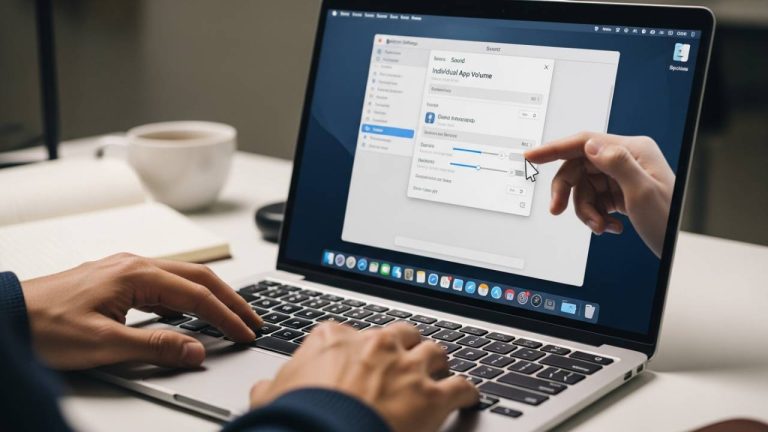
To adjust app volume on Windows 10 and Windows 11, open the Volume Mixer by right-clicking the speaker icon on the taskbar. Then move the slider for each app to control its sound individually. You can also use App Volume and Device Preferences in Settings for more advanced control.
How to Adjust Volume for Each App on Windows 10 & 11 (Fastest Method)
Use Volume Mixer to Adjust App Volume
The easiest way to control volume for individual apps is by using the Volume Mixer. It lets you manage sound levels for each app separately in real time.
Steps:
- Right-click the speaker icon in the taskbar
- Click Open Volume Mixer
- Find the app you want
- Adjust the slider to change its volume
Adjust App Volume on Windows 10 & 11 via Settings
Open App Volume and Device Preferences
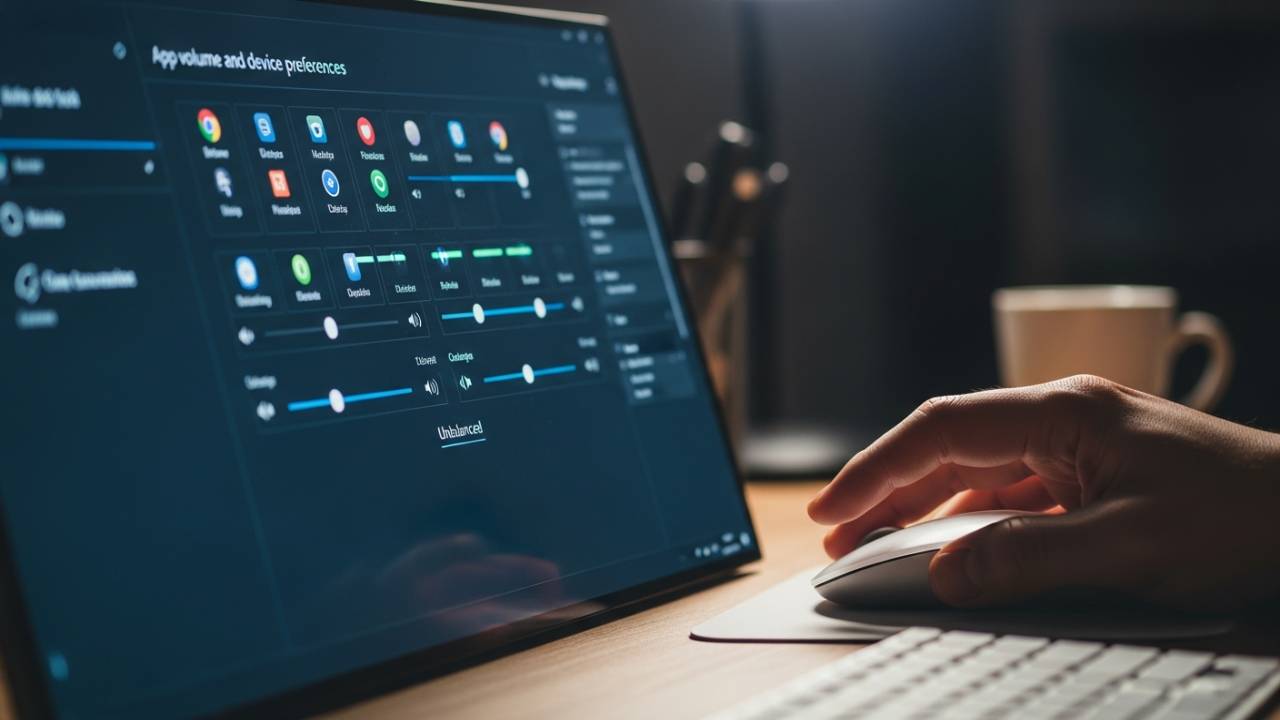
Another way to manage app sound settings on Windows is through Settings, which gives more control over audio output.
Steps:
- Open Settings
- Go to System > Sound
- Click Advanced sound options
Control Volume for Each App Individually
- Adjust volume per app
- Assign different output devices
- Useful when using headphones and speakers at the same time
Alternative Method: Adjust App Volume on Windows 10 & 11 via Settings
If you need more control, you can manage app sound settings on Windows 10 and 11 using App Volume and Device Preferences. This method lets you control both volume levels and output devices for each app.
Steps:
- Open Settings
- Go to System > Sound
- Click Advanced sound options
- Adjust volume for each app
This method is ideal if you are using multiple audio devices, such as headphones and speakers at the same time.
When to Use Each Method
- Use Volume Mixer for quick adjustments when you need to fix sound levels fast
- Use Settings for more advanced control, especially for managing output devices
- Use third-party tools only if you need additional features
This helps you choose the right method based on your needs without unnecessary steps.hing.
Fix: Volume Mixer Not Showing Apps
If you can’t control volume for individual apps because the app doesn’t appear in Volume Mixer, try these fixes:
- Make sure the app is open and running
- Play audio inside the app so Windows can detect it
- Restart the app if it still doesn’t show
- Restart the Windows Audio service to refresh sound settings
Fix: App Volume Keeps Resetting
If your settings don’t stick when you adjust app volume on Windows, the issue is usually caused by app-level overrides or system settings.
- Check the app’s internal audio settings, as some apps control volume independently
- Disable audio enhancements in Windows Sound settings
- Update or reinstall your audio drivers
- Restart your PC after making changes to ensure settings are saved
Fix: One App Too Loud or Too Quiet
If you change volume per app on Windows but one app still sounds off, the issue is usually inside the app itself.
- Lower or increase volume inside the app first
- Then fine-tune using Volume Mixer
- Check if the app uses its own audio output settings
- Avoid setting all apps to maximum volume to prevent distortion
FAQ – Adjust Volume for Each App on Windows
The app may not be running or not producing sound, so it won’t appear in the Volume Mixer.
Yes, Windows saves per-app volume levels, but some apps can override these settings with their own audio controls.
Yes, both Windows 10 and Windows 11 support adjusting volume for each app, although the interface looks slightly different.
Yes, you can use Volume Mixer for quick access and real-time adjustments without going into full system settings.
Conclusion
You can adjust app volume on Windows 10 and 11 using the built-in Volume Mixer or advanced sound settings. For quick changes, Volume Mixer is the fastest option. If you need more control, especially with multiple audio devices, the Settings method offers better flexibility.