
APPS • DAILYTECH.ID - To set the correct answer for a Google Forms multiple choice question, you must first enable the Quiz setting. Once enabled, click on the question, select ‘Answer Key,’ choose the correct option(s), assign point values, and click ‘Done.’ This process transforms the standard form into a graded assessment tool.
Setting the correct answer in Google Forms multiple choice questions is crucial for automating grading and transforming a simple survey into a functioning quiz. To set the correct answer for a Google Forms multiple choice question, you must first enable the Quiz setting. Once enabled, click on the question, select ‘Answer Key,’ choose the correct option(s), assign point values, and click ‘Done.’ This process transforms the standard form into a graded assessment tool. Mastering this setup allows users to efficiently create and manage effective online assessments.
The Essential First Step: Turning Your Form into a Quiz
If you intend to set answers in Google Form quiz format and assign automatic grading, the first requirement is activating the quiz functionality. Standard Google Forms questions, even when created using the multiple choice format, do not inherently have an answer key feature. Without enabling the quiz mode, the form operates merely as a data collection tool or a survey, and the critical controls needed to set the correct answer in Google Forms will remain locked. This foundational step is often the barrier users face when attempting to grade assessments automatically.
Locating the Settings Tab
The process begins within the editor interface of your form. Regardless of whether you started with a blank form or imported existing data, you must navigate to the gear icon or ‘Settings’ tab, usually located at the top right of the form editor screen, near the ‘Send’ button. Clicking this tab opens a comprehensive menu that controls the form’s functionality, security, response collection, and, most importantly, quiz capabilities.
Activating the ‘Make this a quiz’ Toggle
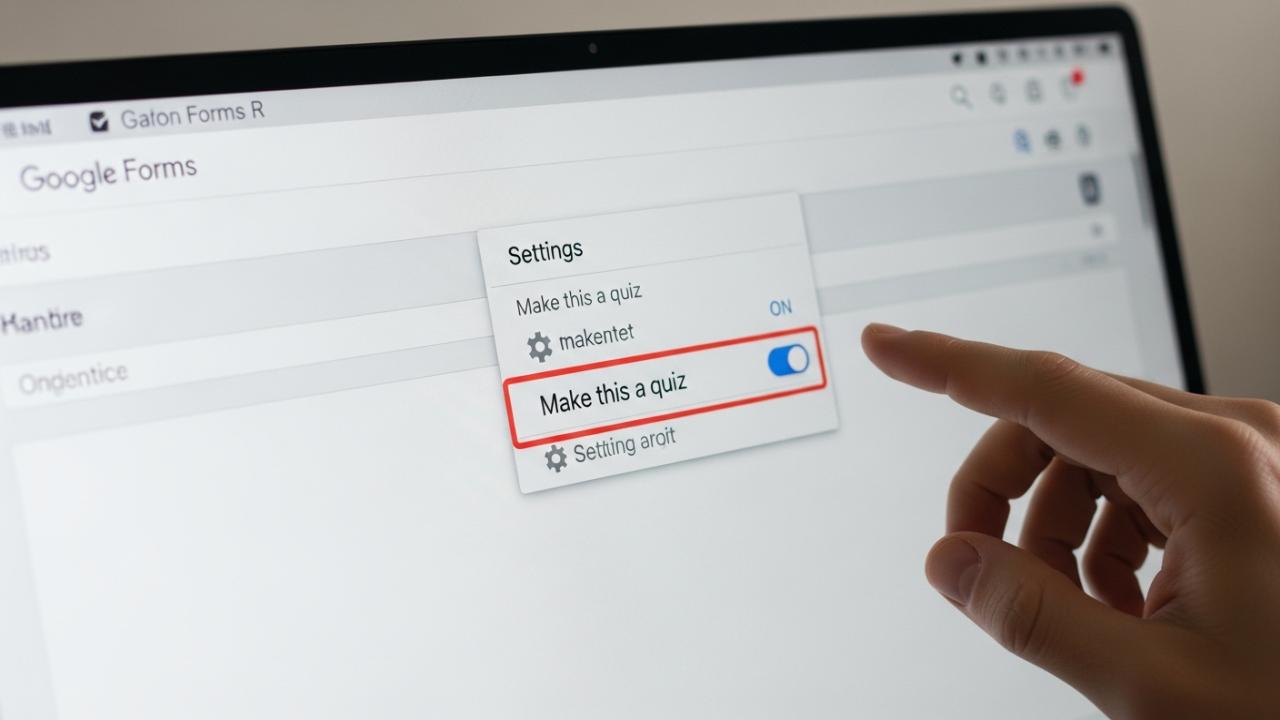
Under the Settings menu, you will find a dedicated section labeled ‘Quizzes.’ This is the control center for all automated grading features. Locate the option labeled ‘Make this a quiz’ and toggle it to the ‘On’ position.
This single action immediately unlocks the Answer Key functionality necessary to set the correct answer in Google Forms. Upon activation, several new options appear instantly, allowing for granular control over the quiz experience:
- Grade Release Settings: You must review the options for when grades are released. You can choose ‘Immediately after each submission’ (best for objective questions like multiple choice) or ‘Later, after manual review’ (necessary if the quiz contains open-ended questions like short answer or paragraph responses).
- Respondent Settings: Here, you define what the respondent can see after submission. This typically includes whether they see missed questions, correct answers, and point values. For high-stakes assessments, administrators often toggle off the option to show correct answers immediately to prevent sharing.
Enabling quiz mode is a non-destructive action; it does not erase your existing questions but merely equips them with grading potential. After configuring the quiz settings to your preference, you can return to the ‘Questions’ tab to begin defining the specific answer keys.
Step-by-Step Guide to Setting the Correct Answer Key
Once the form is configured as a quiz, you can proceed to define how to add answer to Google Form multiple choice questions individually. This is the precise methodology for how to set the correct answers on Google Forms for automated evaluation.
Creating the Multiple Choice Question
Before setting the answer key, ensure the question itself is properly formatted. To make multiple choice in Google Form, select the question type menu (usually defaulting to Multiple Choice when you add a new question) and input your question text and all possible answer options. Remember that standard Multiple Choice questions utilize radio buttons, meaning only one selection is possible per respondent.
Selecting the Question and Accessing the Answer Key
Click directly on the multiple choice question you wish to grade. When the question editing interface opens, a new ‘Answer Key’ link will appear below the answer options, typically accompanied by a point value setting (initially zero). This link replaces the standard ‘Required’ toggle visibility for a brief moment. Click ‘Answer Key’ to enter grading mode.
Assigning Points and Selecting the Correct Option
Within the Answer Key interface, you have two primary actions:
- Define Point Value: Look for the small text box, usually in the top right corner of the question block, where the point value is displayed. Use the up/down arrows or type directly into the box to define the point value for the question (e.g., 1 point for a simple recall question, 5 points for a complex critical thinking question). This point assignment is essential for the automated scoring system.
- Selecting the Correct Answer: Simply click on the bubble next to the option that represents the correct answer. When you successfully set answer on Google Form, a vibrant green checkmark will instantly appear over that option, indicating to the system that any respondent selecting this choice will be awarded the specified points. If multiple options are selected erroneously while in Multiple Choice mode, Google Forms will only register one and may treat the question as having an undefined answer key if confusion arises, so ensure only the intended correct bubble is checked.
Adding Answer Feedback (Optional but Recommended)
For educators and trainers utilizing Google Forms for instructional purposes, adding feedback significantly enhances the learning experience. Google Forms allows you to provide automated feedback to respondents based on whether they answer correctly or incorrectly, transforming the quiz from a simple assessment into a teaching tool.
Click ‘Add answer feedback’ below the key settings. You will be prompted to enter feedback for two distinct scenarios:
- Incorrect Answers: Provide text explaining why the chosen answer was wrong, perhaps referencing the source material or a related concept.
- Correct Answers: Offer positive reinforcement or deepen the learning by providing context or additional information related to the correct choice.
This feature is particularly valuable when you want to use the quiz results not just for grading, but for guiding student review. Once the points, the correct answer, and any desired feedback are finalized, click ‘Done’ in the lower right corner of the question block to save the Answer Key configuration and exit grading mode.
Mastering Different Question Structures
A significant area of confusion arises when users try to define how to allow multiple answers in Google Forms multiple choice questions. The fundamental difference between the two primary selection question types dictates whether one or more correct options can be designated.
When to Use Radio Buttons (Multiple Choice, Single Answer)
The ‘Multiple Choice’ option uses circular radio buttons, which restrict the respondent to selecting only one correct option from the list. This format is ideal for:
- Standardized tests (e.g., “Which year did event X occur?”).
- Mutually exclusive answers (e.g., “Select the best definition”).
- Quick fact recall where absolute precision is required.
If you are creating a standardized test or quiz where only one answer is fundamentally correct, always make multiple choice in Google Form using this specific setting. Attempting to select multiple correct answers in the ‘Multiple Choice’ Answer Key will lead to an error or unexpected scoring behavior, as the form expects only one winning path.
When to Use Checkboxes (Allowing Multiple Answers)
To effectively choose multiple answers in Google Forms and grade the submission automatically based on partial or complete selection accuracy, you must change the question type from ‘Multiple Choice’ to ‘Checkboxes.’ Checkboxes use square selection boxes, allowing the respondent to select any number of options simultaneously.
When using Checkboxes, the process to set answers in Google Form quiz remains largely the same within the Answer Key, but you are now permitted to select multiple correct options.
For example, if the question asks, “Select all continents that touch the Atlantic Ocean,” and the correct answers are North America, South America, Europe, and Africa, you would check all four within the Answer Key. A respondent receives the full point value only if they select all four correct options and none of the incorrect options. This addresses the functionality needed for creating a google form multiple choice multiple answers type question structure.
If a respondent selects only three of the four correct answers, or selects all four correct answers plus one incorrect answer, they typically receive zero points, depending on the advanced grading logic enabled in the form’s settings (though Google Forms defaults to all-or-nothing grading for checkbox questions).
Advanced Configuration and Assessment Deployment
Effective quiz management goes beyond simply setting the answer key; it involves careful configuration of submission settings and understanding how different question types interact.
Handling Mixed Question Formats
It is common to create an assessment that combines closed and open question types. If you create a quiz that features google form multiple choice and short answer fields, it is imperative to remember that the auto-grading function only applies to closed formats (Multiple Choice, Checkboxes, Dropdowns, Linear Scale).
Short Answer and Paragraph responses must be reviewed and scored manually, regardless of how clearly you defined the answer key for the multiple-choice section. If your quiz includes manual scoring requirements, ensure your Quiz settings are set to release grades ‘Later, after manual review.’ This prevents students from receiving a partial, unfinalized grade immediately after submission, which can cause confusion.
Utilizing Point Weighting and Required Fields
When defining google forms how to set correct answers, pay close attention to the point allocation. Varying the point value for questions based on difficulty (e.g., 1 point for basic recall, 3 points for analysis) is a standard practice that helps accurately reflect the respondent’s mastery level.
Furthermore, consider using the ‘Required’ toggle for all assessment questions. This ensures that a respondent cannot submit the form without attempting every question, guaranteeing a comprehensive attempt and preventing inadvertently low scores due to skipped items.
Testing and Deployment Protocol
Before distributing the link to your target audience (be they students or trainees), always perform a thorough test run. Click the ‘Preview’ eye icon at the top of the editor and submit two test responses: one perfectly correct and one with calculated errors.
Review the corresponding responses tab to verify that:
- The point totals are calculating exactly as intended based on the answer key definitions.
- The green checkmarks are correctly displayed on the correct answers in the grading view.
- Any custom feedback you added is triggering appropriately for both correct and incorrect responses.
This final check guarantees that the meticulous work of defining google forms how to set correct answers translates into an accurate, fully automated, and professional assessment experience for all users.
FAQs – How To Set Answer In Google Form Multiple Choice
To enable quiz settings, navigate to the ‘Settings’ tab (the gear icon) in the upper right corner of the form editor. Locate the ‘Quizzes’ section, and toggle the setting labeled ‘Make this a quiz’ to the ‘On’ position. This action unlocks the Answer Key functionality.
No, standard ‘Multiple Choice’ questions (radio buttons) only allow for one correct answer selection. If you require respondents to select multiple correct options, you must change the question type to ‘Checkboxes,’ which allows you to define multiple correct answers in the Answer Key.
‘Multiple Choice’ uses radio buttons, restricting the user to selecting only one option. ‘Checkboxes’ use square selection boxes, allowing the user to select any number of options, making it suitable for questions that require multiple correct answers (e.g., “Select all that apply”).
Once the quiz setting is enabled, access the ‘Answer Key’ for the specific question. Within the Answer Key interface, locate the point counter box, usually in the upper right corner of the question block, and manually input the desired numerical point value for that question.
Yes, Google Forms automatically grades all objective question types, such as Multiple Choice, Checkboxes, and Dropdowns, immediately upon submission, provided you have successfully set the answer key and point values for those questions. Short answer and paragraph responses require manual review.



