
APPS • DAILYTECH.ID - Your Google Form link is likely not working due to incorrect sharing permissions, meaning the form is restricted to specific users or domain members. Other common culprits include browser cache corruption, network connectivity problems, or the form creator having disabled the “Accepting Responses” setting. Check the Form settings for external access and ensure the URL was copied completely.
The failure of a Google Form link to open or load is often traced back to configuration issues within the form settings or localized browser/device limitations. Addressing the question, “why is my google form link not working,” requires a systematic troubleshooting approach, starting with link integrity and moving through permission layers before diagnosing device-specific failures.
Understanding Common Causes for Google Form Link Failures
Troubleshooting why your Google Form link is not working requires diagnosing whether the issue lies with the link itself, the form’s settings, or the user’s device. This section addresses the core reasons why you can’t open a Google Form link, prioritizing the most common faults encountered by both creators and respondents.
Incorrect Sharing Permissions and Access Restrictions
One of the most frequent reasons why a link is not opening is restrictive sharing settings. If you find that your Google Form is not public, or if respondents are receiving a stern “Need Permission” error, the creator must immediately adjust the sharing configuration. Google Forms defaults to restricted access when created within a G Suite environment, meaning external users will be blocked unless settings are explicitly changed. This is the primary reason why i can’t open google form link if I am using a personal email address.
How to Adjust Public Access
If you are the form creator and need the form accessible to anyone, regardless of whether they have a Google Account or are part of your organization, you must grant public access. To do this, navigate to the Settings icon (the gear) in the upper right corner of the form editing interface. Under the “General” tab (sometimes labeled “Response”), look for the section concerning restrictions.
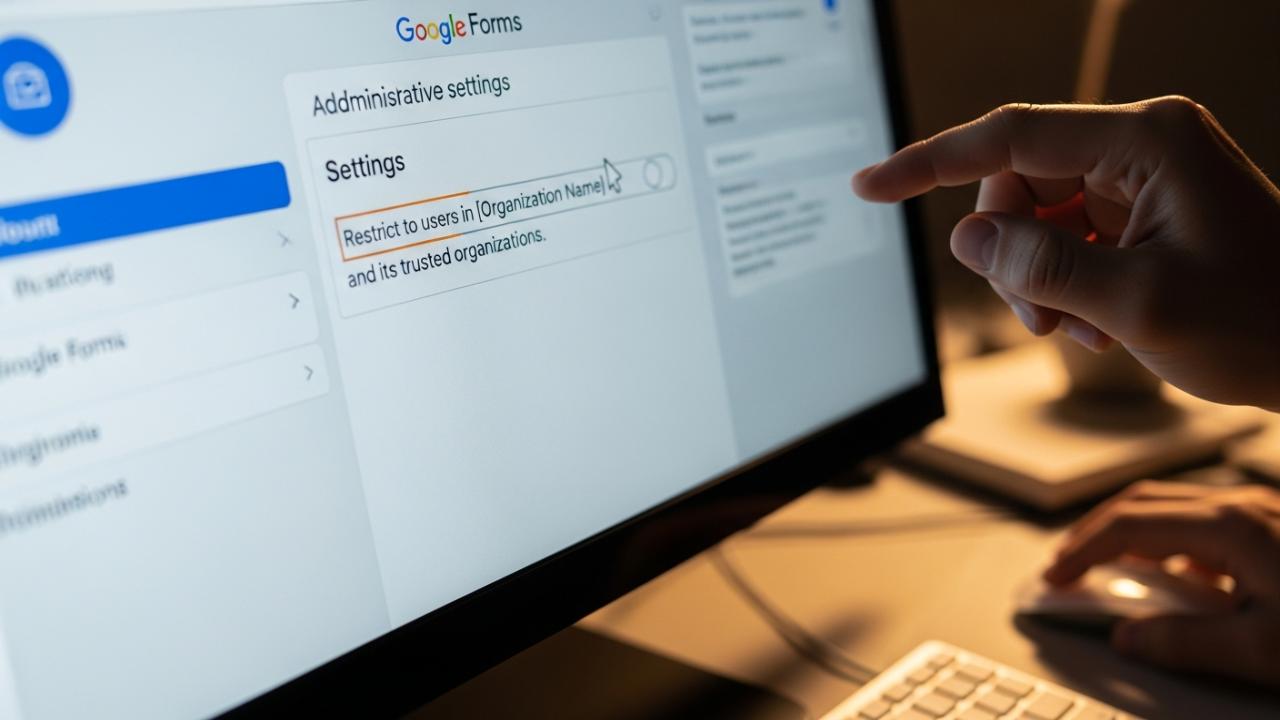
Crucially, you must locate and uncheck the box that says “Restrict to users in [Your Organization Name] and its trusted organizations.” Below this, ensure the setting for link sharing is set to “Anyone with the link can view.” Saving this change instantly resolves the issue of why my Google Form is not public and makes the link universally accessible.
The Role of Domain Restrictions
Domain restrictions are frequently the unseen barrier preventing external access. Many educational institutions and corporate entities utilize G Suite or Google Workspace. When a form is created within one of these controlled domains, the form is automatically locked down for security purposes. If a form is configured to only allow responses from users within the domain (@company.com), and a respondent tries to access it while logged into their personal Gmail account (@gmail.com), the system will throw a permissions error. If you are reporting that the Google Form link is not opening, ensure you are logged into the exact email account the creator authorized, or ask the creator to disable domain-specific restrictions entirely.
Link Integrity and URL Errors
Even a correctly configured form may fail to load if the link itself is corrupted or incomplete. When a respondent reports that the Google Form link is not clickable, it might be due to several issues related to how the URL was copied, truncated, or hyperlinked in the source material (e.g., an email, PDF document, or social media post).
A fundamental error occurs when the creator shares the ‘Edit’ link instead of the ‘Send’ link. The edit link (which contains /edit in the URL string) is only accessible to form collaborators, not general respondents. The creator must use the “Send” button (paper airplane icon) and copy the URL provided there, ensuring they use the actual public submission link.
Furthermore, if a URL is improperly copied, perhaps missing the crucial final string parameters, the server will not recognize the address, leading to a broken page or a 404 error. When distributing links, especially via platforms that auto-shorten or wrap text, it is essential to use Google’s built-in URL shortener function provided in the “Send” dialogue to ensure link integrity is maintained.
Form Closure and Response Limits
If users suddenly report that the form is not working, even though it was accessible yesterday, it may be because the form creator has manually stopped collecting data. Understanding why your Google Form is no longer accepting responses is critical for resolving access failure.
On the Form editor interface, directly under the “Responses” tab, there is a prominent toggle switch labeled “Accepting Responses.” When this switch is toggled off, any respondent attempting to open the link will instead see a standardized message stating that the form is no longer accepting submissions. The creator has control over this setting and must toggle it back on if data collection is intended to continue. They also have the option to customize the displayed message, which can help clarify why submissions are currently disabled (e.g., “The submission deadline has passed”).
Troubleshooting General Functionality Issues
When the link appears correct and the permissions are wide open, but respondents still complain, “my Google Form is not working,” the problem may stem from the user’s environment rather than the form itself. These steps address broad technical malfunctions impacting access across various desktop browsers.
Clearing Browser Cache and Cookies
Corrupted cached data is a pervasive cause of intermittent web functionality failures. Web browsers store temporary files, scripts, and login tokens (cookies) from Google Forms to speed up loading times. If these files become outdated or corrupted, they can interfere with the loading process of interactive web elements, causing the Google Form link not to open correctly, display incorrectly, or continuously spin without loading the content. This is often a necessary first step when addressing why is my Google Forms not working consistently.
Users should clear their browser’s cache and cookies completely. Alternatively, they can quickly diagnose if the issue is cache-related by attempting to open the Google Form link within a private or Incognito browsing window. Incognito mode bypasses all stored cache and cookies, providing a clean slate for the connection. If the form opens perfectly in Incognito mode, the user knows definitively that their main browser history needs to be flushed.
Checking Network Status and Firewalls
Network limitations are another significant barrier, particularly in controlled environments. If a user is on a corporate, school, or governmental network, that network may employ stringent firewalls or content filtering systems. These security measures are sometimes configured to block access to external Google Drive and Forms links, especially if they are deemed unnecessary for work or study, or if the form attempts to load external scripts.
Similarly, users utilizing a Virtual Private Network (VPN) may experience connectivity failures if the VPN server location or its configuration conflicts with Google’s regional service delivery. If the Google Form link is not opening, the user should try temporarily disconnecting from the VPN or switching to a standard mobile hotspot connection. If the form loads immediately upon changing networks, the issue is environmental—specifically, a conflict with the local firewall or network policy that is restricting access to the Google Forms domain.
Specific Fixes When the Link Isn’t Working on Mobile Devices
When a user specifically reports that the Google Form link is not opening in my phone, the diagnosis requires checking mobile-specific factors that differ from desktop environments. Mobile operating systems (iOS and Android) have unique ways of handling external links that can introduce points of failure.
App vs. Browser Conflicts
A common point of confusion on mobile devices is the interaction between default browsers (Safari, Chrome Mobile) and installed Google applications (Google Drive, Google Forms App). When a user clicks a link, the mobile operating system often attempts to force the link to open within the associated Google Drive or Google Forms app, even if the user is not properly logged into that app or if the app is outdated. This forced routing can cause the Google Form link not working on mobile to become a persistent problem.
The simplest solution is to ensure the link opens directly in a standard mobile web browser. If receiving the link via email, users should long-press the URL and select the option “Open in Default Browser” or “Copy Link Address,” then paste the address directly into the browser’s address bar. This bypasses the app ecosystem, which often resolves unexpected rendering or login issues specific to mobile environments. If the user is reporting that why google form link is not opening on my phone, checking app login status and updates is always recommended as a secondary fix.
Data Restriction Settings
Mobile users often enable various settings designed to conserve cellular data, such as Data Saver Mode (Android) or Low Data Mode (iOS). While helpful for minimizing monthly bandwidth consumption, these modes can aggressively throttle data throughput or even block certain types of dynamic content and scripts required by Google Forms to load completely.
If the form is failing to load or interactive elements (like drop-down menus or conditional logic sections) are not appearing, the user should temporarily disable any data saving or data restriction features and test the link again while connected to a strong Wi-Fi signal. High-traffic or complicated forms that rely on JavaScript elements are particularly susceptible to failure under restricted data conditions.
Resolving Submission and Response Acceptance Errors
Accessing the form is only half the battle; many users face issues when they attempt to complete it. If you find that why is my Google Form not submitting is the issue, there are typically client-side or validation fixes required, distinct from initial link access problems.
Required Fields and Validation
The most prevalent reason for submission failure is the presence of uncompleted required fields or validation errors. Google Forms will not allow a submission to proceed until every field marked with an asterisk (*) is filled out according to the form creator’s rules. The “Submit” button often fails to activate, or it appears grayed out, if required fields are missed or if input validation rules are violated.
Validation rules apply constraints such as forcing an answer to be a specific date format, a numerical range, or a valid email address. When a rule is broken, the form will highlight the problematic field in red and display an error message (e.g., “Must be a number greater than 10”). The respondent must scroll back, find all these highlighted errors, and correct them before the submission sequence can be initiated. Checking the top of the form for a general error banner is also important, as sometimes the submission error is displayed there instead of immediately next to the field.
Capacity and Destination Spreadsheet Issues
Although rare for standard questionnaires, if the response sheet linked to the Google Form reaches its cell limit, it can cause submission failures. Google Sheets has a hard limit, currently set at 10 million cells. For forms that collect large volumes of textual data or are used in automated data logging, this ceiling can eventually be hit. When the destination sheet is full, the form has nowhere to write the incoming response data, and the submission endpoint will fail, typically presenting an error message to the respondent that the form could not be submitted due to a server-side error.
If the form creator suspects this issue, they must check the destination spreadsheet’s row and column count. The fix involves navigating to the “Responses” tab, clicking the vertical three-dot menu, and selecting “Unlink form.” This breaks the connection to the full sheet. The creator should then immediately relink the form to a new, empty spreadsheet via the same menu by selecting “Select response destination” and creating a new sheet.
FAQs – Why Is My Google Form Link Not Working
You must access the Form Settings menu, typically symbolized by a cog icon. Under the General settings, find the option labeled “Restriction” or “Require sign-in.” Uncheck any box restricting access to specific domain users. Ensure the form is set to “Anyone with the link” under sharing settings before distributing the final URL.
This message means the form creator has set the sharing permissions to “Restricted.” Only specific email addresses or members of a closed domain (like a school or company) are allowed access. Contact the creator and request that your specific Google account be added to the authorized user list or that they enable public sharing.
If the hyperlink is not active, the email client may have stripped the formatting. The immediate fix is to manually highlight the entire text of the URL, copy it, and paste it directly into the address bar of your web browser. This ensures the link’s integrity is preserved outside of the email environment.
The primary reason is unfulfilled form requirements. The submission button remains inactive until all mandatory fields are completed and all input validation rules are met. Scroll through the form to locate any required fields marked with an asterisk or red error messages indicating invalid data format.
First, verify that your device is connected to a stable network, switching off data saver mode if active. If the issue persists, copy the URL and paste it directly into a standard mobile browser like Chrome or Safari, rather than letting the device try to open it through the Google Drive or Google Forms app.



