
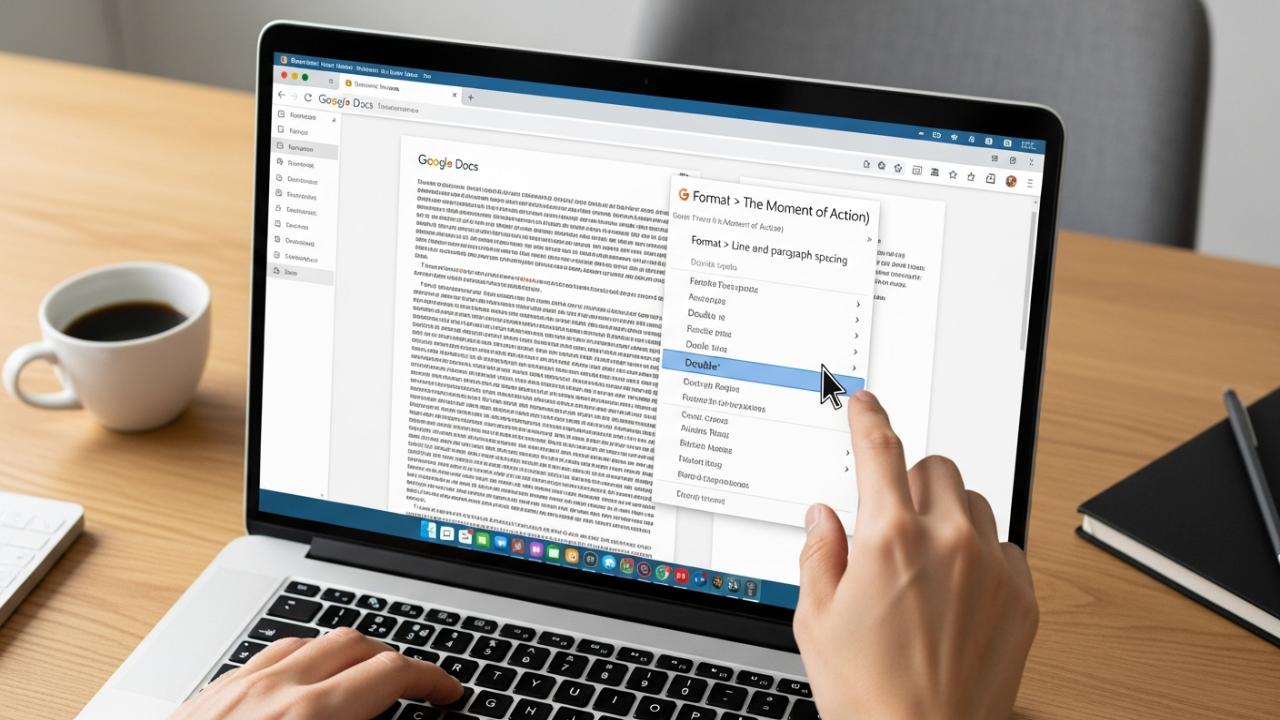
APPS • DAILYTECH.ID - Applying 2.0 line spacing, or double spacing, is a mandatory requirement for many academic papers and professional documents, and Google Docs provides a straightforward way to implement this formatting standard efficiently.
The fastest way to double space in Google Docs on a desktop or laptop is by using the Line Spacing menu. Select the text you wish to modify, navigate to Format > Line and paragraph spacing, and choose “Double.” This immediately applies 2.0 line spacing, fulfilling common academic or professional formatting requirements, but the steps vary significantly when using the mobile application interface.
Quick Guide: Double Spacing Your Google Doc on Desktop (Mac/PC/Chromebook)
For users accessing Google Docs via a web browser on a desktop, laptop, or Chromebook, applying standardized 2.0 spacing is highly intuitive, thanks to dedicated menu options and accessible toolbar icons. This desktop method is the most reliable way to apply, remove, or adjust line spacing for both specific sections and entire documents, often required when preparing an essay or research paper.
Applying Double Spacing to an Entire Document
To ensure that your whole document is formatted correctly—a critical requirement for turning in academic work—you must first select all text before adjusting the line spacing. This is the definitive guide on how to double space all text in Google Docs quickly and efficiently.
Step 1: Selecting the Text
Before you can successfully implement the formatting, you must select the body of text you intend to modify. To select the entirety of your document, the quickest method is to utilize keyboard shortcuts:
- PC (Windows or Chromebook): Press
Ctrl + A - Mac (macOS): Press
Cmd + A
Alternatively, you can manually click and drag your cursor from the beginning of the document down to the very end.
Step 2: Accessing the Format Menu
With the text selected, navigate your cursor to the main menu bar located at the very top of the Google Docs interface. Click on the Format menu.
Step 3: Navigating to Line and Paragraph Spacing
In the dropdown menu that appears after clicking Format, hover your mouse over the option labeled Line and paragraph spacing. This submenu governs all vertical text alignment settings.
Step 4: Selecting “Double” (2.0)
A final side menu will present preset spacing options. Click the option labeled Double. This action automatically converts your selected text to 2.0 line spacing, successfully achieving the standard double spacing requirement.
Alternative Shortcut: Using the Toolbar Icon
Many professional writers and students prefer the toolbar icon for speed, which allows you to add double space in Google Docs without navigating deep into the Format menu.
- Select Text: Use the methods outlined above to select the desired text (e.g.,
Ctrl + A). - Locate the Icon: Look for the dedicated Line Spacing icon in the primary toolbar, usually positioned near the alignment tools (left-align, center, etc.). This icon typically features three horizontal lines stacked vertically, accompanied by a small up/down arrow symbol.
- Choose 2.0: Click this icon and select Double (2.0) from the quick dropdown menu. This performs the exact same function as the Format menu path, making it the preferred method for users who frequently need to set double line spacing in Google Docs.
Double Spacing Specific Paragraphs, Headings, or Bullet Points
When formatting highly structured documents, you often only need to double space certain parts—for example, the main body of an essay, while leaving footnotes or specific headings single-spaced. In this scenario, the selection process is paramount to avoid modifying unintended text blocks.
- Highlight Precisely: Carefully highlight only the targeted text block (e.g., a specific paragraph, a list of bullet points, or a block quotation).
- Apply Spacing: Go to Format > Line and paragraph spacing > Double.
- Pro Tip: Custom Spacing: If an instructor or publisher requires a non-standard spacing (e.g., 2.2 for slightly wider double spacing), you should select “Custom spacing” under the same menu. In the resulting dialog box, manually input the exact numerical value (e.g., 2.2) and click Apply. This provides fine-grained control over the vertical spacing, which can be useful when dealing with complex formatting demands.
How to Double Space Using the Google Docs Mobile App (iPhone, iPad, Android)
For users working on the go, knowing how to double space in Google Docs mobile is crucial, as the condensed interface of the app fundamentally changes where the formatting controls are located. Whether you are using the Google Docs app on an iPad, an iPhone, or an Android phone, the core process remains consistent, but requires navigating a unique floating panel instead of a top menu bar.
Step-by-Step for Mobile Devices
This process ensures you can apply 2.0 spacing consistently, regardless of your mobile operating system.
Step 1: Open and Select Text
- Open the Document: Launch the Google Docs app and open the file you wish to edit.
- Select Text: Unlike desktop where you can use
Ctrl+A, mobile selection requires tactile input. Tap and hold the text until the blue selection handles appear. Drag these handles precisely to highlight the entire essay, or only the specific paragraphs you need to adjust.
Step 2: Access the Formatting Options
Once the text is selected, you need to reveal the hidden formatting panel.
- Look for the A icon (labeled with a capital ‘A’ often stylized with horizontal lines) located either at the top of the screen (iPhones, smaller Android phones) or within a toolbar near the top (iPads, larger tablets). Tap this icon.
Step 3: Navigate to the Paragraph Tab
A comprehensive formatting panel will slide up from the bottom of the screen, or appear as an overlay. This panel usually has two main sections: Text and Paragraph.
- Ensure you tap the Paragraph tab. The Text tab handles font, size, and color, but the Paragraph tab controls alignment, indentation, and, most importantly, line spacing.
Step 4: Adjust Line Spacing to 2.0
Within the Paragraph tab, scroll down until you locate the Line spacing section.
- This section usually features a numerical display (starting at 1.0 or 1.15) flanked by a plus sign (+) and a minus sign (-).
- Tap the plus (+) button repeatedly until the displayed number shows 2.0.
- This is how to double space in Google Docs on phone or how to double space in docs on an ipad. The numerical representation ensures exact 2.0 spacing is applied.
Step 5: Finalize Changes
Tap the checkmark (or an equivalent “Done” or “X” button) to close the formatting panel and confirm the changes. Your selected text will now display standard 2.0 line spacing.
Advanced Formatting, Troubleshooting, and Removing Spacing
While setting the line spacing is the primary goal, many academic and professional requirements demand additional formatting controls, such as indentation standards (e.g., MLA) or correcting persistent spacing errors that Google Docs automatically introduces.
Creating MLA Format Indent and Double Space
For students and academics, simply knowing how to double space an essay in Google Docs is not enough; the document must often comply with stylistic conventions like MLA (Modern Language Association) or APA (American Psychological Association), which require specific indentation paired with double spacing.
MLA format typically requires double spacing throughout the entire document, plus a half-inch (0.5 inch) first-line indent for every paragraph.
- Select Paragraphs: Select the main body paragraphs that require both double spacing and indentation.
- Set Line Spacing: Set the line spacing to Double (2.0) using the standard desktop steps outlined previously (Format > Line and paragraph spacing > Double).
- Access Indentation Options: While the text remains selected, navigate to the Format menu again.
- Hover over Align & indent, and then click Indentation options.
- Apply First Line Indent: In the Indentation options dialog box, locate the “Special indent” dropdown menu.
- Change the dropdown from “None” to First line.
- Ensure the adjacent field reads 0.5 inches (this is the default standard for MLA).
- Click Apply.
By combining the 2.0 line spacing with the 0.5-inch first-line indent, you have correctly formatted the essay paragraphs for standard MLA submission.
How to Fix Unwanted Automatic Spacing and Remove Double Spaces
One of the most common complaints users have when trying to double space an entire Google Doc is that the document appears to have more than double spacing, especially between paragraphs. This happens because Google Docs, by default, adds extra space after every paragraph break (when you hit Enter).
To achieve pure 2.0 double spacing, where the space between paragraphs is exactly the same as the space between lines within the paragraph, you must manually remove this added buffer.
Eliminating Extra Paragraph Spacing
If you are wondering how to double space between paragraphs in Google Docs without those huge gaps, follow these steps:
- Select the Affected Text: Highlight the paragraphs where you want to eliminate the extra vertical space.
- Access Line Spacing Menu: Go to Format > Line and paragraph spacing.
- Check for Removal Options: At the bottom of this menu, look for two distinct options:
- “Remove space before paragraph”
- “Remove space after paragraph”
- Clicking these options will eliminate the automatic blank line Docs usually adds when you finalize a paragraph, ensuring that your document maintains a consistent and clean double-spaced look.
Removing Double Space After a Period or Fixing Internal Errors
A legacy typing habit sometimes causes users to hit the spacebar twice after a period, resulting in double spacing between words in Google Docs. Additionally, if you need to remove double spacing in Google Docs entirely and revert to single spacing (1.0), the process is identical to applying double spacing, just selecting a different option.
Fixing Excess Word Spacing (Two Spaces After a Period):
- Open Find and Replace: Use the shortcut
Ctrl + H(PC) orCmd + H(Mac), or navigate to Edit > Find and replace. - Input Search Terms:
- In the “Find” box, type two spaces (” “). Ensure you physically press the spacebar twice.
- In the “Replace with” box, type one space (” “). Ensure you physically press the spacebar once.
- Replace All: Click Replace all. This instantaneously corrects every instance of a double space between words to a single space, resolving the issue quickly across the whole document.
Turning Off Double Space (Reverting to Single Spacing):
If you need to turn off double space in Google Docs, simply select all text, navigate to the Line Spacing menu (Format > Line and paragraph spacing), and choose Single (1.0).
How to Change the Default Spacing for Future Documents
While Google Docs defaults to single spacing (1.15 with extra paragraph space), you can force it to recognize your preferred double spacing settings (2.0) as the template for all new documents you create moving forward.
- Format a Document: Open a blank document and set the line spacing to exactly what you want (e.g., Double 2.0, with “Remove space after paragraph” applied).
- Save as My Styles: Select all the newly formatted text.
- Navigate to the Normal text style dropdown menu (usually near the Font selector).
- Hover over the arrow next to “Normal text.”
- Click Update ‘Normal text’ to match. (This ensures the base style is now double-spaced).
- Set as Default: Go back to the Normal text dropdown, and click Options > Save as my default styles.
Now, every new Google Doc you create will automatically open with double spacing applied to the body text, saving time for every essay or paper you start.
Conclusion
Mastering how to double space in Google Docs is essential for academic and professional success, providing clean, compliant formatting needed for submission. Understanding the difference between the desktop interface (relying on the toolbar and Format menu) and the mobile interface (relying on the ‘A’ formatting icon and the Paragraph tab) is the key to efficiently achieving the required 2.0 line spacing format, whether you are preparing an entire document or adjusting specific sections like footnotes or bullet points. By controlling both line spacing and paragraph spacing, users ensure their documents meet exacting standards without unsightly extra gaps.
FAQs – How To Double Space In Google Docs
To double space your entire essay, use the keyboard shortcut Ctrl + A (PC) or Cmd + A (Mac) to select all text. Then, click the Line Spacing icon (the three horizontal lines with an arrow) in the toolbar and select “Double” from the dropdown menu.
Unfortunately, Google Docs does not currently offer a direct keyboard shortcut (like a Ctrl/Cmd + 2) to instantly apply double spacing. The fastest method remains selecting all text (Ctrl/Cmd + A) and using the dedicated Line Spacing icon in the toolbar.
Format a new document exactly how you want it (double-spaced, no extra paragraph space). Then, go to the “Normal text” style menu, click “Options,” and select “Save as my default styles.” All future documents will use this formatting.
This issue typically occurs because Google Docs automatically adds extra padding after every paragraph break. To fix this, select the affected text, go to Format > Line and paragraph spacing, and click “Remove space after paragraph.”
To remove the extra vertical space automatically added by Docs after you press Enter, select your text, go to Format > Line and paragraph spacing, and then choose “Remove space after paragraph.” This ensures true, consistent 2.0 line spacing throughout.



