
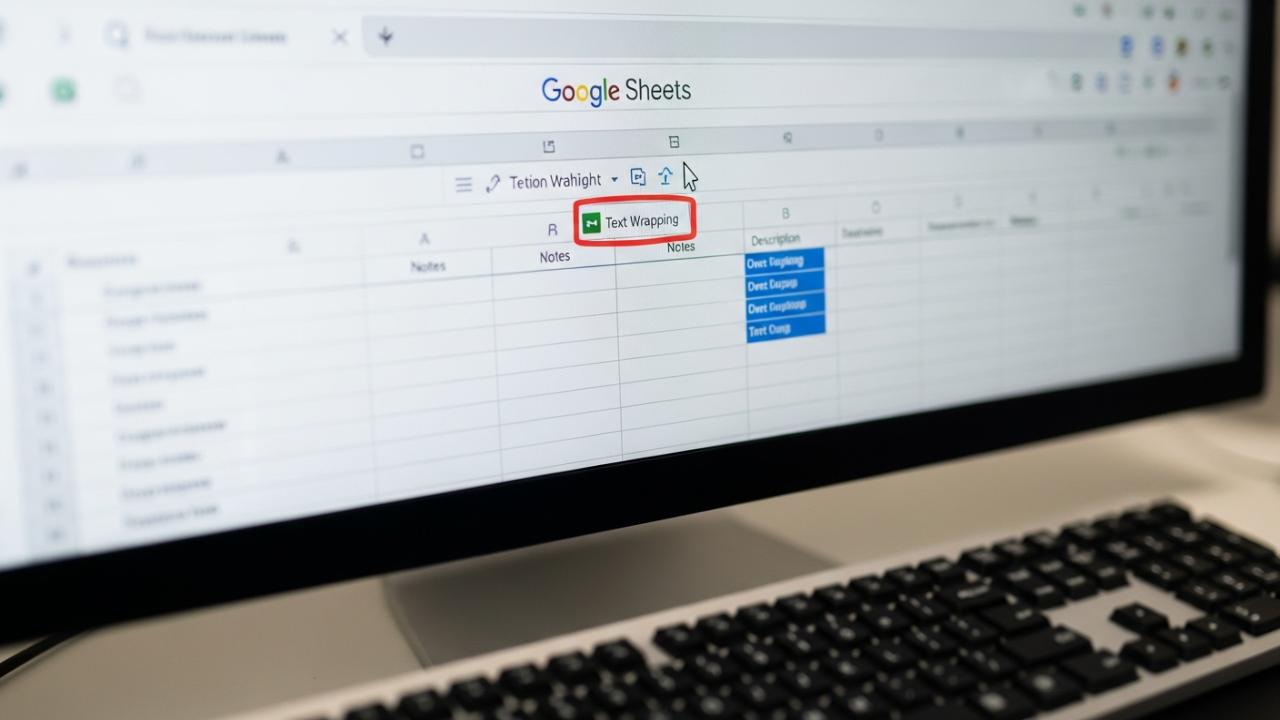
APPS • DAILYTECH.ID - Google Sheets provides a dedicated formatting tool that allows users to manage the display of lengthy text entries so they remain contained and readable within their respective cells. This feature, known as text wrapping, is essential for maintaining clean data structure in tables and columns where descriptions or extended notes are common.
To wrap text in Google Sheets, select the desired cell(s) or column(s). Navigate to the toolbar and click the “Text Wrapping” icon (an arrow making a U-turn over horizontal lines). Choose the middle option, “Wrap,” which adjusts the cell height automatically to display all content without truncating text or overflowing into adjacent cells. Understanding the core desktop functionality is the fastest way to apply, manage, and remove text wrapping across your spreadsheets.
How to Wrap Text in Google Sheets (Desktop/Web Interface)
Managing large datasets often means dealing with extended descriptions, URLs, or notes that exceed the standard cell width. When this happens, data readability plummets, and your reports look unprofessional or truncated. Text wrapping is a fundamental skill for keeping tables clean and legible. Whether you need to know how to wrap text in a cell or ensure an entire column adheres to the formatting rule, the process is straightforward using the standard Google Sheets toolbar.
This section provides a detailed guide on how to wrap a text in Google Sheets using the primary web interface, which is consistent across both Mac and Windows operating systems.
Step-by-Step Guide for Applying Wrap Text to a Single Cell or Range
Applying text wrapping to a specific range or individual cell is the most common use case. This technique is often necessary when importing data where one field, such as a comments section, contains variable-length entries that must all be visible without horizontal overflow.
- Select the Target Area: Begin by clicking on the specific cell (for example, cell A1) that contains the lengthy text, or click and drag your cursor to select a continuous range of cells (for example, C2:C10). If your data is organized with clear headers, ensure your selection includes only the data cells that require this formatting.
- Access the Formatting Toolbar: Locate the main formatting toolbar. This bar is generally positioned just beneath the top menu bar (File, Edit, View, Insert, etc.) and contains icons for bolding, alignment, font size, and cell color.
- Identify and Click the Text Wrapping Icon: Look for the icon designated for Text Wrapping. This icon is visually represented as a horizontal line with an upward-curving arrow that reverses direction, symbolizing the text flowing onto a new line. In recent versions of Google Sheets, this icon is usually grouped near the horizontal and vertical alignment controls.
- Select the “Wrap” Option: Clicking the icon will reveal a dropdown menu presenting three display options: Overflow, Wrap, and Clip. To ensure that the cell height expands to accommodate all the text, select the middle option: Wrap. Upon selection, Google Sheets will instantly recalculate the row height necessary to display all the content within the selected cell(s) without needing to scroll horizontally.
Wrapping Text Across Entire Columns and Multiple Cells for Data Consistency
In professional data management, it is rare to apply formatting one cell at a time. Consistency is key, especially when dealing with data sources that frequently update. Learning how to make a cell wrap text in Google Sheets automatically for an entire column saves time and ensures future data imports adhere to your formatting rules.
How to Make a Column Auto Wrap Text in Google Sheets
To guarantee that any text placed in a specific field, such as a product description column, is always wrapped, you should apply the formatting rule to the entire column structure. This is how to auto wrap text in Google Sheets for guaranteed uniformity:
- Select the Entire Column: Instead of clicking on individual cells, click directly on the column letter header (e.g., click ‘B’ to select Column B entirely). This action highlights every single cell in that vertical series, from row 1 to the sheet’s maximum capacity.
- Apply the Wrap Setting: Follow the same steps as detailed above: Click the Text Wrapping Icon in the toolbar and select Wrap.
This operation applies the ‘Wrap’ setting as a foundational rule for every cell within that column. This means the setting will not only wrap text for every cell currently containing data but will also automatically apply the wrapping feature to any new information added to that column in the future. This is the most efficient method for ensuring ongoing data legibility and managing large, dynamic spreadsheets.
Using “How to Wrap All Text in Google Sheets” Simultaneously
If you are starting a new sheet or migrating data and need a comprehensive approach, you can apply wrap text to the entire spreadsheet instantaneously:
- Select All Cells: Click the small, gray rectangular square located at the very top-left corner of the sheet interface—the intersection point between the row numbers (1, 2, 3…) and the column letters (A, B, C…). This selects every single cell on the active sheet.
- Apply Wrap: Use the Text Wrapping Icon and select Wrap.
This ensures that every cell across the entire spreadsheet will adjust its row height dynamically based on its content, maximizing visibility across the board.
Merging Cells and How to Wrap Text in Google Sheets
When designing reports or dashboard summaries, you might need to display a single, long descriptive header that spans multiple column widths (e.g., A1, B1, and C1). This requires both merging and wrapping.
- Merge the Cells First: Select the adjacent cells you wish to combine (e.g., A1 through C1). Navigate to the “Merge Cells” icon (usually located near the alignment controls) and choose “Merge All” or “Merge Horizontally.”
- Apply Wrap Text to the Merged Block: Once the cells are merged into a single large block, select this new merged cell and apply the “Wrap” formatting using the Text Wrapping icon.
It is crucial to note that while merging provides the horizontal space, the wrap function provides the necessary vertical adjustment to make the full text visible. Applying the wrap before merging can sometimes lead to confusing results, so always merge first.
Controlling Text Display: Understanding Wrap, Overflow, and Clip
To truly master text management in Google Sheets, you must understand the distinction between the three available display options. These settings dictate not just if text is displayed, but how it interacts with the physical boundaries of the cell.
- Wrap (Primary Recommendation): This option dynamically adjusts the row height to ensure that all text content within the cell is visible. The text breaks and flows onto the next line whenever it hits the cell’s boundary. This is the setting you select when visibility is the highest priority, and you need to apply wrap text within a cell.
- Effect: Row height increases. Data is fully visible.
- Overflow: When you select Overflow, text will spill horizontally out of its cell and into any adjacent cells to the right, provided those adjacent cells are empty. If the adjacent cell contains data, the text is immediately truncated (hidden) at the cell border. This option maintains uniform row height but risks hiding large portions of data.
- Effect: Row height remains constant. Text may spill or be hidden/truncated.
- Clip: The Clip option strictly limits the text display to the visible boundaries of the cell width and height. If the text exceeds these limits, it is immediately hidden or “clipped” without affecting adjacent cells or increasing row height. This is useful when strict aesthetic uniformity (fixed row height) is paramount, and the hidden data is secondary or available via cell inspection.
- Effect: Row height remains constant. Excess text is hidden.
How to Remove Wrap Text or Turn it Off
If you previously applied the wrapping feature but now find that the increased row height is cluttering your sheet or affecting printing, you may need to learn how to turn off wrap text in Google Sheets.
To remove wrap text or undo the wrapping feature:
- Select the Formatted Cells: Highlight the cell(s) or the column where the wrap setting is applied.
- Return to the Text Wrapping Icon: Click the Text Wrapping icon in the toolbar.
- Select a Different Option: Choose either Overflow (if you want the text to spill horizontally into empty cells) or Clip (if you want to maintain a fixed row height and hide the excess text).
Selecting either Overflow or Clip will immediately revert the cell back to its original row height configuration, effectively turning off the wrap function.
How to Wrap Text in Google Sheets on Mobile (iOS & Android)
For users who frequently edit spreadsheets away from a desktop computer, knowing how to wrap text in Google Sheets mobile app is essential. While the functionality is identical to the desktop version, the interface is accessed differently through the mobile formatting panel. The steps are consistent for both iPhone, iPad (iOS), and Android devices.
- Select the Cell: Open your Google Sheets app and tap on the specific cell or drag your finger across the range where you need to apply or remove text wrapping.
- Open the Formatting Tools: Look for the ‘A’ icon with horizontal lines, typically located either at the top of the screen (Android) or the bottom (iOS). This is the dedicated formatting icon. Tap it to open the comprehensive menu.
- Navigate to the Cell Tab: The formatting menu will usually open to the ‘Text’ tab first (allowing font and style changes). You must tap the adjacent tab labeled Cell (or sometimes ‘Cell Formatting’).
- Toggle Text Wrapping: Within the Cell properties menu, locate the Text wrapping option. This setting functions as a toggle. Tap it to cycle through the three states: Overflow, Wrap, and Clip. Ensure the setting is toggled to Wrap. When successful, the row height should immediately adjust to show the full text content.
This detailed process ensures that users know how to wrap text in Google Sheets from iPhone or Android devices, maintaining control over data presentation regardless of the platform.
Shortcuts and Troubleshooting Text Wrapping Efficiency
While the mouse-and-menu method is reliable, experienced users often look for a faster way to implement formatting. This section addresses shortcuts and common pitfalls encountered when text wrapping fails to work as expected.
Keyboard Navigation to Apply Wrap Text (Shortcut Method)
Google Sheets, unlike desktop spreadsheet programs like Microsoft Excel, does not have a simple one or two-key keyboard shortcut (like a quick Ctrl/Cmd+W) to apply wrapping directly. However, users can utilize access keys to navigate the menu structure rapidly without using the mouse.
- For Windows Users: Press and release Alt + O (to open the Format menu), followed by pressing W (to open the Text Wrapping submenu). Then, use the Down Arrow key to select “Wrap,” and press Enter. This allows rapid application of the formatting rule.
- For Mac Users: The access key sequence is generally similar, often utilizing the Control + Option keys depending on the browser setup, but the mouse-click method is generally preferred due to varying browser interpretations of keyboard commands.
Troubleshooting: Why Wrap Text Is Not Working
When you apply “Wrap,” and the text remains clipped or doesn’t adjust the row height, the system usually defaults to a manually set rule that overrides the auto-wrapping feature. Here are the two most common reasons why wrap text might not be working:
- Manually Fixed Row Height: If you or a collaborator have manually dragged a row border to enforce a specific small height, Google Sheets may interpret this as a fixed dimension, overriding the ‘Wrap’ command’s ability to automatically expand the row.
- Solution: Right-click the row number (e.g., row 5) and select Resize row. Choose the option AutoFit or manually input a larger number to give the wrapping room to expand. Alternatively, you can drag the row border down manually to free up space.
- Insufficient Column Width within Merged Cells: Text wrapping requires horizontal space to operate effectively. If you have merged cells but the resulting column block is extremely narrow, even the wrapping function might not be able to display the content without making the row height impossibly tall.
- Solution: Adjust the column widths involved in the merge. Drag the column header borders (e.g., between A and B) wider until the text has adequate space to break onto the next line logically.
Understanding these underlying conflicts ensures that you can always enable wrap text in Google Sheets reliably and efficiently manage data visibility.
FAQs – How To Wrap A Text In Google Sheets
To wrap text for the entire sheet, click the gray square located at the intersection of the row numbers and the column letters in the top-left corner. This action selects all cells. Then, navigate to the Text Wrapping icon in the toolbar and select the “Wrap” option to apply the formatting across the whole sheet instantly.
Google Sheets does not feature a single-key shortcut for wrapping text. However, you can use the keyboard access sequence Alt + O, then W on Windows to quickly open the Format menu and Text Wrapping submenu, allowing for faster selection of the “Wrap” option without using the mouse.
Tap the desired cell, then tap the Format icon (the ‘A’ with lines) located on the toolbar. Select the ‘Cell’ tab within the formatting menu. Under the ‘Text wrapping’ category, tap the option until the display indicates the setting is toggled to ‘Wrap’.
To remove text wrapping, select the cell(s) and click the Text Wrapping icon in the toolbar. To turn off wrap text in Google Sheets, choose either “Overflow” (text spills out horizontally) or “Clip” (text is truncated/hidden at the cell border) instead of the “Wrap” option.
The ‘Wrap’ option ensures all text is fully visible by dynamically increasing the cell’s row height, preventing any data from being hidden. The ‘Clip’ option keeps the cell height fixed, hiding or “clipping” any text that extends beyond the current visible cell boundaries.



