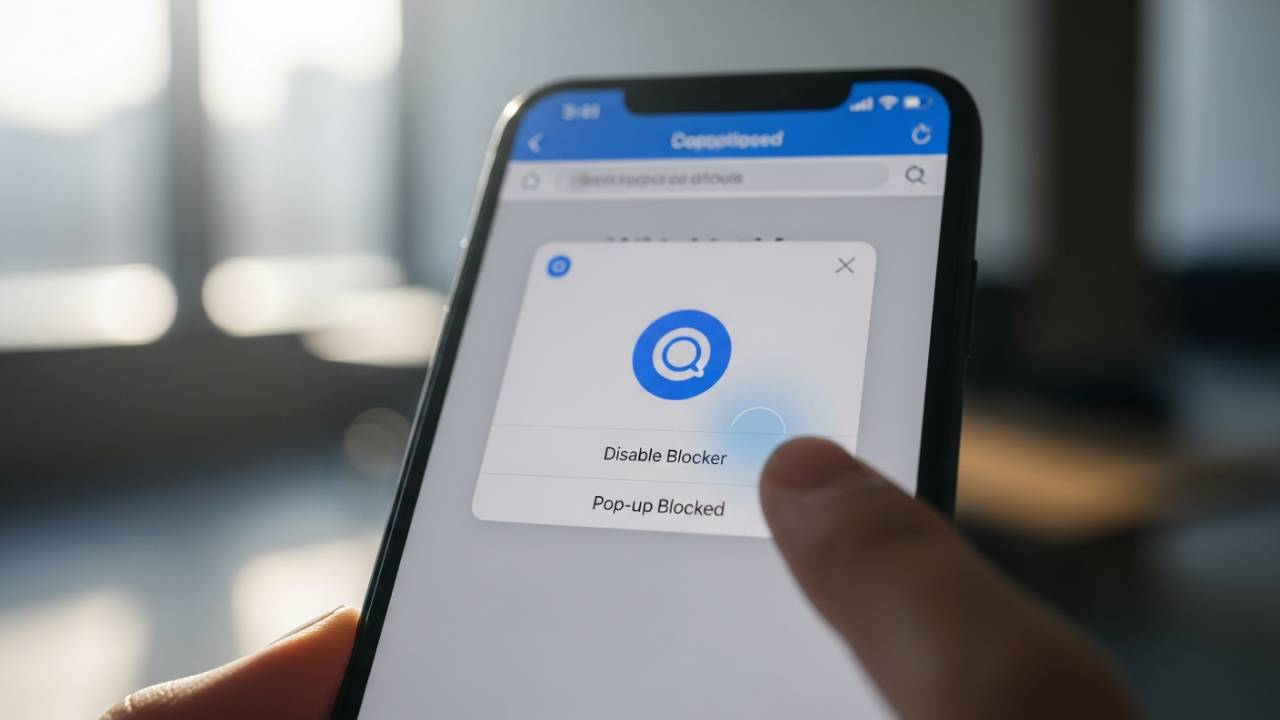
IPHONE • DAILYTECH.ID - We’ve all been there: you’re trying to log into your bank account, finalize a flight booking, or download an important PDF for work, and… nothing happens. You tap the button again. Still nothing. Then you see that tiny, easy-to-miss notification: “Pop-up Blocked.”
On an iPhone, the built-in security features are designed to protect you from intrusive ads and malicious scripts. However, these same shields often become a hurdle when you’re trying to use legitimate services that rely on secondary windows. Whether you are using an iPhone 11, 13, or the latest iPhone 16 Pro, the frustration is the same.
If your pop-ups keep getting blocked on iPhone, don’t worry. This guide will walk you through exactly how to disable the pop-up blocker on iPhone for Safari, Chrome, and even the Google app, ensuring you can get back to what you were doing without the digital roadblocks.
Quick Answer: How to Disable Pop-Up Blocker on iPhone
If you’re in a rush and just need the “quick fix” for the default browser:
- Open the Settings app on your iPhone.
- Scroll down and tap Safari.
- Under the General section, find Block Pop-ups.
- Toggle the switch to OFF (it should turn grey).
For Chrome or Google App users, the settings are managed within the apps themselves, which we will cover in detail below.
What Is the Pop-Up Blocker on iPhone?
Before we dive into the “how,” it’s important to understand the “what.” The pop-up blocker is a native software filter within iOS. Its primary job is to prevent websites from opening new windows or tabs without your explicit permission.
Back in the early days of the internet, pop-ups were almost exclusively used for aggressive advertising. Today, the landscape has changed. While they are still used for ads, pop-ups are now a functional part of web development. You’ll find them used for:
- Authentication: Multi-factor authentication (MFA) or “Log in with Google/Facebook” windows.
- Payments: Secure gateways like PayPal or Stripe often open in a separate window.
- Downloads: Links to tickets, receipts, or legal documents.
- Customer Support: Live chat widgets often pop up to offer assistance.
When your iPhone blocks these, it doesn’t know the difference between a “bad” ad and a “good” login screen. That is why knowing how to turn off the pop-up blocker on iPhone is an essential skill for any power user.
How to Disable Pop-Up Blocker on iPhone (Safari)
Safari is the default gateway to the web for most iOS users. Because it is integrated into the operating system, you won’t find the pop-up settings inside the Safari app itself. Instead, you have to go through the main system settings.
Step-by-Step: Turn Off Pop-Up Blocker in Safari
If you are wondering how to remove the pop-up blocker on iPhone Safari, follow these steps:
- Launch the Settings App: Find the gear icon on your home screen or in your App Library.
- Locate Safari: Scroll down past “General,” “Control Center,” and “Display & Brightness” until you see the Safari icon. Tap it.
- Find the General Section: Inside the Safari settings menu, look for the sub-heading labeled “General.”
- Toggle “Block Pop-ups”: You will see a toggle switch next to Block Pop-ups. If it is green, the blocker is active. Tap it so it becomes grey.
- Refresh Your Page: Go back to the website you were using in Safari and refresh the page. The pop-up should now appear.
Note: This change applies instantly across all websites you visit in Safari.
How to Disable Pop-Up Blocker on iPhone Chrome
Many users prefer Google Chrome for its cross-platform syncing with desktops. However, Chrome on iOS does not follow Safari’s rules. If you use Chrome, disabling the system-wide Safari blocker won’t help you. You need to adjust the settings within the Chrome app.
How to Turn Off Pop-Up Blocking in Chrome
- Open Chrome: Tap the Chrome icon on your iPhone.
- Access the Menu: Tap the three horizontal dots (…) in the bottom-right (or top-right) corner of the screen.
- Open Settings: Scroll through the menu options and tap the Settings gear icon.
- Find Content Settings: Scroll down until you see Content Settings. Tap it.
- Allow Pop-ups: Tap on Block Pop-ups. On the next screen, toggle the switch OFF to allow pop-ups.
- Done: Tap “Done” in the top corner and reload your tab.
This is the definitive way for those searching how to disable pop up blocker on iphone chrome.
How to Disable Pop-Up Blocker in Google Apps on iPhone
Sometimes, you aren’t using a dedicated browser at all. You might be clicking a link inside the Google Search App or opening an attachment in Gmail. These apps use an “In-App Browser.”
How to Remove Pop-Up Blocker on Google App iPhone
If you’re using the dedicated Google app:
- Open the Google app.
- Tap your Profile Picture/Icon in the top right corner.
- Select Settings.
- Tap General.
- Look for Open Web Pages in the App. If you find that pop-ups are still failing, you can toggle this off to force links to open in Safari (where you have already disabled the blocker) or look for the Privacy & Security tab within the app to find specific pop-up permissions.
How to Disable Pop-Up Blocker on All iPhone Models
A common question we see is whether the process differs based on the hardware you own. People often search for:
- How to disable pop up blocker on iPhone 11, 12, or 13
- How to disable pop up blocker on iPhone 14, 15, or 16 Pro
The good news? The process is identical. Whether you have an iPhone 16 Pro Max or an older iPhone SE, the software (iOS) dictates the settings. As long as you are running a modern version of iOS (like iOS 16, 17, or 18), the steps outlined in the Safari section above will work for every model. The only difference you might see is the speed of the menus or slight UI variations in older iOS versions.
How to Temporarily Disable Pop-Up Blocker on iPhone
Leaving your pop-up blocker off permanently is generally not recommended. It leaves the door open for “tab-nabbing” and “malvertising.” The best practice is to temporarily disable it.
The Recommended Workflow:
- Disable: Follow the steps for Safari or Chrome to turn the blocker off.
- Execute: Complete your login, payment, or download.
- Enable: Immediately return to Settings and toggle Block Pop-ups back to ON (Green).
This ensures you get the functionality you need for a specific task without sacrificing your long-term browsing security.
Why Pop-Ups Are Still Blocked on iPhone
You’ve toggled the switch, you’ve refreshed the page, but the pop-up still won’t show up. Why? Here are the most common culprits:
1. Third-Party Content Blockers
If you have downloaded ad-blocker apps from the App Store (like AdBlock, Crystal, or 1Blocker), they have their own settings. Even if Safari’s built-in blocker is off, these apps might be killing the pop-up. You may need to “Whitelist” the website inside your ad-blocker app.
2. Screen Time Restrictions
If you (or a parent) have enabled Screen Time restrictions, certain web content may be filtered.
- Go to Settings > Screen Time > Content & Privacy Restrictions > Content Restrictions > Web Content.
- If this is set to “Limit Adult Websites,” it can sometimes interfere with how certain scripts and pop-ups behave.
3. JavaScript is Disabled
Pop-ups usually run on JavaScript. If JavaScript is turned off in Safari settings, no pop-up will ever work.
- Go to Settings > Safari > Advanced (at the bottom) > JavaScript.
- Ensure this is toggled ON.
4. Cache Issues
Sometimes the browser “remembers” the blocked state. Try clearing your history and website data:
- Settings > Safari > Clear History and Website Data.
Is It Safe to Disable Pop-Up Blocker on iPhone?
Safety is a relative term on the internet.
When it is safe:
Disabling the blocker is perfectly safe when you are on a trusted, encrypted website (look for the padlock icon in the URL bar). Examples include your bank, government portals, or major e-commerce sites like Amazon or eBay.
When it is risky:
If you are visiting a site to stream movies illegally, download pirated software, or visit “unverified” forums, keeping the pop-up blocker ON is your first line of defense. These sites often use pop-ups to trigger automatic downloads of configuration profiles that could compromise your device.
Frequently Asked Questions (FAQ)
For Safari, go to Settings > Safari > Block Pop-ups. For third-party browsers like Chrome, you must go into the App Settings > Content Settings.
No. iOS treats Safari and third-party browsers (Chrome, Firefox, Edge) as separate entities. Disabling the blocker in Safari settings will not affect Chrome, and vice versa.
This usually happens because of a secondary layer of protection, such as an Ad-Blocker app, or because the browser needs to be “Force Quit” and restarted to register the setting change.
Unfortunately, Safari on iOS does not currently offer “per-site” pop-up permissions like the Mac version does. It is an all-or-nothing setting. You have to turn it off for everything, then turn it back on when you’re done.
No. It is highly recommended to keep the pop-up blocker enabled for 95% of your browsing. Only disable it “on-demand” when a specific, trusted site requires it to function.
Summary Table: Pop-Up Settings by App
| Browser/App | Where to Find Settings | Key Toggle |
| Safari | iPhone Settings > Safari | Block Pop-ups |
| Chrome | Chrome App > Menu > Settings > Content Settings | Block Pop-ups |
| Google App | Google App > Profile > Settings > General | Open Web Pages in App |
| Firefox | Firefox App > Menu > Settings | Block Pop-up Windows |
Final Thoughts
Navigating the web on a mobile device should be seamless, but security features can sometimes get in the way of productivity. By knowing where to disable pop up blocker on iPhone, you take back control of your browsing experience. Just remember the golden rule of mobile security: Enable it when you need it, and turn it back on when you’re done.