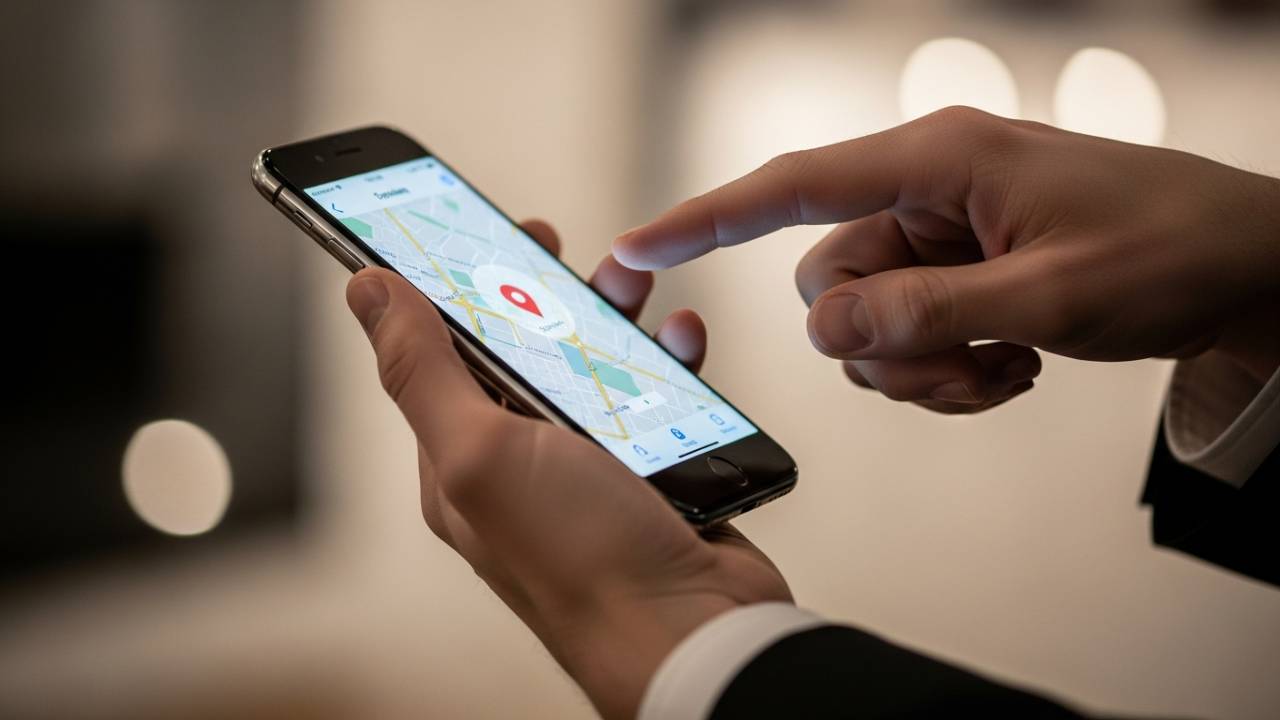
IPHONE • DAILYTECH.ID - In an era where “Where are you?” is the most common text sent, knowing how to pinpoint your exact coordinates is a digital survival skill. Whether you are meeting a friend at a crowded music festival, ensuring your teenager got to practice safely, or helping a tow truck driver find your stranded car on a dark highway, your iPhone is equipped with powerful tools to bridge the distance.
Sharing your location isn’t just about convenience; it’s about safety, coordination, and peace of mind. However, with multiple apps and privacy settings to navigate, it can feel overwhelming. This comprehensive guide will walk you through every method to share location on iPhone, from built-in Apple features to cross-platform solutions for your friends on Android.
How Location Sharing Works on iPhone
Before we dive into the “how-to,” it is essential to understand the “what.” Apple offers two distinct ways to share your whereabouts:
- Current Location: This is a static snapshot. It sends a “pin” of where you are at this exact second. If you move, the pin stays behind. This is perfect for saying, “I’m at this restaurant.”
- Live Location (Real-Time): This is a dynamic stream. As you move, the icon on the recipient’s map moves with you. This is ideal for safety while walking home or tracking a friend’s progress during a road trip.
To make any of this work, your iPhone needs certain permissions enabled. Navigate to Settings > Privacy & Security > Location Services and ensure the toggle is On. Additionally, ensure Share My Location is active within your iCloud settings.
How to Share Location on iPhone Using Messages
The quickest way to let someone know where you are is right inside the conversation you’re already having. The Messages app (iMessage) allows for seamless sharing without switching apps.
Share Current Location
- Open a conversation in Messages.
- Tap the plus (+) icon next to the text field (or the person’s name at the top in older iOS versions).
- Select Location.
- Tap the Map Pin icon to send your current static location.
Share Live Location
- Follow the same steps above but select Request or Share Live Location.
- You will be prompted to choose a duration: For One Hour, Until End of Day, or Indefinitely.
- Your live movement will now be visible to the recipient within the chat thread.
How to Change or Stop Sharing
If you decide you’ve been tracked long enough, simply tap the “Stop Sharing” button located directly in the Messages thread or tap the recipient’s profile icon to manage the duration.
How to Share Location on iPhone Using Find My
The Find My app is Apple’s dedicated hub for tracking devices and people. It is the most robust way to manage long-term location sharing.
- Open the Find My app.
- Tap the People tab at the bottom.
- Tap the plus (+) icon and select Share My Location.
- Type the name or email of the contact.
- Choose the duration: One Hour, Until End of Day, or Indefinitely.
Pro Tip: If you share “Indefinitely,” the person will always be able to see where you are until you manually turn it off. This is best reserved for spouses, partners, or very close family members.
How to Share Location on iPhone Using Apple Maps
Sometimes you aren’t just sharing where you are, but where a specific landmark or meeting point is.
- Open Apple Maps.
- Tap the blue dot representing your location, or long-press anywhere on the map to Drop a Pin.
- Swipe up on the information card that appears.
- Tap the Share icon (the square with an arrow).
- Choose your preferred app (Messages, Mail, etc.) to send the coordinates.
How to Share Location on iPhone to Android or Samsung
A common frustration is the “Green Bubble” problem. iMessage’s native location sharing doesn’t play nice with Android users. If your friend has a Samsung or Google Pixel, you need a cross-platform bridge.
Using Google Maps (The Gold Standard)
Google Maps is the best way to share live location across different operating systems.
- Open Google Maps (download it from the App Store if you haven’t).
- Tap your profile picture in the top right.
- Tap Location Sharing > New Share.
- Select the duration and then select the contact. If they aren’t a Google user, you can Copy to Clipboard a link and text it to them.
Using WhatsApp or Messenger
- In WhatsApp, tap the plus (+) icon > Location.
- Choose Share Live Location (real-time) or Send Your Current Location (static).
- This works perfectly regardless of whether the recipient is on iOS or Android.
How to Share Location with Family or Kids on iPhone
Apple’s Family Sharing ecosystem makes keeping an eye on the kids effortless. When you set up a Family Group, you can automate location sharing.
- Go to Settings > [Your Name] > Family Sharing.
- Scroll down to Location Sharing.
- Select which family members you want to automatically share your location with.
- For kids, ensure their iPhone has “Share My Location” turned on under their iCloud settings.
This allows parents to see their child’s location in the Find My app at all times without the child needing to send a link manually. It also helps in locating a lost or stolen family device.
How to Share Live Location on iPhone: Privacy & Battery
Sharing your live movement is incredibly helpful, but it comes with two main costs: Privacy and Battery Life.
- Battery Impact: Live sharing requires the GPS to ping satellites constantly. If your battery is low, consider sending a “Current Location” pin instead of a live stream.
- Privacy: Always be mindful of the “Indefinitely” setting. It is easy to forget who has access to your movements. We recommend reviewing your shared list once a month.
- When it Stops: Live location sharing will automatically stop once the timer you set expires, or if your phone dies/loses internet connection.
How to Check Who You’re Sharing Location With
Feeling a bit exposed? It’s easy to audit your privacy.
- Open Settings.
- Tap Privacy & Security.
- Tap Location Services.
- Tap Share My Location.
- Here, you will see a list of every person who currently has access to your location. To remove someone, tap their name and select Stop Sharing My Location.
How to Stop or Pause Sharing Location on iPhone
If you need to go off the grid temporarily or permanently, you have a few options:
- The Nuclear Option: Go to Settings > Privacy & Security > Location Services and toggle the main switch Off. This stops all apps from seeing where you are.
- The “Find My” Pause: In the Find My app, go to the Me tab and toggle off Share My Location. This stops people from seeing you but keeps your GPS on for maps and weather.
- The Single Person Stop: Go to the contact in Messages or Find My, tap their profile, and hit Stop Sharing.
Common Location Sharing Issues and Fixes
- “Location Unavailable”: This usually happens if the person has no cellular signal, is in Airplane Mode, or their phone is turned off.
- “Share My Location” is Greyed Out: Check Settings > Screen Time > Content & Privacy Restrictions. Ensure “Location Sharing” is set to “Allow.”
- Inaccurate Pin: If your location is “jumping” around, try toggling your Wi-Fi on (even if not connected). Wi-Fi helps calibrate GPS accuracy.
FAQs – How to Share Location on iPhone
Tap the (+) icon in a chat, select Location, and choose to send a static pin or a live stream for a set duration.
Use a third-party app like Google Maps or WhatsApp. Apple’s native iMessage location sharing does not work on Android devices.
In the Find My app or Messages, when asked for a duration, select “Indefinitely.” This will share your location until you manually revoke access.
Open the Find My app, tap the “People” tab, select the individual, and tap “Stop Sharing My Location.”
Go to Settings > Privacy & Security > Location Services > Share My Location to see a comprehensive list of authorized contacts.
Final Thoughts
Sharing your location on an iPhone is a versatile tool that balances high-tech convenience with personal safety. Whether you’re using the native simplicity of Messages, the cross-platform reliability of Google Maps, or the security-focused Find My app, you are always just a few taps away from staying connected.