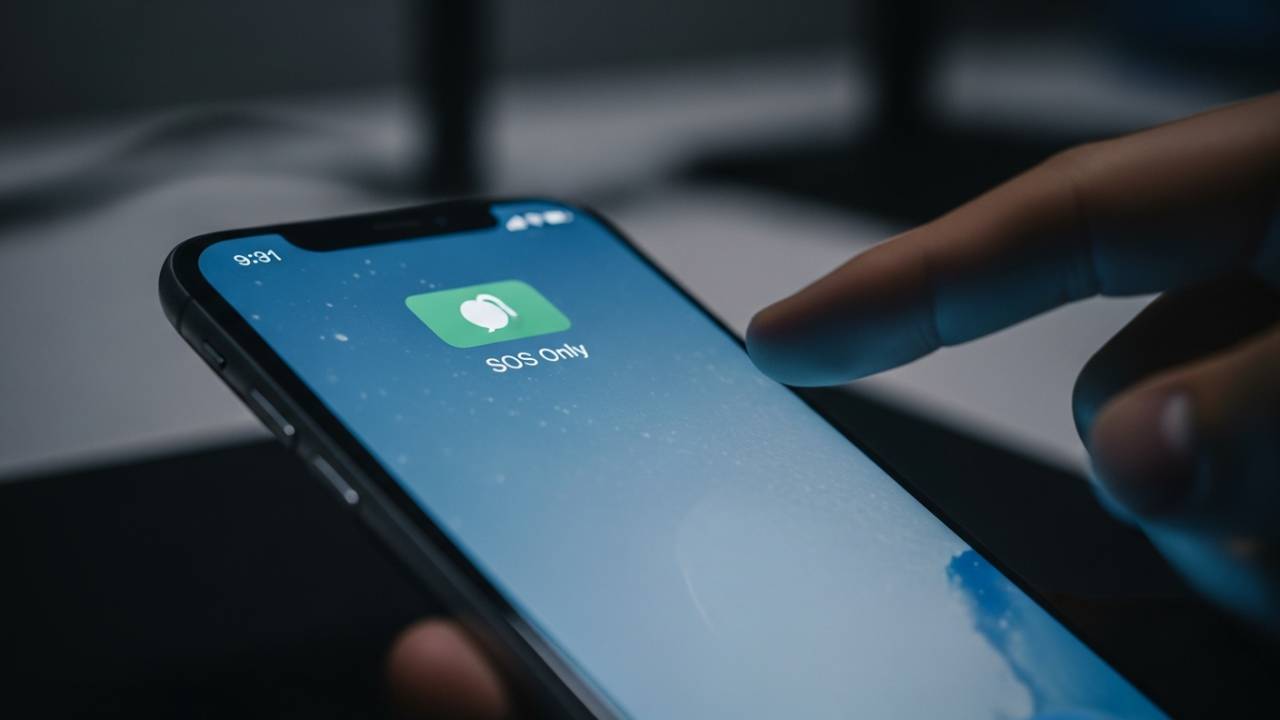
IPHONE • DAILYTECH.ID - You pick up your phone to check a notification, send a quick text, or make an important call, and you see it. Right there in the top right corner of the status bar, where your 5G or LTE bars used to be: SOS Only.
It’s an instant sinking feeling. In a world where we rely on our iPhones for navigation, communication, and work, losing connection feels like being stranded. But what does this mode actually mean?
Essentially, when your iPhone enters “SOS Only” mode, it means your device isn’t connected to your specific cellular carrier’s network, but it is detecting other networks nearby. Your iPhone is telling you that while you cannot make standard calls, send SMS texts, or browse the internet using mobile data, the hardware is functional enough to route an emergency call (like 911 in the US) through another provider’s tower.
This issue usually pops up at the worst times—after an iOS update, during a road trip, or randomly while sitting in your living room. The good news is that this is rarely a sign of a broken phone. Most of the time, it’s a software glitch or a carrier handshake issue that you can resolve yourself.
If you are frantically searching for sos only on iphone how to fix, you’ve come to the right place. We’re going to walk through why this happens and exactly how to get your bars back.
Why SOS Only on iPhone Happens
Before we start toggling switches and resetting things, it helps to understand why your iPhone decided to cut you off. The “SOS Only” error is effectively a communication breakdown between your device’s modem and the cell tower.
Here are the most common culprits:
- Carrier Signal Loss: You might simply be in a dead zone. If you are in a basement, a remote hiking trail, or a building with thick concrete walls, your carrier’s signal might be too weak to maintain a connection, forcing the phone into SOS mode.
- SIM or eSIM Issues: For physical SIM cards, the chip might be slightly dislodged or dirty. For eSIM users, a configuration profile might have glitched out.
- Network Settings Corruption: Sometimes, the background files that tell your iPhone how to connect to Verizon, T-Mobile, or AT&T get corrupted.
- iOS Software Bugs: While Apple is great at updates, sometimes a new version of iOS introduces temporary bugs that mess with carrier settings.
- Regional or Carrier Outages: Occasionally, the problem isn’t you at all. Your carrier might be experiencing a tower outage in your area.
Understanding these causes saves you time. If a tower is down, no amount of restarting your phone will fix it. But if it’s a glitch, the steps below will get you back online in minutes.
Quick Checks Before Deep Fixes
Before we dive into the deep troubleshooting steps, let’s rule out the obvious stuff. These “sanity checks” take about 30 seconds and fix the problem about 50% of the time.
Check Signal Coverage in Your Area
Look around you. Are you in an elevator? A subway tunnel? A metal-clad building? If you see “SOS Only,” move to a window or step outside. If the signal bars return immediately, your phone is fine—your location was the problem.
Verify Carrier Service Status
If you have Wi-Fi access, use another device to check if your carrier is down. You can visit sites like DownDetector or check your carrier’s official Twitter/X support page. If thousands of people are reporting outages in your city, just wait it out.
Restart iPhone Correctly
It sounds like a cliché, but turning it off and on again fixes a massive amount of network bugs.
- Press and hold the volume button and the side button until the power-off slider appears.
- Drag the slider and wait 30 seconds for the device to turn off.
- Turn it back on.This forces the modem to cold-boot and search for the freshest signal.
How to Fix SOS Only on iPhone (Step-by-Step)
If the quick checks didn’t work, we need to get a bit more technical. Follow these steps in order; we’ve arranged them from “easiest/least destructive” to “last resort.”
1 Turn Airplane Mode On and Off
Think of this as a “soft reset” for your cellular antenna. It forces the iPhone to drop all radio connections and immediately search for them again.
How to do it:
- Swipe down from the top right corner of your screen to open the Control Center.
- Tap the Airplane icon so it turns orange.
- Wait fully for about 10 to 15 seconds.
- Tap the icon again to turn it off.
Watch the top corner of your screen. You should see the signal searching animation. If it locks onto 5G, LTE, or 4G, you’re good to go.
2 Check Cellular Network Settings
Sometimes, the setting that tells your phone to “turn on” the cellular line gets toggled off accidentally, or “Data Roaming” settings cause conflicts.
How to do it:
- Go to Settings > Cellular.
- Check if Cellular Data is toggled ON.
- If you are using multiple lines (like a work eSIM and personal SIM), tap into the specific line that is showing SOS.
- Ensure Turn On This Line is active.
- Go into Voice & Data and ensure LTE or 5G Auto is selected, rather than a setting your carrier doesn’t support.
3 Reseat SIM Card or Refresh eSIM
If you dropped your phone recently, the physical SIM card might have jarred loose. Even a fraction of a millimeter misalignment can cause the “SOS Only” error.
Physical SIM Troubleshooting:
- Locate the SIM tray on the side of your iPhone.
- Use a SIM ejector tool (or a paperclip) to pop the tray out.
- Take the card out, inspect it for damage or dust, and place it back in the tray.
- Push the tray back in firmly.
eSIM Reactivation Basics:
You can’t “remove” an eSIM physically, but you can toggle it.
- Go to Settings > Cellular.
- Tap your eSIM line.
- Toggle Turn On This Line to OFF, wait a few seconds, and toggle it back ON.
4 Reset Network Settings
This is the “magic bullet” for most users looking for sos only on iphone how to fix. It clears out all network-related caches, corrupted files, and glitches.
Warning: This will not delete your photos, apps, or contacts. However, it will forget your saved Wi-Fi passwords and Bluetooth connections. You will need to reconnect to your home Wi-Fi and re-pair your AirPods after this step.
How to do it:
- Open Settings > General.
- Scroll down and tap Transfer or Reset iPhone.
- Tap Reset.
- Select Reset Network Settings.
- Enter your passcode and confirm.
Your iPhone will restart. Once it boots up, give it a minute to find the carrier signal. This works roughly 80% of the time for stubborn SOS issues.
5 Update iOS to the Latest Version
Apple frequently releases “Carrier Settings Updates” bundled with iOS updates. If you are running an old version of iOS, your phone might be trying to connect to towers using outdated protocols.
How to do it:
- Connect to Wi-Fi (since you have no data).
- Go to Settings > General > Software Update.
- If an update is available, install it immediately.
6 Manually Select Network Carrier
By default, your iPhone is set to “Automatic” network selection. It tries to find the best tower for your SIM card. Sometimes, it gets confused and tries to connect to a restricted tower, resulting in SOS mode. You can force it to find your specific carrier.
How to do it:
- Go to Settings > Cellular.
- Tap on Network Selection.
- Turn Automatic to OFF.
- A list of available carriers will appear (this may take a moment).
- Manually tap your carrier (e.g., Verizon, AT&T, T-Mobile).
If this fixes the issue, you can try switching it back to Automatic later, but leave it on Manual for now to stabilize the connection.
7 Check for Carrier Settings Update
These are separate from iOS updates. They are small files sent by your provider to update network frequencies and settings.
How to do it:
- Ensure you are on Wi-Fi.
- Go to Settings > General > About.
- Stay on this screen for about 15–30 seconds.
- If an update is available, a pop-up will appear saying “Carrier Settings Update”.
- Tap Update.
If no pop-up appears, you are likely already up to date.
8 Factory Reset (Last Resort)
If you have tried literally everything above and your phone still says “SOS Only,” you might be dealing with a deep system corruption. A factory reset wipes the phone clean and reinstalls the OS.
CRITICAL: Back up your iPhone to iCloud or a computer before doing this, or you will lose all your data.
How to do it:
- Go to Settings > General > Transfer or Reset iPhone.
- Tap Erase All Content and Settings.
- Follow the prompts.
SOS Only on iPhone While Traveling
The “SOS Only” issue is incredibly common when traveling internationally. If you just landed in a new country and see this, the fixes are slightly different.
Roaming Settings
Your domestic plan might not include international roaming. If it doesn’t, your phone will reject foreign towers for data/calls but will still show SOS because it sees the signals. Ensure Data Roaming is turned ON in Settings > Cellular > Cellular Data Options.
International Carrier Compatibility
If you are using an older iPhone, it might not support the LTE/5G bands used in the country you are visiting.
eSIM vs. Local SIM
The best fix for travelers is usually buying a local eSIM (like Airalo) or a physical prepaid SIM at the airport. Once installed, ensure you switch your “Cellular Data” source to the new travel SIM, or you will remain stuck on SOS on your main line.
When to Contact Carrier or Apple Support
You’ve done the reboots, the resets, and the updates. If the scary SOS icon is still there, it’s time to stop troubleshooting and start calling for help.
Signs the issue is not software-related:
- Account Issues: If you forgot to pay your bill, the carrier might have suspended your service. This often results in an “SOS Only” status because your SIM is no longer authorized on the network. Call your carrier from a different phone to verify your account standing.
- Hardware Damage: Did you drop your phone recently? Did it get wet? The internal antenna cables can disconnect or corrode. If the phone can’t physically “hear” the cell tower, no software setting will fix it.
- SIM Failure: SIM cards can die of old age or heat damage. Visit your carrier’s store and ask for a replacement SIM (or a new eSIM QR code).
If you suspect hardware damage, book an appointment at the Apple Genius Bar. They can run diagnostics to see if the modem itself has failed.
FAQs – SOS Only on iPhone how to fix
This message appears when your iPhone cannot establish a connection with your specific carrier (like AT&T or Verizon) but can still detect other networks. It means your device is functional enough to make emergency 911 calls using other providers’ towers, but your personal service is blocked, interrupted, or out of range.
You can fix this without losing data by toggling Airplane Mode on and off, restarting your device, removing and re-inserting your SIM card, or manually selecting your network carrier in the Cellular settings. You should only use the “Erase All Content” factory reset as a final last resort.
Yes, absolutely. If your carrier is experiencing a regional outage, tower maintenance, or if your account has been suspended due to billing issues, your phone will default to SOS Only. Check your carrier’s outage map or contact their support if you suspect this is the case.
Rarely. In most cases, it is a software glitch, a settings conflict, or a temporary network issue. However, if your phone has suffered water damage or a severe drop, the internal antenna could be broken, which would require a hardware repair at an Apple Store.
After an update, sometimes the carrier settings get mismatched. Go to Settings > General > About to trigger a carrier settings update. If that fails, perform a Reset Network Settings (Settings > General > Transfer or Reset iPhone > Reset > Reset Network Settings) to clear out any bugs introduced by the new iOS version.