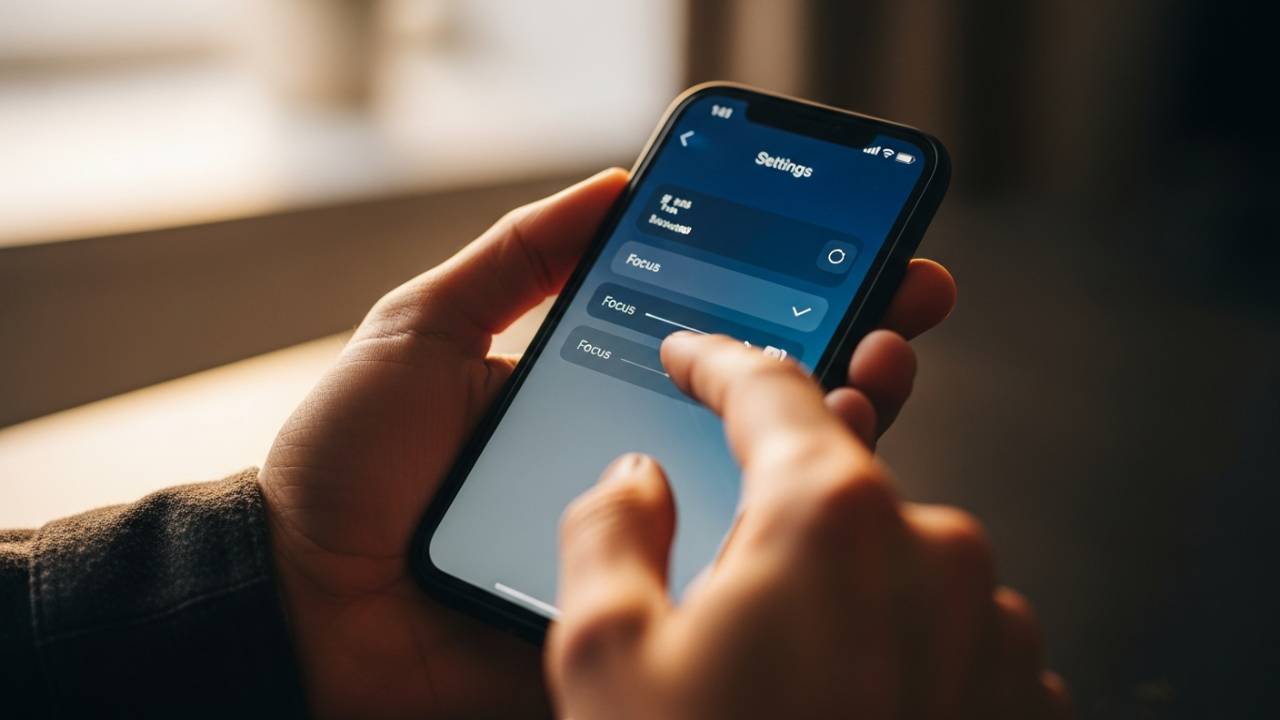
IPHONE • DAILYTECH.ID - Missing an important call from your boss or a late-night text from a friend because your phone stayed silent is a massive headache. If you’ve noticed that crescent moon icon lingering at the top of your screen, you’re likely dealing with Apple’s Do Not Disturb (DND) or its broader successor, Focus Mode.
Whether you’re rocking the latest iPhone 16 Pro Max or still loving your iPhone 11, the process of silencing these modes is generally the same, but the “why” behind it turning back on can be tricky. Here is your definitive guide on how to turn off Do Not Disturb on iPhone and keep it off for good.
Quick Answer: How to Disable DND Instantly
The fastest way to turn off Do Not Disturb on any iPhone is through the Control Center. Swipe down from the top-right corner (or up from the bottom on SE models) and tap the Focus/Crescent Moon icon. If the button is highlighted, tap it once to turn it off.
Turn Off Do Not Disturb Using Control Center
The Control Center is the “command deck” for your iPhone. It provides the quickest access to toggling DND without diving into menus.
- Swipe Access Method: On iPhones with Face ID (iPhone 11 through iPhone 16), swipe down from the top-right battery icon. On the iPhone SE, swipe up from the bottom of the screen.
- Focus vs. Classic Do Not Disturb: You’ll see a pill-shaped button that likely says “Do Not Disturb” or “Work,” “Sleep,” or “Personal.” This is the Focus button.
- Icon States Explained: If the icon is glowing (usually white or purple), it is Active. Tap the icon itself to toggle it off. If you tap the text area of the button, it will open a list of other Focus modes; make sure none of them are selected.
Turn Off Do Not Disturb from iPhone Settings
Sometimes the Control Center toggle doesn’t cut it, especially if you want to ensure the system hasn’t “paused” the mode rather than killing it entirely.
- Open the Settings app.
- Scroll down and tap Focus.
- Tap Do Not Disturb.
- Ensure the main toggle is not active, but more importantly, look at the Set A Schedule section.
Difference Between Turning Off vs. Pausing: If you turn off DND via the Control Center “for one hour,” it is merely paused. To truly disable it, you must ensure no active schedules are triggering it in the background.
How to Completely Turn Off Do Not Disturb on iPhone
If you feel like DND has a mind of its own, you need to strip away the automations. Apple designed Focus modes to be “smart,” but sometimes they are too smart for their own good.
- Removing Schedules: Inside Settings > Focus > Do Not Disturb, look for any listed times (e.g., 10:00 PM to 7:00 AM). Tap them and select Delete Schedule.
- Turning Off Automation: Modern iOS versions can trigger DND based on your location (like when you arrive at the office) or when you open specific apps (like Kindle or Netflix). Disable these under the “Smart Activation” settings within the Focus menu.
Turn Off Do Not Disturb on iPhone Automatically Turning On
Is your phone silencing itself every time you get into your car or arrive at the gym? This is likely due to Triggered Focus Modes.
- Time-Based: Check your “Sleep” focus. This is the most common culprit for DND turning on at night.
- Location-Based: If you set a “Work” focus, your iPhone uses GPS to silence notifications when you are at a specific address.
- App-Triggered: Some apps, specifically gaming or reading apps, can be set to trigger DND automatically. Check Settings > Focus to see if “Gaming” or “Reading” is enabled.
Turn Off Do Not Disturb for Calls and Messages Only
Maybe you want your phone quiet, but you can’t afford to miss a call from your kids or your parents. You don’t have to turn DND off entirely; you can create exceptions.
- Allow Calls from Everyone: In Settings > Focus > Do Not Disturb > People, tap Allow Calls From and select Everybody. This keeps your apps quiet but lets the phone ring.
- Silence Unknown Callers: Note that if this setting is on (Settings > Phone > Silence Unknown Callers), DND being off won’t help you receive calls from numbers not in your contacts.
- Message Overrides: You can allow specific apps like WhatsApp, Slack, or iMessage to bypass the silence by adding them to the “Allowed Apps” list in the Focus settings.
Turn Off Do Not Disturb for Specific Contacts
The “Emergency Bypass” is a life-saving feature that ensures specific people can always reach you, even if DND is toggled on.
- Open Contacts and select a person.
- Tap Edit > Ringtone.
- Toggle Emergency Bypass to On.
This ensures that even if you forget to turn off Do Not Disturb, this specific contact will always make your phone ring. This is the best way to avoid the “Why didn’t you pick up?” argument.
Remove Do Not Disturb Icon from Lock Screen
That little crescent moon on your Lock Screen is a Status Indicator. It’s there to warn you that you are currently missing notifications.
- Focus Filters: You can customize your Lock Screen so that it doesn’t look different when DND is on, but the icon will generally remain in the status bar (top left or right) as long as the mode is active.
- Lock Screen Customization: In iOS 16 and later, you can link specific Lock Screens to Focus modes. If your wallpaper keeps changing, it’s because it’s linked to a Focus mode. Long-press your Lock Screen to “Unlink” a Focus.
Turn Off Do Not Disturb on iPhone While Locked
A common frustration is not being able to access the Control Center while the phone is locked.
- Control Center Access: Go to Settings > Face ID & Passcode (or Touch ID & Passcode). Under “Allow Access When Locked,” ensure Control Center is toggled On. This allows you to swipe down and kill DND without even unlocking your phone.
- Security Limitations: For privacy, some notification details might still be hidden even if DND is off, depending on your “Show Previews” settings.
Turn Off Do Not Disturb on iPhone Models (11–16)
While the software (iOS) dictates most of the UI, the hardware changes how you interact with it.
- iPhone 15 & 16 Pro (Action Button): If you have the newer Pro models, you might have mapped the Action Button to Do Not Disturb. If you keep accidentally turning it on in your pocket, go to Settings > Action Button and change its function.
- iPhone 11–14 & SE: These rely purely on the software swipe. The iPhone SE (2nd & 3rd Gen) still uses the “Swipe Up” gesture, which can be confusing for those used to the “Swipe Down” method on notched iPhones.
Do Not Disturb vs. Focus Mode on iPhone
Why did Apple make this so complicated? Since iOS 15, “Do Not Disturb” is just one type of Focus Mode.
- The Change: Apple realized people need different levels of “quiet.” DND is the “nuclear option” (silence everything), while Focus modes like “Work” or “Driving” are more surgical.
- Which one are you using? If the icon on your screen isn’t a moon—say, it’s a car, a book, or a person—you aren’t in Do Not Disturb; you are in a specific Focus Mode. Turning off DND won’t help; you have to turn off that specific Focus.
Common Problems When Turning Off Do Not Disturb
“I turned it off, but I’m still not getting notifications!” If this is you, check these three things:
- Silent Switch: Check the physical switch on the left side of your iPhone. If you see orange, your phone is on Mute, regardless of DND settings.
- Focus Sharing: If you turn on DND on your Mac or iPad, it can automatically turn it on for your iPhone if “Share Across Devices” is enabled in Focus settings.
- App-Specific Notifications: Go to Settings > Notifications and ensure the specific app (like WhatsApp) actually has permission to send alerts.
Best Settings to Avoid Missing Calls on iPhone
To strike a balance between peace and accessibility, try these “Pro” settings:
- Allow Repeated Calls: In DND settings, toggle this on. If someone calls you twice within three minutes, the second call will break through the silence.
- Scheduled Summary: Instead of DND, use Scheduled Summary (Settings > Notifications). It delivers non-urgent alerts at specific times without silencing your actual ringtone.
FAQs – How to Turn Off Do Not Disturb on iPhone
Go to Settings > Focus > Do Not Disturb. Delete all schedules and automations listed under “Set a Schedule.” If there are no schedules, DND will only turn on if you manually tap it in the Control Center.
It is likely linked to Smart Activation, a Location Trigger, or Focus Sharing across your other Apple devices. Check Settings > Focus and disable “Share Across Devices” to isolate your iPhone.
You can’t technically turn it “off” for just one, but you can customize it. Go to Settings > Focus > Do Not Disturb > People > Allow Calls From > Everybody. This silences text/app banners but lets the phone ring.
The icon only disappears when the mode is off. If you want the mode on but the icon gone, there is currently no native iOS setting to hide the status icon, as it is a core system alert.
Do Not Disturb is a specific mode within the Focus ecosystem. Think of Focus as the folder, and Do Not Disturb as one of the files inside it.