IPHONE • DAILYTECH.ID - The iPhone 16 series—including the Pro and Pro Max—is a marvel of modern engineering, boasting the blazing-fast A18 chip and a refined design. However, even the most advanced technology can hit a snag. Whether you are dealing with a frozen display, a broken screen, or a software glitch that makes the “Slide to Power Off” bar disappear, knowing how to turn off iPhone 16 is a fundamental skill every owner needs.
In this comprehensive guide, we will walk you through seven different ways to power down your device. From standard button combinations to “force” methods for when things go wrong, here is everything you need to know about managing your iPhone 16’s power.
Quick Answer: How to Turn Off iPhone 16 Fast
If your iPhone 16 won’t turn off normally, you can still power it down using button combinations, the Settings menu, or a forced shutdown sequence. These methods allow you to turn off your iPhone 16 even when the screen is frozen, unresponsive, or completely black—no sliding required.
How to Turn Off iPhone 16 With Buttons (Standard Method)
Most new users naturally try to hold down just the Side button (the power button), but on the iPhone 16, this simply triggers Siri. To get to the power menu, you need a two-button approach.
The Standard Power-Off Sequence:
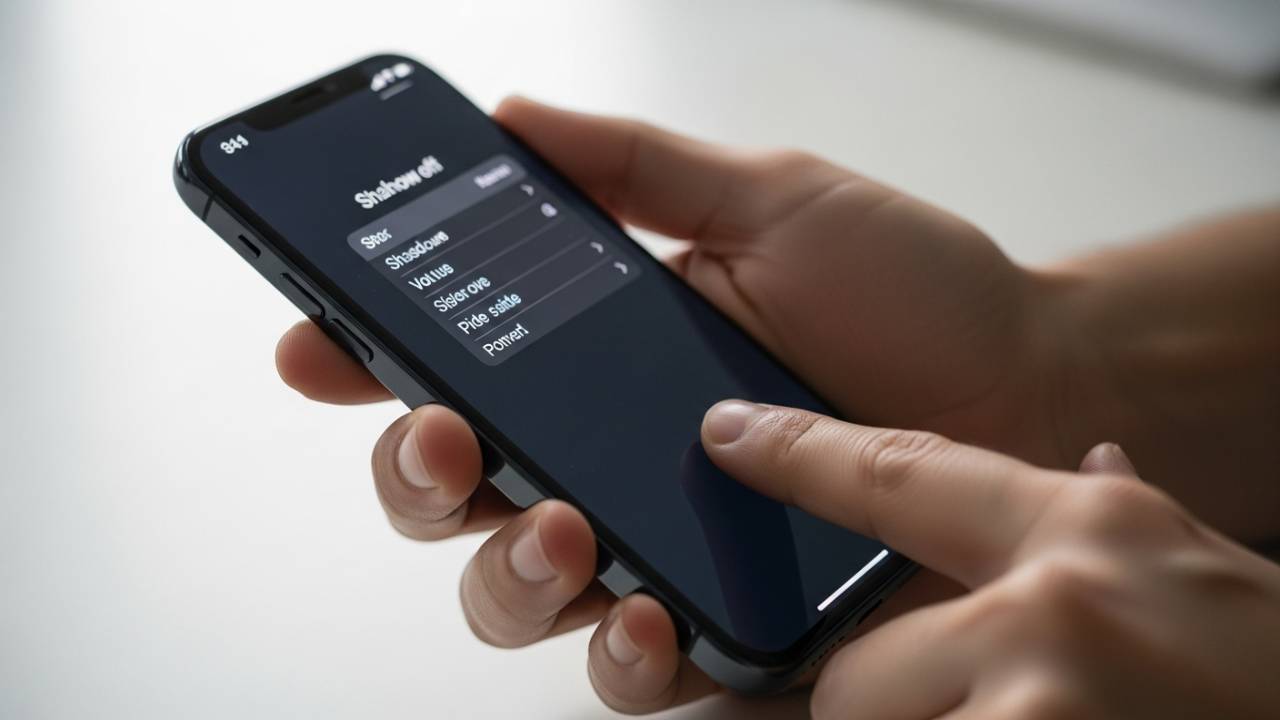
- Press and hold the Side button (right side) and either the Volume Up or Volume Down button (left side) simultaneously.
- Keep holding them for about two seconds until the “Slide to Power Off” slider appears at the top of the screen.
- Drag the slider to the right.
- Wait about 30 seconds for the device to shut down completely.
This method works across the entire lineup, including the iPhone 16, iPhone 16 Plus, iPhone 16 Pro, and iPhone 16 Pro Max.
How to Turn Off iPhone 16 Without Sliding the Screen
Sometimes, the “touch” layer of your display stops working, or you might find it difficult to perform the sliding gesture. If your screen is still visible but won’t register your swipe, you can use the software-based shutdown method.
Using the Settings Menu:
- Open the Settings app.
- Tap on General.
- Scroll all the way to the bottom and tap Shut Down.
- The “Slide to Power Off” screen will appear.
Note: If your touch screen is completely broken and cannot register a swipe at all, you will need to use the “Force Restart” method described in the “Frozen” section below to effectively cycle the power.
How to Turn Off iPhone 16 With Buttons Only
If you prefer a tactile approach or want to avoid the screen entirely, you can trigger the power menu using only physical buttons. The key is the timing.
Why Timing Matters
Many users make the mistake of letting go of the buttons too early. When you hold the Side button and Volume button, you must wait for the haptic vibration and the visual cue on the screen.
- Restart vs. Power Off: A quick click of buttons usually just locks the screen. A long press brings up the power menu. A specific rapid sequence (Force Restart) bypasses the software entirely.
How to Turn Off iPhone 16 When Screen Is Frozen
A frozen screen is one of the most frustrating experiences. The buttons seem unresponsive, and the slider won’t move. In this case, you must perform a Force Restart. While this technically “restarts” the phone, it is the only way to “turn off” a device that is stuck.
The Force Restart Sequence:
To turn off and reboot a frozen iPhone 16:
- Press and quickly release the Volume Up button.
- Press and quickly release the Volume Down button.
- Press and hold the Side button.
- Keep holding the Side button even after the slider appears. Do not let go until you see the Apple Logo on the screen.
This “hard reset” cuts the power to the processor for a split second, forcing the system to clear its cache and restart fresh.
How to Turn Off iPhone 16 Without Screen or Touch Input
What if your screen is completely black, or the LCD is cracked and doesn’t show anything? Knowing how to turn off iPhone 16 without the screen is vital for safety (like before a repair) or to stop the phone from vibrating with notifications.
The Blind Shutdown
Since you cannot see the slider, the only reliable way to ensure the phone powers down and stays down is to use the Force Restart method mentioned above, but with a twist:
- Perform the Force Restart (Volume Up, Volume Down, then hold Side button).
- Count to 15 while holding the Side button.
- Release the button. Since the screen is broken, you won’t see the Apple logo, but the 15-second hold usually forces the system to drop the current session.
How to Turn Off iPhone 16 Pro Max Without Touching Screen
The iPhone 16 Pro Max is a large device, making one-handed shutdowns difficult. If you are trying to power it down without touching the screen (perhaps because the screen is unresponsive or you are wearing gloves):
- Use the Button Combo: Side button + Volume button.
- Wait for the Emergency SOS screen: If you hold these buttons for too long (about 5 seconds), a countdown for Emergency SOS will begin. If you don’t want to call emergency services, release the buttons before the countdown ends and use the Force Restart sequence instead.
How to confirm it’s off? Toggle the Silent/Ring switch (or the Action Button if mapped) or plug in a charger. If there is no haptic vibration, the phone is likely powered down.
How to Turn Off iPhone 16 Screen Light Without Powering Off
Sometimes you don’t want to shut the whole phone down; you just want the screen to stay dark. With the Always-On Display on the iPhone 16 Pro and Pro Max, the screen might stay “on” even when locked.
Managing the Always-On Display:
- To turn off the light temporarily: Press the Side button once.
- To disable Always-On permanently: Go to Settings > Display & Brightness > Always On Display and toggle it off.
- Face Down: Simply placing your iPhone 16 face down on a table will automatically turn off the screen light to save battery.
How to Turn Off iPhone 16 Completely (Deep Shutdown)
Is there a difference between “Sleep” and “Power Off”? Yes.
- Sleep Mode: This is what happens when you click the Side button once. The screen goes dark, but the phone is still on, receiving pings, and consuming battery.
- Full Power Off: This shuts down all processes.
When should you do a full shutdown?
- If your battery is draining too fast.
- If the phone feels physically hot.
- If apps are crashing repeatedly.
- If you won’t be using the phone for more than 24 hours.
How to Turn iPhone 16 Back On After Shutdown
Once you’ve successfully turned it off, turning it back on is simple:
- Press and hold the Side button (right side).
- Release the button once the Apple Logo appears in the center of the screen.
- Enter your passcode (Face ID will not work on the first boot after a shutdown).
Common iPhone 16 Power-Off Problems and Fixes
1. The Power Menu Won’t Appear
If holding the buttons doesn’t work, ensure your buttons aren’t stuck by a thick protective case. Try removing the case and pressing the buttons directly.
2. The Phone Turns Back On Automatically
If your iPhone 16 restarts immediately after you turn it off, it might be plugged into a power source (USB-C cable or MagSafe). iPhones are programmed to boot up automatically when they sense a charge. Disconnect the cable before shutting down.
3. Siri Keeps Popping Up
This happens because you are only holding the Side button. Remember: you must hold a Volume button simultaneously with the Side button to reach the power menu.
FAQs – How to Turn Off iPhone 16
Use the Force Restart method: Click Volume Up, click Volume Down, then hold the Side button until the device reboots or the screen goes dark.
Since you can’t see the slider, the best way is to perform a Force Restart (Up, Down, hold Side). If you want it to stay off, wait for the battery to drain or perform the button sequence and release before the Apple logo appears.
You must perform a “Force Restart.” Press and release Volume Up, press and release Volume Down, then hold the Side button until the Apple logo appears.
Hold the Side button and either Volume button until the slider appears. If you cannot use the slider, use the Force Restart sequence (Up, Down, hold Side).
Press the Side button once to enter sleep mode. To ensure the screen stays completely black (disabling Always-On), go to Settings > Display & Brightness > Always On Display and turn it off.
Final Thoughts
Mastering the various ways to turn off your iPhone 16 ensures that a software glitch or a hardware mishap won’t leave you stranded. Whether you’re using the iPhone 16 Pro Max or the base model, these button combinations are your first line of defense against a malfunctioning device.