
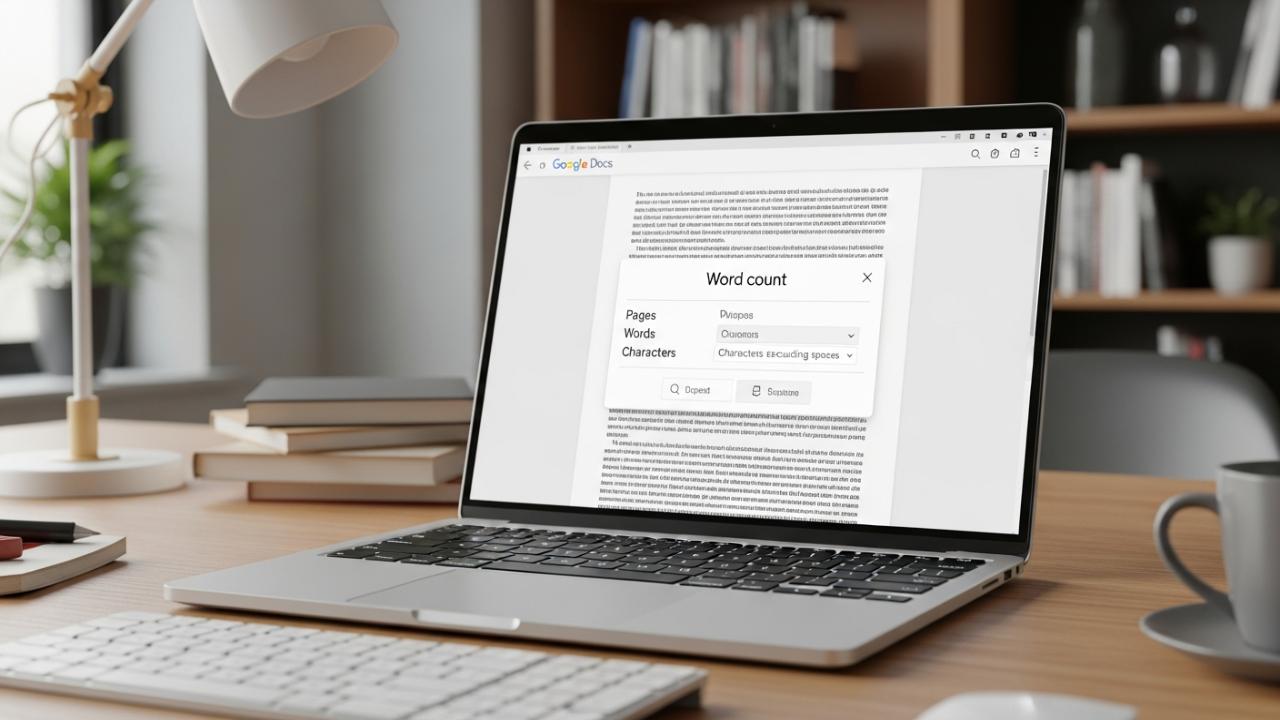
APPS • DAILYTECH.ID - Checking the word count in Google Docs is an essential feature for meeting academic or professional length requirements and is accessible across all platforms.
To check the word count in Google Docs, navigate to the “Tools” menu located at the top of the screen and select “Word count.” Alternatively, you can use the keyboard shortcut Ctrl+Shift+C (Windows/Chromebook) or Cmd+Shift+C (Mac) to instantly open the word count dialogue box, which displays words, characters, and pages. These methods are the fastest ways to view your word count, whether you are using a laptop or a dedicated desktop computer.
The Standard Way: Checking Word Count on Desktop and Laptop
For writers, students, and professionals working on traditional computers—whether they are using a Windows PC, an Apple MacBook, a Linux machine, or a Chrome OS device—the standard method for how to find a word count on Google Docs is universally consistent. This procedure ensures you can quickly verify your document’s length before submission or publication. This approach provides a comprehensive breakdown of the text statistics, going beyond just the word count.
Step-by-Step Guide to View Word Count Google Docs (Menu Method)
This is the foundational technique for calculating document length and is reliable regardless of your web browser (Chrome, Firefox, Edge, Safari).
- Open your Google Document: Ensure the document is loaded and accessible in your browser window. You must have edit access to the file to open the Tools menu.
- Locate the “Tools” menu: Look at the main toolbar near the top of the screen, nestled between “Format” and “Extensions.” This menu contains various utility features critical for document management.
- Click “Tools,” then select “Word count”: When you select “Tools,” a large dropdown menu will appear. Near the middle of this list, you will find the “Word count” option. Clicking this option initiates the calculation.
- Analyze the Pop-Up Window: A dedicated pop-up window will instantly appear, providing detailed document statistics. This window addresses several requirements beyond the simple word count:
- Pages: The total number of pages in the document.
- Words: The total count of every word in the main body of the text.
- Characters: The total number of characters, including all spaces, punctuation marks, and symbols.
- Characters excluding spaces: The raw count of letters and numbers only, which is useful for platforms that impose strict character limits without considering white space.
This method is the definitive way to check word count in Google document formats when precise, multi-metric data is required.
Quick Access Using Keyboard Shortcuts (Ctrl + Shift + C)
For maximum efficiency, especially when actively writing and needing periodic checks, knowing how to check word count on Google Docs shortcut commands is invaluable. Utilizing the keyboard shortcut bypasses the need for mouse clicks entirely and is generally the fastest way to pull up the word count dialogue box.
The command utilizes three keys pressed simultaneously, differentiating only slightly based on the computer’s operating system:
- For Windows, PC, and Chromebook Users: To use the how to check word count on Google Docs Ctrl command, press and hold:
Ctrl + Shift + C. This immediately opens the statistics dialogue box. - For Mac and MacBook Users: To use the how to check word count on Google Docs command, press and hold:
Cmd + Shift + C. This achieves the exact same result as the PC shortcut, tailored for the macOS interface.
Mastering this keyboard shortcut is particularly crucial for students working under strict time constraints, as it allows for instantaneous checks without interrupting the flow of writing. It is the gold standard for how to check word count on Google Docs using keyboard shortcut integration.
Word Count on the Go: Mobile and Tablet Methods
The professional world often requires work outside the desktop environment. Google Docs is fully functional on mobile devices, but the interface for viewing the word count on Google Docs app versions (for iPhone, iPad, and Android) is streamlined and optimized for touch, meaning the standard “Tools” menu is absent.
The process for how to check word count on Google Docs mobile devices focuses on utilizing the in-app menu settings, which are typically denoted by common navigational icons.
Steps to Check Word Count on Google Docs on Phone and Tablet
Whether you are using an iPhone, an Android tablet, or a smaller smartphone screen, the steps to retrieve the document statistics remain the same within the application interface.
- Open the Google Docs App: Launch the dedicated Google Docs application on your device. Ensure you are signed into the correct Google account.
- Open the Target Document: Navigate to and tap on the specific document for which you need the count.
- Access the More Options Menu: Look in the upper right-hand corner of your screen. You will typically find an icon represented by three vertical dots (
⋮). This is the “More Options” menu. Tap this icon. - Select “Word count”: A context-sensitive menu will slide or pop up. Scroll through the options until you find “Word count” and tap it.
- View the Results: Unlike the desktop version, which generates a large pop-up window, the mobile app usually displays the total word count briefly at the bottom of the screen. In some recent app iterations, tapping “Word count” may open a smaller, temporary panel that provides the total words, characters, and page count before automatically closing.
This method confirms that whether you are accessing Google Docs on an iPhone, an iPad, or an Android device, you can always accurately monitor your document length using the how to check word count on Google Docs on phone protocol.
Advanced Counts: Including Footnotes and Selections
For academic writers, technical manual creators, and legal professionals, merely counting the main body text is often insufficient. Specific mandates may require the inclusion of supplementary text, such as footnotes, or the ability to isolate and count only a selected portion of the document. Google Docs provides powerful configuration options within the word count dialogue box to handle these precise requirements.
How to Find Word Count Including Footnotes
When submitting an essay or thesis, understanding how to check word count on Google Docs including footnotes is essential, as ignoring these elements can lead to an inaccurate final submission count. By default, Google Docs focuses only on the primary running text. You must explicitly tell the program to include auxiliary sections.
- Access the Word Count Dialogue Box: Use either the “Tools” > “Word count” menu path or the keyboard shortcut (
Ctrl/Cmd + Shift + C). - Locate Inclusion Settings: Within the dialogue box, look toward the bottom section for customizable checkboxes.
- Check the Specific Box: Click the checkbox labeled “Include headers, footers, and footnotes”.
- Instant Recalculation: As soon as you check this box, the numbers for “Words,” “Characters,” and “Characters excluding spaces” will instantly update to reflect the newly included text from these supplementary sections.
This feature is critical for those who need to see word count on Google Docs with footnotes integrated seamlessly into the total. This sophisticated control ensures that even highly formatted documents meet stringent length standards.
How to See Highlighted or Selected Word Count
A frequent task for editors and writers is checking the length of a single chapter, a paragraph, or a block of quoted material without needing to see the total document count. Google Docs automatically calculates the selected word count, providing highly granular data instantly.
- Highlight the Desired Text: Use your mouse or trackpad to select the specific section of text you wish to count. The selected area can be anything from two words to several pages.
- Access the Word Count Dialogue Box: Open the statistics window using the shortcut or the “Tools” menu.
- Review the Dual Display: When text is highlighted, the word count dialogue box changes its display format. It will show a ratio rather than a single number. For example, it might read: “150 of 4,800 words.”
- The first number (150) represents the count of the highlighted text (how to see selected word count in Google Docs).
- The second number (4,800) represents the total word count for the entire document.
This dynamic feature eliminates the need to cut and paste sections into separate counters, making the process of checking specific section lengths far more efficient.
Continuous Monitoring: Displaying Word Count While Typing
For long-form projects, especially those requiring consistent adherence to a minimum or maximum word limit, repeatedly opening the word count dialogue box can become cumbersome. Google Docs provides a persistent display option that keeps the word count visible at all times, functioning similarly to the status bar in Microsoft Word.
Setting Up the Persistent Word Count Display
This optional setting drastically improves the workflow for writers focused on hitting specific numerical targets without interruption.
- Open the Word Count Dialogue Box: Use the standard methods (
Tools > Word countor the shortcutCtrl/Cmd + Shift + C). - Enable the Continuous Display: Inside the pop-up window, locate and check the box labeled “Display word count while typing”.
- Confirm and Observe: Click “OK” or “Close.” The full pop-up window will disappear, but a small, unobtrusive word counter will now appear in the lower-left corner of your document interface, just above the status bar.
Utilizing the Persistent Counter
The persistent counter is an adaptive tool. By default, it usually shows only the total word count. However, by clicking on the counter itself, you can quickly cycle through the four key metrics without opening the full dialogue box:
- Pages
- Words
- Characters
- Characters excluding spaces
This continuous display is particularly useful for Chromebook and Mac users, providing a non-invasive way to monitor progress instantly while writing, ensuring you are always aware of your document’s current length.
Troubleshooting and Platform Specifics
While Google Docs is generally highly consistent, certain nuances exist depending on the device or platform you are using, especially when utilizing shortcuts or specific browser configurations.
Keyboard Shortcut Variations on Mac vs. PC
While the core functionality for how to check word count on Google Docs shortcut remains the same (Cmd/Ctrl + Shift + C), Mac users sometimes face issues due to function key mapping. If the shortcut doesn’t immediately work on a Mac or MacBook, ensure that your keyboard settings aren’t routing the Command key to a different system function.
For users on a specialized device like a Chromebook, the shortcut Ctrl + Shift + C is the only official method. Since Chromebooks rely heavily on Google services, this specific shortcut is highly optimized and virtually always functions instantly. Understanding how to check word count on Google Docs Chromebook devices is straightforward: adhere strictly to the Ctrl + Shift + C sequence.
Browser Compatibility and Extensions
In very rare cases, third-party browser extensions (especially those related to text editing, grammar checking, or document enhancement) can interfere with the way Google Docs processes or displays pop-up dialogue boxes. If you find that the word count window fails to appear after using the shortcut or menu option, try the following troubleshooting steps:
- Disable Extensions: Temporarily disable all non-essential browser extensions.
- Clear Cache/Cookies: Clear your browser cache, as accumulated data can sometimes slow down or disrupt Google Docs functionality.
- Try an Incognito Window: Open the document in an Incognito or Private browsing window, which loads the document without any stored extensions or cookies.
This ensures that the core functionality of where to find word count on Google Docs is not being inhibited by external software, allowing you to reliably determine your total word count.
FAQs – How To Check Word Count On Google Docs
To keep the word count visible, open the “Word count” dialogue box via “Tools” or the shortcut (Ctrl/Cmd + Shift + C). Check the box labeled “Display word count while typing” before clicking “OK.” The count will then appear in the lower-left corner of the screen.
Yes, there is a difference. While Docs offers robust, built-in word counting, Google Slides does not currently provide a native word count function through the Tools menu. Users must typically copy text into a Google Doc or external counter to calculate length in Slides.
If you have selected the option to display the word count continuously while typing, the count may temporarily show the number of words in a highlighted selection as you scroll or click. If no text is highlighted, the persistent display returns to the document’s total count.
The character count is automatically displayed alongside the word count. When you access the “Word count” dialogue box (via “Tools” > “Word count” or the shortcut), the pop-up window provides four metrics: pages, words, characters (with spaces), and characters excluding spaces.
The definitive keyboard shortcut for checking the word count on a Google Docs Chromebook device is Ctrl + Shift + C. Pressing these three keys simultaneously will instantly open the document statistics dialogue box, showing words, characters, and page metrics.



