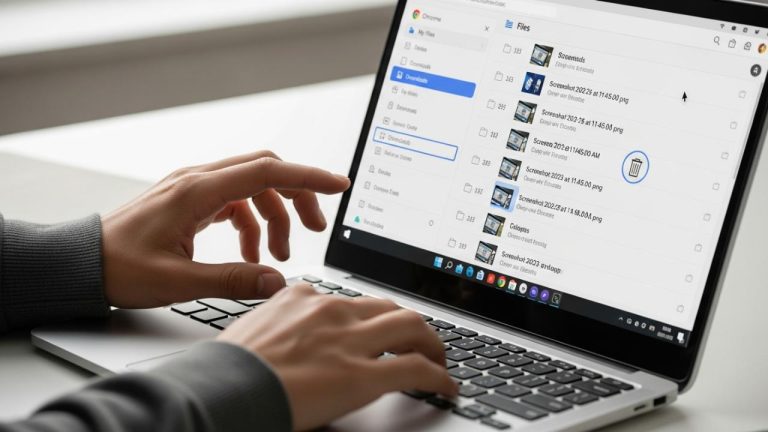
LAPTOP • DAILYTECH.ID - Accessing your Chromebook’s internal specifications is critical for diagnosing performance issues, confirming compatibility for apps, or verifying the device’s hardware before selling or upgrading. Knowing how to check your device specs on a chromebook ensures you have accurate information about the processor, RAM, and storage capacity instantly.
The quickest way to check your Chromebook’s specifications is by typing chrome://system into the Omnibox. This opens the Diagnostics page, where you can view detailed hardware components, including RAM, CPU type, serial number, and OS version, regardless of the manufacturer (HP, Acer, or Dell). While this command provides the deepest view, there are several alternative methods available for users who prefer standard settings navigation or require specs in restricted environments.
Utilizing the Diagnostics App for Comprehensive Hardware Specs
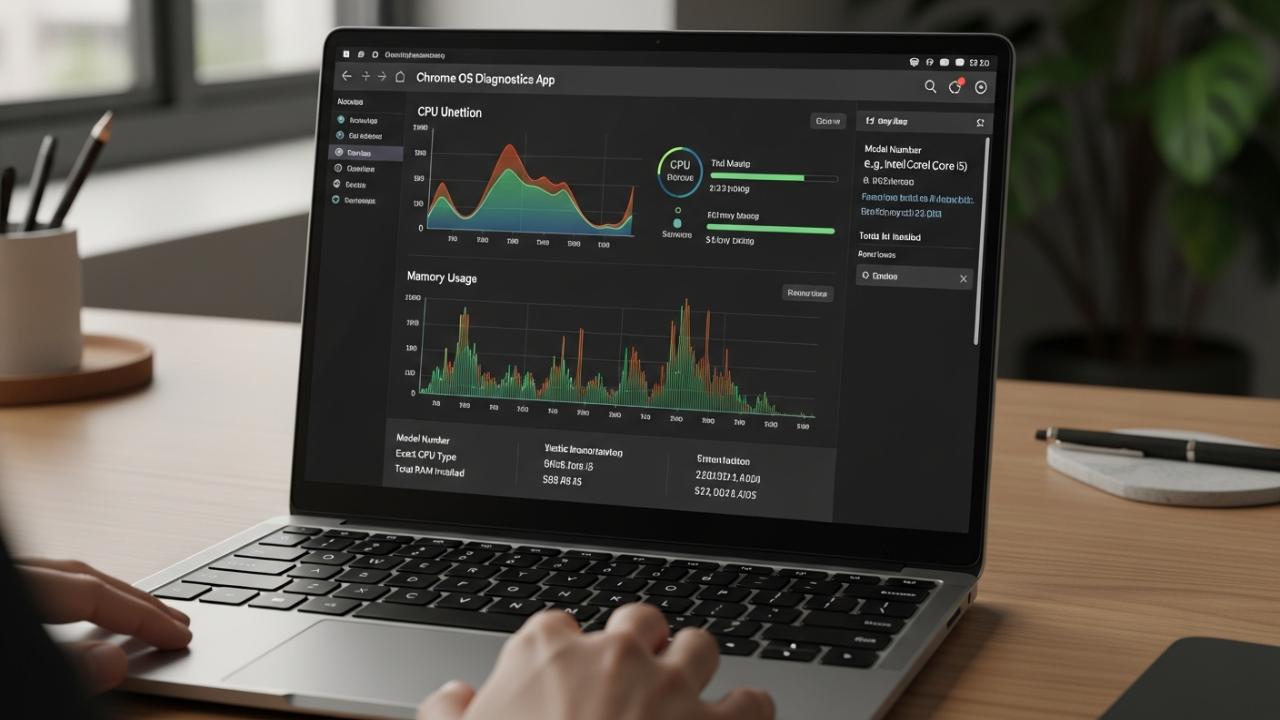
The modern Chrome OS simplifies the process of how to check chromebook system specs through the native Diagnostics app, which replaces older system pages and is the best resource for viewing detailed hardware stats in a clean, graphical interface. Introduced in recent Chrome OS versions, this tool is paramount for both daily monitoring and initial troubleshooting, as it provides real-time information that is easier to parse than raw system logs. It is particularly useful for assessing immediate performance impacts, confirming memory usage, and determining the battery’s overall health cycle count.
Step-by-Step: Using the Diagnostics Tool
To access this crucial utility, you do not need to navigate complex settings menus; rather, you simply launch the application directly:
- Open the App Launcher: Click the circular icon located in the bottom left-hand corner of your screen (usually situated near the shelf).
- Search and Launch: Type the word “Diagnostics” into the search bar that appears and click the application icon when it loads.
- Review the Overview Panel: The initial screen immediately displays critical real-time metrics, including the current CPU usage percentage, the Memory Status, and the ongoing battery life estimation. This overview helps you quickly identify if high CPU utilization or near-full memory is causing sluggish performance.
- Navigate for Specifics: To find the precise model identification and static hardware details, look for the “System” tab or the corresponding panel within the app interface. Here, the system explicitly lists your Model Number (essential for support queries), the exact CPU Type (e.g., Intel Core i5-12th Gen or MediaTek Kompanio), and the Total RAM installed, allowing you to quickly fulfill the objective of how to check chromebook specs ram. This comprehensive overview is often the fastest and most user-friendly way to check your specs on a chromebook without delving into complex code logs.
The utility of the Diagnostics app lies in its ability to combine static information (CPU model) with dynamic performance data (current CPU frequency and load). For current or prospective owners comparing hardware, seeing the installed RAM alongside the real-time memory pressure offers a much better assessment of the machine’s capacity than simply reading a number off a sticker.
The Power User Method: The chrome://system Deep Dive
For users requiring highly granular data—data often necessary for reporting bugs, accessing serial numbers for warranty registration, reviewing firmware details, or understanding exact kernel versions—the internal Chrome OS debugging page remains the go-to tool for how to check specs on chrome os. This method is exceptionally powerful because it bypasses any potential user interface restrictions, providing a raw dump of system variables directly from the core operating system. This method works universally across all brands, whether you need to check hp chromebook specifications or confirm dell chromebook specs, as it relies on core Chrome OS functionality rather than manufacturer overlays.
How to Execute the chrome://system Command
Accessing this page requires a simple URL input into the browser, which acts as a gateway to the machine’s internal configuration logs:
- Open a New Browser Tab: Ensure you have a clear Omnibox (address bar) available.
- Input the Command: Type
chrome://systemdirectly into the address bar (Omnibox). Note: Do not include “www” or “http”. Press Enter. - Analyze the Technical Page: A page titled “System” will load, featuring dozens of expandable sections, each corresponding to a specific system log or component. While daunting at first glance due to the sheer volume of text, the information within is meticulously organized by log name.
- Targeted Searching for Specifications: Because the page contains so much information, utilizing the browser’s find function is mandatory. Use the keyboard shortcut Ctrl + F (or Cmd + F on Apple keyboards) and search for the specific terms needed:
- RAM Details: Search for
meminfo. This section details the total installed memory, free memory, cached memory, and swap usage, providing a crucial understanding of memory management on the device. - Processor Specs: Search for
cpuinfo. This log reveals the exact CPU model name, the number of cores, the cache size, and the list of supported CPU features (flags), which are critical for determining compatibility with advanced Linux applications. - Model Identification: Searching for
modelorhardware_classwill reveal your exact hardware configuration, which is crucial for how to check chromebook model and specs. This often includes the precise commercial name and the internal board designation (e.g., “Hana” for a specific Acer model). - Serial Number: Searching for
serial_numberis often the only way to retrieve this number digitally if the external sticker is worn off or missing.
- RAM Details: Search for
The chrome://system page also contains logs like lsb-release which confirms the exact build number and channel (Stable, Beta, Dev) your operating system is running on, offering vital context for performance troubleshooting or bug reporting. Mastering this command is the hallmark of an advanced Chromebook user seeking unparalleled access to their device’s inner workings.
Standard Navigation: How to Check Chromebook Specs in Settings
If highly technical logs are unnecessary and you prefer a simpler, graphical interface for retrieving essential identification numbers, the standard Chrome OS Settings menu provides basic, high-level device information suitable for most users looking for how to check chromebook specifications. This method is ideal for checking the operating system version, confirming the device name, and finding recovery information.
Locating Basic Specifications (Model and OS)
The Settings app consolidates the most necessary user-facing details, making it the most intuitive starting point for many:
- Access the Quick Settings Panel: Click on the system tray area in the bottom right corner of the screen, where the time, battery, and Wi-Fi icons are displayed.
- Open Settings: Click the gear icon ($\text{⚙}$) to open the main Settings application window.
- Navigate to System Details: Scroll down to the bottom of the left-hand menu and select “About Chrome OS.”
- View Additional Details: Under the main “About Chrome OS” header, look for and select “Additional details.” This expanded section is where Chrome OS hides the more specific identification markers. Here you will find the precise Version and Build number of your operating system, along with the specific Firmware details for your machine. This section confirms basic info on how to check your chromebook specs.
- Storage Confirmation: While the primary system specs (CPU, RAM) are best found in the Diagnostics app, the total storage capacity of your machine is easily confirmed within the settings. Navigate back to the main Settings menu and select Device > Storage management. This area not only displays the amount of remaining free space but also confirms the total capacity of the internal eMMC or SSD storage, helping you manage downloaded files and application data effectively.
Understanding the difference between the OS version (e.g., 119.0.6045.100) and the firmware version is crucial, especially when performing a system recovery or checking for hardware compatibility updates issued by the manufacturer.
Checking Specs on Restricted Devices and Specific Brands
Different user scenarios require specialized approaches. For instance, accessing specifications on a school-issued or heavily managed corporate device may severely limit your ability to use the Diagnostics app or standard Settings navigation. Similarly, checking specs on brand-specific hardware (Acer, HP, Lenovo) is often simplified by knowing where to look outside the operating system.
Accessing Specs in Guest Mode or School Chromebooks
When logged into a device in Guest Mode (how to check chromebook specs in guest mode) or on a heavily managed School Chromebook (a common query for users needing to check specs on school chromebook), many standard features and system utilities may be locked down or restricted by administrative policy.
However, the power user command chrome://system often remains functional. Because this command is an internal system tool necessary for basic information retrieval and browser function, administrators frequently leave it unblocked. If even the chrome://system command is blocked—a rare but possible scenario on highly restricted educational devices—your only reliable option is to check the physical information printed on the laptop itself. Look for the service tag or sticker on the underside of the laptop, which usually lists the exact Model Name, Part Number, and Serial Number (SN).
HP, Acer, and Asus: Finding External and Internal Model Info
While the internal software methods work for all devices, knowing your exact physical model number is essential for warranty claims, finding compatible replacement parts, or sourcing the correct recovery media. Users looking to check acer chromebook specs, how to check hp chromebook specs, or confirm asus chromebook specs should always prioritize these external checks alongside internal verification:
- Check the Palm Rest or Bottom Panel: Most manufacturers—including HP, Acer, Dell, Asus, Lenovo, and Samsung—print the precise model name and sometimes the specific configuration details (like CPU generation) either on a small sticker affixed to the bottom chassis or subtly etched into the casing near the hinge or fan vents. For example, an HP Chromebook x360 14c will usually have that name clearly visible.
- Use the Login Screen (Dell and Samsung specific): On some devices, particularly models from Dell and Samsung, clicking the small “i” icon located in the bottom corner of the login screen sometimes reveals the serial number, hardware ID, and firmware version without requiring login credentials. This is useful for IT staff or when the user has forgotten their password.
- Check Packaging or Invoice: If the device is new, the original packaging or the purchase invoice is the definitive source for the exact SKU, which encodes the RAM, storage, and CPU type. This is often the most reliable source for checking
how to check lenovo chromebook specsorhow to check samsung chromebook specsaccurately during purchase verification.
Deep Dive: Interpreting Hardware Specifications
Once you have located your system specifications using one of the methods above, understanding what the numbers mean is critical for upgrade assessment or troubleshooting.
Processor (CPU) Identification
Your CPU details, usually found under cpuinfo or in the Diagnostics app, are foundational to performance.
- Manufacturer and Model: Chromebooks primarily use processors from Intel (Core series, Celeron, Pentium), AMD (Ryzen, A-series), or MediaTek (Kompanio series). Knowing the generation (e.g., 12th Gen Intel Core i3) is more important than just the brand, as newer generations offer significantly better efficiency and performance.
- Core Count and Threads: This determines multitasking capability. Most lower-end Chromebooks have 2 or 4 cores. High-end models feature 8 or more threads.
- Base Frequency: The clock speed (in GHz) provides a baseline measure of processing speed. However, modern processors utilize Turbo Boost or similar technology, making the “Max Frequency” a better indicator of peak performance.
Memory (RAM) Assessment
The most common reason users need to know how to check chromebook specs ram is to gauge how many tabs or applications they can run simultaneously.
- Total Installed RAM: This is the physical memory count (e.g., 4GB, 8GB, 16GB). Chrome OS generally performs optimally with 8GB or more for heavy use, while 4GB is considered the minimum for basic web browsing.
- Available vs. Used Memory: The Diagnostics app provides a real-time graph showing memory pressure. If your used memory consistently hovers near the total installed memory, the system is struggling, leading to frequent tab reloading. Unlike traditional laptops, Chromebook RAM is almost never user-upgradeable due to being soldered onto the motherboard; therefore, checking this specification is purely for performance assessment, not upgrade planning.
Storage Confirmation
Storage is critical, particularly because many Chromebooks use slower eMMC storage instead of faster SSDs.
- Total Capacity: Usually listed as 32GB, 64GB, 128GB, or 256GB. With Chrome OS being cloud-centric, lower storage counts are common.
- Storage Type: While the system specs don’t always explicitly state eMMC or NVMe/SSD, the internal model number or a deep dive into the
chrome://systemlogs (under device configuration) can often infer the type. Faster NVMe/SSD storage drastically improves boot times and application loading compared to eMMC. Verifying this is essential when assessing value or confirming advertised specs.
FAQs – How To Check Chromebook Specs
The easiest method is opening the native Diagnostics application via the App Launcher. This tool provides a real-time, graphical dashboard that clearly displays statistics for the CPU, including utilization and model name, as well as the total amount of physical memory (RAM) installed on the device.
Yes, you can often check basic hardware and system specifications even in Guest Mode. This is typically achieved by navigating to the internal system page, chrome://system, in the browser’s address bar. However, access to the full, graphical Diagnostics application may be restricted by device policy in Guest Mode.
The precise model number is crucial for several reasons. It helps define the specific hardware generation, which dictates which Chrome OS updates you receive. Knowing the exact model ensures you access correct support, drivers, and the appropriate Chrome OS End-of-Life (EOL) date, ensuring longevity.
You can find the total storage capacity by going to the system Settings menu. Navigate to the area labeled Device, and then select Storage management. This dedicated section explicitly displays the remaining free space and confirms the overall total capacity of the internal eMMC or SSD storage installed in the machine.
The internal software methods—such as using the chrome://system command or the Diagnostics app—are identical across all brands (HP, Acer, Dell) because they rely solely on standard Chrome OS functions. However, the physical placement of model and serial number stickers on the chassis may vary significantly between these different manufacturers.