LAPTOP • DAILYTECH.ID - The process for detecting and confirming potential malware on ChromeOS differs significantly from the steps you might take on Windows or macOS due to the underlying security architecture and the nature of the operating system. Chromebooks are highly secure due to ChromeOS sandboxing, rarely requiring traditional virus scans. To check for malware, utilize the built-in ChromeOS security features, review Chrome extensions, and perform a full “Powerwash” (factory reset) if suspicious behavior persists. You can also use the Chrome Cleanup Tool for residual Windows-based threats. These core procedures will guide you through how to effectively scan for viruses on your Chromebook, addressing the immediate user need for precise guidance on security checks.
Understanding Chromebook Security: Why Traditional Scans Are Unnecessary
When users ask how to check for viruses on a chromebook, they are often approaching the issue with the mindset developed while using traditional operating systems. However, ChromeOS is designed to prevent infections that require the frequent, deep system scans associated with older platforms. Understanding the architecture is the first step in knowing how to check for viruses on chrome os effectively.
The ChromeOS Security Model: Sandboxing Explained
The core of Chromebook security lies in its multi-layered design, primarily revolving around “sandboxing.” Sandboxing means that every single process—each browser tab, every application, and even internal system services—is isolated within its own restrictive environment. If malicious code somehow manages to infiltrate one sandbox (say, a compromised website tab), that code cannot escape that sandbox to access your personal files, modify the operating system, or affect other running applications.
Furthermore, ChromeOS utilizes a feature called Verified Boot. Every time you power on your Chromebook (whether it is an HP Chromebook, an Acer Chromebook, or a Google Chromebook), the system runs a self-check. This check verifies that the operating system has not been tampered with or corrupted since the last successful boot. If the system detects any unauthorized changes, it automatically reverts to a clean, known-good version of the OS. This continuous, automatic verification is essentially the most powerful virus scan available, and it runs invisibly every time you boot up.
Identifying the True Threat: Malware vs. Viruses
It is critical to differentiate between a traditional virus and the type of malware that can affect a Chromebook. Traditional viruses are programs designed to replicate and spread by modifying executable code. Because ChromeOS runs in a state of read-only protection and utilizes sandboxing, these traditional viruses are practically impossible to establish and survive on the device.
The actual threats to a modern Chromebook fall under the umbrella of malware:
- Malicious Chrome Extensions: These are the most common culprits. They appear harmless but may collect data, inject unwanted ads, redirect your searches, or mine cryptocurrency in the background.
- Phishing and Social Engineering: Scams designed to trick the user into giving up passwords or other sensitive information, often through fake login screens.
- Compromised Android Apps: If your Chromebook supports Android apps, a poorly coded or malicious app from the Play Store could cause performance issues or excessive data collection, though ChromeOS still attempts to sandbox these aggressively.
When you ask, do I have a virus on my chromebook, what you usually mean is, “Do I have a piece of unauthorized software interfering with my experience?”
Do I Need Third-Party Antivirus Software on My Chromebook?
The short answer is almost universally no.
The comprehensive built-in security features, including automatic updates, Verified Boot, and sandboxing, render external antivirus software redundant for the primary functions of ChromeOS. Any third-party application promising how to scan for viruses on chromebook for free is generally unnecessary overhead that consumes resources and may offer negligible additional security. In fact, downloading and installing an unfamiliar security tool could itself be a risk. Your focus should instead be on managing the security perimeter—your browser extensions and user habits—which are the primary attack vectors.
Step-by-Step Guide: How To Check for Viruses on My Chromebook
For users needing precise steps on how do I check for viruses on my chromebook, the focus shifts from running a lengthy system scan to performing detailed diagnostic audits of user-installed components.
Method 1: Utilizing the ChromeOS Built-In Security Features
The operating system continuously checks its own integrity. You don’t explicitly need to run a manual “virus scan” because ChromeOS performs these checks automatically.
- Check for Pending Updates: Ensure your OS is always running the latest version. Go to Settings > About Chrome OS > Check for Updates. Google consistently patches vulnerabilities, so being updated is your first line of defense.
- Audit System Performance: While not a security scan, checking the Task Manager can help identify programs using excessive CPU resources, which is often a symptom of hidden malicious activity. Press Search + Esc to open the Task Manager. Look for extensions or processes consuming high memory or CPU when they should be idle. This diagnostic tool is crucial in determining how to run a virus scan on my chromebook by examining resource usage.
Method 2: Inspecting and Removing Malicious Chrome Extensions
Since extensions are the primary attack vector, learning how to audit them is essential for any user asking how to check a chromebook for viruses. Malicious extensions are designed to look legitimate.
How to Access and Audit Your Installed Extensions
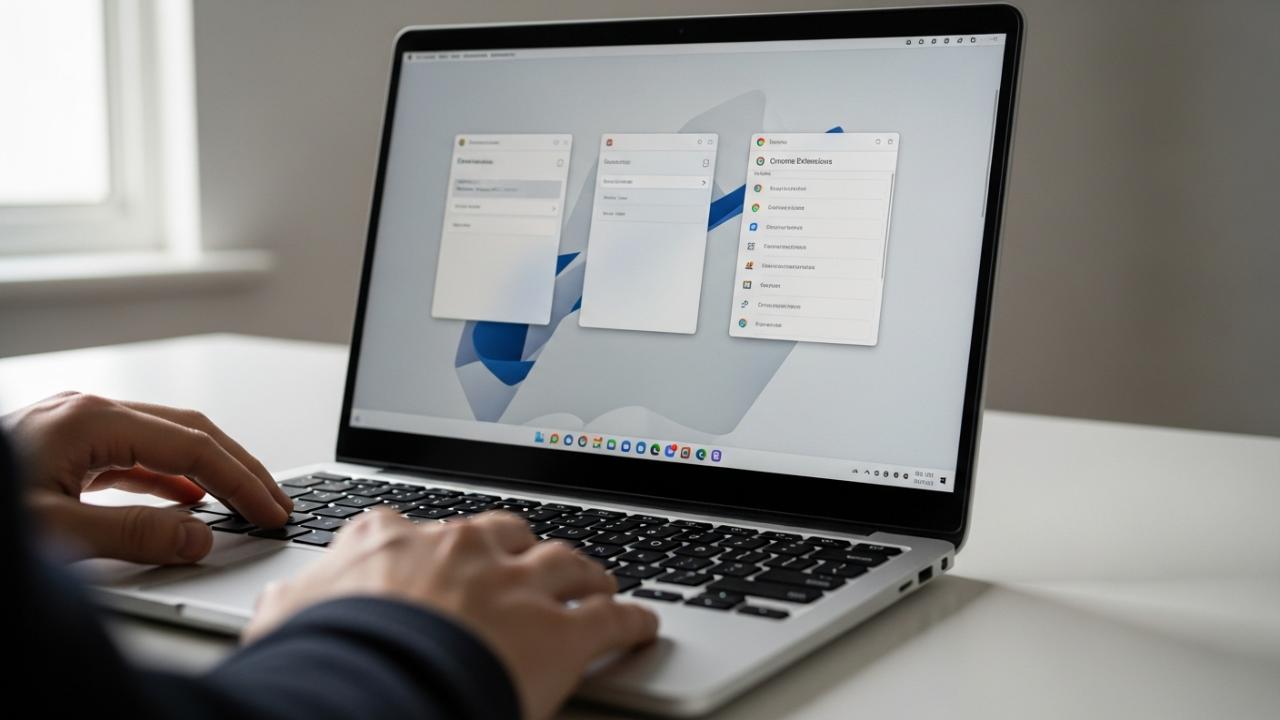
- Navigate to the Extension Management Page: Open your Chrome browser and type
chrome://extensionsinto the address bar and press Enter. Alternatively, click the three-dot menu (top right) > More Tools > Extensions. - Review Suspicious Extensions: Look for any extension you do not remember installing, or one that has extremely broad permissions (e.g., “Read and change all your data on all websites”). Be highly suspicious of extensions that were mysteriously installed after downloading a free game or utility.
- Audit Permissions: ChromeOS clearly lists the permissions each extension requires. If a simple calculator extension requires permission to “read and change all data on all websites,” it is likely malicious.
- Remove or Disable: If an extension seems suspicious, use the toggle switch to disable it immediately. If you confirm it is unwanted, click the Remove button. Removing the extension is often the complete solution for users dealing with a perceived “virus.”
Method 3: Checking Downloaded Files and Storage
If your concern is how to scan files for viruses on chromebook before opening them, the solution involves leveraging Google’s cloud services.
- Google Drive Scanning: When you upload a file (document, PDF, ZIP file) to Google Drive, Google automatically scans that file for known malware signatures before allowing you to view or share it. If the file is flagged, you will receive a warning and will be unable to open it.
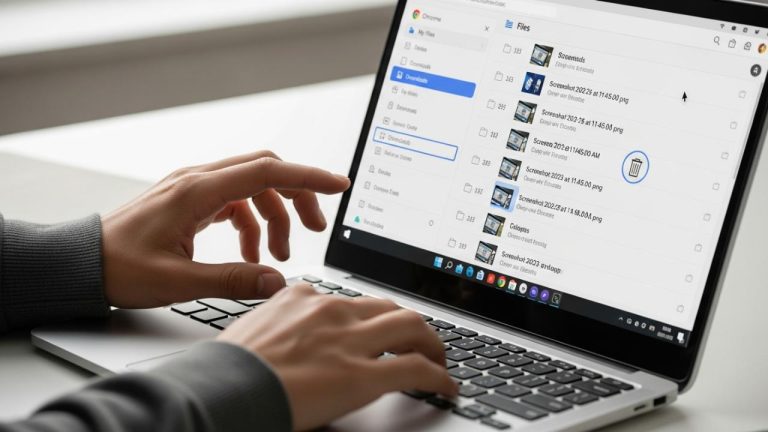
- Caution with Local Downloads: While local files on ChromeOS cannot typically harm the operating system due to sandboxing, they can still contain malware that affects other systems if transferred. If you download a suspicious file, the safest method is to delete it immediately from the Downloads folder or upload it to Google Drive for an automatic scan.
Detecting Suspicious Behavior and Common Symptoms
Because ChromeOS doesn’t generate traditional “virus scan reports,” users asking do I have a virus on my chromebook must rely on observing changes in system behavior. These symptoms are consistent across different hardware, meaning they apply whether you are using an HP Chromebook, an Acer Chromebook, or any educational device.
Monitoring Performance and Battery Drain
Unexpected resource hogging is a classic sign that unwanted code is running in the background. If your Chromebook suddenly becomes sluggish, freezes frequently, or your battery life plummets without an apparent cause (like intensive gaming), malicious processes might be consuming CPU cycles (for tasks like hidden cryptocurrency mining).
Use the ChromeOS Task Manager (Search + Esc) to monitor active tabs and extensions. If a process you don’t recognize or an idle web page is dominating the CPU list, that is a prime indicator that a manual check for malicious extensions is required.
Identifying Unwanted Pop-ups and Homepage Changes
If your browser settings have been hijacked, you will likely see clear, unwelcome changes:
- Unwanted Pop-ups: Aggressive or frequent advertisements that appear even when browsing known, safe websites.
- Redirects: Your search engine or homepage is suddenly changed to a third-party, unknown provider, often one that generates ad revenue for the attacker.
- Unknown Toolbars: New toolbars appear on the browser interface that you never installed.
These symptoms indicate that a malicious extension has gained control over your browser, making the procedure outlined in Method 2 the necessary next step. These issues affect all Chromebooks equally, whether you are trying how to check for viruses on HP chromebook or a general model.
Using the Chrome Cleanup Tool (For Android App Compatibility)
While primarily designed for Windows, the underlying security infrastructure on ChromeOS can occasionally benefit from Google’s specialized tools, especially when dealing with lingering issues related to cross-platform compatibility or Android apps.
The Chrome Cleanup Tool is designed to remove software that interferes with the Chrome browser. Although it usually runs automatically, if you suspect residual browser corruption, you can sometimes trigger a manual cleanup process within the Chrome settings (Settings > Advanced > Reset settings). This tool helps ensure that any software residue, particularly if you utilize Linux or Android environments on your Chromebook, is thoroughly checked and removed. This answers the intent of how do I run a virus scan on my chromebook for persistent browser issues.
The Ultimate Solution: Clearing Out the Infection with Powerwash
If you have completed all manual checks—audited extensions, cleared cache, and confirmed the system is updated—but the suspicious behavior (performance drops, redirects) persists, the Powerwash is the nuclear option. It is the guaranteed way to remove any infection, effectively answering how to check a chromebook for viruses with 100% certainty of removal.
When is a Powerwash Necessary?
A Powerwash (the ChromeOS term for a factory reset) should be performed if:
- You cannot identify the source of severe performance issues via the Task Manager.
- Your browser settings continuously revert to unwanted states despite manual fixes.
- You are using a shared device (like a school chromebook) and want to ensure complete data and malware removal before returning it.
- You believe your system integrity may be compromised beyond simple extension issues.
Since almost all user data (documents, photos) is stored in the cloud (Google Drive), the Powerwash is much less disruptive than a factory reset on other operating systems.
Performing a Powerwash (Factory Reset)
Crucial First Step: Backup Local Files. While cloud data is safe, any files stored exclusively in the local Downloads folder or Linux/Android storage will be permanently erased. Move these files to Google Drive or an external storage device.
The Powerwash Process:
- Click the clock/status area in the bottom-right corner.
- Click the Settings gear icon.
- Scroll down to the bottom of the Settings menu and click Advanced.
- Scroll to the bottom of the Advanced section and find the “Reset settings” section.
- Click Powerwash.
- Click Restart.
The Chromebook will restart and prompt you to confirm the Powerwash. Once complete, the device will return to the setup screen, just as it was when you first purchased your HP, Acer, or Google Chromebook. This process entirely wipes the local drive, guaranteeing a clean, infection-free operating system state.
Special Considerations for Specific Chromebook Environments
The underlying principles of checking and scanning for viruses remain the same regardless of the hardware brand, but specific user environments may introduce administrative limitations.
Managed Devices and Administrator Access
If you are using a supervised device, such as how to check for viruses on school chromebook, institutional administrators typically have strict security policies in place. These devices benefit from even stronger security, often limiting the installation of unapproved extensions and restricting file access.
If you suspect malware on a managed device, you should contact the institutional administrator or IT staff immediately. On these devices, you will not have permission to perform a Powerwash yourself, as it requires admin credentials to ensure the device remains compliant with school policies.
Troubleshooting Specific Brands (HP, Acer, Google Chromebooks)
It is important for users of specific devices to know that the procedures for how to scan for viruses on google chromebook are identical to those required for a device manufactured by a partner like Acer or HP. ChromeOS operates identically across all compliant hardware. The built-in security features, the method for auditing extensions (chrome://extensions), the Task Manager access (Search + Esc), and the Powerwash procedure are universally applied functions of the operating system, not dependent on the hardware manufacturer. If you need to how to check for viruses on acer chromebook, follow the extension and performance checks listed above.
FAQs – How To Check For Viruses On Chromebook
True, self-replicating viruses that corrupt the core operating system are practically impossible on a Chromebook due to Verified Boot and the sandboxing architecture. However, they can be affected by malware like malicious browser extensions or corrupted Android applications.
You do not need to perform regular, manual virus scans. Instead, you should periodically audit your installed Chrome extensions (weekly or monthly) and ensure your system is running the latest updates. ChromeOS handles continuous system checks automatically.
ChromeOS does not have a traditional dedicated “antivirus scanner” application like those found on Windows. Its security functions are integrated directly into the OS kernel through features like Verified Boot, Sandboxing, and automatic security updates, which are much more effective than separate scanning tools.
Key symptoms include significant unexplained slowing of performance, unexpected changes to your browser homepage or search engine, persistent pop-up advertisements, and rapid, unexplained battery drain. These issues generally point to a faulty or malicious browser extension.
A Powerwash will delete all local files stored in the Downloads folder, as well as all Android and Linux application data. However, files stored in your Google Drive or other cloud storage services will remain safe, as these are tied to your Google Account, not the device’s local storage.