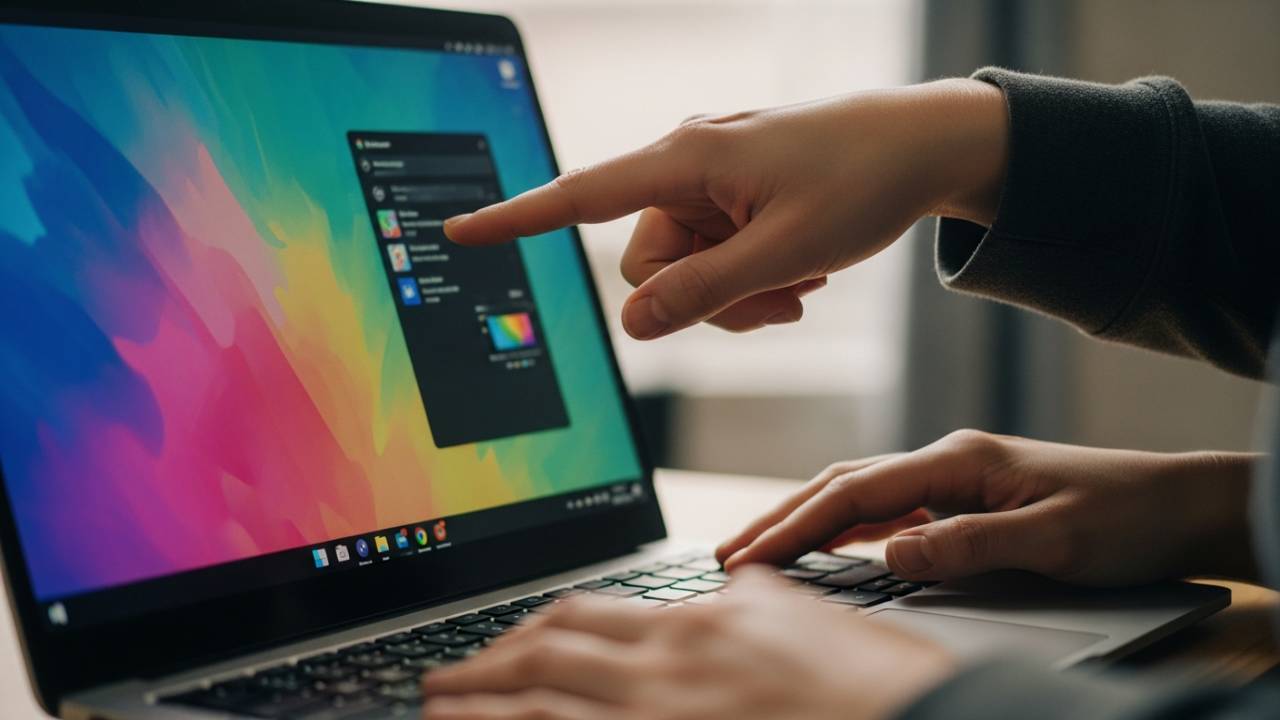
LAPTOP • DAILYTECH.ID - If you’ve just opened your laptop only to find that your screen looks like a neon nightmare or a photographic negative, don’t panic. You haven’t broken your screen, and you likely don’t have a virus. Your Chromebook has simply entered “Color Inversion” mode. While this accessibility feature is incredibly helpful for users with visual impairments or light sensitivity, it can be quite a shock when triggered by accident.
In this guide, we will walk you through exactly how to turn off color inversion on Chromebook using quick keyboard shortcuts, system settings, and browser-specific fixes.
Quick Answer: To instantly turn off color inversion on a Chromebook, press the keyboard shortcut Search + Ctrl + H. If that doesn’t work, go to Settings > Accessibility > Display and toggle off Color Inversion.
What Is Color Inversion on Chromebook?
Before we dive into the fixes, it helps to understand what is actually happening to your display. Color inversion is an accessibility feature in Chrome OS that flips the color values of every pixel on your screen. Light colors become dark, and dark colors become light. For example, a white background with black text will transform into a black background with white text.
Color Inversion vs. Dark Mode
Many users confuse color inversion with Dark Mode, but they are fundamentally different:
- Dark Mode: A UI design choice that uses dark grays and blacks to reduce eye strain while keeping images and videos looking natural.
- Color Inversion: A mathematical flip of the color palette. While it makes text easier to read for some, it makes photos look like “negatives” and can make web browsing feel very strange.
Why Does It Turn On Accidentally?
The most common reason for a sudden color flip is the “stray finger” syndrome. Because Chrome OS utilizes several three-key shortcuts for accessibility, it is very easy to hit the wrong combination while typing quickly or reaching for the volume keys.
Method 1: Turn Off Color Inversion Using Keyboard Shortcut
The fastest way to fix your display is by using the how to turn off color inversion on chromebook shortcut. This method works instantly and doesn’t require you to navigate through menus while your screen looks wonky.
The Default Shortcut
To toggle the color state, press these three keys simultaneously:
Search (Launcher) + Ctrl + H
Note: If you are using a device with a specialized keyboard (like a Pixelbook or a third-party keyboard), the “Search” key is usually where the “Caps Lock” key would be on a Windows PC.
What to Do If the Shortcut Doesn’t Work
If pressing the keys does nothing, it’s likely because the shortcut has been disabled in your system settings to prevent accidental triggers. In this case, you will need to use the “Settings” method described in the next section.
Confirming the Fix
Once you hit the shortcut, your screen should flicker for a millisecond and return to its natural color profile. If your icons still look strange, ensure that you haven’t also enabled “High Contrast Mode” or “Greyscale,” which are separate settings located in the same menu.
Method 2: Turn Off Color Inversion from Chromebook Settings
If the keyboard shortcut failed you, or if you want to know how do you turn off color inversion on chromebook permanently so it doesn’t happen again, the system settings are your best bet.
Step-by-Step via Accessibility Menu
- Click on the Time in the bottom-right corner of your shelf to open the Quick Settings panel.
- Select the Gear icon (Settings).
- On the left-hand sidebar, click on Accessibility. (If you don’t see it, click “Advanced” first).
- Select Display and Magnification.
- Find the toggle next to Color Inversion and switch it to Off.
Preventing Future Accidents
While you are in the Accessibility menu, you can manage which features appear in your Quick Settings. If you find yourself accidentally triggering this mode often, you can uncheck the “Show accessibility options in the Quick Settings menu” to clean up your interface, though the shortcut Search + Ctrl + H may still remain active unless the feature is fully toggled off here.
Fixing Inverted Colors in Chrome Browser
Sometimes, the issue isn’t system-wide. You might find that your desktop looks fine, but the inverted colors in Chrome browser are making websites look unreadable. This usually points to a browser-specific setting rather than a Chrome OS setting.
Checking Chrome Flags
If you’ve been experimenting with experimental features, you might have turned on “Auto Dark Mode for Web Contents.”
- Open Chrome and type
chrome://flagsinto the address bar. - Search for “Auto Dark Mode for Web Contents”.
- If it is set to “Enabled,” change it to Default or Disabled.
- Relaunch Chrome.
Browser Extensions
Certain “Night Mode” or “Dark Reader” extensions use color inversion logic to force dark themes on websites. If you are wondering how to turn off color inversion on a chromebook and the system settings look normal, try disabling your extensions:
- Click the three dots in the top right of Chrome.
- Go to Extensions > Manage Extensions.
- Toggle off any display or theme-related extensions to see if the colors revert to normal.
Common Color Inversion Problems on Chromebook
1. Screen Colors Inverted After Update
Occasionally, a Chrome OS update may reset certain accessibility flags. If your colors flipped immediately after a restart, simply use the Search + Ctrl + H shortcut to flip them back. Your preference should be saved moving forward.
2. Inverted Colors Only in Google Chrome
As mentioned above, if the “Shelf” (the bar at the bottom) and the “Launcher” look normal, but the web pages look inverted, the issue is likely a Chrome Flag or a Dark Mode extension. Check your browser settings specifically.
3. Shortcut Keeps Triggering Accidentally
If you have a habit of hitting these keys, you can go to Settings > Device > Keyboard and remap your keys, though Chrome OS does not currently allow you to “disable” the specific accessibility shortcut without disabling the feature itself in the Accessibility settings.
FAQs – Color Inversion on Chromebook
It is almost always caused by accidentally pressing the keyboard shortcut Search + Ctrl + H. This can happen while cleaning your keyboard or if you are using keyboard-heavy shortcuts in design or coding apps.
The primary shortcut is Search + Ctrl + H. Some older models may use different configurations, but for 99% of modern Chromebooks (Asus, Acer, HP, Lenovo, Samsung), this is the standard combination.
No. Dark Mode is a stylistic choice designed for aesthetics and comfort. Color inversion is an accessibility tool that flips all colors, often making images look like film negatives.
You cannot “delete” the feature, but you can ensure it stays off by going to Settings > Accessibility and ensuring the toggle is grayed out.
This is usually caused by a Chrome extension like “Dark Reader” or an experimental flag like “Auto Dark Mode for Web Contents.” It can also happen if you are using a specific Chrome Theme from the Web Store that mimics an inverted look.
Conclusion
Dealing with a distorted screen is frustrating, but knowing how to turn off color inversion on chromebook is a simple fix that takes less than five seconds once you know the secret handshake of keys. Whether you use the Search + Ctrl + H shortcut or dive into the Accessibility settings, you can get back to work (and normal colors) in no time.