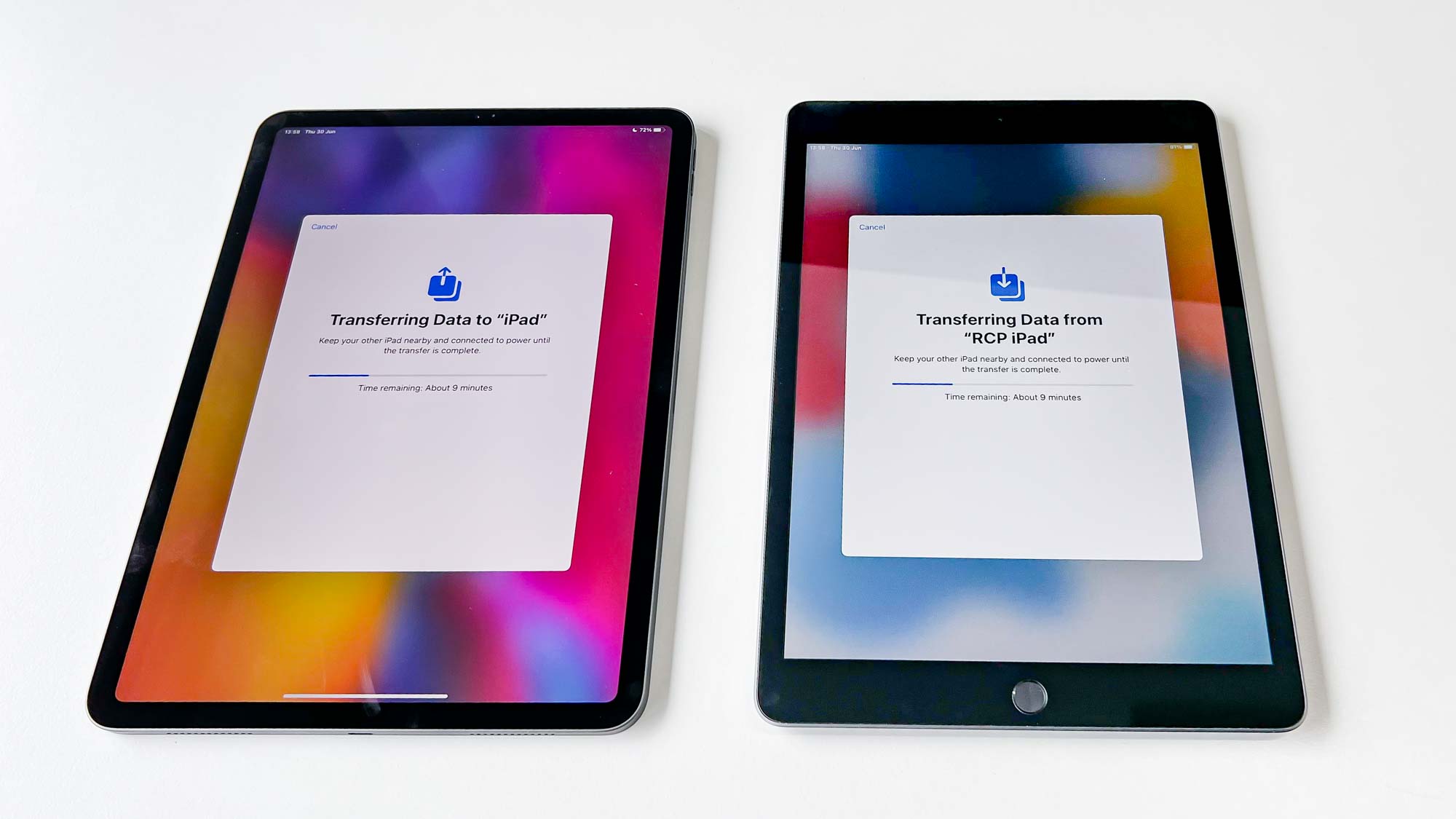
IPAD • DAILYTECH.ID - To transfer an old iPad to a new iPad, place both devices near each other and use Quick Start for a seamless wireless transfer. Alternatively, you can restore your data from an iCloud backup or connect to a computer to use iTunes/Finder. These methods migrate all apps, photos, settings, and files securely.
Upgrading to a new Apple tablet is a seamless process whether you are moving to an iPad Pro, Air, or Mini. To transfer an old iPad to a new iPad, place both devices near each other and use Quick Start for a seamless wireless transfer. Alternatively, you can restore your data from an iCloud backup or connect to a computer to use iTunes/Finder. These methods migrate all apps, photos, settings, and files securely. Follow these specific steps to ensure every piece of data moves to your new device without a hitch.
The Easiest Way: Using Quick Start for Wireless Transfer
The Quick Start method is widely considered the easiest way to transfer from an old iPad to a new iPad. It utilizes a peer-to-peer wireless connection to clone your settings, Apple ID, and preferences directly from one device to the other. To begin, ensure both iPads are running a modern version of iPadOS and that Bluetooth is enabled on the older device. Place the new iPad next to the old one and turn it on.
Once the “Hello” screen appears on the new iPad, a prompt will automatically pop up on your old iPad asking if you want to use your Apple ID to set up the new device. After you confirm, an animation (a swirling blue nebula) will appear on the new iPad. Use the camera on your old iPad to scan this animation. This effectively pairs the two devices securely. You will then be prompted to enter your old iPad’s passcode on the new one. This ensures that your saved passwords and end-to-end encrypted data can be safely migrated.
How to transfer everything from old iPad to new iPad wirelessly depends on whether you choose “Transfer from iPad” or “Download from iCloud.” Choosing “Transfer from iPad” creates a direct link between the two tablets. This is the most comprehensive method as it moves local settings and data directly without relying on a cloud intermediate. During this process, you will be asked to set up Face ID or Touch ID and agree to the terms and conditions.
Estimating how long to transfer old iPad to new iPad depends on the volume of data and the speed of your local Wi-Fi network. If you have 100GB of photos and videos, the process might take 30 to 60 minutes. It is vital to keep both devices connected to power during this time. If the connection is interrupted, you may have to restart the process from the beginning.
How to Transfer Old iPad to New iPad Using iCloud
If you do not have your old iPad physically present or prefer to use the cloud, the iCloud method is the standard alternative. This is also the best approach if you have purchased extra iCloud storage and keep regular backups. Before starting, go to Settings on your old iPad, tap your name, select iCloud, and then iCloud Backup. Tap “Back Up Now” to ensure the most recent version of your data—including your latest Goodnotes entries or Procreate sketches—is ready for the move.
Once the backup is complete, turn on your new iPad. Follow the on-screen instructions until you reach the “Apps & Data” screen. Here, select “Restore from iCloud Backup.” You will be prompted to sign in with your Apple ID and password. Choose the most recent backup from the list provided. If you have purchased a new iPad but your iCloud storage is full, Apple often provides a temporary increase in iCloud storage specifically for moving to a new device. This “Temporary iCloud Storage” allows you to create a full backup even if you are on a free 5GB plan, provided your device is running iPadOS 15 or later.
The restoration process starts with your settings, contacts, and calendar. This part is usually very fast. However, how to transfer old ipad apps to new ipad via iCloud involves a secondary stage where the device redownloads your applications from the App Store. You will see app icons appearing on your home screen with progress bars. This ensures you are getting the latest versions of your apps compatible with your new hardware, whether it is an iPad Pro M4 or the latest iPad Air.
Transferring Data from Old iPad to New iPad Without iCloud (iTunes/Finder)
Many users prefer a wired connection, either because they have slow internet or because they want a bit more control over the process. This is how to transfer old iPad to new iPad without iCloud. If you are using a Mac with macOS Catalina or later, you will use Finder. For Windows users or those on older Macs, iTunes is the required software.
First, connect your old iPad to your computer using a USB cable. Open Finder or iTunes and select your device. A critical step for a complete migration is selecting the option to “Encrypt local backup.” By encrypting the backup with a password, you allow the computer to save sensitive data such as saved Wi-Fi passwords, Health data, and website login credentials. Without encryption, you will have to manually sign back into every app on the new iPad.
After the backup is finished, disconnect the old iPad and connect the new iPad 9th generation, Pro, or Mini to the same computer. On the “Apps & Data” screen of the new iPad, select “Restore from Mac or PC.” Choose the encrypted backup you just created. This method is often the fastest for those with massive libraries of high-resolution photos or video projects, as the data travels over a physical cable rather than through the air.
How to Transfer Old iPad to New iPad After Setup
A frequent issue occurs when a user excitedly sets up their new iPad as a “New Device” and later realizes they forgot to migrate their data. If you find yourself asking “how to transfer old ipad to new ipad after setup,” you generally have two choices. The first, and most recommended, is to reset the new iPad to factory settings. Since the native migration tools only appear during the initial “Out of Box” experience, you must go to Settings > General > Transfer or Reset iPad > Erase All Content and Settings. This will return the iPad to the “Hello” screen, allowing you to use Quick Start or iCloud Restore.
If you have already started using the new iPad and do not want to wipe the data you’ve added, you will have to perform a manual sync. This is less efficient and won’t move all your settings. You can use AirDrop to move specific photos or documents. For apps like Goodnotes or Procreate, you will need to ensure their individual cloud syncing settings are enabled (like Goodnotes’ use of iCloud or Procreate’s manual .procreate file exports to a drive). However, for a total “clone” of your old device, a factory reset followed by a proper migration is the only way to ensure every bookmark and password is moved over.
Moving Specific Content: Apps, Photos, and Professional Tools
For professionals and students, specific apps require extra attention. If you are wondering how to transfer Goodnotes from old iPad to new iPad, the process is usually automatic if iCloud Sync is enabled within the Goodnotes app settings. Once you log into the same Apple ID on the new device, your notebooks will begin to download. Similarly, for Procreate, the best way to ensure everything moves is a full device backup (iCloud or iTunes). If you only want to move specific canvases, you can export them as .procreate files to a cloud service or AirDrop them to the new device.
If your iPad has cellular capabilities, you might need to transfer your eSIM from the old iPad to the new iPad. During the Quick Start process, iPadOS will often ask if you want to transfer your cellular plan. If both iPads support eSIM and are on a carrier that supports Quick Transfer, the plan will move over wirelessly. If your old iPad used a physical SIM card and the new one is eSIM-only (like the newest iPad Pro models), you may need to contact your carrier or use their app to convert your physical SIM to an eSIM for the new hardware.
Photos are typically the largest part of any transfer. If you use iCloud Photos, your library will sync automatically as soon as you sign in. If you do not use iCloud Photos, ensure your photos are included in your device backup. You can also use a computer to manually drag and drop photos if you are performing a manual setup. For Safari bookmarks and passwords, these are tied to your iCloud Keychain. Ensure “Keychain” is toggled on in your iCloud settings on both devices to keep your browsing experience consistent.
Preparing Your Old iPad for a New Owner
Once the data migration is verified and you are sure your new iPad Pro or Air has everything it needs, you must prepare the old device for its next chapter. This is how to transfer old iPad to new owner or user. You should never simply hand over a device without wiping it, as your personal data, logged-in accounts, and “Find My” tracking will remain active.
First, sign out of your Apple ID. Go to Settings > [Your Name] and tap Sign Out. You will be asked for your Apple ID password to disable “Find My iPad.” This is a crucial step; if you don’t do this, the new owner will be hit with “Activation Lock” and won’t be able to use the device. Once signed out, go to Settings > General > Transfer or Reset iPad and select “Erase All Content and Settings.” This securely wipes your data and returns the iPad to its factory state, ready for a new user to set it up as their own.
FAQs – How to Transfer Old iPad to New iPad
The best way to transfer without iCloud is by using a computer (Mac or PC). Connect your old iPad to the computer and create an encrypted backup using Finder or iTunes. Then, connect your new iPad and select “Restore from Backup” during the setup process to move all your data via a wired connection.
First, ensure both devices are updated to the latest version of iPadOS and are connected to power. Check that Bluetooth is enabled on both. If Quick Start fails, try creating a fresh iCloud backup on the old device and restoring it on the new one, or use the computer-based iTunes/Finder method as a reliable alternative.
Yes, you can transfer data from older models, but the method may vary. Very old iPads may not support Quick Start. In these cases, your best option is to create a backup on a computer using iTunes or Finder and then restore that backup onto the newer iPad during the initial setup phase.
During the Quick Start wireless transfer process, a prompt will usually appear asking if you want to transfer your cellular plan. Follow the on-screen instructions to move the eSIM. If this does not appear, you can go to Settings > Cellular Data > Set Up Cellular on your new iPad to initiate the transfer manually.
If you use a full iCloud or computer backup, all app data and most game progress will transfer. For apps like Goodnotes, ensure iCloud Sync is enabled within the app settings. Some games use their own cloud accounts (like Game Center or Facebook), so ensure you are logged into those on the new device.