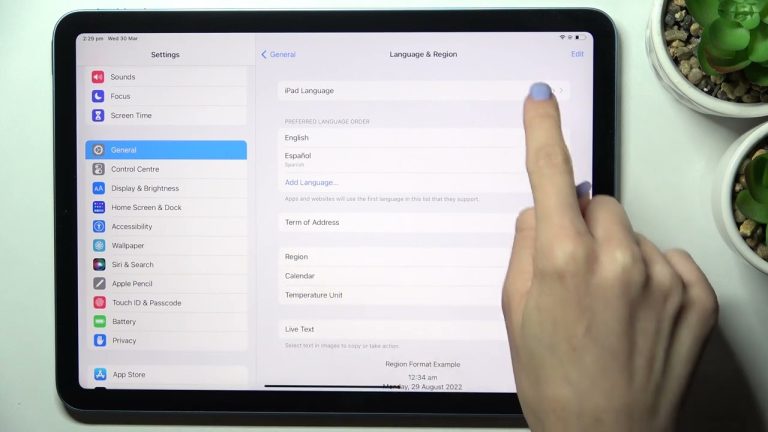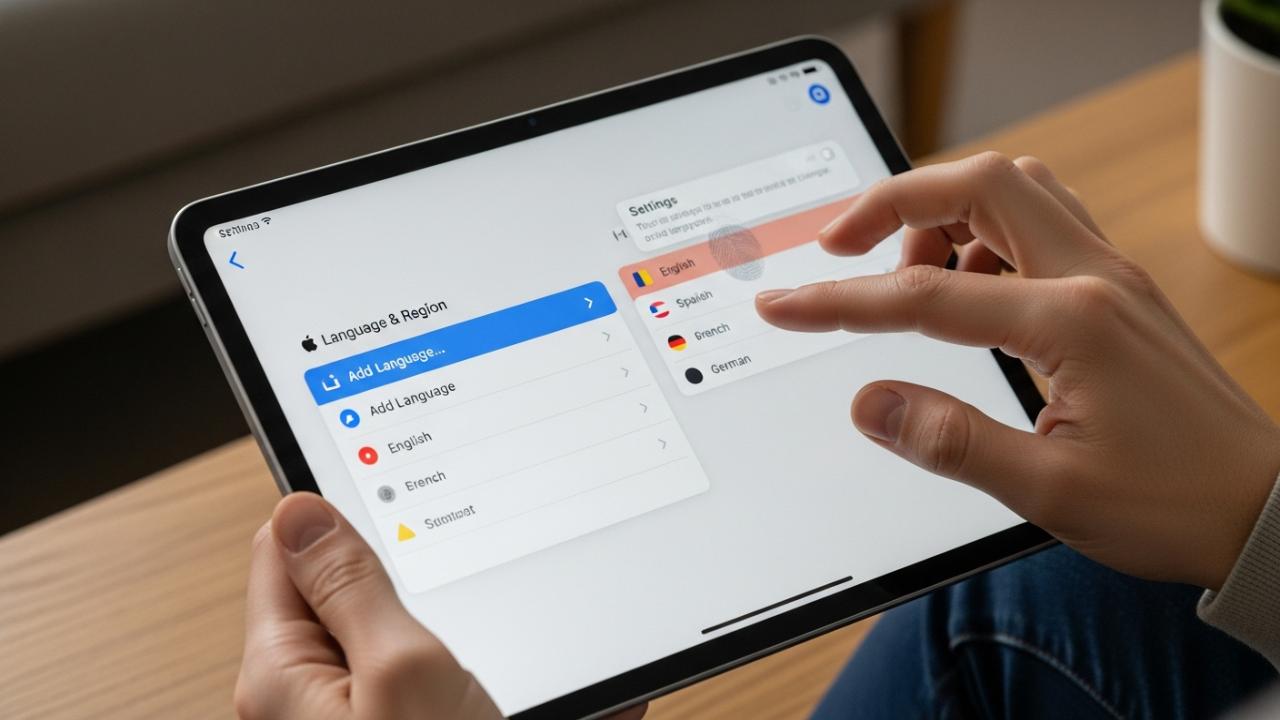
IPAD • DAILYTECH.ID - To change the language on your iPad, go to Settings > General > Language & Region. Tap ‘Add Language,’ select your desired language, and confirm. If prompted, set it as your primary language. For keyboard language, go to Settings > General > Keyboard > Keyboards, then ‘Add New Keyboard’ and choose your preferred language.
Changing the language on your iPad, whether it’s the system language, keyboard input, or specific app settings, is a straightforward process that allows for a highly personalized user experience, ensuring your device communicates with you in the language you understand best or need for a particular task.
Changing Your iPad’s System Language
Your iPad’s system language determines the primary display language for menus, app names on the Home screen, alerts, and many built-in Apple apps. This comprehensive guide will walk you through the process of adjusting your iPad’s main display language, which impacts various interface elements across all iPad models, including the latest iPad Pro, iPad Air, iPad Mini, and current generation iPads like the iPad 9th generation and iPad 10th generation. Understanding how to change the language on an Apple iPad is crucial for personalizing your device.
Step-by-Step Guide
Follow these clear instructions to change the display language on your iPad to your preferred primary language. This method covers how to change the language settings on an iPad, whether it’s a new iPad or an old iPad.
- Accessing Settings: Begin by locating the “Settings” app icon on your iPad’s Home screen. This icon typically resembles a set of gray gears. Tap on it to open the application, which serves as the central hub for all device configurations.
- General Settings: Once inside the Settings app, you’ll see a menu on the left side of the screen. Scroll down through this list until you find and tap on “General.” This section houses a broad range of fundamental device settings, from software updates to storage management and language preferences.
- Language & Region: Within the General settings, continue scrolling down until you locate and select “Language & Region.” This specific setting controls all language-related preferences for your device, including the display language, regional formats, and preferred text order. This is where you can change the default language on iPad.
- Add Language: On the Language & Region screen, you will see a list of your currently active preferred languages. To introduce a new language, tap on “Add Language…” This action will open a comprehensive list of all supported languages. You can scroll through this extensive list to find your desired language or use the search bar at the top of the screen to quickly locate it. For instance, if you want to change the language of iPad to Spanish, you would search for and select “Spanish.”
- Confirm Selection: After you have tapped on your desired language, your iPad will present a pop-up prompt asking if you wish to make this new selection your primary language. To confirm and implement the change, tap the option that states “[New Language] as Primary.” This critical step applies the chosen language across the system.
- Restart (if prompted): In most cases, your iPad will briefly dim and then restart to fully apply the new system language settings. This quick restart ensures that all interface elements, system apps, and compatible third-party applications update their display language correctly. Once it reboots, your iPad’s entire interface will be in the newly selected language. You will see how to change the display language on iPad reflected immediately.
Reverting to English or Another Specific Language
Users often find themselves needing to change their iPad language back to English from an unfamiliar language, or perhaps to switch to another specific language like Spanish. This might happen due to accidental changes, during device setup, or simply when seeking multilingual support. If your iPad has inadvertently changed language, here’s how to regain control and revert to English or any other language you prefer.
The process for changing your iPad language back to English from Chinese, Arabic, Japanese, or any other language, such as when you need to change language on iPad from Chinese to English, is essentially the same as adding a new language, but with a focus on selecting English and setting it as primary.
- Navigate to Settings: Even if the interface is in an unfamiliar language, the “Settings” app icon (gray gears) remains consistent. Locate and tap it.
- Find General: In the left-hand menu, look for the icon that typically accompanies “General” – often a square with various lines or a gear icon, or simply remember its position relative to other settings. Tap on it.
- Locate Language & Region: Within General, search for the “Language & Region” option. It often has an icon resembling a globe or two different language characters. Its position is usually several items down from the top. Tap it.
- Identify Primary Language: You’ll see a list of languages. The top language in this list is your current primary system language. If you want to change language on iPad from Arabic to English, you will see Arabic listed first.
- Add English (if not present): If English is not already in the list, tap on “Add Language…” (this option is usually at the bottom of the list, often marked with a plus sign or similar universal symbol). Select “English” (or the specific variant like “English (US)”) from the list.
- Set as Primary: When prompted, select “English as Primary” (or the equivalent phrase in the current language, often the first or most prominent option in the pop-up). The iPad will then briefly restart, applying English as the primary interface language. This allows you to easily change the language on my iPad to English or change the language on your iPad to English. Similarly, if you need to change language on iPad from Japanese to English, follow these exact steps.
Managing Keyboard Languages on Your iPad
Beyond the system language, managing your keyboard languages is essential for effective communication in different linguistic contexts. Your iPad allows you to add multiple keyboard layouts, enabling you to type seamlessly in various languages without needing to change your device’s primary system language. This section details how to change the language on an iPad keyboard, catering to both on-screen and external physical keyboards.
Adding or Removing On-Screen Keyboard Languages
Adding multiple typing languages to your iPad’s virtual keyboard is a powerful feature for multilingual users or those frequently corresponding in different languages. This allows you to easily switch between languages with a simple tap, enhancing your typing efficiency. Here’s how to manage your iPad’s on-screen keyboard languages. This covers how to change the language in iPad keyboard.
- Navigate to Keyboard Settings: Start by going to the “Settings” app. From there, tap on “General” in the left-hand menu. Then, select “Keyboard.” Finally, tap on “Keyboards” again at the top of the next screen. This path is crucial for how to change language on iPad settings related to input.
- Add New Keyboard: To introduce a new typing language, tap “Add New Keyboard…” This will display a comprehensive list of available keyboard languages and layouts. Browse through the list or use the search bar to find the specific language you wish to add, such as Spanish, French, or a specific variant like “English (UK).” Once selected, it will be added to your list of active keyboards.
- Remove Keyboard: If you no longer need a particular keyboard language, you can easily remove it. On the “Keyboards” screen, tap “Edit” in the top right corner. A red minus icon will appear next to each editable keyboard. Tap this icon next to the keyboard you wish to remove, then tap “Delete.” This action removes the keyboard from your active list, tidying up your options.
- Rearrange Keyboards: To set a preferred default keyboard or to organize your keyboards in an accessible order, use the three-line (or “handle”) icon located on the right side of each keyboard entry in the list. Tap and hold this icon, then drag the keyboard up or down to your desired position. The keyboard at the top of the list will be the first one presented when you open a typing field.
Changing Language on Physical or Bluetooth Keyboards
For users who prefer the tactile feedback of an external keyboard, such as an Apple Magic Keyboard, Smart Keyboard Folio, Logitech keyboard for iPad, or other Bluetooth keyboards, switching input languages is equally straightforward. This section provides detailed guidance on how to change input language on iPad with Bluetooth keyboard and how to change language on external keyboard iPad.
- Using the Globe Key: Most external keyboards designed for multilingual use feature a dedicated “Globe” key. This key often displays a globe icon or may be combined with the “Fn” (Function) key. Pressing the Globe key will cycle through all the keyboard languages you have enabled in your iPad’s settings (Settings > General > Keyboard > Keyboards). Each press switches to the next language in your list, providing an intuitive way to change language on iPad physical keyboard. This is how to change language on the iPad keyboard seamlessly.
- Keyboard Shortcuts: Another common and highly efficient method to switch between keyboard languages is using keyboard shortcuts. The most widely recognized shortcuts include:
- Control + Space: Pressing and holding the Control key while tapping the Spacebar will cycle through your enabled keyboard languages.
- Command + Space: For some keyboards and iPadOS versions, pressing Command + Spacebar might activate Spotlight Search. However, in certain contexts or with specific keyboard configurations, it can also function as a language switcher.
Familiarizing yourself with these shortcuts, such as how to change language in iPad keyboard shortcut, can significantly speed up your workflow when you need to change typing language on iPad keyboard. This applies to changing language on Magic Keyboard for iPad, Smart Keyboard Folio, and even changing language on Logitech iPad keyboard.
- On-Screen Indicator: Regardless of whether you are using the on-screen keyboard or an external physical keyboard, your iPad provides a visual indicator of the currently active language. When the on-screen keyboard is visible, you will typically see the name of the active language (e.g., “English (US),” “Español”) displayed briefly above the keyboard or on the Globe key itself. For physical keyboards, while there isn’t always a direct on-screen indicator of the physical keyboard’s active language, the input method used by the system will still change, and you can confirm this by briefly tapping a text field to bring up the virtual keyboard’s language display, or simply by typing a few characters to see the characters appear in the desired script. This helps you identify which language is active when you need to change the language on keyboard iPad.
Adjusting Language for Specific Apps and Features
While the system language on your iPad affects most of the user interface, some applications and features offer their own independent language settings. This allows for even finer control over your multilingual experience, ensuring that specific apps cater to your preferences even if your system is set to a different primary language.
App Store and Apple Services
The language displayed in the App Store, Apple Music, Apple TV, and other Apple services typically follows your iPad’s system language. If you change your iPad’s system language to Spanish, for example, the App Store interface, app descriptions (if available in Spanish), and other service elements will generally switch to Spanish as well. However, it’s important to note that the region settings associated with your Apple ID can also play a significant role. If your Apple ID is set to a specific country or region, certain content or pricing may be tied to that region, regardless of your display language. To change language on App Store iPad, ensure your system language and potentially your Apple ID region are aligned with your preference.
Individual App Settings (if available)
Many popular third-party applications provide their own in-app language settings, allowing you to override the system’s default. This is particularly useful for apps like CapCut, Chrome, Google Docs, Word, Excel, Facebook, Messenger, Minecraft, Netflix, Pages, Photoshop, PowerPoint, Roblox, Spotify, YouTube, Zoom, and others. For example, you might want to change language in CapCut iPad to French while your iPad system remains in English.
To find these app-specific language options, you’ll generally need to:
- Open the specific app: Launch the application where you wish to change the language.
- Look for Settings/Profile: Navigate to the app’s internal settings menu. This is often found by tapping an icon that looks like a gear, three horizontal lines (a “hamburger” menu), or by accessing your profile picture/icon within the app.
- Find Language Option: Within the app’s settings, look for an option explicitly labeled “Language,” “App Language,” “Display Language,” or similar. Tap on it to reveal a list of supported languages for that particular application.
- Select and Apply: Choose your desired language from the list. The app may require a restart to apply the new setting. This is how to change language on iPad app, how to change the language on Netflix iPad, how to change the language on YouTube iPad, how to change language on Word for iPad, or how to change Zoom language on iPad. The exact path will vary from app to app, so a bit of exploration within the app’s menus may be necessary.
Siri, Dictation, and Calendar Language
Certain iPad features, like Siri and Dictation, often have their own language settings that can be configured independently of the main system language. This allows for greater flexibility, especially if you want to interact with Siri in one language but use your iPad’s interface in another.
- Siri Language: To change the language for Siri on iPad, go to “Settings” > “Siri & Search.” Then, tap on “Language.” From the list, select the language you want Siri to understand and speak. This ensures your voice commands are interpreted correctly.
- Dictation Language: For dictation, which converts your spoken words into text, you can also set a specific language. Navigate to “Settings” > “General” > “Keyboard.” Scroll down and tap on “Enable Dictation.” If already enabled, tap on “Dictation Languages.” Here, you can select multiple languages for dictation. When dictating, your iPad will intelligently try to detect the language being spoken. This is crucial for how to change dictation language on iPad.
- Calendar Language: While the main display of your iPad’s Calendar app usually follows the system language, the format of dates, times, and day names (e.g., “Monday” vs. “Lundi”) is largely influenced by your iPad’s “Region” setting within “Settings” > “General” > “Language & Region.” To change calendar language on iPad display, adjust the region accordingly.
Web Browsers and Websites
When browsing the internet on your iPad, the language displayed can be influenced by several factors: your iPad’s system language, your browser’s preferred language settings, and the website’s own language detection mechanisms.
- Browser Language (Safari, Chrome, etc.): Browsers like Safari on iPad or Chrome on iPad typically inherit their interface language from your iPad’s system language. If your iPad is in English, Safari’s menus and prompts will be in English. However, some browsers, especially Chrome, might offer separate in-app language settings in their own configuration menus, similar to other third-party apps. To change language on Safari on iPad, ensure your iPad’s system language is set correctly. For Chrome on iPad, check its internal settings.
- Website Language: Many websites attempt to display content in your preferred language based on your browser’s language preferences (sent as an HTTP header) or your iPad’s geographical region (IP address). If a website supports your preferred language, it might automatically switch. If not, look for a language selector directly on the website, usually in the header, footer, or within a menu (often represented by a globe icon or a country flag). This allows you to manually change language on a website on iPad if the automatic detection isn’t accurate.
Troubleshooting Language Changes and Common Issues
Encountering unexpected language changes or difficulties while adjusting settings can be frustrating. This section provides solutions and guidance for common issues users face when trying to change the language on their iPad.
Why Your iPad’s Language Might Have Changed
It can be startling to pick up your iPad and find it speaking a completely different language. There are several reasons why your iPad’s language might have changed without your direct intervention, leading to questions like “why has my iPad changed language?”
- Accidental Taps: The most common reason is an accidental tap or swipe in the “Settings” > “General” > “Language & Region” menu. It’s surprisingly easy to inadvertently select a different language, especially if the device is being handled by children or if you’re exploring settings without full attention.
- Software Updates: While rare, some major iPadOS updates or resets can occasionally default language settings, particularly if a device is restored from a backup made in a different region or with different language preferences.
- Shared Device or Profile Changes: If your iPad is shared among family members or if a different user profile was temporarily active, their language preferences might have been applied, causing your iPad to change language.
- Factory Reset/Setup: When setting up a new iPad or after a factory reset, the initial setup prompts will ask for a language. If an incorrect language was chosen at this stage, it will propagate across the device.
If you encounter this, remain calm. The steps provided earlier for “Reverting to English or Another Specific Language” are specifically designed to guide you back to your desired language, even when navigating an unfamiliar interface.
What to Do If You Can’t Find Your Language
Occasionally, a user might not be able to locate their desired language in the extensive list provided by iPadOS, or they might face display issues after a language change.
- Check for Variants: Many languages have regional variants (e.g., English (US), English (UK), English (Australia); Spanish (Spain), Spanish (Mexico)). Ensure you are looking for the correct specific variant. These are typically listed under the main language.
- Update iPadOS: Ensure your iPad is running the latest version of iPadOS. Apple regularly updates its operating system to include support for new languages or improve existing language functionalities. Go to “Settings” > “General” > “Software Update” to check for and install any available updates.
- Reset All Settings (Last Resort): If you’re experiencing persistent display issues or truly cannot find your language, a “Reset All Settings” option might help. This will not erase your data but will revert all system settings (including language, network, keyboard dictionary, home screen layout, location settings, and privacy settings) to their defaults. Go to “Settings” > “General” > “Transfer or Reset iPad” > “Reset” > “Reset All Settings.” You will need to reconfigure your language and other personal settings afterward.
Changing Language Without a Keyboard
In some rare scenarios, you might encounter difficulties changing your iPad’s language, especially if the on-screen keyboard is in an unfamiliar script or if you’re having issues with an external keyboard. Here are solutions for how to change language on iPad without keyboard being fully functional.
- Using a Universal Layout: If your on-screen keyboard is in an unfamiliar script, remember that the “Globe” key (usually in the bottom-left corner of the virtual keyboard) is universal. Tapping this key will cycle through all the keyboards you have enabled. Keep tapping it until you recognize a layout, such as a QWERTY keyboard for Latin-based languages. If you accidentally removed all familiar keyboards, you might need to add one back by carefully navigating to “Settings” > “General” > “Keyboard” > “Keyboards” and then using the “Add New Keyboard…” option, looking for the plus sign icon.
- Voice Control: iPadOS offers robust accessibility features, including Voice Control. If enabled, you can literally speak commands to your iPad, including navigation. To enable Voice Control (if you can navigate the settings): “Settings” > “Accessibility” > “Voice Control.” Once on, you can say commands like “Open Settings,” “Tap General,” “Tap Language and Region,” and then verbally select your desired language. This can be a lifesaver when the on-screen keyboard is unusable due to an unfamiliar script.
- Connect a Temporary External Keyboard: If you have access to any USB-C or Lightning-compatible external keyboard (even a basic one), connect it to your iPad. This will allow you to type out search terms or navigate menus using arrow keys, making it much easier to access the “Settings” app and change the language without relying on the on-screen keyboard. Once connected, remember to use the Globe key or Control+Space to cycle through input languages if the physical keyboard starts in an unfamiliar layout.
FAQs – How to Change the Language on an iPad
Yes, absolutely. You can easily change your iPad’s language back to English by going to Settings > General > Language & Region. Tap ‘Add Language,’ select ‘English,’ and then set it as your primary language when prompted. Your iPad will then restart to apply the change.
To add multiple keyboard languages, navigate to Settings > General > Keyboard > Keyboards. Then, tap ‘Add New Keyboard…’ and select all the languages you wish to use. You can then switch between these keyboards using the Globe key on your virtual or physical keyboard.
Your iPad’s language might change due to accidental taps in the Language & Region settings, a software update, a shared device with different language preferences, or an incorrect selection during initial setup or after a factory reset.
Changing the system language affects the iPad’s interface, menus, and most built-in Apple apps. Many third-party apps will also follow the system language, but some offer their own in-app language settings that can be configured independently.
To change Siri’s language, go to Settings > Siri & Search > Language and select your preference. For Dictation, go to Settings > General > Keyboard > Dictation Languages and choose the languages you want it to recognize.