
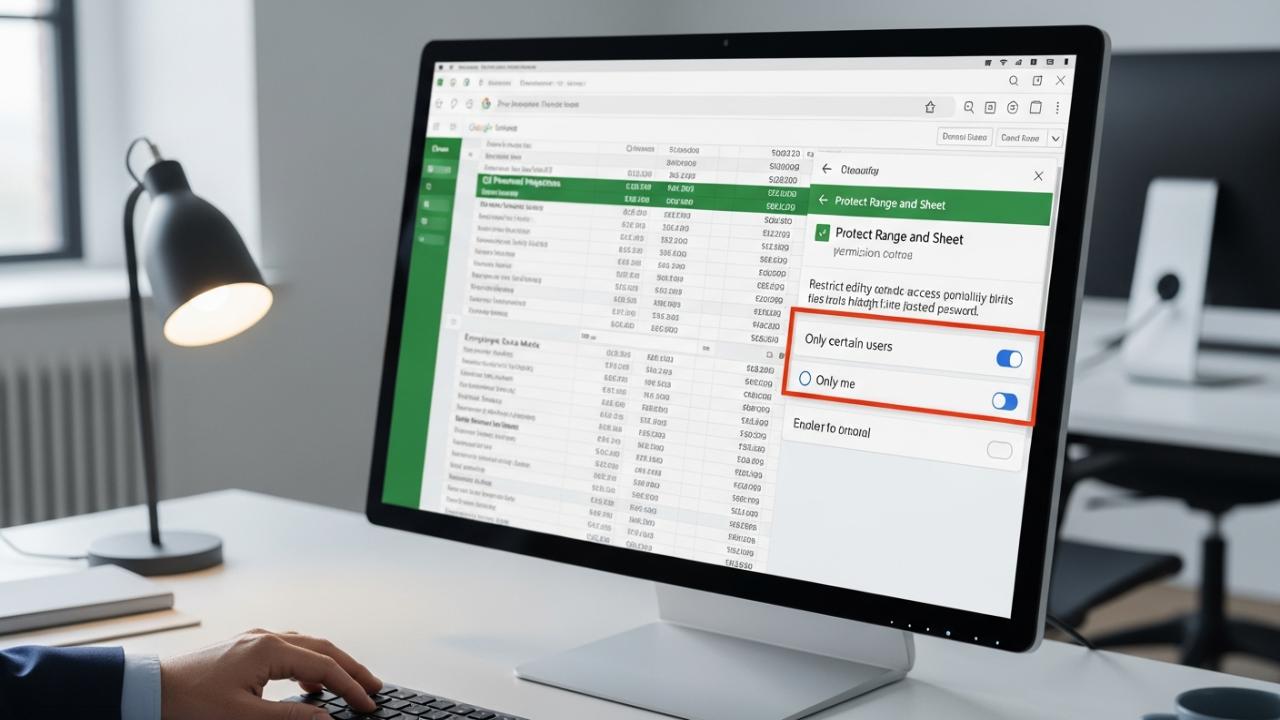
APPS • DAILYTECH.ID - Google Sheets does not offer a native, file-level password protection feature like Microsoft Excel, meaning users cannot password protect a Google Sheet from opening. Instead, security is managed through permission settings, allowing users to restrict viewing or editing access to specific cells, ranges, or entire sheets using Google’s built-in ‘Protect Range and Sheet’ feature.
While searching for “how to password protect a Google Sheet,” it is crucial to understand that Google’s security model relies heavily on permissions and sharing settings rather than traditional password prompts. This is due to the fundamental architecture of cloud-native collaboration tools. This permission-based locking is the intended and most reliable way to secure your sensitive data, whether you are trying to password protect a sheet in Google Sheets or an entire document.
Understanding Google Sheet Security: Why Password Protection Is Different
When corporate data integrity is on the line, securing your spreadsheets is non-negotiable. Many users transitioning from desktop applications like Microsoft Excel expect a simple function to lock a google spreadsheet with a password. However, Google Drive, Docs, and Sheets are fundamentally designed for instantaneous access based on the user’s verifiable Google identity (Google Account), not for security barriers like passwords that block file opening for everyone. If you need to password protect a google sheets document or lock down sensitive calculations, you must internalize and rely on the platform’s sophisticated, granular control features.
The Core Limitation of Native Google Sheets Protection
The most common point of confusion is the absence of a global password prompt. There is no direct function that allows you to click a button and set a pop-up password required every time someone tries to view the file content. This limitation definitively answers common queries like “can you password protect a google sheet from opening” or “is there a way to password protect a google sheet.” The platform treats the user’s logged-in identity as the primary key for access, making file-specific passwords redundant within the Google ecosystem.
How Google Manages Access Control (Permissions vs. Passwords)
Instead of a single password key, Google employs an authorization model. Protection in Google Sheets is achieved by controlling who can edit designated areas, effectively serving the function of a password lock against unauthorized modifications. When you lock a range, you are telling Google, “Only these verified Google accounts (or just the file owner) have permission to alter this data.” All other users, even if they have viewing rights to the file, will be completely blocked from making changes to the protected area. This robust system allows authorized collaboration while maintaining the integrity of mission-critical data, addressing how to secure a google sheet with password equivalent functionality.
Furthermore, unlike a static password that might be shared or compromised, Google’s permission settings are dynamic. Access can be revoked instantly for any user, providing real-time security control that surpasses the limitations of traditional, file-based password encryption.
Step-by-Step: How to “Password Protect” Specific Areas (The Official Method)
The official method for protecting data in a shared Google Sheet involves using the “Protected ranges and sheets” feature. This built-in functionality directly addresses the intent of users asking how to password protect a google sheet tab or lock individual cells, providing the most reliable way to secure data within the collaborative environment.
Protecting Individual Cells or Ranges
If your goal is to protect a specific array of formulas, a proprietary dataset, or a column of sensitive employee IDs, protecting a range is the optimal solution. This functionally serves as how to password protect a column in google sheets or individual cells.
- Select the Data: Open your Google Sheet and highlight the specific cells, rows, or columns you wish to protect. This action defines the exact boundary of your secure area (e.g., if protecting financial totals, highlight the sum cells).
- Access Protection Menu: Navigate to the main menu bar, click on the
Datatab, and select the option labeledProtected sheets and ranges. A sidebar panel will open on the right side of your screen. - Add a New Protection Rule: In the sidebar, click the
+ Add a sheet or rangebutton. Ensure that the correct range is listed. You can add an optional description (e.g., “HR Salary Data Lock”) for organizational clarity. - Set Permissions (The Lock): Click the
Set permissionsbutton. This dialogue box is where the “password” equivalent is established. - Define Access: Under the restriction options, choose
Restrict who can edit this range. You will then be presented with a drop-down menu:- Select
Only youif you are the sole person authorized to edit the data. This provides the highest level of restriction. - Select
Customto manually input specific email addresses (verified Google Accounts) of trusted colleagues who are allowed to bypass the lock. - Selecting these restrictions functionally acts as a hard lock against modification by all other collaborators who might have editing rights to the file overall, fulfilling the goal of how to password protect google sheet cells.
- Select
Locking an Entire Sheet Tab from Editing
Often, collaborators need access to a main dashboard sheet but should be prevented from altering the underlying raw data housed in a separate tab. To password protect a sheet in Google Sheets completely from unauthorized edits while keeping the rest of the file accessible, use the sheet-level protection feature.
- Open Protection Menu: Just as with ranges, go to the
Datamenu and selectProtected sheets and ranges. - Select Sheet Option: In the right-hand sidebar, click
+ Add a sheet or range. This time, instead of verifying the range selection, ensure theSheetoption is selected. - Choose Tab: Use the drop-down menu to select the specific sheet tab you wish to lock down (e.g., “Q4 Raw Data”). You can also optionally choose to restrict specific cells from being protected, which is useful if you have a single input cell (like a date filter) that everyone needs to access.
- Confirm Permissions: Click
Set permissionsand restrict editing access. Again, selectingOnly youor defining aCustomlist of authorized editors enforces the security barrier. Any user without the designated editing permission will see a pop-up warning if they try to change data on that tab, making this an effective method for how to password protect a google sheet tab.
Setting Permissions and Warning Users
A less aggressive but useful security measure is the ability to merely warn users rather than hard-locking a range. When protecting a range, if you select the Show a warning when editing this range option instead of hard-locking it, collaborators who try to edit the data will receive a pop-up message asking them to confirm the edit.
This soft lock is invaluable for preventing accidental changes by collaborators who still require editing rights for other parts of the document, such as preventing accidental deletion of headers or formulas. The system ensures the user takes a conscious step before altering the protected content, adding an extra layer of cognitive security.
Securing the Entire Google Sheet File (Alternative Methods)
If your primary goal is to password protect an entire Google Sheet from viewing by unauthorized parties—not just editing—the built-in range protection features won’t suffice. Protecting the entire file requires managing file access, which is controlled primarily through Google Drive’s sharing settings.
Restricting Viewing Access via Share Settings
The most robust way to password protect a google sheets file from unauthorized viewing is by tightly controlling the main sharing settings. This mechanism is the closest analog to a file-level password lock that prevents viewing entirely.
- Open the Share Dialogue: Locate and click the prominent blue
Sharebutton typically found in the top-right corner of the spreadsheet interface. - Manage General Access: Under the
General accesssection, ensure that the setting is set toRestrictedand not to “Anyone with the link.” If access is set to “Anyone with the link,” anyone possessing the URL can open and view the file without signing into a specific Google Account, rendering any internal protection useless against viewing. - Specify Account Access: In the top section (
Share with people and groups), you must explicitly add the specific Google accounts that are allowed to open the file. Remove all users except the owner if you require maximum security. - Define Roles: Carefully define whether added users are
ViewersorEditors. Even if a user is listed as a Viewer, they can still open the file, but they will not be able to interact with the sheet’s content or protected areas. Removing all access except the owner’s provides the closest equivalent to a file-level password lock, preventing access until the user is explicitly added.
This method achieves file security by ensuring that only Google-verified accounts granted permission can even load the spreadsheet, effectively implementing how to password protect a google sheet from viewing by the wider public.
Using Google Apps Script for Custom Password Prompts
For highly technical users who absolutely require a traditional pop-up password prompt before displaying sensitive data, Google Apps Script can be employed. This method satisfies the transactional desire to create a password protected google sheet that requires an input field on opening, simulating the old-school Excel experience.
Apps Script is a JavaScript-based platform integrated within Google Workspace that allows custom functionalities.
The Apps Script Simulation Process:
- Access the Script Editor: Go to
Extensions>Apps Script. - Write the Locking Code: You write a function (often named
onOpen()) that runs automatically whenever the spreadsheet is opened. This function must check for a hardcoded password (stored securely within the script or a separate sheet). - User Interface Prompt: The script displays a custom input box (using
SpreadsheetApp.getUi().prompt()) asking the user to enter the password. - Verification and Action: If the input matches the hardcoded password, the script will unhide the protected data sheet. If the password fails, the sheet remains hidden.
Important Caveats:
While this simulates the password prompt experience, it is critical to note two major drawbacks:
- Security by Obscurity: This is not true encryption. The data remains on Google’s servers, and an advanced user who knows how to access the Apps Script editor might be able to circumvent the code or manually unhide the sheet.
- Maintenance: This custom solution requires continuous maintenance and a strong understanding of coding; it is not supported natively by Google.
This approach is highly specialized and is usually only recommended when the visual experience of a password prompt is a strict requirement, surpassing the need for native cloud security features.
Encrypting the File Before Uploading to Google Drive
If data security must exist outside of Google’s cloud ecosystem (e.g., you need to encrypt Google Sheet with password for archival or external sharing), the best method is to use a third-party application.
- Export to Excel: Download the Google Sheet file by going to
File>Download>Microsoft Excel (.xlsx). - Apply Excel Password: Open the downloaded
.xlsxfile in Microsoft Excel. Use Excel’s native security features (usually found underFile>Info>Protect Workbook>Encrypt with Password) to apply a robust, file-opening password. - Upload to Drive: Upload the password-protected Excel file back into Google Drive.
The file uploaded to Google Drive will retain the password protection, meaning anyone trying to open it must have the password, even if they have general viewing rights to your Google Drive folder. However, there is a crucial caveat: the password protection is lost entirely if the file is opened and converted back into the native Google Sheet format. This method is only useful for storing or sharing the file in its original Microsoft Excel format.
Related Security Concerns for Google Docs and Drive Files
The security model that applies to Sheets—reliance on authenticated user identity and restricted sharing settings—is consistent across all core Google Workspace documents, addressing secondary queries regarding other file types.
Password Protecting Google Docs (Similar Limitations)
If you are wondering how to protect a google doc with password, the answer remains the same as with Sheets: native, file-opening passwords do not exist. Google Docs security must be managed strictly through the Share settings.
To lock a google document with a password equivalent restriction, you must:
- Set the sharing access to
Restricted. - Explicitly add only the necessary Google accounts as Viewers or Editors.
This ensures that only verified individuals can access the document content. For protecting specific sections of a document (like a legal disclaimer or proprietary text), you must use third-party add-ons or convert the protected text into a locked-down image, as Docs lacks the granular range protection Sheets offers.
Protecting Migrated Excel Files in Google Sheets
A common scenario involves users working with legacy systems who ask how to password protect a google sheet 2024 after moving old files. When an Excel file that was secured with a password is uploaded to Google Drive, the Drive application prompts the user whether to keep the file in its original .xlsx format or convert it to a native Google Sheet.
If the file is converted to a native Google Sheet format, any previous Excel password protection is instantly stripped away, as the file is now operating under Google’s cloud security model. To maintain security, you must immediately apply the Google Sheets protection rules (Protected Ranges and Sheets) post-conversion, ensuring that you manage access through permissions rather than relying on the legacy file password.
FAQs
No, you cannot set a password to prevent a Google Sheet from opening. File-level protection is managed by Google Drive’s Share settings. The closest equivalent is setting the file access to Restricted and only adding specific Google Accounts as authorized viewers or editors.
To “password protect” a tab, use the built-in Protected sheets and ranges feature found under the Data menu. Select the sheet tab you want to lock down, click Set permissions, and restrict editing rights to Only you or a Custom list of authorized Google accounts.
Setting a user as a Viewer in the Share menu means they cannot edit anything in the file. Protecting a range or sheet means they can edit other parts of the file, but they are blocked specifically from modifying the protected area, even if they have overall editing permission.
Yes, the password remains as long as the file stays in its original Microsoft Excel (.xlsx) format within Google Drive. However, if you choose to convert the file into the native Google Sheets format, the Excel-based password protection will be automatically removed.
You can simulate a traditional password prompt using Google Apps Script. This involves writing custom code that runs when the sheet opens, prompting the user for a secret code before unhiding the sensitive sheet data. This method requires coding knowledge and is not a native security feature.



