
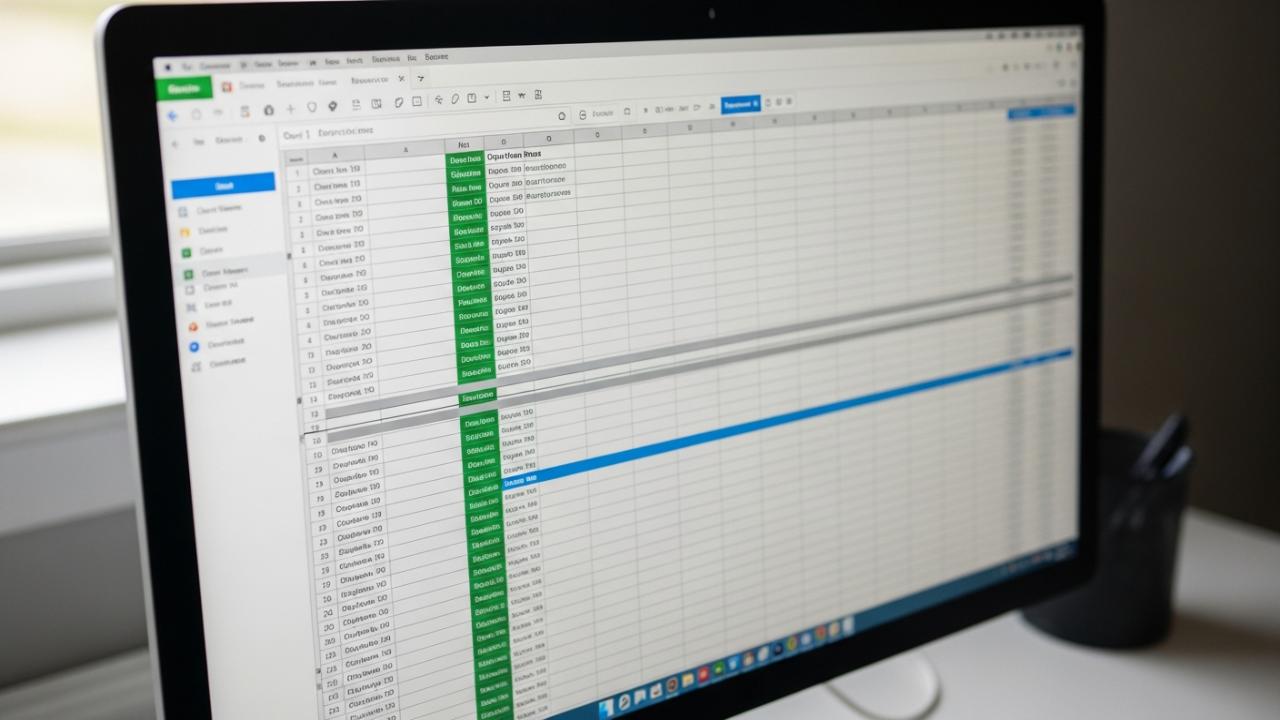
APPS • DAILYTECH.ID - Freezing rows in Google Sheets is essential for maintaining context, especially when dealing with extensive datasets where headers need to remain visible during vertical scrolling. This guide covers the complete methods for freezing any number of rows across all Google Sheets platforms, including desktop and mobile apps.
To freeze a row in Google Sheets on a desktop, navigate to the ‘View’ menu, select ‘Freeze,’ and choose the number of rows (0 to 5, or up to the currently selected row). This action locks the chosen rows in place, ensuring crucial column headers or specific data remain visible when scrolling large datasets. On mobile apps, tap the row number and look for the ‘Freeze’ option in the quick-access menu. Understanding these methods is key to improving navigation and overall spreadsheet usability.
Freezing Rows: The Standard Desktop Method
The most common and flexible way to freeze rows is using the desktop interface, offering precise control over which rows remain fixed. This process is the foundational method for achieving optimal data visibility and allows you to freeze a row in Google Sheets when scrolling through documents that contain hundreds or thousands of records. When working on a desktop, Google Sheets provides two primary methods for setting fixed panes: using the explicit menu command or utilizing a simple drag-and-drop feature.
Freezing the Top Row (Header Row)
Freezing the top row in a Google Sheet is perhaps the most frequent need, ensuring that descriptive column headings remain permanently visible, preventing the need to continuously scroll back up to recall the data context. This is the quickest and easiest way to ensure you can always read your header row in Google Sheets, regardless of how far down you scroll.
Method 1: Using the View Menu
- Navigate to the View Menu: Click on the
Viewtab located in the menu bar at the top of your Google Sheet. - Select Freeze: Hover your cursor over the
Freezeoption within the dropdown menu. - Choose the Number of Rows: You will see preset options. To freeze the top row in a Google Sheet, select
1 row. If your sheet uses two header rows (perhaps a main title and sub-categories), you would choose2 rows.
Method 2: Using the Freeze Bar (Drag-and-Drop)
An intuitive alternative to the menu system is utilizing the dedicated freeze bar. If your goal is to freeze a single row in Google Sheets, this method often proves faster.
- Locate the Bar: Look just above the Row 1 indicator (where the row numbers begin). There is a thin, thick gray horizontal line separating the numbered rows from the main document toolbar.
- Drag Down: Click and hold this gray bar. Drag the bar downward to enclose the rows you wish to freeze. If you want to freeze the top row, drag the bar until it rests immediately below Row 1.
- Release: Release the mouse button. The area above this line is now frozen, indicated by the line becoming thicker and often darker than the standard grid lines.
Freezing a Specific Row or Multiple Rows
While freezing the first row is standard, many users need to freeze a particular row in Google Sheets that is not the header, or they need to freeze multiple rows consecutively (e.g., the first five rows which contain summary data and column titles). Google Sheets allows you to freeze up to the first 1,000 rows, offering significant flexibility.
To precisely control which rows are fixed, you must tell the system exactly where the boundary should lie.
Steps to Freeze a Specific Range:
- Determine the Freeze Boundary: Identify the last row you wish to include in the frozen pane. For example, if you want to freeze the top 3 rows in Google Sheets, Row 3 is your boundary.
- Select the Row Immediately Below: Click on the number of the row immediately after the desired freeze boundary. If you want to freeze 3 rows, click on Row 4.
- Use the View Menu: Navigate back to
View>Freeze. - Select “Up to current row X”: Because you selected the boundary row (Row 4 in this example), the menu will now show a dynamic option: “Up to current row (4).” Selecting this will execute the freeze, successfully locking Rows 1, 2, and 3.
This method allows you to freeze multiple rows in Google Sheets, such as how to freeze two rows in google sheet or how to freeze the top 3 rows in Google Sheets, ensuring crucial data segments are constantly visible. If you are only trying to freeze a certain row in Google Sheets, remember that Sheets only freezes from Row 1 down to your selected row; it cannot freeze a middle row while leaving the top rows scrollable.
Freezing Rows and Columns Simultaneously
For large datasets, especially those used in dashboards or complex financial tracking, data extends both vertically (requiring fixed headers) and horizontally (requiring fixed identifiers like customer names or IDs). Successfully freezing both column and row in Google Sheets creates a completely stable viewing environment, often referred to as setting fixed panes.
The process involves combining the methods detailed above:
- Set the Freeze Boundary: Decide which row and which column mark the end of your fixed pane. For instance, if you want to fix the first three rows and the first two columns (A and B), your anchor cell is C4.
- Select the Anchor Cell: Click directly on the cell that is immediately outside of the desired frozen area (C4 in this example).
- Use the View Menu: Go to
View>Freeze. - Choose the Combined Option: Sheets is smart enough to recognize a combined selection. Under the
Rowsoptions, chooseUp to current row (3). Under theColumnsoptions, chooseUp to current column (B).
Executing these steps allows you to efficiently freeze row and column in Google Sheet, meaning both the horizontal and vertical navigation will be stabilized. This capability is essential for managing large matrices and is the proper technique for freezing column and rows in Google Sheets simultaneously.
How to Freeze Rows on Google Sheets Mobile App (iOS/Android)
While the desktop interface relies on a robust menu system, freezing rows in the Google Sheets mobile app (available on iOS and Android) is accomplished through direct interaction with the spreadsheet structure. This makes navigation easy, whether you need to freeze a row in Google Sheets on iPhone or on an Android tablet.
Freezing Rows on iPhone and iPad
The mobile user interface is designed for touch interaction, condensing the ‘View’ menu functions into a quick-access context menu. The steps for freezing a row in Google Sheets on iPad are identical to those on an iPhone.
Steps for iOS Devices:
- Open the Spreadsheet: Launch the Google Sheets app and open the document you are working on.
- Identify the Boundary: Determine the last row you wish to freeze (e.g., Row 1 if you only need to freeze the top row in Google Sheets mobile).
- Tap the Row Number: Press and hold the number of the boundary row (e.g., tap and hold the “1” indicator). This action highlights the entire row and brings up a small, floating action menu.
- Access the Menu: If the
Freezeoption is not immediately visible, look for the right-facing arrow or the three-dot menu icon within the floating menu. Tap it to expand the options. - Select Freeze: Tap the
Freezeoption (it often appears with an anchor icon).
The row (and all rows above it) will now be locked into place. To freeze two or more rows, simply tap the number of the last row you want to freeze (e.g., tap “3” to freeze Rows 1, 2, and 3).
Freezing Rows on Android Devices
The steps for freezing rows in Google Sheets Android are largely identical to the iOS process, ensuring a consistent user experience regardless of the mobile operating system. This method is the standard approach for how to freeze rows in Google Sheet in mobile.
Steps for Android Devices:
- Access the Sheet: Open your sheet in the Android Google Sheets app.
- Tap and Hold: Tap the number corresponding to the last row you want fixed (e.g., tap “1” for the header).
- Locate the Context Menu: A toolbar or pop-up menu will appear, typically above or below the row number.
- Find the Freeze Command: Swipe through the menu options until you find the
Freezecommand, or look for the three-dot overflow menu. - Confirm: Tap
Freeze.
This same technique is used if you need to freeze a column in Google Sheets on phone. Instead of tapping the row number, you tap the column letter (A, B, C, etc.) to bring up the context menu, which will then include the Freeze column option.
Working with Frozen Columns and Management
Efficiency in data analysis requires understanding not just how to freeze elements, but how to manage them, including freezing columns and knowing how to unfreeze when necessary.
Freezing Columns (First Column/Specific Column)
Just as freezing rows keeps headers visible during vertical scrolling, freezing columns is critical for keeping key identifiers (like project codes, names, or dates) visible during horizontal scrolling. This is the mechanism for how to freeze a column in Google Sheet.
Freezing the First Column (Quick Method):
The simplest action is often to freeze first column in Google Sheet, which usually holds the primary identifier data.
- Navigate to the View Menu: Click
View. - Select Freeze: Hover over the
Freezeoption. - Choose 1 column: Select the preset option
1 column.
Freezing a Specific Column or Multiple Columns:
If you need to freeze more than one column (e.g., Columns A through D), or if you need to freeze up to a specific column that isn’t the first, the procedure mirrors the row freezing method:
- Identify the Boundary: Locate the column letter immediately after your desired fixed section (e.g., if freezing A and B, select Column C).
- Select the Column: Click on the column letter (C).
- Go to View > Freeze: Navigate to the menu.
- Select “Up to current column X”: Choose the dynamic option, “Up to current column (C),” to lock Columns A and B into place.
Managing Frozen Panes and Troubleshooting
A common administrative task is knowing how to remove freeze rows in Google Sheets or unfreeze columns once they are no longer necessary. Leaving unnecessary panes frozen can clutter the view and reduce usable screen real estate.
How to Unfreeze Rows or Columns:
The process of unfreezing is achieved by resetting the freeze count back to zero.
- Go to the View Menu: Click on
View>Freeze. - Select Zero: To remove the fixed rows, select
No rows. To remove fixed columns, selectNo columns.
Selecting “No rows” instantly unfreezes the entire vertical pane, making all rows scrollable again.
Troubleshooting Merged Cells:
It is important to address how to freeze rows in Google Sheets with merged cells, as merging can occasionally interfere with freezing functionality, particularly on the mobile app.
- Desktop: The desktop application usually handles merged cells well. If your merged cell spans across the freeze boundary (e.g., Row 3 is merged with Row 4, but you try to freeze up to Row 3), the application might split the merged cell or, in rare cases, prevent the freeze until the cells are unmerged. The best practice is to ensure that all merged headers are contained entirely within the intended frozen area.
- Mobile: Freezing may fail on mobile if the boundary row contains complex merged structures. If you encounter issues, temporarily unmerge the cells in the header area, perform the freeze, and then re-merge the necessary cells.
Freezing vs. Locking: Protecting Data from Editing
When users ask how to lock a row in Google Sheets app, they are often confusing two distinct security and visibility features:
- Freezing: Controls visibility and scrolling. It keeps data in place so you can reference it while moving through the sheet. It offers zero security against editing.
- Locking (or Protection): Controls permissions and editing rights. It prevents specific users or all users from modifying the data within a row or column.
How to Lock a Row from Editing in Google Sheets
If your primary goal is to ensure collaborators cannot change your header data or critical summary rows, you must use the Sheet Protection feature, not the Freeze function. This is the correct method for how to lock a row in Google Sheets from editing.
Steps to Protect (Lock) a Range:
- Select the Target Area: Highlight the row, column, or range you wish to lock (e.g., Row 1).
- Access the Protection Menu: Navigate to the
Datamenu in the toolbar. - Select “Protect sheets and ranges”: This opens a sidebar menu on the right.
- Define the Range: Ensure the correct range (e.g., Sheet1!A1:Z1) is listed.
- Set Permissions: Click
Set permissions. - Restrict Editing: Choose who can edit the range. You can set it so only you, or a specific list of collaborators, can make changes.
- Confirm: Click
Done.
This method ensures that even if a collaborator has editing rights to the spreadsheet, they cannot modify the protected data, fulfilling the query how to lock a column in Google Sheets app. Freezing and locking are complementary tools: you might freeze the top row for visibility and lock the top row for security. Knowing how to lock a row or column in Google Sheets is crucial for collaborative environments where data integrity is paramount.
FAQs – How To Freeze A Row In Google Sheet Fast
No, Google Sheets does not support freezing non-consecutive rows. The freezing feature is designed to create a single fixed pane starting from Row 1 down to a specified boundary row, ensuring continuity in data reference.
To quickly unfreeze everything, navigate to the ‘View’ menu, select ‘Freeze,’ and then choose both ‘No rows’ and ‘No columns.’ This instantly removes all fixed panes from your spreadsheet view.
Google Sheets does not provide a direct single-key shortcut (like Ctrl+F or Cmd+F) to freeze a row. You must use the menu path: Alt+V, then E (for Freeze), followed by the numerical selection or navigation key.
If you are using the mobile app, the ‘Freeze’ option only appears after you have tapped the row number or column letter to bring up the context menu. Ensure you are pressing the numbered header area, not a cell within the sheet.
Google Sheets natively freezes rows from the top down. To create the appearance of a frozen bottom row, you must use the New View feature combined with advanced scrolling techniques, though this is not a true “freeze.”
No, freezing a row only affects the visibility and scrolling behavior of the sheet. It provides no protection or locking mechanism. If you want to prevent collaborators from editing the data, you must use the ‘Protect sheets and ranges’ tool under the ‘Data’ menu.



