IPAD • DAILYTECH.ID - The primary method to lock your iPad screen from accidental touch input is using the Accessibility feature called Guided Access. Guided Access disables touch sensitivity for specific areas or the entire screen, making it ideal for tracing, watching videos, or preventing toddlers from interacting with the display. This powerful tool provides full control over input methods, ensuring the screen remains fixed until manually deactivated.
The quickest and most effective way to lock your iPad screen from accidental touch input is by utilizing the built-in accessibility feature known as Guided Access.
The Definitive Solution: Activating Guided Access on iPad
Guided Access is the official Apple feature designed to restrict the device to a single application and manage which hardware buttons or screen areas respond to touch, thereby allowing users to effectively lock the iPad screen from touch. This feature is the authoritative answer to requests like how to lock an ipad screen from touch or how to freeze ipad screen from touch, as it completely overrides normal input functionality while keeping the display active.
Setting Up Guided Access for the First Time (Initial Configuration)
Before you can lock touch on iPad, Guided Access must be enabled and configured within the Settings app. This one-time setup establishes the security parameters and shortcut necessary for rapid activation.
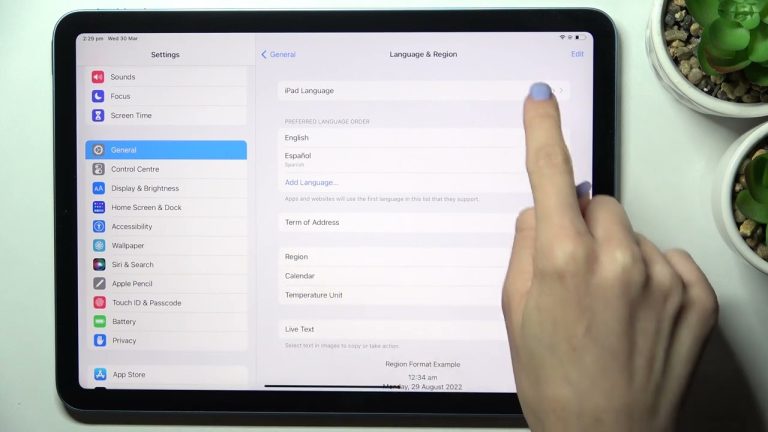
- Navigate to Settings: Open the Settings application on your iPad (including iPad Air, iPad Pro, and iPad Mini). Ensure your operating system, whether it is iPadOS 15, 16, or later, is updated for the most reliable performance.
- Access Accessibility: Tap on “Accessibility,” typically located in the left sidebar menu under the general settings. Accessibility features are designed to enhance device usability, and Guided Access falls under this umbrella as a tool for concentration and input control.
- Find Guided Access: Scroll down towards the bottom of the Accessibility menu, often grouped under the “General” or “Learning” section, and select “Guided Access.”
- Toggle On: Switch the “Guided Access” toggle to the green (On) position. Once enabled, several new configuration options will appear below, which are crucial for functionality and security.
- Set Passcode: Tap on “Passcode Settings” and select “Set Guided Access Passcode.” This step is essential because it secures the session. Without a dedicated passcode, anyone could triple-click the button and exit the restricted mode. This passcode must be different from your device lock screen passcode for maximum security. For newer models (like the iPad Pro and some iPad Airs), you can also opt for Face ID or Touch ID authentication (how to lock ipad screen from touch without home button), making the unlock process instantaneous yet secure.
- Enable Accessibility Shortcut: Ensure the “Accessibility Shortcut” is toggled on. This is the mechanism that allows you to activate Guided Access quickly using the physical buttons, preventing the need to delve back into the Settings menu every time you need to lock ipad screen from being touched.
Mastering the Triple-Click Activation
Once configured, activating the touch lock is done within the app you wish to restrict. This mechanism provides the fastest way to transition from full functionality to locked status, vital for spontaneous needs like handling a fussy toddler or starting an impromptu tracing session.
Activation Process: Locking the Screen
- Open the Target App: Launch the application where you need to disable touch input—for example, a video streaming app to lock ipad touch screen while watching video, or Procreate for digital art tracing (how to lock ipad screen from touch procreate).
- Initiate Guided Access: Quickly press the physical button three times.
- On models with a Home Button (e.g., iPad 9th generation, older iPad Air 2): Triple-click the circular Home Button beneath the display.
- On models without a Home Button (e.g., iPad Pro, newer iPad Air): Triple-click the Top Button (Power button) located on the edge of the device. This addresses users seeking how to lock ipad screen from touch without home button.
- Configure Session Settings: The Guided Access configuration screen will overlay the running app. Look at the bottom left corner for “Options.”
- Disable Touch Input: Tap “Options.” A menu will appear with several toggles (Sleep/Wake Button, Volume Buttons, Motion, Keyboard, etc.). To lock the touch screen on iPad pro or any model completely, find the “Touch” toggle and switch it OFF. This is the core action that makes the screen unresponsive.
- Start Session: Tap “Done” in the options menu, then tap “Start” in the top right corner. The screen is now locked from touch input, and a confirmation banner will appear at the top. The iPad screen will now function as a fixed display, satisfying the query, how to lock ipad screen so touch doesn’t work.
Deactivation Process (To Unlock iPad Touch Screen):
Restoring full functionality requires the same button sequence, but with authentication, ensuring only the device owner can unlock the screen.
- Initiate Unlock Sequence: Triple-click the Home/Top Button again.
- Authenticate: The passcode prompt will appear. Enter your six-digit Guided Access Passcode or utilize Face ID/Touch ID if enabled.
- End Session: Once authenticated, the configuration screen reappears. Tap “End” in the top left corner to restore full touch functionality and exit the restricted mode.
Locking the Screen for Specific Needs (Intent-Based Solutions)
The need to lock the touch screen is usually driven by specific practical scenarios that require absolute screen stability or prevention of interaction. Guided Access excels because it offers granular control tailored to these use cases.
Preventing Kids/Toddlers from Touching the Screen
For parents, Guided Access provides a lifeline against accidental purchases, app switching, or interruption of educational content. The goal is to lock ipad screen from touch toddler while content, such as Netflix or YouTube videos, is playing.
When using a video streaming service, simply activating Guided Access and disabling the “Touch” option turns the device into a perfect toddler viewer. This is the definitive answer to lock ipad screen from touch toddler on youtube because it removes the frustrating ability for small hands to pause, exit the app, or change the volume unexpectedly (unless volume controls are also explicitly disabled in the Guided Access Options). This provides peace of mind when using the device to keep children occupied without requiring constant monitoring of their screen interaction.
How to Lock the iPad Screen for Tracing and Art
Digital artists frequently utilize their iPads as a modern lightbox, placing paper over the display to transfer sketches or refine complex line work. If the screen is touched while tracing, the image can shift, zoom, or rotate, ruining precision.
For artists seeking how to lock ipad screen from touch for tracing, Guided Access ensures the canvas layer remains perfectly stable. Whether you are using specialized tracing apps or professional software like Procreate, activating Guided Access is the critical final step:
- Prepare your desired reference image or line work layer in your art application (e.g., how to lock ipad screen from touch procreate).
- Activate Guided Access and explicitly turn the “Touch” toggle off.
- Place your tracing paper or medium over the display.
The screen brightness and clarity remain, but even the pressure of the stylus or the inadvertent resting of a hand will not register as input, allowing for high-precision, uninterrupted physical tracing on the glass. This functionality applies equally to how to lock ipad air screen from touch for tracing and professional iPad Pro models.
Advanced Touch Control: Locking Specific Touch Zones
Sometimes, completely disabling the touch screen is overkill. A technical user might need the playback controls (like the scrub bar or volume slider) of a video app to remain active, but want to prevent accidental taps on the main viewing area.
During the Guided Access setup screen, after the initial triple-click but before pressing “Start,” users are presented with a drawing interface. You can literally draw a circle or box around any area of the app interface you wish to disable permanently during that session.
For instance, if you are using an app where the menu bar is at the bottom, but the main viewing area needs to be locked, you can circle only the main viewing area. This creates a masked-off region where input is ignored, while the surrounding controls (which were left outside the circled area) remain responsive. This allows for customized interaction control, preventing touch input only where necessary.
Troubleshooting and Refinement of Guided Access
Although Guided Access is highly reliable, users occasionally encounter issues or need fine-tuning, especially regarding device specificities and button location.
Why the Touch Lock Might Fail
If a user finds their lock ipad screen from touch toddler not working, the issue is usually related to configuration:
- Did you specifically disable the “Touch” toggle? Triple-clicking only starts Guided Access; it does not automatically lock the touch screen. You must tap “Options” on the configuration screen and verify the “Touch” toggle is switched off before tapping “Start.”
- Was the Accessibility Shortcut enabled? If the shortcut is not active, the triple-click will not initiate the process. Review the initial setup steps to ensure the shortcut is toggled on.
- Is the application crashing or pausing? Guided Access restricts the iPad to a single app. If that app closes or backgrounds itself, Guided Access might end prematurely.
Controlling Hardware Inputs During a Session
One significant advantage of Guided Access is the ability to manage physical buttons, which enhances security and stability:
- Sleep/Wake Button: If you want to prevent the user (especially a child) from turning the screen off, ensure the “Sleep/Wake Button” toggle is switched OFF in the Guided Access Options. The display will remain active according to the session settings.
- Volume Buttons: For video playback, disabling the “Volume Buttons” prevents accidental blasts of sound or muted videos, providing complete control over the device’s output until the session is manually ended.
Model Specific Activation Details
The consistent functionality of Guided Access spans across nearly all modern iPads, but the location of the activation button changes the physical interaction:
| iPad Model Category | Activation Button | Keyword Addressed |
|---|---|---|
| With Home Button (e.g., iPad 9th Gen, iPad Air 2, iPad Mini 4) | Triple-click the Home Button (bottom front center) | how to lock screen on ipad 9th generation |
| Without Home Button (e.g., iPad Pro, iPad Air 4/5, iPad Mini 6) | Triple-click the Top Button (Power button) | how to lock ipad pro screen from touch |
Understanding this distinction is key to successfully executing how do you lock touch screen on ipad regardless of the specific generation or size of the device. Guided Access remains the uniform, built-in solution that achieves reliable touch restriction across the entire Apple iPad ecosystem.
FAQs – Lock Ipad Screen From Touch
There is no other native, standard setting in iPadOS that completely and temporarily disables the entire touch screen while keeping the display active. Alternative methods involve turning the screen off or using Screen Time limits, but Guided Access is the dedicated feature for touch disabling.
Yes, Guided Access is the ideal method for tracing in Procreate or any other drawing app. Initiate Guided Access while Procreate is running, go to Options, and turn the “Touch” toggle off. This prevents accidental canvas movement while you trace physically on the screen.
Screen Lock (pressing the power button) turns the display off and puts the device to sleep. Locking the touch screen using Guided Access keeps the display active and the app running but prevents all touch input, allowing passive viewing or stable tracing.
To turn off touch sensitivity for a toddler, activate Guided Access by triple-clicking the Home or Top button within the app they are watching. In the session options, ensure the “Touch” toggle is switched off before tapping “Start.”
The touch lock may not be working if you failed to toggle the “Touch” option off during the initial session setup screen. Triple-clicking starts the session prompt, but you must manually confirm the touch disability setting within the Options menu before tapping “Start.”