LAPTOP • DAILYTECH.ID - Effectively managing applications on your Chromebook is crucial for maintaining optimal performance and storage space. Removing unwanted or unused apps can significantly improve your device’s speed and overall user experience.
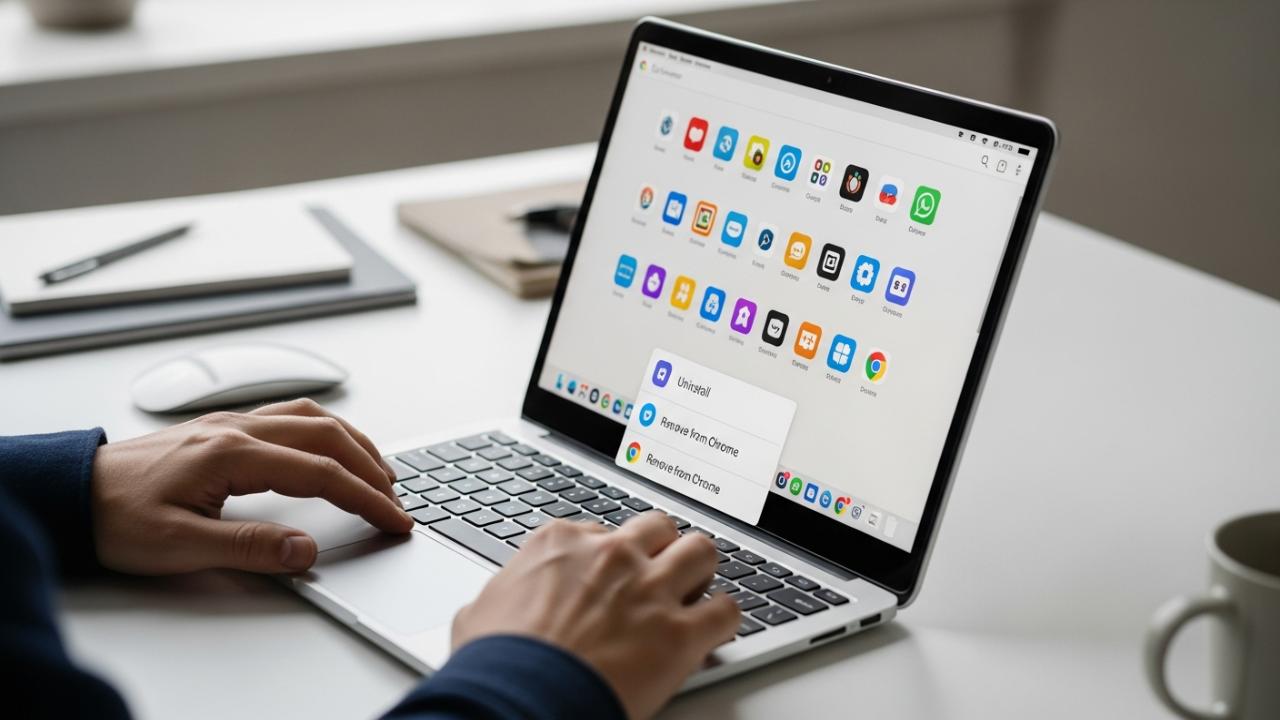
To delete apps on a Chromebook, locate the app icon in the Launcher or Shelf, right-click (or use a two-finger tap on the trackpad), and select “Uninstall” or “Remove from Chrome.” For Android apps, you might also find the option in Settings > Apps. Linux apps require specific terminal commands or their respective uninstallers, helping to free up storage and optimize performance. Let’s delve into the various methods to successfully remove applications from your Chromebook.
How to Delete Apps on a Chromebook (Standard Methods)
As we embark on this digital journey, understanding the fundamental ways to manage the applications that dwell within your Chromebook is like learning the basic trails through a familiar forest. These pathways are well-marked and offer straightforward ways to lighten your device’s load and restore harmony to its electronic mind.
Deleting Apps from the Launcher
The Launcher on your Chromebook is akin to the central gathering place, the village square where all your digital tools and companions reside. It is the primary hub, where every application’s spirit can be called forth and, if need be, respectfully sent on its way.
- Call forth the Launcher: Begin by seeking the Launcher icon, a humble circle often found in the bottom-left corner of your screen. A gentle click will open this digital space, revealing all the apps you have welcomed onto your device.
- Locate the app’s spirit: Scan through the icons until your gaze settles upon the specific app you wish to release. Each icon represents a unique digital spirit, and finding the one you intend to remove is the first step in its journey of departure.
- Offer the sacred gesture: With your mouse, perform a right-click upon the app’s icon. If your path is guided by the trackpad, a two-finger tap will invoke the same power, bringing forth a menu of choices. This is the moment of intention, where you prepare to speak your will to the device.
- Speak the words of release: From the choices that appear, you will see options like “Uninstall” or “Remove from Chrome.” These are the sacred words for releasing an app. “Uninstall” often applies to Android and standalone applications, while “Remove from Chrome” is typically for web-based applications or extensions. Choose the path that resonates with your intent for the app.
- Affirm your decision: The Chromebook, like a wise elder, may ask for your confirmation, ensuring that your decision is true and not made in haste. Confirm your choice, and the app’s presence will begin to fade from your Launcher, freeing its space within your device.
This method, rooted in simplicity, is often the first trail many travelers take to manage their digital tools, whether they use an HP, Lenovo, Acer, Samsung, Dell, Asus, or Google Chromebook.
Removing Apps from the Shelf (Taskbar/Dock)
The Shelf, sometimes called the taskbar or dock, is like the well-trodden path near your lodge, holding the tools you use most often close at hand. While some apps rest here, visible to all, removing them from this prominent place doesn’t always mean they leave your Chromebook entirely. It’s important to discern between merely stepping aside and a true departure.
- Find the familiar companion: Look towards the bottom of your screen, upon the Shelf. Here, the icons of your most trusted and frequently used apps reside. Locate the app whose presence you wish to alter.
- Invoke the guiding hand: Perform a right-click directly upon the app’s icon on the Shelf. Again, for those navigating with a trackpad, a gentle two-finger tap will bring forth the options, a digital council of choices.
- Choose the path of change: A menu will unfurl before you. You will likely see two distinct options that speak to different intentions:
- “Unpin”: To “unpin” an app is like asking a traveler to step away from the fire but remain in the village. The app will vanish from the Shelf, no longer prominently displayed, yet its spirit and its code will still reside within your Chromebook. It remains installed, ready to be called upon from the Launcher when needed. This is useful for clearing clutter from your immediate view without fully letting go.
- “Uninstall”: To choose “Uninstall” is to guide the app towards a complete departure from your Chromebook. This option will remove the app entirely, freeing its space and energy from your device. For many apps, this is the most direct way to ensure they no longer reside within your digital lodge.
- Confirm the spirit’s journey: Should you choose “Uninstall,” your Chromebook may again seek your affirmation, a final nod to confirm its release.
This pathway allows you to either simply tidy your immediate workspace or fully release an app, whether it’s an Android app, a PWA, or a standard Chrome app.
Deleting Apps via Chromebook Settings
For certain digital spirits, particularly those of the Android lineage that draw their life from the Google Play Store, the Chromebook’s Settings offer another, deeper path to management. This path is akin to visiting the elder’s council, where the intricate details of each app’s life and its impact on your device’s harmony can be examined and altered.
- Seek the wisdom of Settings: To begin, cast your gaze to the bottom-right corner of your screen, where the time and quick settings reside. Click upon this area, and then select the gear icon, the universal symbol for “Settings.” This will open the portal to your Chromebook’s deeper controls.
- Journey to the “Apps” council: Within the Settings, navigate through the various categories until you find “Apps.” Click upon this, and then proceed to “Manage your apps.” This is the specific council dedicated to understanding and controlling every application that resides within your digital lodge.
- Identify the app’s essence: A list of all installed apps will appear before you. Take your time to locate the precise app you wish to manage or remove. Each name is a thread in the tapestry of your Chromebook’s functions.
- Speak the command of release: Click upon the name of the app. This will open a detailed view, revealing its permissions, storage usage, and other vital information. Amongst these details, you will find the option to “Uninstall” or “Remove.”
- Execute the will of the digital heart: Select “Uninstall” or “Remove.” Your Chromebook will likely seek a final confirmation, ensuring that you truly wish to release this app from its duties. Confirm, and its presence will be cleansed from your device.
This method is particularly potent for Android apps, providing a detailed pathway to not just uninstall but also to manage their data and permissions, ensuring the overall well-being of your Chromebook.
Deleting Apps Without a Mouse (Right-Click Alternative)
Sometimes, the familiar tools are not at hand, or the path ahead requires a different approach. If you find yourself without a mouse, or if your right-click companion falters, fear not. Your Chromebook offers alternative ways to navigate the digital plains and perform the necessary actions, much like knowing the ancient signs to guide your way without a map.
- The Two-Finger Touch of Intention (Trackpad): For those journeying with a trackpad, the absence of a mouse is no hindrance. To perform the equivalent of a right-click, simply place two fingers gently upon the trackpad and tap. This gesture is universally understood by your Chromebook as a call for the context menu, bringing forth the choices to “Uninstall” or “Remove from Chrome.” It is a natural and intuitive movement, allowing your fingers to speak directly to the device.
- Speaking Commands with Swift Strokes (Keyboard): The keyboard is a powerful tool, capable of guiding your Chromebook with precision.
- First, open the Launcher (the circle icon in the bottom-left).
- You can use the arrow keys to carefully navigate through the constellation of app icons, moving left, right, up, and down until the desired app is highlighted.
- Alternatively, if you know the app’s name, simply begin typing it in the Launcher’s search bar. As you type, the Chromebook, in its wisdom, will highlight the app you seek.
- Once the app is highlighted, hold down the
Altkey and then press theEnterkey. This combination acts as your keyboard’s right-click, summoning the context menu. - With the menu now visible, use your arrow keys once more to move up or down until “Uninstall” or “Remove from Chrome” is highlighted.
- Finally, press
Enterto select your choice, confirming the app’s departure.
These methods ensure that your journey of app management can continue, regardless of the tools you hold, reinforcing the adaptability and resilience of your Chromebook.
Advanced App Deletion on Chromebook
As we delve deeper into the digital forest, we encounter different kinds of applications, each with its own unique spirit and its own specific path to departure. Understanding these nuances is a mark of true digital wisdom.
Removing Android (Google Play Store) Apps
Android apps, born from the vast digital garden of the Google Play Store, carry the essence of mobile applications within your Chromebook. They are familiar companions for many, and their removal follows similar patterns to those on a phone or tablet.
- From the Launcher/Shelf (The Open Path): For many Android apps, the straightforward methods described earlier are sufficient. A right-click (or two-finger tap) on their icon in the Launcher or on the Shelf, followed by selecting “Uninstall,” will often initiate their departure. This is the quickest way to release their hold, whether it’s a social media app, a game, or a utility you no longer need. This applies to apps like “how to delete youtube app from chromebook” or “how to delete gemini app from chromebook” if they are installed as Android apps.
- From Settings (The Deeper Examination): As mentioned, navigating to “Settings” > “Apps” > “Manage your apps” provides a more comprehensive view. Here, not only can you “Uninstall” an Android app, but you can also explore its permissions and storage, offering more control over its digital footprint before its final release. This path is particularly useful if you are considering whether to just “clear app data” or fully uninstall.
- Directly from the Play Store (The Source’s Guidance): Sometimes, returning to the very source from which an Android app sprang forth is the most intuitive path.
- Open the Google Play Store app on your Chromebook.
- Click on your profile icon (usually in the top-right corner).
- Select “Manage apps & device.”
- Navigate to the “Manage” tab. Here, you will see a list of all your installed Android apps.
- Locate the specific app you wish to remove, tap on its name, and then choose the “Uninstall” option. The Play Store itself, being the guardian of these apps, can orchestrate their peaceful departure. This is a common way to “how to delete downloaded apps on chromebook” if they originated from the Play Store. It also applies if you were looking to “how to delete play store app on chromebook” though the Play Store itself is a system component and cannot be uninstalled.
Uninstalling Linux (Beta) Apps
Linux applications on your Chromebook occupy a unique space; they reside in what could be called a “separate lodge” or a “virtual encampment” within your device. This Linux development environment, often referred to as “Crostini,” allows a different kind of digital spirit to flourish, and thus, its removal requires distinct methods.
Through the Chrome OS Linux Settings (Cleansing the Camp)
This method is like deciding to dismantle the entire Linux encampment, releasing all the apps and files associated with it at once.
- Journey to your Chromebook’s “Settings” (the gear icon).
- Navigate down to “Linux development environment” (or sometimes simply “Developers”).
- Here, you will find an option like “Remove Linux development environment.” Selecting this powerful option will completely uninstall all Linux apps, their associated files, and the entire virtual environment itself. It’s a comprehensive cleansing, useful when you no longer wish to host any Linux applications or need to free up a significant amount of space.
- Alternatively, within the Linux settings, there might be a “Manage apps” section for some distributions, allowing for individual app uninstallation, but this is less common for all Linux app types.
Using the Terminal (Speaking the Ancient Commands)
For those who understand the deeper language of the Linux spirit, the Terminal is a potent tool. It’s like speaking directly to the heart of the Linux environment, issuing precise commands for individual app departures. To “how to delete linux apps on chromebook,” this is often the most granular path.
- Open your Linux terminal: Find “Terminal” in your Launcher and open it. This opens a window where you can communicate directly with the Linux system.
- For Debian/Ubuntu-based apps (the common tongue): Most Linux apps installed on Chromebooks are based on Debian or Ubuntu. For these, the command to release an app’s spirit is:
sudo apt remove [package_name]- Replace
[package_name]with the actual name of the software package. For example, to remove the Firefox browser (if installed via apt), you would type:sudo apt remove firefox. sudogrants you administrative privileges for this command, whileapt removeis the command to uninstall.
- Replace
- For Flatpak apps (another dialect): If you’ve installed apps using Flatpak, a different set of commands is needed:
flatpak uninstall [app_id]- To find the
[app_id], you can useflatpak listto see all installed Flatpak applications. This is how you would “how to delete linux apps on chromebook through flatpak”.
- To find the
- For Wine apps (a bridge to another world): If you’ve used Wine to run Windows applications within your Linux environment, their removal can be a bit more nuanced.
- Often, you can launch
wine uninstallerdirectly from the Linux terminal. This will bring up a graphical interface similar to Windows’ Add/Remove Programs, allowing you to select and uninstall Wine applications. - Alternatively, you might need to manually delete the application’s directory within the Wine prefix, though this requires a deeper understanding of the Linux file system and Wine’s structure. This covers “how to delete linux apps on chromebook through wine”.
- Often, you can launch
These advanced methods for Linux apps ensure that even these unique digital inhabitants can be managed effectively, preserving the balance of your Chromebook’s multi-layered existence.
Deleting Progressive Web Apps (PWAs) and Chrome Web Store Apps
Progressive Web Apps (PWAs) and apps from the Chrome Web Store are like digital echoes, whispers of the web that your Chromebook has made solid, giving them their own icons and sometimes their own windows. They are deeply intertwined with the Chrome browser’s spirit but can be released just like other applications. This addresses “how to delete web apps on chromebook”.
- From the Launcher (The Direct Gaze): The most common and straightforward path is through the Launcher. Locate the PWA or Chrome app icon that has taken root there. Perform a right-click (or two-finger tap) upon it. From the unfolding menu, select “Uninstall” or “Remove from Chrome.” This gesture is usually all that is needed to send these web-rooted spirits on their way.
- From the Chrome Browser (Through its Heart): For a more browser-centric approach, you can journey directly into the heart of the Chrome browser itself:
- Open your Chrome browser.
- In the address bar, where you type web addresses, enter:
chrome://appsand press Enter. This will reveal a page listing all your installed Chrome apps and PWAs. - Find the app you wish to remove on this page.
- Right-click on its icon (or use the two-finger tap on the trackpad).
- Select “Remove from Chrome.” The browser will then facilitate its departure, ensuring no lingering digital threads remain.
These methods cover everything from simple Chrome extensions that act like apps to full-fledged PWAs that mimic native applications, like if you wanted to know “how to delete camera app on chromebook” if it was installed as a PWA (though usually it’s a system app).
How to Delete Pre-Installed or System Apps
Some applications are not merely visitors but are the very bones and sinews of your Chromebook, gifts from its creators or essential elements for its daily function. These are the pre-installed or system apps, such as the Camera, Gallery, Files app, or even the Google Play Store itself. To truly “how to uninstall preinstalled/system apps on chromebook” is often a path that is not fully open, as removing them entirely could disrupt the harmony of your device.
However, while a full uninstallation might be beyond reach, you can often manage their presence and impact:
- Disable (To Quiet Their Spirit): For some system apps, you might find an option to “Disable” them within “Settings” > “Apps” > “Manage your apps.” Disabling an app prevents it from running in the background and consuming precious resources, effectively quieting its spirit without fully banishing it.
- Remove Updates (To Return to Their Origin): If an app has received many updates over time, those updates can take up significant storage. You might be able to revert the app to its factory version, shedding the extra digital weight of its evolution. This doesn’t remove the app but returns it to its leanest state.
- Remove from Shelf (To Clear Your View): If a pre-installed app clutters your Shelf but you cannot uninstall it, simply right-click (or two-finger tap) on its icon and select “Unpin.” This removes it from your immediate view, allowing you to focus on the tools you truly choose to keep close.
- School Chromebooks (The Guardian’s Rules): For Chromebooks issued by schools or other organizations, the “how to delete apps on school chromebook” question has another layer. These devices often operate under the careful watch of system administrators, who act as guardians of the device’s integrity and purpose. They often restrict the ability to uninstall or even manage certain apps to ensure a consistent and secure learning environment. In such cases, your first step should always be to consult with your school’s IT department or the responsible administrator. They hold the keys to understanding the device’s specific configuration and can offer guidance or assistance.
Understanding these limitations is part of respecting the deeper architecture of your Chromebook and the intentions of its caretakers.
Deleting Multiple Apps at Once
In the digital realm of the Chromebook, each app is often treated as an individual spirit, requiring a unique intention for its departure. Unlike some other operating systems where one might sweep away many digital companions with a single gesture, Chrome OS does not currently offer a native “select all and delete” function for multiple apps.
This means that if you wish to “how to delete multiple apps on chromebook” or even “how to delete all apps on chromebook (at once)” (excluding the Linux environment), you must undertake the task of uninstalling each app individually. You will need to apply one of the standard methods – from the Launcher, the Shelf, or through Settings – to each app, one by one.
The one notable exception to this individual release is within the Linux development environment. If you choose the path of “Remove Linux development environment” from your Chromebook’s Settings, this powerful action will indeed remove all Linux apps and their associated files simultaneously, akin to dismantling an entire camp in one decisive move. However, for Android, web, and Chrome apps, the journey remains one of individual farewells.
Managing App Data and Cache
Beyond the mere presence or absence of an app, lies the realm of its digital memory and temporary trails. Managing an app’s data and cache is like maintaining the cleanliness and order of its lodge, ensuring it functions smoothly and does not accumulate unnecessary burdens. This is crucial for optimizing your device and solving common app behaviors.
Clearing App Cache
The cache of an app is like the temporary footprints left on a well-used trail, or the small stones gathered by a river. It consists of temporary data that the app stores to load faster and perform more efficiently on subsequent uses. While useful, an overgrown cache can sometimes lead to an app behaving erratically, slowing down, or simply taking up unnecessary space. “How to clear app cache on chromebook” is a wise practice.
- Seek the Settings council: Navigate to your Chromebook’s “Settings” by clicking the time in the bottom-right corner, then the gear icon.
- Journey to “Apps”: Proceed to “Apps” and then “Manage your apps.”
- Select the app’s spirit: Find and click on the specific Android app whose cache you wish to clear.
- Enter the “Storage and cache” chamber: Within the app’s detailed view, you will see an option for “Storage and cache.” Click on this.
- Release the temporary burdens: Here, you will find the option “Clear cache.” A gentle tap here will sweep away all the temporary data, leaving the app’s core functions untouched but refreshed. The app will usually run normally after this, perhaps loading a bit slower initially as it rebuilds its cache. This is a common solution for troubleshooting minor app glitches and for “how to clear cache on apps on chromebook”.
Clearing App Data
Clearing an app’s data, also known as its storage, is a more profound action. It’s akin to completely emptying the app’s lodge, removing all its personal belongings, memories, and records. This means all user data, settings, login information, and any files created or downloaded by the app will be erased. The app will return to its original, factory-installed state, as if you had just installed it for the very first time. This is a potent tool for “how to clear app data on chromebook” or “how to clear app storage on chromebook.”
- Seek the Settings council: Again, begin by opening your Chromebook’s “Settings.”
- Journey to “Apps”: Navigate to “Apps” and then “Manage your apps.”
- Select the app’s spirit: Find and click on the specific Android app whose data you wish to clear.
- Enter the “Storage and cache” chamber: Within the app’s detailed view, select “Storage and cache.”
- Cleanse the app’s heart: You will see an option labeled “Clear storage” or “Clear data.” Be mindful, for this action is irreversible for the data. Confirm your choice, and the app will be reset to its default, virgin state. You will need to log in again, reconfigure settings, and potentially redownload any in-app content.
This action is a powerful way to troubleshoot deeply ingrained app issues, free up significant storage space, or prepare an app for removal when you want to ensure no personal traces remain.
Why You Should Delete Unused Apps
Just as a careful guardian tends to their garden, ensuring only what is needed flourishes and what is overgrown is pruned, so too should you tend to your Chromebook. Deleting unwanted or unused apps is not merely about tidiness; it is a fundamental act of maintaining the harmony, balance, and well-being of your digital companion.
- Freeing Up Valuable Storage Space: Every app, even those seldom touched, claims a piece of your Chromebook’s digital land. Over time, these unused digital inhabitants can accumulate, slowly filling up the precious storage space. Releasing them is like opening up new fertile ground, allowing your device to breathe and make room for what truly matters, whether it’s important documents, photos, or new creative tools. This is particularly important for Chromebooks, which often have more limited onboard storage than traditional laptops.
- Improving System Performance and Battery Life: Apps are not merely static icons; many, especially Android and Linux apps, can run processes in the background, even when you are not actively using them. These background activities consume your Chromebook’s processing power (its “energy” or “breath”) and draw upon its battery life. By deleting dormant software, you lighten your device’s load, allowing its electronic mind to focus its energy on the tasks you truly command, leading to a smoother, faster, and more enduring experience. It reduces unnecessary digital chatter.
- Enhancing Security: Every application on your Chromebook represents a potential doorway, a connection to the wider digital world. Unused or outdated apps, especially those no longer receiving updates from their creators, can become vulnerabilities – weakened points in your device’s defenses. By minimizing the number of installed applications, you reduce the “attack surface,” making your Chromebook a more secure digital lodge and protecting your valuable data from unseen threats. It’s about keeping your digital hearth safe.
Regularly clearing out dormant software is a wise practice, akin to regularly clearing old leaves and debris from a well-tended path. It keeps your Chromebook running efficiently, securely, and in perfect harmony with your digital needs.
FAQs – How to Delete Apps on Chromebook
Many pre-installed or system apps are core to Chrome OS and cannot be fully uninstalled. You can often disable them, remove their updates to save space, or simply unpin them from your Shelf to clear your view. Full removal is typically not an option without special permissions or developer mode, which is not recommended for most users.
To uninstall an app directly from the Shelf (taskbar/dock), locate its icon, right-click on it (or use a two-finger tap on the trackpad), and then select “Uninstall” from the context menu. Be careful not to confuse “Uninstall” with “Unpin,” which only removes it from the Shelf but keeps it installed.
Clearing app cache removes temporary files an app uses for faster loading, often resolving minor performance issues without affecting your settings or login. Clearing app data is more drastic; it resets the app to its original state, deleting all user data, settings, and login information, requiring you to set it up again.
You can delete Linux apps through the Chrome OS Settings by removing the entire Linux development environment, which uninstalls all Linux apps. Alternatively, for individual apps, you can use the Linux terminal with commands like sudo apt remove [package_name] for Debian-based apps or flatpak uninstall [app_id] for Flatpak apps.
On school-issued Chromebooks, app deletion is often restricted by the school’s IT administrators. These devices are usually managed, meaning certain settings and actions are locked down to maintain a secure and consistent learning environment. You should contact your school’s IT department for assistance or to understand their specific policies.