TIKTOK • DAILYTECH.ID - Social media is a double-edged sword. On one hand, TikTok offers an endless stream of creativity, laughter, and community. On the other, it can occasionally expose you to negativity, harassment, or simply content from people you’d rather not interact with. Whether it’s an ex-partner, an annoying bot, or a persistent troll, knowing how to block someone on TikTok is the ultimate power move for your digital peace of mind.
The best part? TikTok is designed to keep things low-profile. If you’re worried about starting drama, take a deep breath—they won’t get a notification saying you’ve shown them the door.
Quick Answer: How to Block Someone on TikTok
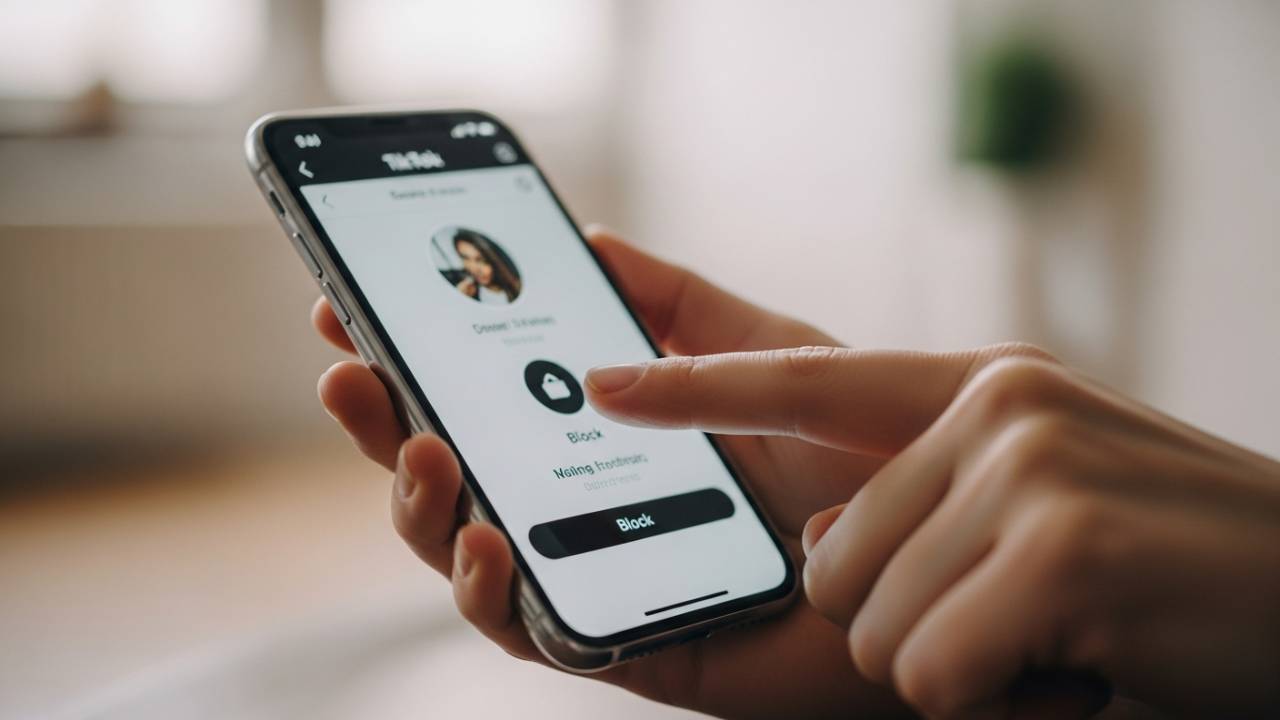
To block a user, go to their Profile, tap the Share icon (or three dots) in the top right, and select Block. This immediately prevents them from seeing your videos, sending you messages, or finding your profile in search. TikTok does not notify the user that they have been blocked.
What Happens When You Block Someone on TikTok?
Before you hit that button, it’s helpful to understand exactly what “blocking” entails. It is the most restrictive action you can take against another account.
What they can no longer see
Once the block is active, that user is effectively erased from your TikTok experience, and you from theirs.
- Profile Visibility: If they try to search for your username, your account will either not appear or will show as “Account not found.”
- Content Access: They cannot view your videos, even if your account is public.
- Follower Status: They are automatically removed from your followers, and you are removed from theirs.
Messages, Comments, and LIVE Access
- Direct Messages: Existing message threads will remain, but neither of you can send new messages.
- Comments: Their past comments on your videos will disappear from your view, and they won’t be able to leave new ones.
- LIVE: They cannot enter your LIVE streams, and you won’t see theirs on your For You Page (FYP).
Whether TikTok Notifies Them
This is the number one concern for most users. TikTok does not send a notification when you block someone. The transition is silent. However, if they are savvy, they might realize they’ve been blocked if they notice your content has vanished or if they can no longer find your profile via search.
How to Block Someone on TikTok From Their Profile
This is the standard method and works whether you are using an iPhone, Android, or the TikTok Lite app.
- Find the User: Use the search bar to find the person or tap on their username from a video or your follower list.
- Open their Profile: Tap on their profile picture or handle to enter their main page.
- Tap the Share/Menu Icon: In the top right corner, you’ll see an arrow (Share icon) or three horizontal dots.
- Select “Block”: A menu will pop up from the bottom. Tap Block.
- Confirm: A final confirmation box will appear. Tap Block again to finalize the decision.
Note: This method works even if you don’t follow them. You don’t need to be “friends” with someone to block them.
How to Block Someone on TikTok Without Viewing Their Profile
Sometimes, you don’t even want to give someone the satisfaction of a “profile view” (if they have Profile View History turned on). Or, perhaps you want to block someone quickly while scrolling through your feed.
Blocking From Comments
If someone leaves a nasty comment on your video, you can block them right there:
- Long-press on the offending comment.
- Tap Manage multiple comments if you want to block several people at once, or just tap Block if it appears in the quick menu.
- Alternatively, tap their profile icon from the comment section to trigger the standard blocking steps without fully engaging with their feed.
Blocking From Messages
- Go to your Inbox.
- Open the chat with the person you want to block.
- Tap the three dots or the user’s name at the top.
- Select Block and confirm.
How to Block Someone on TikTok Without Them Knowing
As mentioned, TikTok values privacy in this regard. There is no “You have been blocked” alert. To keep things as discrete as possible, follow these tips:
- Avoid “Soft Blocking”: Some people block and then immediately unblock to “force” a person to unfollow them. This is risky because if the person notices they aren’t following you anymore, they might try to follow you again and realize what happened. A permanent block is much more effective.
- Signs they might notice: While there’s no notification, a user might suspect a block if they see “User not found” or if your comments on their posts suddenly disappear. There is no way to prevent these technical side effects, but for 99% of users, the silence is enough to keep the peace.
How to Block Someone Who Blocked You on TikTok
This is a tricky “edge case.” Usually, if someone blocks you first, you can’t find their profile to block them back. Why would you want to? To ensure that if they ever unblock you, they are still blocked on your end.
The Workaround:
If you have a previous Direct Message (DM) thread with them, you can sometimes still access the menu via the chat settings to hit “Block” from your side. If there is no digital trail, you generally cannot block someone who has already blocked you because their account effectively doesn’t exist to you.
How to Block Someone on TikTok LIVE
Managing a LIVE stream requires quick reflexes. If a viewer is being disruptive, you have two main options: Muting and Blocking.
Blocking Viewers During LIVE
- Tap on the user’s profile picture in the chat or viewer list.
- Tap the three dots or the settings icon on their mini-profile.
- Select Block. This kicks them out of the LIVE immediately and prevents them from returning.
Moderator Blocking Permissions
If you have moderators helping you, they can also block or mute people on your behalf.
- Moderators can “Mute” a user for the duration of the stream.
- Moderators can also “Block” users from the LIVE, ensuring the creator doesn’t have to stop their content to handle trolls.
Difference Between Block vs. Mute
- Mute: The user can still watch the LIVE but cannot type in the chat. This is often temporary (e.g., for 5 minutes or the rest of the stream).
- Block: The user is completely removed from the stream and can no longer view any of your content or profile.
How to Block Someone From Commenting or Messaging You
If you don’t want to go nuclear and block their entire account, you can simply limit how they interact with you.
Comment-Only Blocking
You can filter out specific people or specific words:
- Go to Settings and Privacy.
- Tap Privacy > Comments.
- You can choose who can comment (Everyone, Friends, or No one) or use Filter keywords to automatically hide comments that contain specific insults or names.
Message Restrictions
- In Settings and Privacy, tap Privacy > Direct Messages.
- Change your settings to Friends (people you follow who follow you back) or No one. This stops strangers from sliding into your DMs without needing to block them individually.
How to Block All Accounts Someone Creates on TikTok
TikTok recently introduced a powerful feature to combat persistent harassers. When you go to block someone, you may see an option that says:
“Block [Username] and other accounts they may have or create.”
How it Works:
TikTok uses device identifiers and other signals to link accounts owned by the same person. If you select this option:
- Their current secondary accounts are blocked.
- Any new accounts they create in the future on that same device will likely be blocked automatically.
This is a game-changer for dealing with “sock-puppet” accounts used for cyberbullying.
How to Check and Manage Blocked Accounts on TikTok
Maybe you had a change of heart, or you accidentally blocked your cousin. Here is how to find your “Blacklist”:
- Open TikTok and go to your Profile.
- Tap the three-line menu (hamburger icon) in the top right.
- Tap Settings and Privacy.
- Go to Privacy.
- Scroll all the way to the bottom and tap Blocked accounts.
Here, you will see a chronological list of everyone you’ve ever blocked. To restore access, simply tap Unblock next to their name.
How Blocking Differs From Muting, Restricting, or Reporting
It’s important to use the right tool for the job.
| Feature | What it does | Best for… |
| Block | Total severance. No visibility, no contact. | Harassment, exes, safety concerns. |
| Mute | They can see you, but you don’t see them (notifications/chat). | Annoying acquaintances. |
| Restrict | Limits their interaction without them knowing. | Subtle “shadow-blocking.” |
| Report | Alerts TikTok to a violation of Community Guidelines. | Illegal content, hate speech, or scams. |
Pro Tip: If someone is genuinely threatening you, don’t just block them. Report them first so TikTok can take action against their account globally, then block them for your own safety.
Common Blocking Issues and Fixes
No Three-Dot Menu
If you don’t see the three dots on a profile, look for the Share Arrow. TikTok updated the UI on many devices where the block settings are now tucked under the “Share” menu.
Can’t Block From Profile
If the profile says “Account not found” when you try to click it, they may have already blocked you or deleted their account. In this case, there is no need to block them—the connection is already severed.
Block Option Missing on PC
The TikTok desktop version (PC/Mac) has limited features. While you can block people on the web version, it is much easier and more reliable to do it via the mobile app. On the web, click the profile, look for the three dots next to the “Follow” button, and select block.
FAQs – How to Block Someone on TikTok
Just use the standard block method. TikTok never sends a notification for blocks. As long as you don’t tell them, they’ll only find out if they go looking for your profile and notice it’s gone.
You do not need to follow someone to block them. Simply search for their username, go to their profile, and hit block.
As discussed, this is difficult. If you have a DM history, try blocking through the chat settings. Otherwise, since they’ve already blocked you, you are already protected from seeing their content.
Tap the user’s name in the chat, click “Manage,” and then select “Block.” This will permanently ban them from the creator’s future LIVES as well.
Settings and Privacy > Privacy > Blocked accounts.
Conclusion
Your TikTok feed should be a place of inspiration, not a source of anxiety. Whether you are dealing with a one-time troll or someone you simply don’t want in your life anymore, the block button is your best friend. It’s fast, it’s silent, and most importantly, it’s effective.
Now that you know how to block someone on TikTok properly, you can curate a feed that actually makes you happy.