
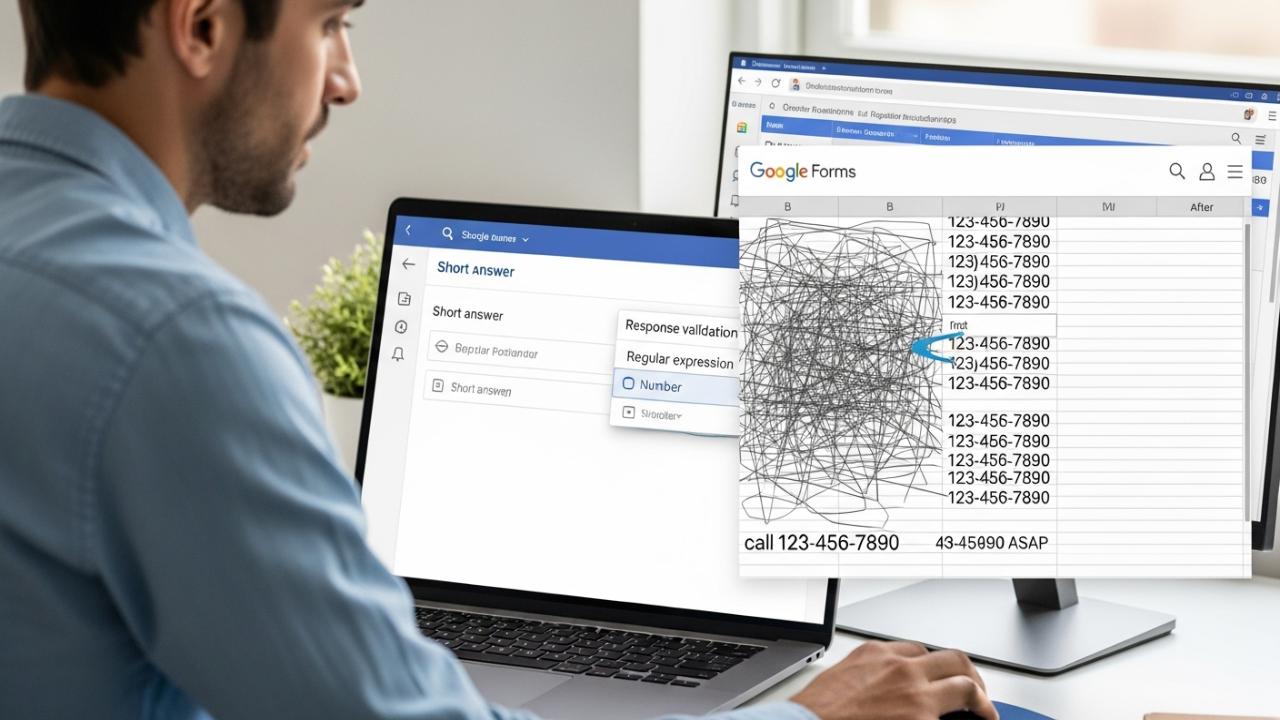
APPS • DAILYTECH.ID - To format and validate phone numbers in Google Forms, utilize the “Response validation” feature on a “Short answer” text field. You can enforce a “Number” type for basic checks or apply a “Regular expression” for precise formats (e.g., US, international) and character validation. For data exported to Google Sheets, use custom number formats to display phone numbers consistently.
Ensuring consistent phone number formatting in Google Forms is crucial for data integrity and usability. Here’s a comprehensive guide to mastering phone number inputs and validations.
Why Phone Number Formatting and Validation are Essential
Collecting accurate and uniformly formatted phone numbers streamlines communication and data analysis, which is vital for any Google Form administrator, data collector, researcher, or small business owner. Without proper validation, you risk receiving a messy array of inconsistent data, such as “123-456-7890”, “(123) 456-7890”, “123.456.7890”, “1234567890”, or even entries with extraneous characters like “call 123-456-7890 ASAP.” This disparity makes it incredibly challenging to process these contacts efficiently, impossible to dial them automatically, and a headache to integrate them into CRM systems or marketing platforms. Imagine having to manually clean hundreds or thousands of phone numbers—it’s a colossal waste of precious time and resources. Establishing a clear and enforced “google form phone number format” from the outset prevents these issues, guaranteeing clean data ready for immediate use. This foundational step is not just about aesthetics; it’s about operational efficiency, data reliability, and maintaining a professional standard in your data collection efforts. When your data is clean, communication with your audience or research subjects becomes seamless, and subsequent analysis is straightforward and reliable.
Implementing Basic Phone Number Validation in Google Forms
Setting up a phone number field in Google Forms begins with choosing the right question type and applying initial validation. This ensures a foundational level of data quality, capturing entries that are, at the very least, numeric. This initial layer of defense protects against completely irrelevant or non-numeric submissions, laying the groundwork for more advanced controls.
How to Add a Phone Number Field
The first and most fundamental step in capturing phone numbers is to add the appropriate question type to your Google Form. To do this, navigate to your Google Form and click the floating plus sign icon to “Add question.” From the dropdown menu next to the question title, select “Short answer.” This question type is ideal because it allows users to input a string of text, which can then be rigorously validated. While other options like “Paragraph” allow for more text, they are less suitable for structured data like phone numbers due to their flexibility, which makes validation harder. Conversely, the “Number” question type limits input to only digits, but it lacks the capability to easily incorporate formatting characters like hyphens or parentheses, which are often part of a desired “google form phone number format.” Label your question clearly and concisely, using titles such as “Phone Number,” “Contact Number,” or “Mobile Phone Number,” ensuring that respondents immediately understand what information is requested. This straightforward approach is essential for “how to add number in google form” and establishing a basic “phone number in google form.”
Using “Number” Validation for Simple Checks
Once you’ve set up your “Short answer” question for the phone number, you can apply a basic level of validation to it. To do this, click on the question to select it. Then, look for the three vertical dots (kebab menu) in the bottom right corner of the question block. Click these dots and select “Response validation” from the menu that appears. A new set of options will appear below your question. In the first dropdown menu, change the default “Number” to “Number.” While this sounds redundant, it is the actual “Number” validation setting. The next dropdown menu will likely default to “is number.” Keep this setting. This basic validation ensures that respondents can only enter numerical digits into the field, preventing text, symbols, or letters from being submitted.
However, it’s crucial to understand the limitations of this “Number” validation. While it prevents non-numeric input, it does not enforce a specific format or length. For instance, a user could enter “123,” “1234567890,” or “9999999999999999999” (a very long string of numbers), and all would pass this simple validation. It merely confirms that the input consists solely of digits. This method serves as a rudimentary “google form number format” strategy, suitable for internal forms where users are already familiar with the expected format or when minimal data hygiene is acceptable. For robust data collection requiring precise formatting, more advanced techniques are necessary.
Advanced Phone Number Validation with Regular Expressions
For precise formatting and length enforcement, particularly when dealing with the myriad ways phone numbers can be written, Google Forms offers “Regular expression” (regex) validation. This powerful tool is the key to creating a truly robust and specific “google form phone number format” and implementing stringent “google form phone number validation.” Regex allows you to define exact patterns that an input string must match, granting you unparalleled control over the data collected.
Crafting a Regular Expression for Specific Formats
Regular expressions are sequences of characters that define a search pattern. They act like a highly specific rulebook for what constitutes a valid entry. For instance, if you need to ensure all phone numbers are entered in a specific “XXX-XXX-XXXX” format for US numbers, a simple “Number” validation won’t suffice. Instead, you would switch your “Response validation” type to “Regular expression.”
When crafting a regex, you define the allowed characters, their order, and how many times they can appear. Let’s break down a common example: ^\d{3}-\d{3}-\d{4}$.
^: This symbol signifies the start of the string. It means the pattern must begin immediately with what follows. Without it, the pattern could match a substring within a larger input (e.g., “abc123-456-7890xyz”).\d: This is a special sequence that matches any digit (0-9). It’s a shorthand for[0-9].{3}: This quantifier specifies that the preceding element (\d) must appear exactly three times. So,\d{3}matches three digits.-: This is a literal character. It means a hyphen must appear at this position.\d{4}: This matches exactly four digits.$: This symbol signifies the end of the string. It ensures that nothing else follows the defined pattern.
Putting it all together, ^\d{3}-\d{3}-\d{4}$ precisely dictates that the input must start with three digits, followed by a hyphen, then three more digits, another hyphen, and finally four digits, with nothing else before or after. This is how you implement a precise “google form phone number regular expression” to ensure a strict “how to format a phone number in google forms.” This level of detail guarantees that your collected data adheres to the exact structure you require, making subsequent data processing significantly easier and more accurate.
Examples of Common Phone Number Regular Expressions
Understanding and implementing regular expressions can vastly improve the quality of your collected phone number data. Here are some practical examples for common scenarios:
- US Phone Number (XXX-XXX-XXXX):
^\d{3}-\d{3}-\d{4}$
As explained above, this regex enforces a 10-digit US phone number with mandatory hyphens. It’s excellent for ensuring uniformity when users are expected to enter numbers in this exact pattern. If you need to allow for more flexibility, such as optional parentheses, spaces, or dots, the regex becomes more complex. For instance,^\(?\d{3}\)?[-.\s]?\d{3}[-.\s]?\d{4}$would allow formats like123-456-7890,(123) 456-7890,123.456.7890, or123 456 7890. However, remember that increased flexibility in the form means increased inconsistency in the data, which might require more cleanup later. For maximum data integrity, a stricter regex is generally preferred. - International Phone Number (with optional plus sign and spaces, allowing variations):
^\+?\d[\d\s-]{7,20}\d$
International phone numbers present a greater challenge due to varying country codes, number lengths, and acceptable separators (spaces, hyphens, dots, no separators). The example^\+?\d[\d\s-]{7,20}\d$is a more flexible approach designed to capture a wide range of international numbers without being overly restrictive. Let’s break it down:\+?: This part means an optional plus sign (+). The?makes the preceding character optional, accommodating numbers that start with a country code (e.g.,+1) or without.\d: Matches a single digit, ensuring the number starts with a digit after the optional plus.[\d\s-]{7,20}: This is a character set[...]allowing any digit (\d), whitespace (\s), or a hyphen (-). The{7,20}quantifier means this character set can repeat anywhere from 7 to 20 times. This range generally covers the length of most international phone numbers (e.g., minimum 8 digits for some countries, up to 15-20 digits with country codes and internal extensions).\d: Ends the pattern with a final digit to prevent numbers ending in a space or hyphen.
This regex aims for broad acceptance. However, if your data collection focuses on specific countries, crafting a distinct regex for each (e.g., one for UK numbers, one for Australian numbers) will yield far more precise results. For example, a UK mobile number might be^(\+44|0)7\d{9}$. Precision depends entirely on your specific data requirements.
- Customizing Error Messages:
Beyond merely defining the pattern, Google Forms allows you to provide a “Custom error text” that appears when a user’s input does not match your regex. This is a critical element for user experience and guiding respondents. Instead of a generic “Invalid entry,” offer a helpful message like:- “Please enter a valid 10-digit phone number in the format 123-456-7890.”
- “Ensure your phone number includes your country code, e.g., +44 1234 567890.”
- “Your phone number should be 10 digits, numbers only, no spaces or hyphens.”
Clear, actionable error messages reduce user frustration, decrease form abandonment rates, and ultimately improve the quality of data collected when the specified “google form phone format” is not met. They help users understand exactly what is expected of them, preventing confusion and encouraging correct submission on the first attempt.
Exporting and Formatting Phone Numbers in Google Sheets
After meticulously collecting phone numbers through your Google Form, the next crucial step is ensuring that this data maintains its integrity and desired appearance when exported and viewed in Google Sheets. Without proper handling, perfectly formatted phone numbers from your form might lose their leading zeros, be interpreted as mathematical calculations, or simply appear as unformatted strings of digits. Maintaining the “phone number format google sheets” is essential for accurate record-keeping, readability, and subsequent use in other applications.
How to Format Phone Numbers in Google Sheets
When you export Google Form responses, or when responses are automatically populated into a linked Google Sheet, phone numbers often default to a generic “Number” format. This can lead to issues, especially if a phone number begins with a zero (e.g., “07700 900333”), as Google Sheets might strip the leading zero, interpreting it as a standard numerical value. Similarly, long numbers might be displayed in scientific notation (e.g., 1.23E+09). To apply and preserve specific formats, you need to manually adjust the column settings in Google Sheets.
Here’s the step-by-step process:
- Open Your Google Sheet: Navigate to the Google Sheet linked to your Google Form.
- Select the Phone Number Column: Click on the letter at the top of the column that contains your phone numbers (e.g., column B, C, etc.). This will select the entire column.
- Access Formatting Options: Go to the main menu bar at the top of Google Sheets. Click on “Format.”
- Choose Number Format: In the “Format” dropdown menu, hover over “Number.”
- Select Custom Number Format: From the submenu, scroll down and click on “Custom number format.”
This action opens a dialog box where you can define precisely how you want your numbers to appear, ensuring that your valuable contact data is presented consistently and correctly, regardless of how Google Sheets initially interprets it. This directly addresses “how to format a phone number in google sheets” and helps maintain the desired presentation.
Applying Custom Number Formats
In the “Custom number format” dialog box, you’ll enter specific codes to dictate the display of your phone numbers. These codes act as placeholders and separators, allowing you to impose a visual structure without altering the underlying data value.
For common phone number formats:
- For US Phone Numbers (e.g.,
(123) 456-7890): In the custom format field, type(###) ###-####. Each hash symbol (#) acts as a placeholder for a digit. Google Sheets will automatically insert the parentheses and hyphens. So, if the underlying data is1234567890, it will display as(123) 456-7890. - For US Phone Numbers (e.g.,
123-456-7890): Use###-###-####. This will display the numbers with hyphens. - For numbers that might have leading zeros (e.g., some international numbers): If your phone numbers consistently start with a zero (e.g., a UK mobile number
07700900333), using#might still strip the leading zero. In such cases, use0as a placeholder. For instance,0### ### ####would ensure the leading zero is preserved. The0placeholder explicitly states that if there isn’t a digit, a zero should be displayed, and if there is a digit, it should be displayed. - For generic international numbers with varying lengths or country codes: Due to the wide variety of international phone number formats, a single custom format might not be universally applicable. If your collected international numbers have many different lengths or use diverse separators, the most reliable approach is often to format the entire column as “Plain text.” To do this, simply select the column, go to “Format” > “Number” > “Plain text.” This prevents Google Sheets from trying to interpret the numbers, preserving them exactly as entered in the form, including any leading zeros, plus signs, spaces, or hyphens. While this won’t impose a new format, it ensures data integrity.
This meticulous application of custom number formats or choosing “Plain text” directly addresses “custom number format phone number google sheets” and “how to format phone number in google sheets.” It ensures that your valuable contact information remains consistent, readable, and ready for accurate use in all subsequent analyses or communications, streamlining your workflow and preventing common data interpretation errors.
Best Practices for Collecting Phone Numbers
Beyond the technical configurations, thoughtful consideration of user experience and stringent data privacy are paramount when collecting phone numbers. These best practices not only enhance the quality of your data but also build trust with your respondents and ensure compliance with important regulations. Neglecting these aspects can lead to abandoned forms, incomplete data, or even legal repercussions.
User Experience Considerations
A well-designed Google Form anticipates user needs and guides them toward correct input, especially for sensitive data like phone numbers.
- Clear Instructions in Question Description: Do not assume users know your desired format. Always provide explicit instructions in the “Description” field of your phone number question. For example, instead of just “Phone Number,” add helper text like: “Please enter your 10-digit phone number, including area code, like 555-123-4567. No spaces or hyphens, please.” or “For international numbers, please include your country code, e.g., +44 1234 567890.” This proactive guidance, combined with custom error messages from your regex validation, significantly reduces errors and user frustration.
- “Required” Field: If collecting a phone number is essential for your purpose, always mark the field as “Required.” This ensures that respondents cannot submit the form without providing this critical piece of information. To do this, simply toggle the “Required” switch at the bottom of the question block to the “on” position.
- Logical Flow and Grouping: If you are collecting multiple contact details, group them logically. For instance, place phone number fields alongside email addresses or other primary contact methods.
- International Considerations: If your audience is global, consider adding a separate dropdown question for “Country Code” before the main phone number field. This helps clarify the expected format and makes validation simpler for various international numbers. Alternatively, provide a very flexible international regex and explicit instructions. For example,
(e.g., +1 555-123-4567 or +44 20 7946 0999). - Accessibility: Ensure your form is accessible to all users. Use clear labels, provide sufficient contrast for text, and design for keyboard navigation. While Google Forms inherently has good accessibility, custom validation messages should be clear and concise.
Data Privacy and Security
Collecting personal data like phone numbers comes with significant responsibilities. Upholding data privacy and security is not just a best practice; it’s often a legal requirement.
- Transparency is Key: Always inform respondents why you are collecting their phone number and how it will be used. Include a brief statement in the form’s description or near the phone number field, such as “Your phone number will only be used to contact you regarding your inquiry/registration.” If applicable, link to your organization’s privacy policy for full transparency.
- Compliance with Regulations: Be acutely aware of data protection regulations relevant to your location and your audience, such as GDPR (General Data Protection Regulation) in Europe, CCPA (California Consumer Privacy Act) in California, or other local privacy laws. These regulations dictate how personal data must be collected, stored, processed, and protected. Non-compliance can lead to hefty fines and damage to your reputation.
- Secure Data Handling: While Google Forms and Google Sheets are secure platforms, ensure that only authorized personnel have access to the collected data. Implement strong passwords, two-factor authentication for Google accounts, and avoid sharing spreadsheets containing sensitive data unnecessarily. If you download the data, ensure it is stored on secure, encrypted systems.
- Data Minimization: Only collect phone numbers if they are genuinely necessary for your purpose. Avoid asking for information that is not essential, as this reduces your data footprint and your privacy obligations.
By carefully considering both user experience and data privacy, you not only improve the quality and completeness of your phone number data but also foster trust with your respondents, establishing a foundation for ethical and responsible data collection.
FAQs – Google Form Phone Number Format
No, Google Forms does not offer real-time automatic formatting as users type. Its “Response validation” feature checks the input after the user tries to submit the field or move to the next question, providing an error message if the input does not match the defined rules.
The simplest way to validate a 10-digit numeric phone number (without any specific formatting like hyphens) is to use “Response validation,” select “Number,” then choose “is number,” and also add “Length” validation for “Maximum character count” of 10 and “Minimum character count” of 10.
For broad international phone number validation, a flexible regular expression like ^\+?\d[\d\s-]{7,20}\d$ can be used. This allows for an optional plus sign, digits, spaces, and hyphens, and a length between 9 and 22 characters total (including the initial digit and the last digit that sandwich the variable part).
Yes, you can validate by length for purely numeric entries. On a “Short answer” field with “Response validation” set to “Number,” you can add “Length” validation. Choose “Minimum character count” and “Maximum character count” and set both to your desired length (e.g., 10 for US numbers).
To ensure uniform display in Google Sheets, select the column with phone numbers, then go to “Format” > “Number” > “Custom number format.” Enter a specific format string like (###) ###-#### or ###-###-####. For international numbers or those with leading zeros, selecting “Plain text” is often the safest option to preserve exact input.



