PC • DAILYTECH.ID - How to Clear Cache on Computer Windows 11 is one of the fastest ways to fix a slow PC and free up storage space without installing additional tools. Cached files from the system, apps, and browsers can build up over time and silently reduce your computer’s performance.
Instead of letting unnecessary files slow everything down, you can clear different types of cache in just a few minutes using built-in Windows features or automatic cleaning tools. In this guide, you’ll learn the most effective methods to remove cache and make your Windows 11 run faster and smoother.
What is Cache on Windows 11 and Why It Slows Down Your PC
Cache on Windows 11 is temporary data stored by the system, apps, and browsers to speed up loading times and improve performance. This includes files like thumbnails, scripts, system logs, and browsing data that help your computer respond faster during repeated tasks.
However, when cache files build up over time, they can take up significant storage space and start causing performance issues. Instead of helping your system, outdated or corrupted cache can lead to slower speeds, app errors, and unnecessary system lag.
How to Clear Cache on Computer Windows 11 (Step-by-Step)
Clearing cache on Windows 11 can be done using several built-in tools, depending on the type of data you want to remove. Each method targets different cache sources, including system files, apps, and network data, to ensure your PC runs smoothly.
Below are the most effective step-by-step methods you can follow to clear cache and improve performance on your Windows 11 computer.
1. Clear Temporary Files via Settings
This is the safest and most common method to clear cache on Windows 11 without affecting important files.
Steps:
- Open Settings
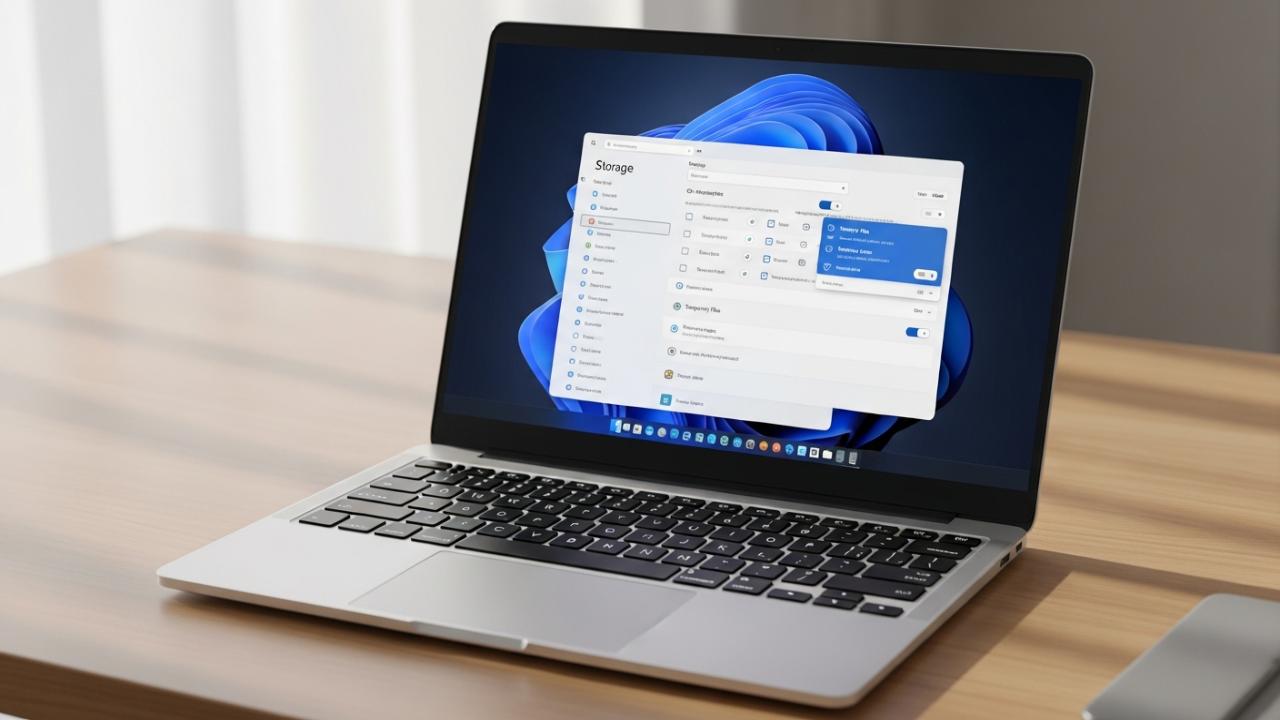
- Go to System > Storage
- Click Temporary files
- Select the files you want to delete
- Click Remove files
2. Clear Cache Using Run Command
This method is faster and allows you to manually remove hidden cache files stored in different system folders.
Steps:
- Press Win + R
- Type
%temp%→ delete all files - Repeat with
temp→ delete all files - Repeat with
prefetch→ delete all files
3. Clear Cache Using Command Prompt (CMD)
Useful for clearing system-level cache such as DNS and Microsoft Store data.
Steps:
- Open Command Prompt as administrator
- Type
ipconfig /flushdnsand press Enter - Type
wsreset.exeand press Enter
4. Use Disk Cleanup Tool
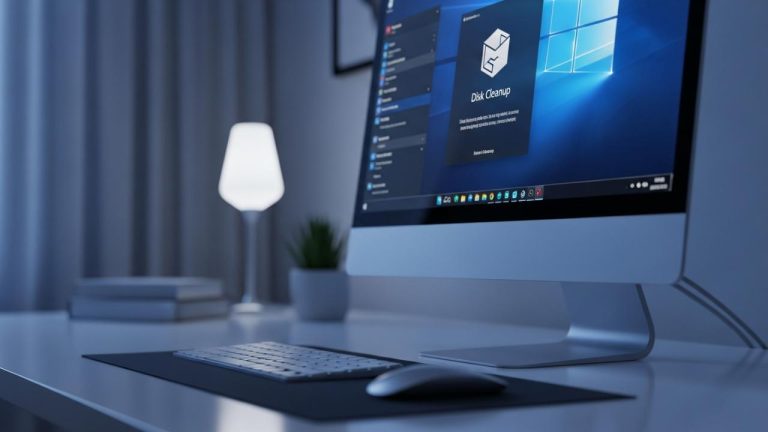
A built-in Windows tool that removes system cache, temporary files, and leftover update data.
Steps:
- Press Win + R
- Type
cleanmgrand press Enter - Select your drive (usually C:)
- Check the files you want to delete
- Click OK, then Delete Files
5. Clear App Cache (Discord, Roblox, Xbox)
Apps can store large cache files that may cause lag, crashes, or loading issues.
Steps:
- Press Win + R
- Type
%appdata%→ locate app folders (e.g., Discord) - Delete Cache, Code Cache, and GPUCache folders
- For Roblox: go to
%localappdata%\Roblox→ delete Cache or Downloads
6. Clear Browser Cache (Chrome)
Browser cache can quickly grow and slow down your browsing experience.
Steps:
- Open Chrome
- Press Ctrl + Shift + Delete
- Set Time range to All time
- Check Cached images and files and Cookies
- Click Clear data
7. Clear RAM Cache for Better Performance
Clearing RAM cache helps improve performance, especially for gaming or heavy applications.
Steps:
- Press Win + R
- Type
services.msc - Find SysMain → right-click → Restart
- (Optional) Use RAMMap → select Empty Standby List
Best Apps to Clear Cache on Windows 11 Automatically
If you want a faster and more automated way to clean cache, these tools can scan, detect, and remove junk files in one click. Many of them also include performance optimization features that go beyond manual cleaning.
CCleaner
One of the most widely used PC cleaners for removing temporary files, browser cache, and system junk. It’s simple, fast, and suitable for beginners.
Advanced SystemCare
An all-in-one optimizer that uses AI to clean cache, boost performance, and manage startup programs automatically.
Wise Disk Cleaner
A lightweight and free tool focused on cleaning temporary files and freeing disk space without complicated settings.
AVG TuneUp
Designed for automation, this tool runs regular maintenance, cleans cache, and optimizes performance with minimal effort.
Ashampoo WinOptimizer
A more advanced option with deep system cleaning, registry optimization, and additional privacy tools.
These tools are ideal if you want a one-click solution instead of manually clearing different cache types. While Windows built-in tools work well, third-party apps make the process faster and more automated.
How Often Should You Clear Cache on Windows 11
For most users, clearing cache every 1 to 3 months is enough to keep your system running smoothly. Regular use naturally builds up temporary files, but they don’t need to be removed too frequently unless you notice slow performance or storage issues.
If you use your PC for gaming, video editing, or heavy tasks, clearing cache once a month can help maintain better performance. You can also enable Storage Sense on Windows 11 to automatically remove temporary files and reduce the need for manual cleanup.
Tips to Keep Windows 11 Fast After Clearing Cache
Clearing cache is only the first step—keeping your system optimized requires a few simple habits. Without proper maintenance, temporary files and background processes will build up again over time.
- Enable Storage Sense to automatically remove temporary files and prevent cache buildup
- Limit startup programs to reduce boot time and background load
- Uninstall unused apps that may store unnecessary data
- Keep Windows updated to ensure performance improvements and bug fixes
- Avoid storing large files on the system drive (C:) to maintain available space
By applying these habits, you can keep your Windows 11 running fast and stable without needing frequent manual cleanup.
FAQs – How to Clear Cache on Computer Windows 11
There is no single shortcut to clear all cache at once, but you can press Win + R and type %temp% to quickly access temporary files. In browsers like Chrome, use Ctrl + Shift + Delete to open the cache clearing menu.
No, clearing cache only removes temporary files created by the system and apps. Your personal files like documents, photos, and videos will not be affected.
It usually takes a few seconds to a few minutes, depending on how much cached data has accumulated on your system.
Cache is only one factor affecting performance. Your PC may still be slow due to high CPU usage, low RAM, outdated drivers, or background applications.
Yes, clearing cache is completely safe and recommended as part of regular maintenance to keep your system running smoothly.
Press Win + R, type wsreset.exe, and press Enter. This will reset the Microsoft Store cache without deleting your apps or data.