LAPTOP • DAILYTECH.ID - Learning how to take a screenshot on your HP laptop is an essential skill for everything from saving important work to capturing a funny chat. While it seems simple, Windows offers several methods, each with unique advantages. This guide breaks down the five most effective HP laptop screenshot methods you can use in 2025, ensuring you always get the perfect shot.
To find the best method for your needs instantly, use the quick comparison table below. Otherwise, read on for step-by-step instructions for each technique.
Which Screenshot Method is Best for You?
| Method | Best For | How to Activate | Result |
| PrtScn Key | Quickly copying the full screen to paste elsewhere. | Press PrtScn | Image copied to clipboard. |
| Windows + PrtScn | Instantly saving the full screen as a file. | Press Win + PrtScn | Screen flashes, image saved to Pictures > Screenshots. |
| Alt + PrtScn | Capturing just one active window. | Press Alt + PrtScn | Active window copied to clipboard. |
| Snip & Sketch | Flexibility and capturing a specific area. | Press Win + Shift + S | Select an area; image copied to clipboard with editing options. |
| Xbox Game Bar | Taking screenshots or recording clips while gaming. | Press Win + G | Image or video saved to Videos > Captures. |
Method 1: Capture the Entire Screen to Your Clipboard (PrtScn Key)
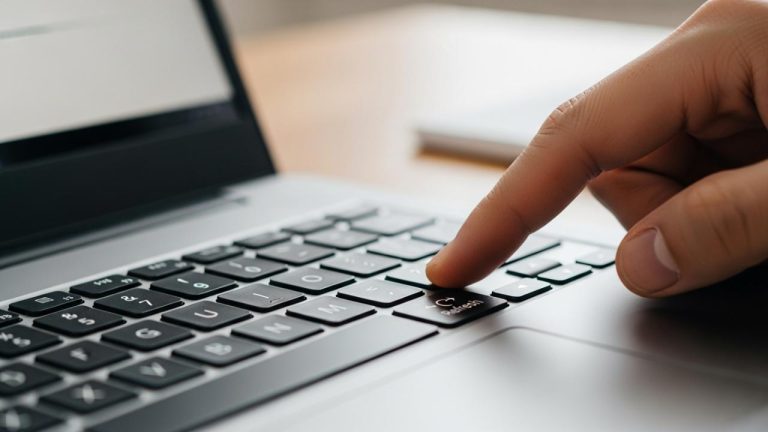
This is the classic, one-press method to copy your entire screen. The Print Screen key (often labeled PrtScn, Prt Sc, or Print Sc) is perfect when you need to quickly paste your screen capture into an email, chat, or document.
How to Use the PrtScn Key:
- Locate the Key: Find the PrtScn key on your keyboard. It’s typically in the top-right section, near the F12 and Delete keys.
- Press the Key: A single press copies your entire screen to the clipboard. There is no flash or sound, but the capture is ready.
- Paste to Save: Open an application like Paint, Word, or Gmail and press Ctrl + V to paste the image. You can then edit or save it.
- Pros: The fastest way to copy your screen for immediate use.
- Cons: Doesn’t automatically save the image as a file; requires an extra step.
Read Also:
Method 2: Instantly Save a Full-Screen Screenshot (Windows Key + PrtScn)
This shortcut is a powerful upgrade to the classic PrtScn key. It not only captures your entire screen but also instantly saves it as a PNG file, saving you the extra step of pasting. This is the most efficient way to take multiple screenshots in a row.
How to Automatically Save a Screenshot:
- Press the Shortcut: Press the Windows Key + PrtScn simultaneously.
- See the Confirmation: Your screen will briefly dim or flash, confirming the screenshot was taken and saved.
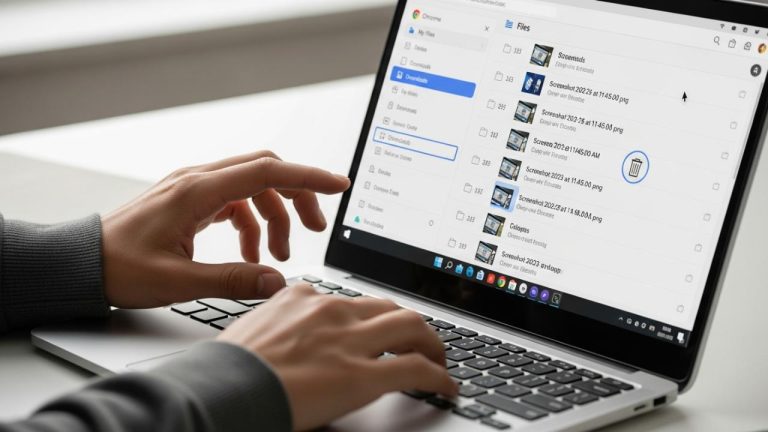
- Find Your File: Navigate to your Pictures library and open the Screenshots folder to find your saved image.
- Pros: The fastest way to capture and save a full-screen image.
- Cons: Only captures the entire screen, not a specific region.
Method 3: Capture a Single Active Window (Alt + PrtScn)
When you only need to capture a specific application window and not your entire messy desktop, this is the perfect tool. It creates a clean, focused image of just the window you’re working in.
How to Use Alt + PrtScn:
- Select the Window: Click on the window you want to capture to make sure it is active.
- Press the Shortcut: Hold down the Alt key and press PrtScn. This copies only the active window to your clipboard.
- Paste to Save: Open an image-supporting app and press Ctrl + V to paste the captured window.
- Pros: Creates a clean screenshot of a single window without background clutter.
- Cons: Still requires you to paste the image into another program to save it.
Method 4: The Most Flexible Capture Tool (Windows Key + Shift + S)
The Snip & Sketch tool is the modern, built-in solution for ultimate screenshot flexibility. This shortcut lets you capture any part of your screen—a rectangle, a free-form shape, a window, or the full screen—and gives you immediate editing options.
How to Use Snip & Sketch:
- Activate the Tool: Press Windows Key + Shift + S. The screen will dim, and a small toolbar will appear at the top.
- Choose Your Snip Type: From the toolbar, select Rectangular, Free-form, Window, or Full-screen Snip.
- Capture Your Screen: Click and drag to select an area (for Rectangular or Free-form) or click a window. The image is automatically copied to your clipboard.
- Edit and Save (Optional): A notification will appear in the corner of your screen. Click it to open the Snip & Sketch app, where you can crop, annotate with a pen or highlighter, and save your image directly. You can learn more about general screenshot laptop methods on this page.
- Pros: Extremely versatile, offers precise selection, and includes built-in editing tools.
- Cons: The three-key shortcut can take a moment to get used to.
Method 5: Capture Gameplay and Apps (Xbox Game Bar)
If you’re a gamer, the Xbox Game Bar is your best friend. It’s built into Windows 10 and 11 to capture screenshots and video clips of your gameplay without interrupting the action, but it works just as well in many desktop apps.
How to Use the Game Bar:
- Open the Game Bar: Press Windows Key + G to bring up the Game Bar overlay.
- Take a Screenshot: In the “Capture” widget, click the camera icon. The screenshot will be taken and saved automatically.
- Find Your File: Your captures are automatically saved in a “Captures” subfolder inside your “Videos” library.
- Pros: Optimized for gaming, automatically saves files, and can also record video.
- Cons: Can be overkill for simple desktop screenshots.
Where Do Your HP Laptop Screenshots Go?
Knowing how to take a screenshot is one thing, but finding the saved file is another! Here’s where to look:
- Clipboard: For methods using PrtScn or Alt + PrtScn, the image is copied to your clipboard. It isn’t saved as a file until you paste it somewhere.
- Pictures > Screenshots Folder: When you use Windows Key + PrtScn, the screenshot is automatically saved here.
- Snip & Sketch: After using Windows Key + Shift + S, the image is on your clipboard. If you click the notification, you can then save it to any folder you choose.
- Videos > Captures Folder: Screenshots taken with the Xbox Game Bar are saved here.
It’s a good idea to periodically check these folders to manage your screenshots. If you’re ever looking for more general How To guides, visit this section.
Troubleshooting Common Screenshot Issues
If you run into trouble, here are solutions to the most common screenshot problems on HP laptops:
- PrtScn Key Not Working? On many HP laptops, especially compact models, you may need to hold the Fn (Function) key while pressing PrtScn. Try pressing Fn + PrtScn.
- Screenshot is a Black Screen? This often happens when trying to capture content from streaming services (like Netflix or Hulu) that use Digital Rights Management (DRM) to block screen recording. Unfortunately, this cannot be bypassed.
- Can’t Find My Saved Screenshot? Remember, only Windows Key + PrtScn and the Game Bar automatically save files. All other methods copy to the clipboard, requiring you to paste the image somewhere to save it.
FAQs
Windows does not have a built-in shortcut for scrolling screenshots. The easiest way to do this is by using a browser extension like “GoFullPage” for Google Chrome or using the built-in “Web capture” feature in Microsoft Edge (Ctrl+Shift+S). For capturing scrolling content outside of a browser, you would need a third-party application like ShareX or PicPick.
Yes. For screenshots taken with Win + PrtScn, you can move the default “Screenshots” folder. Right-click on the “Screenshots” folder (located in “Pictures”), select Properties, go to the Location tab, and click Move…. You can then choose a new folder to be your default save location.
The quickest way is to use the Win + Shift + S shortcut (Snip & Sketch). After you capture an area, a notification will pop up. Clicking this notification immediately opens an editing window where you can crop, draw, and highlight without needing to open another application like Paint.
On many compact HP laptop keyboards, the PrtScn key shares a function with another key. In this case, you likely need to hold down the Fn (Function) key while pressing PtScn. So, the combination would be Fn + PrtScn.
This typically happens when you try to screenshot content from applications that are protected by DRM (Digital Rights Management), such as Netflix, Amazon Prime Video, or some banking apps. This is a security feature to prevent content piracy, and it cannot be bypassed with standard screenshot tools.
Absolutely. The easiest built-in tool for this is the Xbox Game Bar. Press Win + G to open it, and in the “Capture” widget, you will see a “Record” button (a circle icon). This will record your screen activity as a video file and save it in the Videos > Captures folder.
It depends on your needs: For speed and auto-saving a full screen, use Win + PrtScn. For flexibility and editing, use Win + Shift + S. For capturing just one app, use Alt + PrtScn.
Conclusion
You are now equipped with five powerful methods to screenshot on your HP laptop. For maximum efficiency, use Windows Key + PrtScn to save full-screen images instantly and Windows Key + Shift + S for precise selections. By choosing the right tool for the task, you can capture your screen quickly and effectively every time.