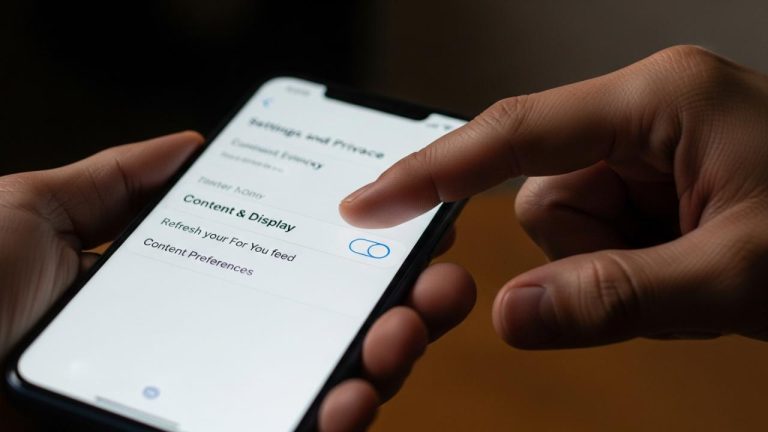
TIKTOK • DAILYTECH.ID - Currently, TikTok does not provide a native “delete all reposts” button or function, requiring users to manually remove each repost individually via the Repost tab on their profile. For users with a massive history of reposts, the only alternatives are using potentially risky, unauthorized automation tools or scripts designed for PC environments, as bulk actions are restricted by the official TikTok API.
The process of bulk removing reposts on TikTok is complicated by platform limitations that prioritize manual content management and currently offer no official one-click solution. This guide details the necessary manual steps for all users and explores unofficial alternatives for those seeking faster solutions, while outlining the severe security risks associated with trying to remove all reposts on TikTok at once using third-party software.
The Official Method: How to Manually Remove All Reposts (Mobile & Desktop)
The primary and safest way to clear your Repost tab is by manually deleting each entry one at a time, which is the procedure TikTok supports across all mobile and computer platforms. This method, while time-consuming, ensures account integrity and is the only officially supported technique for users wanting to clear their activity history completely and securely. This process is identical whether you are attempting to remove a single recent repost or striving to remove all your reposts on TikTok accumulated over years of activity.
Step-by-Step Manual Deletion on TikTok Mobile (iPhone & Android)
This method ensures you remove all reposts on TikTok on your phone without reliance on third-party software, making it the preferred technique for stability and security. Due to the high volume of reposts some users accrue, understanding the precise location of the “Remove Repost” function is crucial for maximizing efficiency in this tedious process.
- Navigate to your TikTok Profile: Open the TikTok application and tap the “Profile” icon located in the bottom right corner of the screen.
- Locate the ‘Reposted’ Tab: Once on your profile, look for the second tab over. This tab is designated for reposted videos and is often represented by two overlapping arrows or sometimes a unique icon depending on recent application updates. Tap this tab to view your complete history of shared videos.
- Identify and Open the Video: Scroll through the Repost tab to identify the first video you wish to delete. Note that the order is generally chronological, with the most recent reposts appearing first. Tap the video to open the full player view.
- Access the Share Menu: Locate and tap the ‘Share’ icon. This is typically an upward-pointing curved arrow or, in some regional interfaces, three horizontal dots (…). This action opens the interaction and sharing options menu, usually appearing along the bottom of the screen.
- Execute the Deletion: In the menu that appears at the bottom, carefully select the option labeled “Remove Repost.” This is the transactional step that executes the clearance.
- Confirm and Repeat: A confirmation message (like “Repost Removed”) should briefly flash across the screen, and the video will immediately disappear from your Repost tab. It is essential to understand that you must repeat this action—tapping, opening, selecting Share, and choosing Remove Repost—for every single repost you wish to eliminate. For users seeking to remove multiple reposts on TikTok at once, this repetitive manual action is the platform’s only guaranteed safe route.
Deleting Reposts on PC or Laptop
While TikTok is primarily a mobile application, the manual deletion process is transferable to desktop browsers, though it remains a strict one-by-one process. Using a desktop interface does not automatically provide a bulk deletion option, but the larger screen format may offer marginally faster navigation for some users attempting to clear their history.
- Access TikTok via Browser: Open TikTok.com via your preferred web browser (Google Chrome, Microsoft Edge, Firefox, etc.) and ensure you are logged in to your account.
- Go to Your Profile: Click on your profile image or username to navigate to your main profile page.
- Find the Reposts Tab: Locate and click the Reposts tab, which serves the same function as the mobile version.
- Click and View the Video: Click on the specific repost you want to remove to open the video in the full desktop player window.
- Locate the Deletion Option: Look for the share options menu, typically found to the right or below the video player. In the desktop interface, the options may be visually clustered differently than on mobile, but the ‘Share’ icon or three dots should lead you to the needed command.
- Click “Remove Repost”: Select this option to finalize the manual deletion. Just like the mobile method, if you need to remove all your reposts on TikTok, you must close the video and repeat this entire sequence for every remaining entry in your Repost tab.
Advanced Solutions: How to Remove All Reposts at Once (Risks Assessed)
The search intent surrounding how to remove all reposts on tiktok at once is high because the manual process is prohibitively time-consuming for heavy users. Consequently, users often turn to unofficial methods, despite the inherent and significant risks involved in circumventing platform limitations.
Understanding the Limitations of Bulk Deletion
TikTok’s platform architecture, including its internal Application Programming Interface (API) and rate limiting protocols, is intentionally designed to prevent mass automated actions. This restriction is fundamentally put in place to combat spam, prevent bot activity, and ensure content management is controlled by the account owner through direct interaction.
The platform monitors rapid, identical actions originating from a single account or IP address. If an account suddenly performs hundreds or thousands of “Remove Repost” actions within minutes—a speed impossible for human manual input—the automated security systems flag the activity as suspicious. This is why attempting to figure out how to remove all reposts on tiktok in one go via official means is fruitless; the platform simply does not provide the infrastructure for mass deletion of interaction history. Any tool claiming to facilitate this must operate outside of official API guidelines, placing the user’s account in immediate jeopardy.
Exploring Unofficial Tools and Chrome Extensions
Third-party tools, sometimes advertised as a chrome extension to remove all reposts on tiktok, claim to automate the manual clicks required for deletion. These solutions are generally designed to appeal to users desperate for a way to automatically remove all reposts on tiktok.
- Functionality and Mechanism: These tools typically work by injecting scripts into your browser (PC/Laptop). Their goal is to simulate rapid human behavior: scrolling down the Repost tab, identifying the share button element, and programming a sequence of rapid clicks to select “Remove Repost.” This automation allows them to remove all reposts on tiktok fast, potentially clearing thousands of entries in minutes rather than hours.
- Security and Privacy Warning: The primary risk lies in the method of execution. To perform these simulated actions, the extension or tool often requires extensive permissions over your browser activity or, worse, requires you to input your TikTok login credentials. Granting this access means the third party gains control over your session, which can lead to:
- Account Takeover: The creators of the tool can steal your credentials and hijack your account.
- Data Harvesting: Your private messages, viewing habits, and other non-repost data can be extracted and sold.
- Malware Injection: The extensions can contain malicious code hidden within the automation script.
- Terms of Service Violation: TikTok’s Terms of Service strictly forbid the use of any third-party software, bots, scripts, or automation tools designed to perform high-volume actions on the platform. The use of such a tool is grounds for immediate account suspension, shadow banning (restricting your content visibility), or permanent banning without warning or appeal. We strongly advise against using these methods unless you fully accept the potential for complete account loss. If security is a priority, the slow, manual method is the only acceptable route for clearing repost history.
Automating Deletion via Scripts (High Risk Method)
For technically proficient users, the temptation to write custom browser scripts (often using JavaScript in the console) to clear all reposts on tiktok quickly remains a significant pathway for seeking speed. These scripts are engineered to locate the specific HTML elements (like the “Remove Repost” button) and programmatically trigger the click events much faster than any human.
While this technical method offers the fastest known way to execute the removal process and clear thousands of reposts in a matter of minutes, it is an extremely high-risk operation. TikTok’s sophisticated monitoring systems are specifically designed to detect this type of behavioral anomaly. The speed and regularity of scripted actions—for instance, hundreds of identical API calls sent rapidly—are a massive red flag. Detection is often swift, and the resulting penalty is frequently permanent account termination, as the platform views this activity as equivalent to botting or malicious usage. Even advanced attempts to stagger or randomize the deletion clicks are often insufficient to fool modern bot detection algorithms. If your goal is long-term account viability, this method should be strictly avoided, reinforcing that the only safe way to remove every single repost on TikTok is through dedicated manual effort.
Related Deletion Queries: Reposts and Other Activity
Users often seek to clear their entire profile history, including comments and likes, when attempting to remove all reposts on tiktok. This generalized desire for a clean slate often leads to confusion regarding the scope of TikTok’s deletion features.
Can I Delete All Likes and Reposts Simultaneously?
No, this combined bulk deletion function does not exist. Likes and Reposts are tracked, managed, and displayed in two entirely separate tabs on your TikTok profile: the Reposts tab and the private Heart (Likes) tab. Both activity streams require individual manual deletion.
To clear your Liked videos history, you must navigate to the specific video, tap the heart icon again to “unlike” it, and repeat this for every video. There is no mass-selection feature for likes, mirroring the restriction on reposts. Furthermore, deleting an old comment requires navigating to the video where the comment was posted, locating the comment, and manually deleting it. TikTok provides granular control over individual interactions but deliberately avoids offering a consolidated or bulk deletion function for any form of interaction history (likes, reposts, comments, or saved items) to ensure that users are deliberate about their content management choices.
Hiding or Disabling Repost Functionality
If the goal is to prevent the accumulation of future reposts, rather than deleting existing ones, TikTok offers controls to manage who can see your Repost tab or who can interact with your videos, though these controls will not remove existing reposts. Existing reposts must still be manually deleted using the one-by-one method.
For future content, you can set your account to Private, which restricts who can see your Repost history and future Reposts. Additionally, for specific videos you upload, you can adjust privacy settings during the posting process:
- Posting Settings: Before publishing a video, go to “More options.”
- Disable Reposts: Look for the setting that allows or disallows the Repost button for that specific video. Turning this off means other users cannot easily repost your content, reducing the likelihood of your videos being shared widely.
However, these preventative measures do not address the primary transactional need: how to remove all reposts on tiktok that you have already executed. Once a video is reposted, it is entered into your history and must be cleared manually using the official steps outlined earlier in this guide. This distinction is vital for managing profile cleanup versus future activity protection.
FAQs – How to Remove All Reposts on TikTok
No. TikTok has never provided a native “Delete All Reposts” button or a mechanism for selecting and clearing reposts in bulk. You must manually open each video from the Repost tab and select “Remove Repost” individually.
The safest and officially supported method to remove all your reposts on TikTok quickly on an iPhone is to dedicate significant manual time to the task, deleting them one by one via the Share menu. Unofficial automated tools are high-risk and can lead to account suspension.
Using third-party tools or scripts to perform bulk actions violates TikTok’s Terms of Service. This activity can result in immediate punitive action, including account suspension, shadow banning, or permanent banning due to the unauthorized use of automation.
No, removing a repost only deletes your share history entry from your profile’s Repost tab. The original video remains live and active on the original creator’s profile; your action only affects your own history.
For a large volume of reposts, the only official path is the manual, repetitive deletion process through the Repost tab. This requires significant time commitment, as there is no authorized functionality designed to clear thousands of reposts at once.