
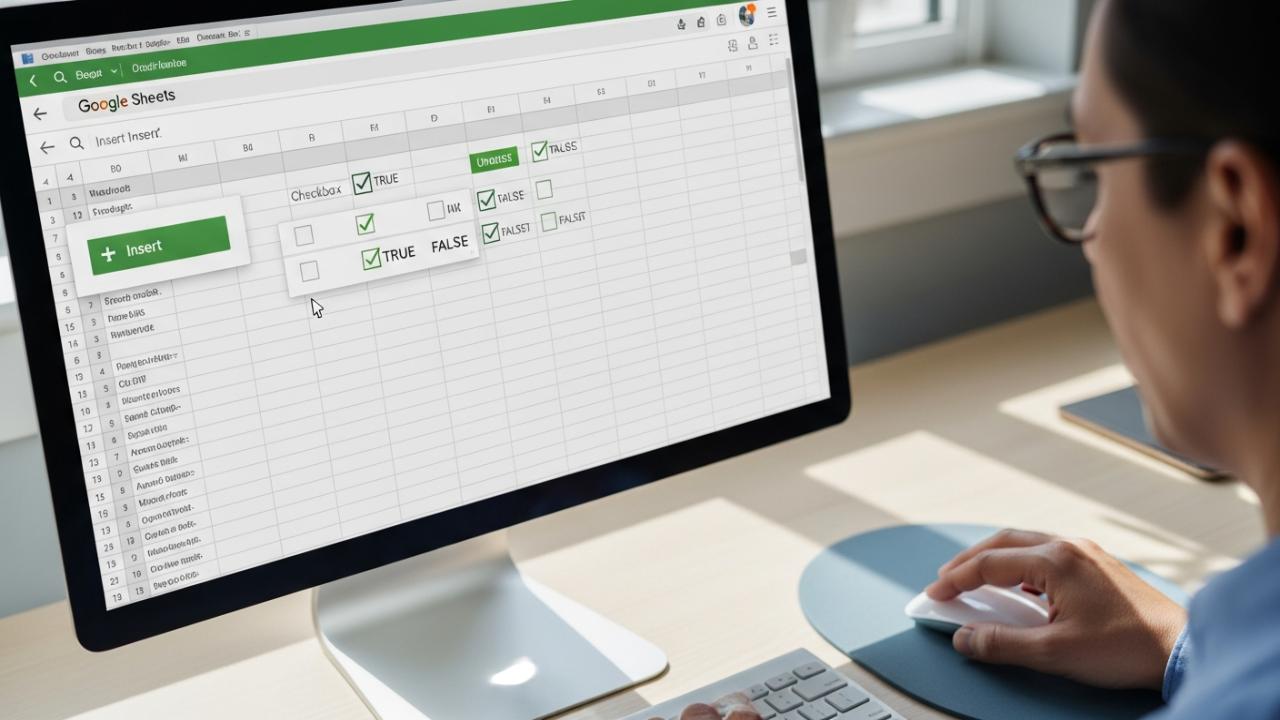
APPS • DAILYTECH.ID - Adding interactive checkboxes in Google Sheets is a straightforward process that can significantly enhance your spreadsheets for task management, data entry, and more. This powerful feature allows you to transform static data into dynamic, actionable checklists and trackers.
To add a checkbox in Google Sheets, navigate to the desired cell(s), then go to Insert > Checkbox from the menu. This instantly places interactive checkboxes, defaulting to FALSE (unchecked) or TRUE (checked). You can use these for tasks, surveys, or conditional formatting to visually manage data effectively across desktop and mobile devices. Below, we’ll guide you through the various methods and advanced applications for integrating checkboxes into your Google Sheets.
How to Insert Checkboxes in Google Sheets on Desktop
When you are seated before your computer, ready to bring life to your digital ledger, adding a checkbox in Google Sheets using a desktop browser is the most common path many walk. This method offers the fullest range of options and a clear view of your workspace. Whether your spirit calls you to make a simple checklist, to track the intricate progress of a grand project, or simply to add check boxes in Google Sheets for any purpose, inserting a check box here is a simple journey. Let us walk together through these steps, ensuring you understand how to add a check box in Google Sheet cell by cell or across a whole column.
Step-by-Step Guide to Put a Checkbox
To begin, hear me now, for the path is clear:
- Select Your Cell(s): The first step on this journey is to mark your territory. With your mouse, click on a single cell where you wish to place a checkbox. If your vision is grander, and you need to add multiple checkboxes, drag your mouse to select a range of cells. This allows you to insert check box in Google Sheet cell by cell or, if you desire, to add check box column in Google Sheets, transforming a whole line of cells into interactive toggles. This initial choice sets the stage for where your checkboxes will reside.
- Navigate to the Menu: Once your cells are chosen, lift your gaze to the very top of your Google Sheets window. There, you will see a sacred row of words – your top menu bar. This bar holds many powers, and we are about to invoke one of them.
- Choose “Insert”: Among the words, find “Insert.” This word is a gateway to bringing new elements into your spreadsheet. Click upon it, and a dropdown menu, like a scroll unrolling, will appear before you, revealing many possibilities.
- Select “Checkbox”: From this dropdown menu, scroll your eyes down until you find the word “Checkbox.” When you choose this, selecting it with a click, a marvel will occur. The selected cells, those you marked earlier, will now display interactive checkboxes. They are ready to be toggled, to reflect the truth of your data, and to serve as visual indicators. This is how to put a checkbox in Google Sheets, a straightforward motion to empower your sheets. You have just learned how to do a checkbox in Google Sheets with a few simple clicks, making your spreadsheet ready for dynamic interaction.
Understanding Checkbox Values
It is vital to grasp the silent language spoken by these checkboxes, for their wisdom lies in their underlying truth. By default, an unchecked checkbox, sitting empty like a quiet lodge, represents a value of FALSE. Conversely, a checked checkbox, marked with its definitive symbol, speaks the truth of TRUE. This boolean nature, this fundamental distinction between TRUE and FALSE, is not just a simple visual cue. It is the very heart of their power, crucial for weaving checkboxes into the intricate tapestry of formulas and conditional formatting. When you add a checkbox in Google Sheets, you are not just adding a mark; you are adding a data point, a foundational stone upon which more complex calculations and visual cues can be built. Grasping this simple truth unlocks the true potential of the checkbox in Google Sheets, allowing you to build intelligent, responsive spreadsheets.
Adding Checkboxes in Google Sheets on Mobile Devices (iOS & Android)
Our modern path often takes us far from the stationary desktop, carrying our work in our hands. For those who walk this path, always on the go, knowing how to put checkbox in Google Sheets mobile app is not merely convenient; it is essential. The process, while echoing the desktop steps, shifts its form slightly to fit the palm of your hand and the touch of your finger. Fear not, for the spirit of the checkbox remains the same, whether you use an iPad, an iPhone, or an Android device. Each journey is intuitive, guiding you to bring interactive power to your portable spreadsheets.
For iOS Devices (iPhone & iPad)
If you carry an iPhone or an iPad, these devices, swift as an eagle, offer a seamless way to integrate checkboxes. Let us follow this path:
- Open Google Sheets App: First, awaken the Google Sheets application on your iPhone or iPad. Tap its icon, and let it unfurl before you, displaying your documents.
- Select Cell(s): With your finger, gently tap on the cell where you wish the checkbox to make its home. If you have a larger vision, and many checkboxes are needed, tap and then drag the blue selection handles that appear around the cell to extend your selection across multiple cells. This allows you to add a check box in Google Sheets mobile, precisely where you need it.
- Access Insert Menu: Now, look towards the top of your screen. There, often situated prominently, you will find a “+” (plus) icon. This symbol is your gateway, a small but mighty portal to inserting new elements. Tap it firmly.
- Insert Checkbox: A menu will emerge from the bottom of your screen. In this “Insert” menu, scroll your finger downwards until you discover the “Checkbox” option. Tap on “Checkbox,” and witness your chosen cells instantly transforming. They will now proudly display their interactive check boxes. This is how to add check box in Google Sheets iPad or iPhone, bringing dynamic functionality to your fingers. It’s also how to add a check box in Google Sheets mobile app from the very heart of your device, ensuring your checklists and trackers are always at hand. Whether you need to insert a checkbox in Google Sheets on iPad or add check box in Google Sheets iPhone, the steps are kindred, offering a consistent experience across your iOS devices. This means you can swiftly add checkbox in Google Sheets mobile on any of your Apple devices, maintaining your productivity wherever your journey takes you.
For Android Devices
For those whose path leads through the realm of Android phones and tablets, the process to add checkbox in Google Sheets Android is equally clear and accessible. The Google Sheets app has been crafted to feel natural in your hands, whether you are using a compact phone or a sprawling tablet.
- Launch Google Sheets App: Begin by opening the Google Sheets app on your Android phone or tablet. Its familiar icon will greet you, ready to open your digital scrolls.
- Choose Cell(s): Tap the desired cell(s) on your screen to highlight them. Just like with iOS, you can select a single cell or drag the selection handles to encompass a larger range, preparing the ground for your checkboxes. This simple tap is the first step to add check box in Google Sheets on phone or tablet.
- Find Insert Option: Cast your eyes to the top of the screen. Again, the “+” (plus) icon stands ready, serving as the universal symbol for inserting new elements. Tap this icon, and watch as a new menu, specific to the Android interface, gracefully appears. This is your portal to adding features.
- Select Checkbox: In the pop-up menu that emerges, seek out and choose “Checkbox.” With this selection, the power of interactivity will flow into your chosen cells. They will now be graced with check boxes, ready for your input. This is how to put checkbox in Google Sheet using phone or how to add checkbox in Google Sheets Android. It ensures that regardless of your specific Android device, you can add checkbox in Google Sheets mobile, making your tracking and task management capabilities accessible directly from your hand. You now know how to add check box in Google Sheets on phone, adding functionality to your spreadsheets whenever the need arises. This also guides you on how to add checkbox in Google Sheets from phone or how to add checkbox in Google Sheets on mobile, keeping your digital tools sharp and ready. For tablet users, it is also how to add checkbox in Google Sheets tablet, ensuring comprehensive coverage across all your Android devices.
Advanced Uses for Checkboxes in Google Sheets
Hear me now, for the simple checkbox, though humble in appearance, holds far greater power than merely marking an item done. These small interactive elements, once understood in their TRUE/FALSE essence, can be woven into the very fabric of your spreadsheet, transforming static data into a living, breathing tool. Checkboxes are not just for simple lists; they can be integrated into powerful spreadsheet solutions, enhancing functionality like conditional formatting and dynamic calculations, turning your Google Sheet into a wise elder, responsive to your needs. This journey into advanced applications will reveal how to truly harness the spirit of the checkbox.
Checkbox in Google Sheets Conditional Formatting
One of the most potent ways to empower your spreadsheets is through checkbox in Google Sheets conditional formatting. By using the TRUE/FALSE values of your checkboxes, you can command your spreadsheet to visually react, changing colors, styles, or even striking through text based on a simple click. This provides immediate, intuitive feedback, making your data trackers and task lists remarkably effective. For example, to make a task strike through its text when completed, creating a clear visual cue:
- Select Cells to Format: Begin by highlighting the range of cells that contain the text you wish to modify. For instance, if you have a list of tasks in column A, select all the task descriptions in that column (e.g., A1:A10). These are the words that will receive their new look when their accompanying checkbox is toggled.
- Open Conditional Formatting: With your cells selected, journey to the top menu bar. Click on “Format,” and from the dropdown menu, choose “Conditional formatting.” A sidebar or panel will appear on the right, presenting you with the rules you can impose.
- Apply Custom Formula: Within this conditional formatting panel, under the section often labeled “Format rules” or “Format cells if…,” you will find a dropdown menu for “Format rules.” Change this option to “Custom formula is.” This is where you speak directly to the sheet, giving it a specific instruction.
- Enter Formula: Now, into the formula field, you will enter a simple yet powerful command. If your checkboxes are in column B, and the text you want to strike through is in column A, you would enter a formula such as
=B1=TRUE. This tells the sheet: “For every cell in my selected range (column A), look to the corresponding cell in column B. If that checkbox in column B isTRUE(checked), then apply this formatting.” Remember to adjust theB1part of the formula to match the first row of your checkbox column if your data starts lower than row 1. This is how to insert checkbox in Google Sheets with strikethrough, creating an immediate visual indicator of completion. You can also craft more complex rules, like=AND(B1=TRUE, C1="High Priority")to apply formatting only if a task is checked and has a high priority. - Set Formatting Style: Finally, below the formula input, you will see “Formatting style.” Here, you can choose the visual change you desire. Click on the strikethrough icon, or perhaps select a new text color, a different background fill, or even make the text bold. Once satisfied, click “Done.” Now, whenever you check a box in column B, the corresponding task in column A will visually change, reflecting its
TRUEstate. This method of using conditional formatting with checkboxes breathes life into your data, making your spreadsheets more intuitive and powerful.
Using Checkboxes with Formulas
Beyond visual changes, checkboxes in Google Sheets can trigger formulas, becoming active participants in your calculations and data analysis. Because they resolve to TRUE (1) or FALSE (0) in a numerical context, they can be directly used in many functions.
- Counting Completed Tasks: One common and incredibly useful application is to count how many tasks have been completed. If your checkboxes reside in column A, a formula like
=COUNTIF(A:A, TRUE)will swiftly tell you the number of checked boxes. This gives you an immediate progress report on your projects or lists. - Summarizing Checked Items: Imagine you have a list of expenses in column C, and a checkbox in column B next to each expense. You only want to sum the expenses that have been approved (checked). The formula
=SUMIF(B:B, TRUE, C:C)will achieve this, summing only the values in column C where the corresponding checkbox in column B isTRUE. This is a powerful way to filter and calculate data dynamically, making your financial tracking or inventory management more agile. - Conditional Text Output: You can also incorporate them into IF statements to display custom messages or status updates. For example,
=IF(A1=TRUE, "Completed", "Pending")in an adjacent cell will automatically update its status message based on the checkbox in A1. This is how to insert checkbox in Google Sheets using formula for generating dynamic status updates. - Averaging Selected Data: If you want to find the average of certain values only when their associated checkbox is marked, you could combine
SUMIFwithCOUNTIF. For example,=SUMIF(B:B, TRUE, C:C) / COUNTIF(B:B, TRUE)would give you the average of values in column C where the checkbox in B isTRUE. These formula integrations demonstrate the depth of functionality offered by understanding theTRUE/FALSEnature of checkboxes, turning your sheets into intelligent, responsive tools for data analysis.
How to Put Multiple Checkboxes in Google Sheets
Efficiency is a virtue when managing vast amounts of data. To add multiple checkboxes in Google Sheets swiftly and without tedious repetition, the path is simple yet powerful: select a range of cells before invoking the “Checkbox” command. For example, if you foresee a need for checkboxes spanning from cell A1 down to A10, simply click on A1, then drag your mouse cursor down to A10 to highlight the entire range. Then, proceed to “Insert > Checkbox.” This single action will insert a checkbox into each selected cell simultaneously, streamlining the creation of extensive task lists, attendance trackers, or survey response fields. This method is particularly useful when you need to add check box column in Google Sheets, allowing you to populate an entire column with interactive toggles in a matter of seconds. Embracing this technique saves precious time and ensures consistency across your data entry points. It is the wisdom of working smarter, not harder, when you need to put multiple checkboxes in Google Sheets.
Beyond Basic: More Checkbox Integrations
The journey with checkboxes does not end with simple lists or conditional formatting. Their versatility allows for deeper integrations, transforming your Google Sheets into robust applications.
- Adding Checkmark Box / Checklist Box: Understand that when you choose “Insert > Checkbox,” Google Sheets natively places what is commonly referred to as a “checkmark box” or a “checklist box.” These terms are essentially synonyms for the interactive toggle you’ve learned to insert. So, when you inquire how to add checklist box in Google Sheets, or how to insert checkmark box in Google Sheets, or even how to put check mark box in Google Sheets, the answer remains the same: use the “Checkbox” command. The visual icon of a checkmark inside a square is the universal symbol Google Sheets provides, embodying all these intentions. There’s no separate “checkmark” or “checklist” tool; the checkbox itself fulfills this role, making your task lists clear and actionable.
- Data Validation with Checkboxes: While checkboxes are a form of data validation themselves, they can also work in concert with other data validation rules. For instance, you could use a checkbox to enable or disable certain data entry fields. If a master checkbox is
TRUE, then a certain range of cells might become editable; ifFALSE, they might become locked or trigger a warning. This provides an additional layer of control and structure to complex data input forms built within your sheet. - Task Management Templates: At the heart of many effective task management systems in Google Sheets lies the checkbox. They are the foundational building blocks for creating simple to-do lists, habit trackers, attendance sheets, and project progress dashboards. By combining checkboxes with conditional formatting and simple formulas (like
COUNTIF), you can quickly construct a personalized system that gives you real-time insights into your progress and accountability. The simplicity of a checkbox belies its power in these organizational tools. - Survey Creation: For simple internal surveys or feedback forms, checkboxes offer a straightforward way to capture multiple-choice responses where multiple selections are allowed. You could list several options, each with a checkbox, allowing respondents to select all that apply. By then using formulas to count or analyze the
TRUEvalues, you can gain valuable insights from the responses without needing external survey software. This is a practical and accessible way to gather structured data directly within your spreadsheet environment.
FAQs – How to Put Check Box in Google Sheet
To remove checkboxes, simply select the cell(s) containing them, then go to Data > Data validation. In the sidebar that appears, select “Remove rule” for the checkbox validation. Alternatively, you can select the cells and press Delete or Backspace to clear both the checkbox and its value.
Yes, absolutely. Checkboxes are excellent for conditional formatting. Their TRUE/FALSE values can trigger visual changes like strikethroughs, background color changes, or text styling based on whether the box is checked or unchecked. This enhances visual tracking and data interpretation.
To add multiple checkboxes efficiently, select the entire range of cells (e.g., A1:A10) where you want them to appear. Then, go to Insert > Checkbox. Google Sheets will automatically place a checkbox in each selected cell simultaneously, saving you significant time and effort.
By default, an unchecked checkbox represents the boolean value FALSE, and a checked checkbox represents TRUE. These boolean values are crucial for integrating checkboxes into formulas, conditional formatting, and other logical operations within your Google Sheet, unlocking their full potential.
Yes, it is entirely possible to add checkboxes using the Google Sheets mobile app on both iOS (iPhone, iPad) and Android devices. The process typically involves selecting the desired cell(s) and then accessing the “Insert” menu (often via a “+” icon) to select “Checkbox.”



