
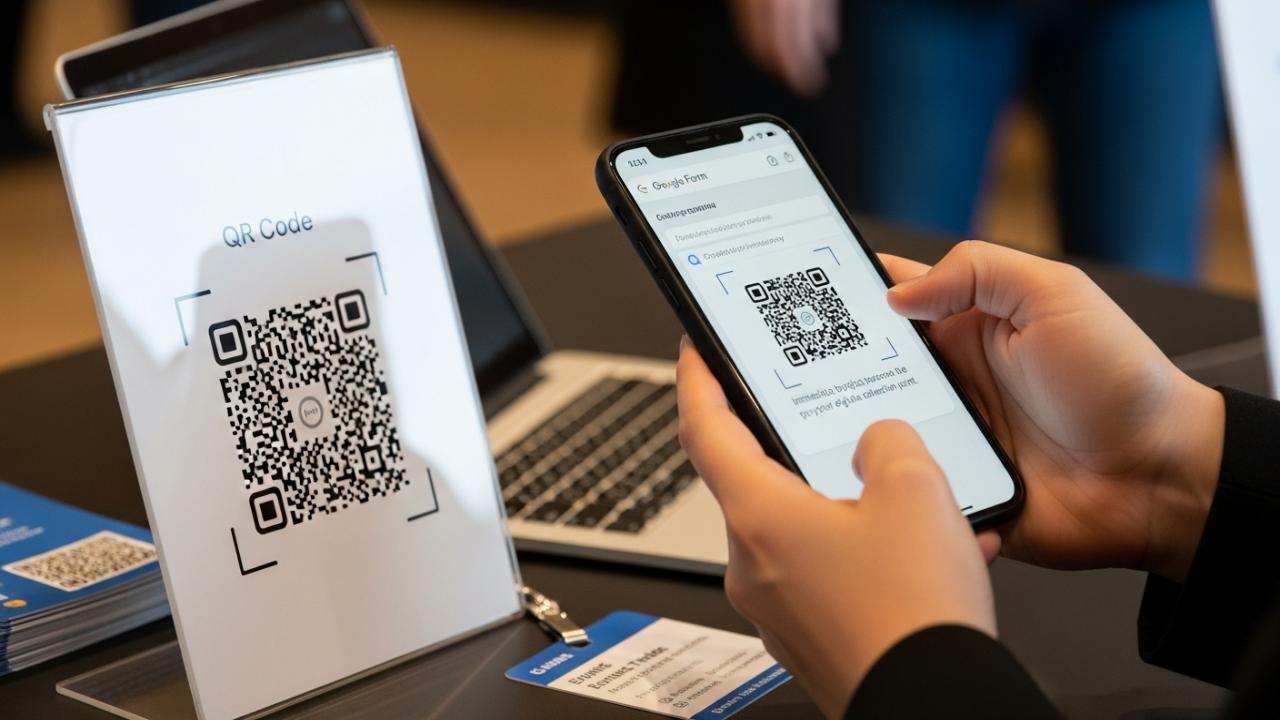
APPS • DAILYTECH.ID - The process to link a Google Form directly to a QR code requires accessing the form’s unique URL and using a specialized, no-cost online generator. This method is the fastest way to facilitate instant mobile access to your surveys, feedback forms, or registration pages, making data collection effortless whether you are managing an event, running a classroom survey, or gathering client feedback.
To make a QR code for a Google Form for free, first obtain the shortened shareable link from the Google Form’s “Send” settings. Next, paste this link into a reputable, free third-party QR code generator service, such as QR Code Generator or Beaconstac. Customize the design, if desired, and then download the generated QR code image file (PNG or JPG) for immediate deployment. Following this simple process ensures that anyone with a smartphone can instantly scan the code and access the form.
Why Use a QR Code for Google Forms? The Case for Instant Access
In a world increasingly reliant on mobile interaction, asking users to manually type a long, complex web address is the quickest way to lose potential respondents. QR codes eliminate the need for manual URL entry, significantly reducing friction and increasing completion rates for data collection initiatives. Converting your form into a scannable graphic streamlines event registration, facilitates contactless data collection in physical locations (like retail stores, galleries, or schools), and makes distributing your content via print media practical and instantly actionable.
For educators, distributing a QR code linked to a daily attendance sheet or a quick quiz via a projector simplifies classroom management, ensuring students spend zero time transcribing URLs. For event coordinators, placing a code on badges or signs allows for instantaneous, mobile-friendly registration check-ins or feedback submissions. Marketers find this highly valuable for connecting physical advertisements (posters, flyers) to digital landing pages, immediately quantifying the effectiveness of print assets. The core benefit remains speed and simplicity; by leveraging the ability to make a qr code for google form, you create an immediate bridge between the physical world and your digital data collection point.
Moreover, many users question, “Can I create a QR code for a Google Form that will last forever?” The answer is yes, provided you use a static code generator, which is generally offered for free. Because the Google Form’s URL is permanent once created, the QR code linking to it will remain active indefinitely, making this a robust and long-term solution for data retrieval.
Step-by-Step Guide: How to Make a QR Code for a Google Form Free
Creating a reliable QR code that links directly to your survey is a straightforward process requiring just three crucial steps and readily available free online tools. This guide focuses on ensuring you can efficiently how to make qr code for a google form free while maintaining quality and security.
Step 1: Obtain the Google Form Shareable Link
To successfully make a qr code for google form, the first and most critical action is securing the form’s correct, secure, and shareable URL. Using the default URL from your browser’s address bar when you are editing the form will often fail, as this link includes administrative tokens meant only for the creator.
To generate the universal link:
- Navigate to your Google Form: Open the specific form you wish to link to.
- Click the “Send” button: This is a prominent purple button located in the upper right corner of the editing interface.
- Select the Link Icon: In the “Send via” panel that appears, select the icon resembling a chain link (the second option).
- Check the “Shorten URL” Box: Google Forms automatically generates a long URL. It is highly recommended to check the box labeled “Shorten URL.” A shorter URL contains less data, which results in a simpler, cleaner QR code design that scans faster and is more reliable, especially if you plan to print the code at a small size.
- Copy the Shortened URL: Click the “Copy” button or manually copy the generated short link (it will typically start with
forms.gle/...). This is the exact link you will use for the generator.
Step 2: Choose a Free, Reliable QR Code Generator
Once you have the shortened link, the next step involves finding a service that allows you to make a qr code for google form free without hidden fees or forced subscriptions. While there are countless tools available, you must choose one that provides static codes and high-resolution downloads suitable for professional deployment.
Static vs. Dynamic Codes:
- Static QR Codes: These embed the destination URL directly into the matrix of the code. They are generally free, require no login, and never expire. Since Google Form URLs rarely change, static codes are the ideal choice here.
- Dynamic QR Codes: These link to a temporary redirecting URL managed by the service provider. They allow for tracking and link modification later, but usually require a paid subscription after a short trial period. Avoid dynamic codes if your primary goal is a permanent, free solution.
Reputable, free options often chosen by businesses and educators include QRCode Monkey, QR Code Generator (the generator, not the service with tracking features), and occasionally simple browser extensions built into Chrome or Edge, although these native browser features sometimes lack customization and high-resolution output. Security is paramount; ensure the service does not require personal or financial information to generate the code.
Step 3: Paste and Generate the QR Code
This is the execution phase where you learn how to create qr code for google form for free instantly.
- Navigate to the Chosen Generator: Open your preferred free static QR code generator.
- Select URL/Link Input: Ensure the generator is set to create a “URL” type of QR code, as other formats (text, vCard, SMS) will not function correctly.
- Paste the URL: Paste the shortened Google Form URL (copied in Step 1) into the generator’s input field.
- Select Static Code: Confirm that you are generating a static code.
- Adjust Color and Design (Optional but Recommended): Most free generators allow basic customization. While the classic black-and-white design is the most reliable, you can often change the foreground color to match brand guidelines. However, maintain a high contrast ratio (e.g., dark foreground on a white background) to ensure accurate scanning. Avoid busy patterns or excessively light colors.
- Add a Logo (Optional): Some free services permit adding a small logo (e.g., your school mascot or company emblem) in the center of the code. This improves brand recognition without significantly interfering with the core scanning matrix, though it slightly increases the risk of scanning failure if the logo is too large.
- Generate: Click the “Generate” or “Create QR Code” button.
Step 4: Test, Download, and Deploy
The biggest mistake users make after generating a QR code is skipping the testing phase. Before you print 500 flyers, it is critical to confirm the code functions perfectly across all common devices.
Thorough Testing Protocol:
- Multi-Device Check: Use at least one iOS device (iPhone/iPad) and one Android device. Scanning technology differs slightly between operating systems.
- Varying Conditions: Test the code in different lighting conditions (low light, bright sun) and at various distances.
- App Verification: Test using the native camera app (which handles QR codes on modern smartphones) and a separate, third-party QR scanning app, just in case. The code should reliably and quickly direct the user instantly to the live Google Form page.
Downloading the File:
The format you download depends entirely on how you plan to use the code.
- Vector Format (SVG or EPS): If you are sending the code to a professional printer for large signs, banners, or high-resolution materials, always download the code in a vector format. Vector files scale infinitely without losing quality, ensuring the edges of the code remain sharp, which is crucial for scanners.
- Raster Format (PNG or JPG): For digital use, website embedding, email distribution, or simple home printing, a high-resolution PNG is ideal. Ensure the resolution (dots per inch or pixels) is appropriate for the final viewing size.
Once verified and downloaded, the QR code is ready for deployment on business cards, receipts, classroom whiteboards, or digital displays.
Best Practices for Deploying Your Google Form QR Code
Successful data collection using QR codes hinges not just on the generation quality, but also on the deployment strategy. To maximize usage and ensure your form receives the engagement you intended, consider these advanced best practices.
Maintain the Quiet Zone
Every functional QR code requires a “quiet zone,” which is the unmarked, solid-color (usually white) border that surrounds the black-and-white square pattern. This white border is critical; it tells the scanner where the code begins and ends. If the code is placed too close to other graphics, text, or the edge of a document, the scanner may fail to recognize the pattern, resulting in a misread or failure. Ensure the quiet zone is maintained at least four times the width of the smallest module (dot) in the code.
The Importance of Call to Action (CTA)
A QR code is meaningless without context. Users must be told what they are scanning and why. Never deploy a code naked. Always include a brief, compelling Call to Action (CTA) near the code.
Examples:
- “Scan Here to Register Instantly for Our Event”
- “Feedback Form: Scan and Win a Prize!”
- “Attendance Check: Scan Now to Mark Present”
A clear CTA manages user expectations and increases the likelihood that they will actually perform the scan.
Physical Placement and Size
When distributing the code physically, consider the user’s distance from the code and their typical scanning angle.
- Size: The minimum readable size is generally 1 x 1 inch (2.5 cm x 2.5 cm). If users will scan from a distance (like a poster across a room), the size must increase proportionally. A good rule of thumb is that the scanning distance should not exceed 10 times the width of the QR code.
- Placement: Place codes at eye level (around 4.5 to 5.5 feet high) where they are easy to access. If the code is on a high-traffic table, ensure it is anchored so it doesn’t move while the user is attempting to focus their camera.
- Material: Ensure the surface is flat and non-reflective. Highly glossy paper or curved surfaces (like bottles or irregular objects) can distort the code and cause scanning failures due to glare.
Troubleshooting Common QR Code Issues
Even after following the steps to how to make qr code for google forms free, issues can arise that prevent successful scanning or data submission.
Blurry or Jagged Codes
If your code appears blurry, especially when printed large, the issue almost certainly lies with the downloaded file format. Using a low-resolution JPG or PNG for a large poster will cause pixelation. The scanner requires sharp, crisp lines to read the data pattern accurately. If you are printing, return to Step 4 and ensure you download the code in a high-resolution PNG or, optimally, a vector format like SVG.
Link Restriction Errors (Access Denied)
If users scan the code but receive a “You need permission” or “Access Denied” error, the problem is not the QR code itself, but the Google Form’s sharing settings. By default, Google Forms often restricts access to users within your organization or company domain if you created the form using a G Suite or corporate account.
To fix this:
- Go back to your Google Form editing page.
- Click the Settings gear icon.
- Under the “General” or “Responses” section, look for options like “Restrict to users in [Your Domain]” or “Requires sign-in.”
- Uncheck or disable this restriction to ensure that anyone who scans the code can immediately access and submit the form without needing to log in or be part of your specific organization.
The Code Scans But Takes Too Long to Load
If the code scans quickly but the form loads slowly, the issue is likely either the user’s internet connection or the complexity of the Google Form itself. Forms with dozens of image uploads, large embedded videos, or extensive validation rules can be resource-intensive. For high-volume public distribution, keep the form as simple and streamlined as possible.
FAQs – How To Make QR Code For A Google Form Free
Yes, modern browsers like Chrome and Edge often have a built-in share feature that generates a basic, black-and-white QR code for the current URL. This is fast and free, but it typically lacks the customization options and high-resolution output required for professional printing.
Using reputable, ad-supported free generators is generally safe when generating static codes, as they only require the destination URL. Avoid services that force you to register, download software, or require administrative access to your Google account for a static QR code link.
Static QR codes are permanent and remain active indefinitely, provided the original Google Form link remains functional and the form has not been deleted. Since the URL is hard-coded into the graphic, there is no service provider expiration date to worry about.
Editing the content, questions, or theme of a Google Form does not change the form’s underlying URL. The QR code will continue to link to the same address, automatically showing users the most recently updated version of your form instantaneously.
Free, static QR codes offer no built-in tracking. Tracking must be managed by the destination page. Since Google Forms doesn’t track traffic source directly, you can only track form submissions. For detailed scan analytics, you would need to use a paid dynamic QR code service.



