
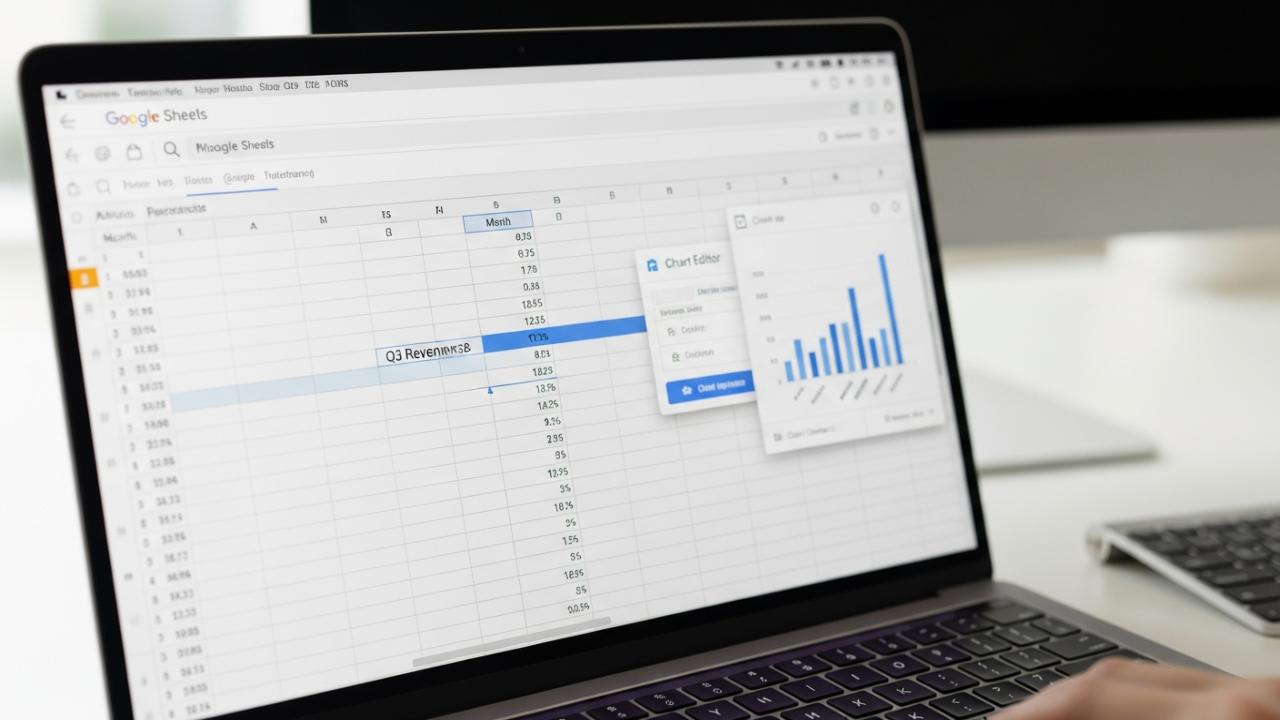
APPS • DAILYTECH.ID - Creating a professional, accurate graph in Google Sheets is a straightforward process that instantly transforms raw data into understandable visualizations.
To make a graph in Google Sheets, select the data range you wish to visualize, including headers. Navigate to the ‘Insert’ menu and select ‘Chart’ (or use the Chart icon in the toolbar). Sheets automatically suggests a chart type, but you can customize it using the Chart editor panel to choose alternatives like line, bar, pie, or scatter plots, and adjust axis titles and formatting. This comprehensive guide details every step required to generate, customize, and share charts across all platforms.
How to Create a Graph in Google Sheets (Step-by-Step Desktop Guide)
The fundamental process for how to make a graph in Google Sheets involves three main steps: preparing the data, inserting the chart, and refining the visualization. While Google Sheets is powerful enough to handle complex datasets, starting with a clean, structured table ensures the best results.
Preparing Your Data for Optimal Visualization
Before you can successfully make a graph from data in Google Sheets, the organization of that data is paramount. The chart editor reads the data based on how it is arranged in the spreadsheet.
Structuring Data Columns: For most standard charts (line, bar, column, scatter), the column you want to serve as the categories (or the X-axis) should always come first. Following this, subsequent columns will represent the data series (the Y-axis values) you wish to plot.
For example, if you are tracking monthly sales, the format should be: Column A (Month), Column B (Sales Team 1), Column C (Sales Team 2). When you select this range, Sheets will automatically assign Column A as the domain axis.
Ensuring Header Consistency: Always include informative headers in the first row of your selected data range. When you initiate the chart creation process, Sheets uses these headers automatically as chart titles, legend labels, and series names, significantly reducing the amount of manual customization required later. This is the critical first step for how to create a chart in Google Sheets from data efficiently.
Inserting the Initial Chart
Once your data is clean and correctly structured, you are ready to graph on Google Sheets.
Step 1: Selecting the Full Data Range. Click and drag your cursor to highlight all the cells containing the data you want to visualize, including the headers. Do not select empty rows or extraneous totals at this stage, as they will skew the visualization.
Step 2: Accessing the “Insert Chart” Function. There are two primary ways to initiate chart creation:
- Navigate to the main menu bar at the top of the screen, click Insert, and select Chart.
- Use the dedicated Chart icon (it looks like a small bar graph) located in the main toolbar, usually between the Functions button ($\Sigma$) and the Filter button.
Step 3: Understanding the Automatic Chart Suggestion. As soon as you insert the chart, a Chart Editor panel will open on the right side of your screen. Google Sheets employs intelligent algorithms to analyze your data and offer a “Suggested Chart.” For simple time series data, it might suggest a line graph; for categorical comparisons, a column chart. This automatic function often saves time, but you will almost always need to enter the Chart Editor to customize and refine the result. This completes the core process of how to put graph in Google Sheets.
Customizing the Graph Using the Chart Editor
The Chart Editor is the central hub for modifying every aspect of your visualization, from the chart type to the font size on the axes. It consists primarily of two tabs: Setup and Customize.
Accessing the Setup and Customize Tabs
If the Chart Editor closes, you can reopen it by clicking the chart once, then clicking the three-dot menu icon in the top right corner of the chart boundary, and selecting “Edit Chart.”
Setup Tab: This tab controls the fundamental architecture of the chart:
- Chart Type: Allows you to quickly switch between line, bar, column, scatter, pie, and more complex options.
- Data Range: Confirms or adjusts the cells being used for the chart.
- X-axis: Defines which column provides the categories or domain.
- Series: Defines the data columns being plotted (the Y-values). You can add, remove, or reorder series here.
Customize Tab: This tab controls the aesthetics and formatting, allowing you to create a professional presentation. Key sections include:
- Chart Style: Background color, font, and chart borders.
- Chart and Axis Titles: This is essential for clarity. You can edit the chart title, subtitle, and the labels for the horizontal (X) and vertical (Y) axes. Always ensure titles are clear and include units if applicable.
- Series: Allows individual formatting for each data series—color, line thickness, point size, and applying trendlines.
- Legend: Adjusting the position (top, bottom, left, right) and font of the legend.
- Horizontal and Vertical Axis: Controls tick marks, label rotation, scale, and critical features like setting the baseline (start value).
Mastering Basic Graph Types
Understanding when and how to apply the most common graph types is key to effective data communication.
How to Make a Line Graph in Google Sheets
Line graphs are best utilized for demonstrating change or trends over a continuous variable, most often time.
Best Practices for Time-Series Data: Ensure your X-axis data (dates, months, years) is formatted correctly as dates or numbers. This allows Sheets to plot the points at equal intervals and correctly interpret the progression.
Creating Single and Multiple Line Graphs:
- Select your data range (X-axis column, followed by one or more Y-axis columns).
- In the Chart Editor Setup tab, ensure “Line Chart” is selected under Chart Type.
- For a Double Line Graph in Google Sheets: If you included two series columns in your initial selection (e.g., Sales Team 1 and Sales Team 2), Sheets will automatically plot both on the same axis using different colors. You can customize the look of each line individually under the Customize > Series section, selecting the specific series you want to format from the dropdown menu.
How to Make a Bar Graph and Column Graph
Bar and column charts are used for comparing categories or discrete values. The difference is orientation: Column charts are vertical; Bar charts are horizontal.
Differences between Bar (Horizontal) and Column (Vertical) Charts: Column charts are usually preferred when categories are few and short (e.g., Q1, Q2, Q3). Bar charts are superior when categories have long names (e.g., “Northwest Regional Sales Division”) or when there are many categories, as they provide more horizontal space for labels.
Tutorial on Creating Simple Bar Charts and Stacked Bar Charts:
- Select the category column and the data columns.
- Under Chart Editor > Setup, select “Column chart” or “Bar chart.”
- How to Make a Stacked Bar Graph in Google Sheets: If you have multiple data series (e.g., Product A, Product B, Product C sales per region), you can visualize the contribution of each part to the whole. In the Setup tab, scroll down to the “Stacking” option and select either Standard Stacking (showing absolute values stacked) or 100% Stacking (showing the proportion or percentage contribution). This is an extremely useful visualization tool for composition analysis.
Creating Pie and Circle Graphs
Pie charts are specifically designed to show parts of a whole, where all segments must sum up to 100%.
When to Use Pie Charts (Parts of a Whole): Only use a pie chart if you have six or fewer categories. More than that makes the chart illegible. Ensure your data reflects percentages or counts that contribute to one total metric.
Step-by-step Instructions for Data Input Specific to Pie Visualizations:
- Your data selection should only include two columns: one column for the Category Labels (e.g., departments) and one column for the numerical Values (e.g., budget allocation).
- Insert the chart and select “Pie chart” from the Chart Type menu.
- Under Customize > Pie Chart, you can adjust the “Slice Label” to display the value, percentage, or both. You can also turn it into a Donut Chart by setting the “Donut hole” size, achieving the popular circle graph visualization.
Advanced Graphing Techniques and Customizations
Moving beyond basic charts allows for complex comparative and statistical analysis.
Visualizing Relationships with Scatter and XY Graphs
Scatter plots (or XY graphs) are essential for determining the relationship (correlation) between two sets of numerical variables.
Formatting the Data Range for X vs Y Visualization: Unlike line graphs, both the X and Y axes in a scatter plot represent measured numerical data, not categories.
- Select the two columns you wish to compare. The first column will automatically be treated as the X-axis (the independent variable).
- Insert the chart and select “Scatter chart” under the Setup tab.
Inserting Trendlines (Linear Regression): After you successfully make a scatter plot graph in Google Sheets, you can analyze the trend:
- Go to Customize > Series.
- Check the box labeled Trendline.
- Under Type, select the appropriate model (e.g., Linear, Exponential, Polynomial). Sheets will overlay a calculated line showing the correlation. You can also display the R-squared value, which indicates how well the trendline fits the data. This completes the tutorial for how to make an xy graph in Google Sheets.
Adding Complexity: Dual Axis and Zero Baseline Control
Two common advanced customizations are required to prevent data misrepresentation: using a secondary axis and ensuring the Y-axis starts correctly.
Guide to Creating a Double Axis Graph (Combo Charts): A double axis chart is necessary when you need to compare two data series that operate on completely different numerical scales (e.g., temperature range vs. sales volume). This is achieved using a Combo Chart.
- Select your data (X-axis and two Y-series columns).
- In the Setup tab, choose Combo Chart. By default, this combines a column chart and a line chart.
- Under Setup > Series, identify the series that uses the larger scale (e.g., Sales Volume).
- Click the dropdown next to that series name and change its Axis setting from “Left Axis” to “Right Axis.” Sheets instantly draws a secondary vertical axis on the right side, scaled appropriately for that series. This is the process for how to make a double axis graph in Google Sheets.
Ensuring the Y-axis Starts at Zero for Accurate Representation: Manipulating the baseline can dramatically alter perception. To ensure an honest visualization:
- Go to Customize > Vertical Axis (or Right Axis, if applicable).
- Locate the settings for Min value and Max value.
- To ensure the graph accurately represents differences and proportions, set the Min value to 0. This is the vital step for how to make a graph start at 0 in Google Sheets, preventing misleading truncations of the data range.
Specialized Charts for Specific Data Needs
Some data analysis requires specialized visualizations that go beyond simple comparison.
Generating Histograms for Data Distribution: Histograms show the frequency distribution of numerical data. They group values into “bins” and plot how many observations fall into each bin.
- Select the single column of raw numerical data you want to analyze (e.g., customer ages).
- Insert the chart and select Histogram chart under Chart Type.
- Under Customize > Histogram, you can adjust the Bucket Size (the width of the bins) or let Sheets automatically determine the optimal width. This is how to make a histogram chart in Google Sheets.
Creating a Radar or Gantt Chart:
- Radar Charts: Used for comparing multiple metrics across several categories (e.g., comparing three employees’ scores across five different skills). Select the data range, insert the chart, and choose the “Radar chart” option.
- Combo Charts: While often used for dual axes, the term also refers to blending chart types. For example, comparing target versus actual performance using a Column (Actual) and a Line (Target) in a single visualization.
- Gantt Charts: Used for project management scheduling. While Sheets does not have a native “Gantt Chart” type, they can be effectively created using a Stacked Bar Chart where the first series (Start Date) is formatted to be transparent (no fill color), leaving only the duration (Second Series) visible. This highly specialized technique requires precise date calculation columns but allows you to technically make a Gantt chart in Google Sheets.
Creating Graphs in Google Sheets on Mobile Devices
The fundamental process remains the same across platforms, but the interface changes significantly when you make a graph in Google Sheets mobile environments like phones and tablets.
Using the Google Sheets App (Mobile and iPad)
The challenge on mobile devices is the precision of selecting data ranges and the navigation of reduced screen menus.
The Selection Process Differences on Touchscreens:
- Open the Google Sheets app and navigate to your dataset.
- Tap and hold a starting cell, then drag the selection box handles precisely to highlight your entire data range, including headers.
Navigating the Mobile Chart Editor Interface:
- After selection, look for the + (Insert) icon at the top of the screen (on iOS) or within the menu options (Android).
- Select Chart. Sheets will immediately generate the default visualization.
- To customize the chart, double-tap the chart itself. This opens the mobile Chart Editor interface.
- The editor uses tabs at the bottom: Type (for chart selection), Data (for adjusting the range and series), and Customize (for titles, colors, and axes). All the functionalities mentioned for desktop—including how to make a graph in Google Sheets on iPad or phone—are available, though the smaller interface requires more scrolling.
Tips for Chromebook and Mac Users
The experience for Chromebook and Mac users is nearly identical to the Windows desktop tutorial, as both platforms primarily utilize the web browser interface of Google Sheets.
Confirming the Process Mirrors the Desktop Browser Experience on Chromebooks: Since Chromebooks run the full browser version of Google Sheets, all steps—selecting data, going to Insert > Chart, and using the robust Chart Editor panel on the right—are exactly the same. Performance is entirely dependent on the specific Chromebook’s resources.
Addressing Specific Menu Locations for Mac Users: Mac users access the menus in the same standard locations as PC users. The “Insert” menu is always found at the top of the Sheets window, regardless of whether you are using Chrome, Safari, or Firefox on a Mac. This ensures that when you need to make a graph in Google Sheets on Mac, the procedure follows the detailed desktop instructions provided above.
FAQs – How To Make A Graph In Google Sheets
The fastest way is to select your data range, click the dedicated Insert Chart icon in the main toolbar, and accept the automatic chart suggestion. This uses the integrated intelligence of Google Sheets to instantly visualize the selected data.
Select your data range, tap the + (Insert) button, choose Chart, and then use the mobile editor’s Type tab to select the Line Chart option. You can customize axis details by double-tapping the chart.
Convert your chart to a Combo Chart in the Setup tab. Then, in the Series section of the Setup tab, select the specific data series you want to plot on the secondary axis and change its assigned axis from “Left Axis” to “Right Axis.”
Yes, Google Sheets includes specific statistical options. You can make a Histogram chart directly by selecting the chart type. While there is no dedicated Box Plot option, advanced users often simulate it using stacked column charts and error bars.
To prevent misleading visualizations, open the Chart Editor, go to the Customize tab, select Vertical Axis, and manually set the Min value input field to 0. This forces the chart to start at the true baseline.



