
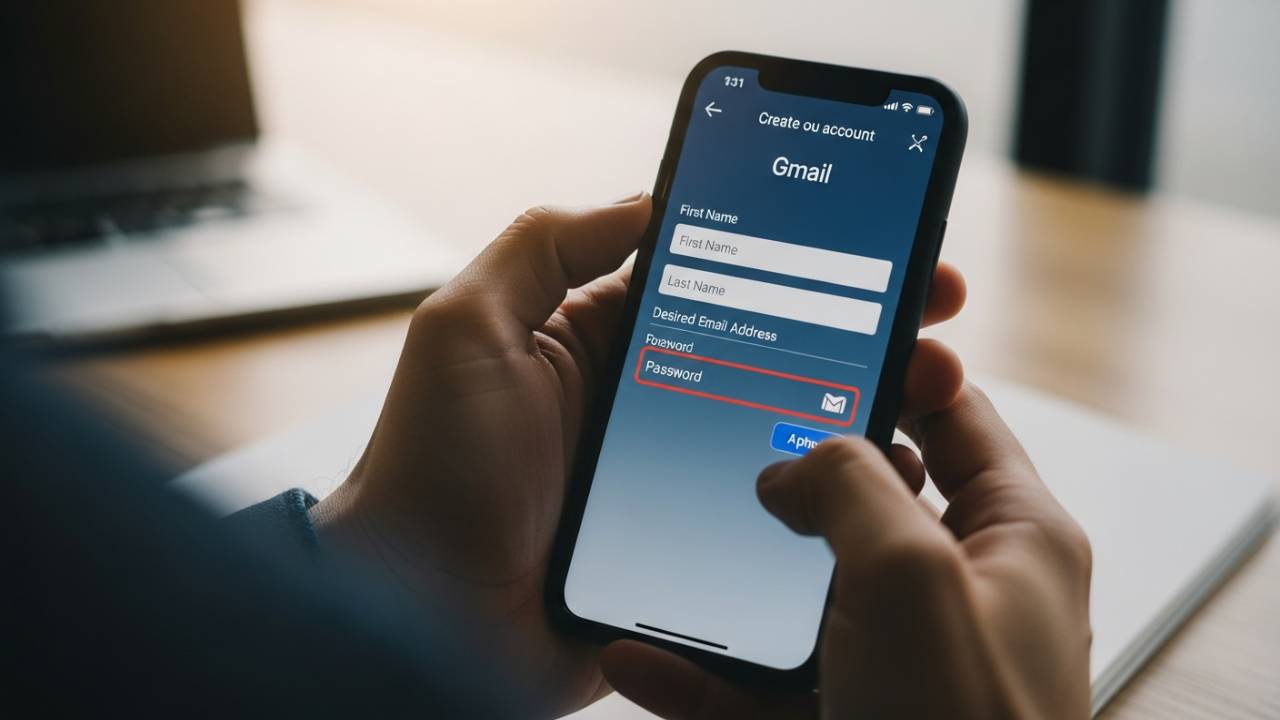
APPS • DAILYTECH.ID - Ever felt that clutch when a new app or service demands your phone number just to sign up? It’s frustrating, especially if you’re trying to keep your personal contact info private or you just need a quick, separate email for a side hustle, throwaway registrations, or testing. Luckily, there are a few genuinely proven ways to get a Gmail account up and running without handing over your primary mobile number. We’ll show you exactly how to navigate this process smoothly and keep your digital life a little more separated. For a complete step-by-step tutorial, check out the How to Create a New Gmail Account guide.
| Goal | Primary Method | Key Tool | Privacy Level |
| Complete Anonymity | Use a Burner/Temporary Number | Google Voice (US-based) or a non-VoIP app | High |
| Quick & Easy | Defer the Phone Verification Step | Modern Browser/App (on a non-linked device) | Medium |
| Re-activating an Account | Use a Backup Email/Recovery Code | Existing Recovery Setup | High |
The “Not Right Now” Strategy: Deferring Verification
This is often the simplest and most accessible method, and it relies on a specific sequence of actions during the Google sign-up process. Google’s system is designed to ask for a phone number for security, but it’s not always a hard requirement right away, particularly if you follow these steps carefully. You’re basically leveraging a loophole in their initial setup flow.
Signing Up via the Gmail App or a Fresh Browser
Your best bet here is to use a device or a browser that Google doesn’t already associate with one of your existing, number-verified accounts. Try signing up on a desktop computer using an Incognito or Private browser window, or even through the Gmail mobile app on a tablet or a phone that hasn’t had your main Google account logged in. The goal is to appear as a completely “fresh” user.
- Start the Creation Process: Go to the Gmail sign-up page and choose the option to create a personal account.
- Fill in the Basics: Enter your desired name, username, and password. This part is standard.
- The Key Moment (Date of Birth): When you reach the page asking for your phone number, do not immediately fill it in. Google will also ask for your date of birth and gender. Crucially, if the phone number field is marked as “(optional),” you can simply leave it blank.
- Age Matters: If the phone number field isn’t optional, try changing your date of birth to make you appear younger than the age requiring mandatory phone verification (e.g., under 15, though this varies). Alternatively, set your age to be over 60. Sometimes, a different age bracket prompts Google to either drop the phone requirement or offer an alternative.
- Recovery Email Option: Focus on providing a good Recovery Email Address instead. This is often an acceptable substitute for immediate phone verification. If the system forces the phone number, you may need to try the next method instead, as this loophole isn’t permanent.
Utilizing Temporary and Secondary Numbers for Verification
While the goal is to avoid using your number, sometimes you need a number to satisfy Google’s mandatory security check. The smart move here is to use a number that isn’t tied to your daily life. These methods keep your personal number private while still adhering to the initial security requirement.
Google Voice or Non-VoIP Apps
If you live in the US, Google Voice is an excellent option. It provides a secondary, free US phone number that operates completely separately from your cell number. You can use this Voice number to receive the initial verification text from Google. Once the account is created, you are free to remove the Voice number from the account’s settings.
- Setup: You’ll need an existing, verified Google account to set up Google Voice, but once you have the new Voice number, you can use it to verify the new, separate Gmail account you’re trying to create.
- The Catch: Google is getting better at identifying “VoIP” (Voice over Internet Protocol) numbers. Services like TextNow or Burner are often flagged and rejected during the verification process. Your best bet is always a number that Google hasn’t blacklisted, or a dedicated secondary line like Google Voice.
Asking a Trusted Friend or Family Member
If you hit a wall with temporary numbers, consider a quick favor. Ask a trusted friend or family member if you can use their phone number just to receive the initial six-digit verification code.
Important: Make sure they understand that they need to let you know the code right away, and once you have access to the new Gmail account, go into the Security settings immediately and remove their number from the recovery options. This ensures that their phone isn’t constantly tied to an account they don’t use. This method is fast, reliable, and ensures you get past the initial hurdle without sharing your personal digits.
Protecting Your New Account Without a Number
You’ve successfully set up your new email address without using your phone number—great! But security is still paramount, and you need a solid backup plan that doesn’t rely on SMS. This is where a strong recovery email and security keys come into play.
Set Up a Robust Recovery Email
The single most important step after creating your account is to set a reliable Recovery Email Address. Make sure this is an email account you check regularly and, ideally, one that is itself highly secure (maybe one that does use 2FA).
- Go to Settings: Navigate to Security in your Google Account settings.
- Find Recovery Options: Under “Ways we can verify it’s you,” add your recovery email.
- Why It Matters: If you ever forget your password or Google flags suspicious activity, they will send the recovery link to this email instead of asking for a phone number verification.
Two-Factor Authentication (2FA) Alternatives
Even without a phone number, you can and should use 2FA. Google offers several powerful alternatives to SMS:
- Google Authenticator App: Use an app like Google Authenticator or Authy. These apps generate time-based, one-time passwords (TOTP) that work offline and don’t require a phone number or cell service. You simply scan a QR code during setup, and the app generates new codes every 30 seconds.
- Backup Codes: Google provides a list of ten backup codes that you can download and print. These codes are single-use and can be a lifesaver if you are locked out. Store them safely, like in a home safe or a password manager.
These proactive steps ensure that even if you don’t use a phone number, your account remains highly secure and recoverable.
FAQs – How to Create a Gmail Account Without a Phone Number
Yes, absolutely. Once your account is fully set up, go to your Google Account settings, navigate to the Personal Info tab, select your phone number, and you should see an option to remove it.
It’s primarily a security measure. It helps Google verify you’re a real person (not a bot), recover your account if you forget your password, and provide two-factor authentication. It also helps prevent users from creating a large number of throwaway accounts for spam.
Not really, and you should be wary of any service that promises this. The methods above are free and proven. Paid services often use the same temporary number pools that Google is already flagging.
You can try, but it’s increasingly unlikely to work. Google has become adept at blocking VoIP numbers to curb spam and fraud. A dedicated, non-VoIP number (or the “deferral” method) is a much better approach.
If you have neither a recovery number nor a recovery email, your chances of getting your account back are slim to none. Google’s automated system requires one of those two verification methods. This is why adding a strong recovery email is so crucial.
No. Google explicitly marks the phone number field as optional in many sign-up flows. When it’s mandatory, using a secure, secondary number (like Google Voice) is simply good digital hygiene and not a TOS violation.
Your Digital Privacy is Worth the Effort
Navigating the sign-up maze can feel like a chore, but taking these extra steps to create a Gmail account without relying on your personal phone number is a smart move for your digital privacy and flexibility. Whether you’re setting up a separate inbox for work, a hobby, or just want a burner email for registrations, these techniques give you the freedom to control how and when you share your most personal contact information. Remember, your security is in your hands—and a strong recovery email is your best friend when you opt out of phone verification.



