
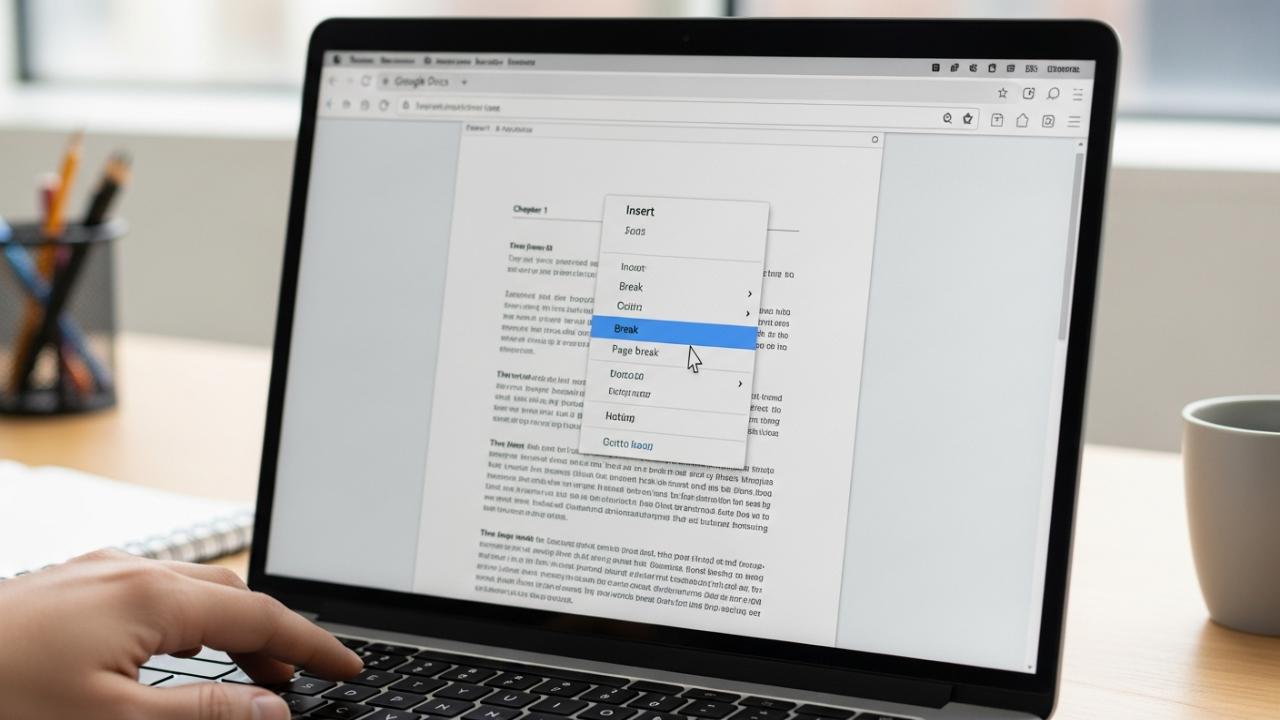
APPS • DAILYTECH.ID - Inserting a new page in Google Docs is essential for separating chapters, formatting reports, or managing document structure effectively. This function is achieved not by a simple ‘Add Page’ button, but primarily through the use of a Page Break.
The simplest way to add a page on Google Docs is by inserting a Page Break. Navigate to the desired insertion point, click ‘Insert’ in the top menu, then select ‘Break’ and choose ‘Page Break.’ This action immediately forces the following text onto a new blank page, ensuring proper document flow and formatting control across desktop and mobile interfaces. Understanding how to utilize the Page Break feature correctly will unlock efficient document structuring regardless of the device you are using.
The Primary Method: Inserting a Page Break (Desktop/Web)
Understanding how to add a page on Google Docs requires grasping the core concept of the Page Break. Unlike traditional typewriters or older word processors where hitting the Return key repeatedly was the only option, modern document processing utilizes the Page Break to create a distinct structural signal. This signal tells the software, “The content on this page is finished; start the next content element exactly at the top of the next page.” This is the essential technique for how to add a new blank page on google docs without resorting to manual spacing errors.
Step-by-Step Guide to Inserting a Blank Page
Adding a blank or extra page involves telling Google Docs exactly where the current page should end using the Page Break function, which is the standard technique for how to add a new blank page on Google Docs. This method applies universally whether you are working on a PC, a Mac, or a Chromebook via the web interface. This ensures that even if you alter the font size or margins later, the structural integrity of your document remains intact, preventing unwanted text overflow.
- Position the Cursor Accurately: Place your cursor precisely where you want the page break to occur. If you want a completely empty page, place the cursor directly after the last character of the content on the preceding page. This is the manual insertion point for how to manually add a new page on google docs.
- Access the Insert Menu: Navigate to the ‘Insert’ menu located in the top toolbar, typically positioned between ‘File’ and ‘Format’.
- Select Breaks: Hover over or click on ‘Break’ from the dropdown menu options.
- Execute the Page Break: Click on ‘Page break’. A new page will immediately appear below your cursor’s position, ready for new content.
If you already have text on the page following the insertion point, the Page Break forces that existing text down to the beginning of the newly inserted page, thereby effectively placing a blank page between two sections of content. This method is the fundamental answer to how do i insert a page on google docs.
Using Keyboard Shortcuts for Efficiency
For frequent users, knowing how to add a page on Google Docs shortcut is crucial for maximizing workflow efficiency. Keyboard commands offer the fastest, most reliable way to insert a page break on both Mac and Windows systems without requiring you to move your hands away from the keyboard to navigate the menu structure.
- Windows/Chromebook: The command is
Ctrl + Enter. Hold down the Control key and press Enter. - Mac/Macbook: The command is
Cmd + Enter. Hold down the Command key and press Enter.
Mastering these shortcuts allows for rapid structural changes when organizing large documents, reports, or manuscripts, ensuring that the process for how to add a page break on google docs becomes second nature.
Adding Pages on Mobile Devices (iOS and Android)
The challenge of how to add a page on Google Docs mobile or how to add a page on google docs on phone stems from the compact nature of the interface. The full menu bar visible on a desktop is condensed, requiring users to locate the Insert menu icon, typically represented by a plus sign, rather than a full word menu. This is particularly important for remote workers or students who rely on their phone or tablet (like an iPad) for document editing.
Inserting a Page Break on the Google Docs App
Whether you are on an iPhone, iPad, or Android device, the mobile app uses a consistent menu structure for inserting elements:
- Open the Document: Start by opening your document within the dedicated Google Docs app.
- Enter Editing Mode: Tap the document text area to activate the mobile editing keyboard and display the editing toolbar.
- Position the Cursor: Place the cursor precisely where you want the new page to begin. This tells the app where to apply the break, answering how to add another page on google docs on phone.
- Access the Insert Menu: Tap the plus icon (
+) located at the very top of the screen. This icon represents the comprehensive Insert menu. - Select the Break: A dedicated menu will pop up listing various elements. Scroll down this list until you find and select ‘Page break’.
Troubleshooting Page Gaps on Mobile
If you are struggling with how to add another page on Google Docs mobile and the content seems unresponsive, or if you find yourself with excessive blank space, it is likely that you have manually pressed the Return/Enter key multiple times instead of inserting a controlled Page Break. While pressing Return creates visual space, it does not create a structural boundary. If you change margin sizes, that manual spacing will often break and leave large, unsightly gaps in your document flow. Always rely on the ‘Page break’ function for structural integrity.
Advanced Page Insertion Techniques and Positioning
Often, the requirement is not simply to add a page at the end of a document, but to insert a specific type of page—a cover, a reference list, or a blank separator—at a very specific location.
How to Insert a Page Between Existing Content
To address how to add a page in google docs between pages or how to add a page above on Google Docs, the technique remains fundamentally the same: utilizing the Page Break while focusing on precise cursor placement.
If you have Page 1 and Page 2, and you need a new, blank Page 1.5, place the cursor at the end of the text on Page 1. Inserting a Page Break there will push Page 2 content down to Page 3, leaving Page 2 entirely blank and ready for content. Similarly, to add a page before the current content (how to add a page on google docs before), place your cursor at the absolute beginning of the document and insert the Page Break. This creates a new, blank Page 1, pushing your original content down to Page 2.
Creating Dedicated Structural Pages
Many document needs revolve around specific components, such as how to create a cover page on Google Docs or a works cited page. These specialized pages are established by inserting a standard Page Break (or, ideally, a Section Break, as detailed below) and then utilizing Google Docs’ built-in formatting tools or template galleries specific to that section.
- Cover/Title Page: To create a professional cover, insert a Page Break at the very beginning of the document. The new Page 1 will be your title page. Use center alignment and larger, distinct fonts for the title and author information. Since this page usually requires unique formatting (like suppressing page numbering), it is highly recommended to use an Insert > Break > Section break (next page) instead of a standard Page Break. This prepares the document for independent formatting of the cover page section.
- Contents/Reference Page: For reference lists (how to create a works cited page on google docs) or tables of contents, insert a Page Break at the intended location (usually after the main body text). For the table of contents, use the ‘Insert’ > ‘Table of contents’ feature for automated listings.
Adjusting Page Layout and Aesthetics
The Necessity of Section Breaks for Independent Formatting
A crucial distinction exists between a simple Page Break and a Section Break. A Page Break simply forces text onto the next page, but all formatting (margins, headers, footers, and orientation) remains globally linked. If you need a single page to be different from the rest—for instance, a specific page in landscape orientation or a page with a unique header—you cannot use a standard Page Break. You must use a Section Break.
To insert a Section Break, navigate to ‘Insert’ > ‘Break’ > ‘Section break (next page)’. This action is similar to a Page Break but creates a complete formatting partition, allowing you to manipulate one section independently.
Changing Page Orientation (Landscape)
The question of how to add a landscape page in Google Docs is one of the most common advanced formatting challenges. Google Docs defaults to applying orientation globally. To achieve mixed orientation within a single document:
- Define the Section Start: Place your cursor immediately before the content that should be landscape, and insert a Section Break (
Insert>Break>Section break (next page)). - Define the Section End: Immediately after the content that should be landscape, insert another Section Break. You have now isolated the content for your landscape page.
- Apply Orientation to the Section: Place your cursor within the newly isolated section (the content you want to be landscape).
- Go to ‘File’ > ‘Page setup’.
- At the bottom of the Page Setup dialog, ensure that under the ‘Apply to’ dropdown, you select ‘This section’ (instead of ‘Whole document’).
- Under ‘Orientation’, choose ‘Landscape’. Click OK.
Only the text between the two Section Breaks will change to landscape, while the rest of the document maintains its portrait orientation.
Adding a Page Border or Color
While Google Docs does not have a dedicated “Page Border” tool like Microsoft Word, addressing how to add a page border on google docs requires creative workarounds:
- Page Background Color: The simplest aesthetic change is page color. Go to ‘File’ > ‘Page Setup’. At the bottom of the dialog box, you will see ‘Page color’. Selecting a color here applies it globally to every page in the document.
- Manual Border (Using Drawings): To achieve a visible border, the most common workaround is inserting a Drawing element. Go to ‘Insert’ > ‘Drawing’ > ‘New’. In the drawing canvas, create a large rectangle shape and style its line (color, thickness). Crucially, change the text wrapping option of the drawing to ‘Behind text’ and position it manually on the page to frame the content. Note that this requires manual adjustment on every page and is not scalable across a long document, making it suitable mainly for cover pages.
Understanding Page Numbers and Headers/Footers
Effectively managing page numbers is critical when adding new pages, especially if you need different page numbers on specific sections (e.g., suppressing the number on a cover page, or using Roman numerals for introductory material). When you add a page on Google Docs, the numbering automatically continues, but Section Breaks allow you to restart or change the numbering style.
- Insert Numbering: Navigate to ‘Insert’ > ‘Page numbers’.
- Choose Location: Choose the desired location (header or footer) and style (whether the first page is numbered).
- Customizing Section Numbering: If you are using Section Breaks, double-click the header or footer area of the new section. In the Options box that appears, you will see a checkbox labeled ‘Link to previous’. Uncheck this box. Unlinking the section allows you to start the numbering over or change the numbering style (e.g., from Roman numerals to standard Arabic numerals, addressing how to add roman numeral page numbers on google docs). You can then select ‘Page numbers’ > ‘More options’ and specify a starting number or different numbering format for that specific section. This is vital when structuring academic papers or legal documents where preliminary pages use different formats.
FAQs – How to Add a Page on Google Docs
To add a completely blank page at the beginning, place your cursor before the very first character of your existing text. Then, go to Insert, select Break, and choose Page Break. This forces all existing content onto page two, creating an empty page one.
Yes, you can repeatedly hit the Return or Enter key until the content flows onto the next page. However, this is strongly discouraged because it is unstable. If you change font size or margins, the manually added space will shift, ruining your document formatting.
A Page Break is a structural command that guarantees the following content starts at the top of a new page, regardless of formatting changes. Hitting Return only adds empty line spaces, which are visual and prone to shifting when document settings are adjusted.
By default, inserting a standard Page Break (Insert > Break > Page break) ensures that the new page inherits all the formatting settings, including font style, size, margins, and headers, from the section immediately preceding the break.
Google Docs does not offer an easy, built-in feature for adding a page border. The most common workaround is to manually insert a shape using the ‘Insert > Drawing’ tool, sizing the shape to act as a frame, and setting its wrap style to appear behind the text.



