FACEBOOK • DAILYTECH.ID - We’ve all been there. Maybe it was a heated argument that felt world-ending at the time, a breakup that required some digital distance, or perhaps your thumb just slipped while you were navigating the increasingly complex Facebook interface. Suddenly, a friend, a family member, or a business contact has vanished from your digital life.
Blocking is a powerful tool for maintaining your peace of mind, but it’s not always a permanent decision. If you’ve decided to extend an olive branch—or if you simply realized you blocked the wrong “John Smith”—you’re likely wondering how to unblock someone on Facebook.
Navigating Meta’s ever-changing menus can feel like a maze. Whether you are using an iPhone 16, an Android device, or a desktop computer, this comprehensive guide will walk you through every step to restore those digital bridges.
The Quick Answer: How to Unblock Someone Fast
If you’re in a hurry, here is the “too long; didn’t read” version for the most common method:
- Open the Facebook App.
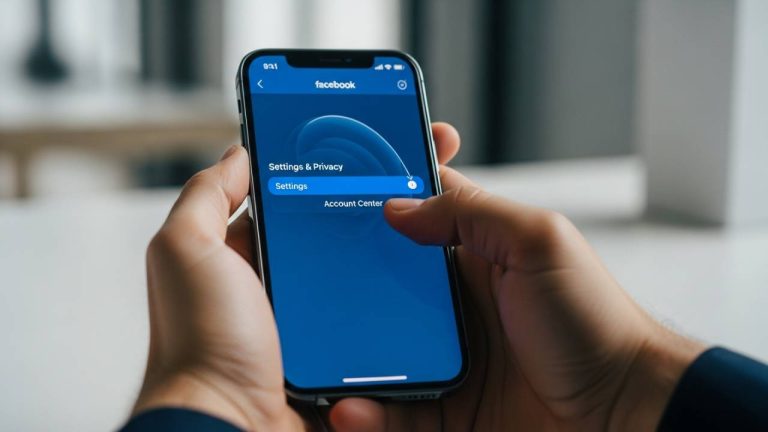
- Navigate to Menu > Settings & Privacy > Settings.
- Scroll down to the Audience and Visibility section and tap Blocking.
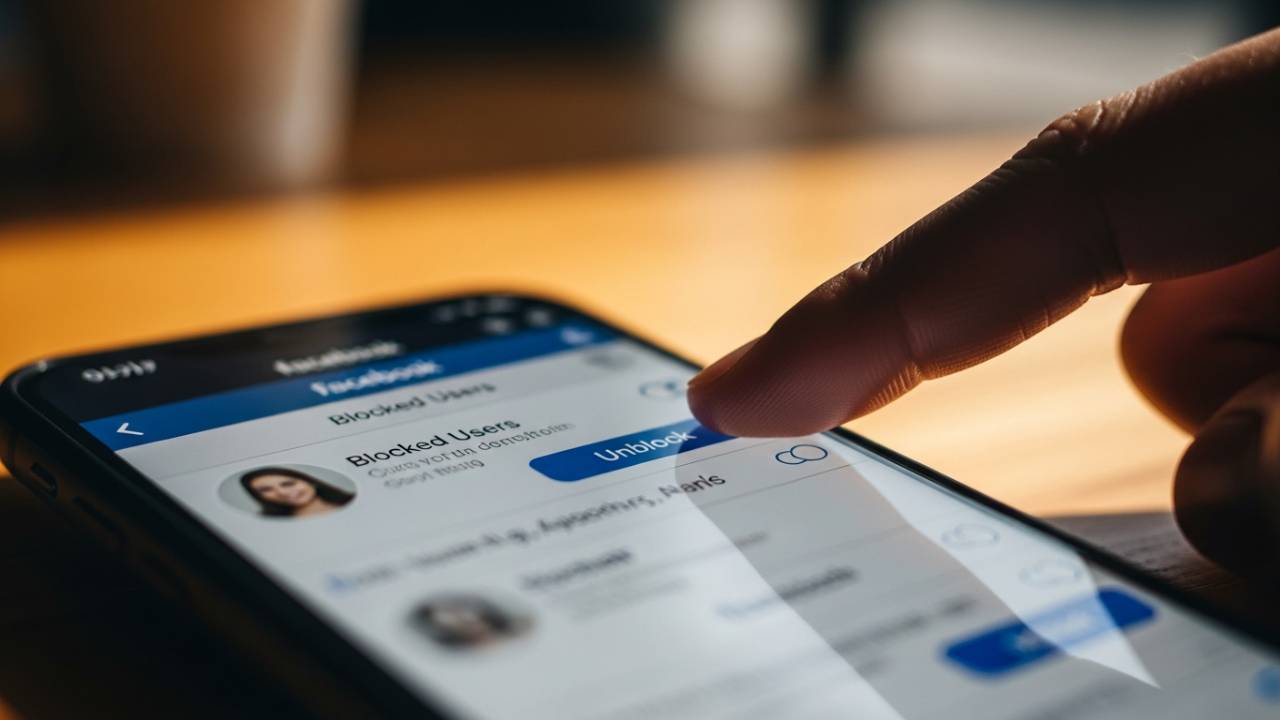
- Locate the person in your “Blocked Users” list.
- Tap Unblock and confirm your choice.
Note: You may be asked to re-enter your password for security. Once unblocked, you cannot block that same person again for 48 hours.
How to Unblock Someone on the Facebook App (iPhone & Android)
Most of us access social media through our phones. Whether you are looking for how to unblock someone on Facebook on iPhone or a Samsung Galaxy, the process is nearly identical because the Meta interface is standardized across mobile platforms.
Step-by-Step for iOS (iPhone 12, 13, 14, 15, 16)
The latest iPhone updates often change how apps look, but the core settings remain the same.
- Launch the App: Tap the Facebook icon on your home screen.
- Access the Menu: Tap the three horizontal lines (or your profile picture) in the bottom right corner.
- Settings & Privacy: Scroll down and tap “Settings & Privacy,” then tap “Settings.”
- Find Blocking: Scroll down to the “Audience and Visibility” header. Tap on Blocking.
- The List: You will see a list of every account you have ever blocked.
- Unblock: Find the specific name and tap the Unblock button next to it.
- Confirm: A pop-up will appear explaining the consequences. Tap “Unblock” again to finalize.
Step-by-Step for Android Users
If you’re wondering how to unblock someone on Facebook Android app, follow these steps:
- Open the Facebook app and tap the three horizontal lines in the top right corner.
- Tap the Gear Icon (Settings) or scroll to “Settings & Privacy” > “Settings.”
- Scroll down to find Blocking.
- Locate the name and tap Unblock.
- Confirm the action.
How to Unblock Someone on Facebook Using a Computer (Desktop/PC)
Sometimes it is just easier to manage your privacy settings on a larger screen. If you prefer using a web browser like Chrome, Safari, or Edge, here is how to unblock someone on Facebook desktop:
- Log In: Go to www.facebook.com and log into your account.
- Account Menu: Click on your profile picture in the top right corner of the screen.
- Settings: Select Settings & Privacy, then click Settings.
- Privacy Settings: On the left-hand sidebar, click Privacy.
- Blocking: In the sub-menu that appears, click Blocking.
- Edit Block List: Look for the section labeled “Block users.” Click the Edit button (or “See your blocked list”).
- Unblock: Find the person’s name and click Unblock.
- Final Confirmation: Click Confirm.
How to Unblock Someone on Facebook Messenger
Messenger is technically a separate entity from the main Facebook feed. Sometimes, you might have blocked someone’s messages but kept them as a friend on Facebook. Or, you might want to restore communication without necessarily seeing their posts in your feed.
Unblock Messages Only
If you want to know how to unblock someone on Facebook Messenger app specifically:
- Open the Messenger app.
- Tap your profile icon (or the three lines) in the top left corner.
- Tap the Gear Icon for settings.
- Select Privacy & Safety.
- Tap Blocked accounts.
- Select the person you want to message again.
- Tap Unblock Messages and Calls.
Pro Tip: If you blocked them on Facebook entirely, you must unblock them using the main Facebook settings before you can message them on Messenger. If you only blocked them on Messenger, they can still see your Facebook profile and posts.
Specialist Blocking: Dating, Marketplace, and Pages
Facebook has expanded into various niches, and each has its own nuances when it comes to social boundaries.
How to Unblock Someone on Facebook Dating
Facebook Dating is a private space within the app. If you’ve had a change of heart about a “passed” match:
- Open the Facebook app and go to the Dating section.
- Tap the Gear Icon (Settings) in the top right.
- Go to the General tab.
- Tap Blocked Profiles.
- Find the person and tap Unblock.
How to Unblock Someone on Facebook Marketplace
There isn’t a separate “Marketplace Block List.” Marketplace blocking is tied directly to the main Facebook account. If you blocked a buyer or seller, follow the standard How to unblock someone on Facebook mobile steps listed above. Once they are unblocked on the main platform, you can communicate regarding listings again.
How to Unblock Someone on a Facebook Business Page
If you are a Page Admin and accidentally banned a follower:
- Go to your Page.
- Click Professional Dashboard.
- Go to Platform Tools > Moderation Assist or Page Settings.
- Look for People and Other Pages.
- Select Blocked People and Pages from the dropdown.
- Find the user and click Unblock.
Crucial Restrictions: The 48-Hour Rule
A common question is: how to unblock someone on Facebook before 48 hours?
The short answer is: You can’t. Facebook enforces a mandatory 48-hour cooldown period. Once you unblock a person, the system prevents you from re-blocking them for two full days. This is a security measure designed to prevent “block-cycling”—a form of harassment where users unblock someone to send a message and then immediately block them again to avoid a response.
If you unblock someone by mistake and want to re-block them, you’ll have to wait. In the meantime, you can “Restricted” them or “Unfollow” them to minimize their presence on your timeline.
What Happens After You Unblock Someone?
Before you hit that confirm button, it’s important to understand what changes (and what doesn’t).
- Friendship Status: Unblocking someone does not automatically make you friends again. If you were friends before the block, that connection was severed the moment you blocked them. To be friends again, you must send them a new Friend Request.
- Visibility: They will be able to see your public profile information and any posts you have set to “Public.”
- Tags: You will be able to tag each other in photos and posts again.
- Messenger: You can send and receive messages from them (unless you have a separate block active on Messenger).
- Notifications: Facebook does not notify the person when you unblock them. However, if you send them a friend request immediately after, they might realize they were previously blocked.
Troubleshooting: Why Can’t I Find Someone to Unblock?
If you go to your “Blocked” list and the person isn’t there, one of three things has happened:
- They Blocked You: If you are wondering how to unblock someone on Facebook who blocked you, the answer is that you cannot. Blocking is a one-way street in terms of control. If both parties have blocked each other, you can unblock them, but you still won’t see their profile because their block against you is still active.
- Deactivated Account: The person may have temporarily deactivated their account.
- Deleted Account: The account may have been permanently deleted by the user or removed by Facebook for violating community standards.
FAQs – How to Unblock Someone on Facebook
Simply open the Facebook app, go to Settings & Privacy > Settings > Blocking, and tap Unblock next to the user’s name.
No. There is no “unblock notification.” However, if you were friends before, they may notice you are no longer on their friends list, which is a common clue.
Yes. If you only blocked their messages, you can go to Messenger Settings > Privacy & Safety > Blocked Accounts to restore messaging capabilities without affecting your Facebook interaction settings.
Facebook requires a 48-hour wait period after unblocking to prevent harassment and system abuse.
You cannot unblock yourself from someone else’s account. The person who initiated the block is the only one who can undo it.
Summary Table: Unblocking Methods
| Platform | Navigation Path | Key Note |
| iPhone/Android | Menu > Settings > Blocking | Most common method |
| Desktop (PC/Mac) | Profile Pic > Settings & Privacy > Settings > Privacy > Blocking | Best for managing long lists |
| Messenger | Profile Pic > Privacy & Safety > Blocked Accounts | Restores chat only |
| FB Dating | Dating Settings > General > Blocked Profiles | Separate from main FB block |
Final Thoughts
Accidentally blocking someone is a common digital hiccup. Whether you’re reconciling with a friend or just cleaning up your privacy settings, knowing how to unblock someone on Facebook gives you total control over your social experience.
Remember that unblocking is only half the battle—if you want them back in your inner circle, you’ll need to send that friend request. And if things go south again, you can always hit that block button once more… just as long as you wait those 48 hours!