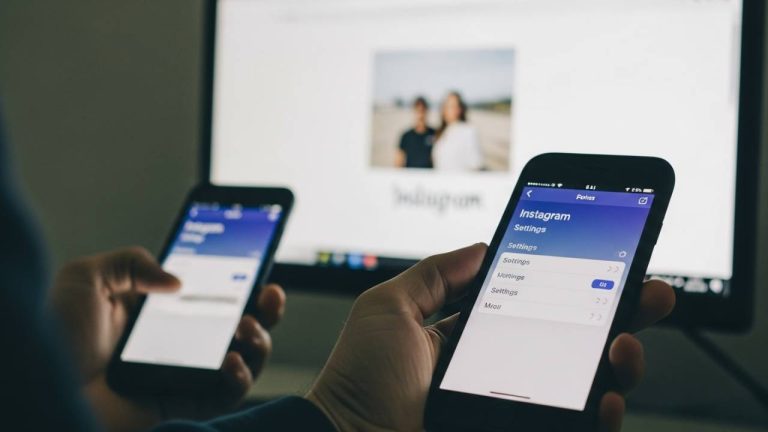
INSTAGRAM • DAILYTECH.ID - Tired of scrambling to post on Instagram at the exact right moment? Imagine having your entire week’s content planned, polished, and ready to go live without you ever touching your phone. Learning how to schedule a post on Instagram is more than a convenience; it’s a strategic move that reclaims your time and supercharges your content strategy. For creators and businesses, knowing how to schedule a post on Instagram transforms a frantic daily task into a streamlined, automated workflow, giving you the freedom to focus on what really matters: creating amazing content and engaging with your community.
Why You Should Schedule Instagram Posts in the First Place
Before we dive into the “how,” let’s talk about the “why.” Scheduling your Instagram content isn’t just about saving a few minutes here and there; it’s a foundational practice for serious growth. First and foremost, it guarantees consistency. An active, consistent account is favored by the Instagram algorithm and keeps your audience engaged. When you schedule posts, you eliminate the risk of forgetting to post during a busy day, ensuring your feed remains fresh and active.
Second, scheduling allows you to post at optimal times, even if you’re busy, asleep, or in a different time zone. By analyzing your audience insights, you can discover the best time to post on Instagram for maximum reach and engagement. Scheduling ensures your content goes live during these peak hours, dramatically increasing its visibility.
Finally, it enables content batching—a massive productivity hack. Instead of creating one post at a time, you can dedicate a few hours to producing a week or even a month’s worth of content. You can write all your captions, select your hashtags, and edit your photos in one focused session. This not only saves an incredible amount of time but also helps you maintain a cohesive brand aesthetic and a more strategic, thoughtful content calendar. It shifts you from being reactive to proactive, turning your Instagram into a well-oiled marketing machine.
Using the In-App Instagram Post Scheduler
For years, users had to rely on third-party apps to schedule content. Not anymore. Instagram now has a native scheduling feature built right into the app, making it incredibly simple to plan your feed, Reels, and carousels ahead of time. This tool is perfect for solo creators, small businesses, or anyone who wants a straightforward way to schedule content directly from their phone. It’s free, easy to use, and seamlessly integrated into your existing workflow. Here’s how to use it.
Step 1: Prepare Your Instagram Post
Before you can schedule, you need to create your post just as you normally would. Open the Instagram app and tap the ‘+’ icon to start a new post. Select the photo, video, or carousel you want to share. Move on to the editing screen to apply filters or make adjustments. Next, write a compelling caption, add your location, and tag any relevant accounts. Ensure your visuals are perfectly formatted by checking our The Only Instagram Post Size Guide You’ll Ever Need In This Year.
Step 2: Access Advanced Settings to Schedule Content
Once your post is polished and ready, you’ll be on the final screen before sharing. Instead of hitting the “Share” button, scroll down to the bottom of the menu and tap on “Advanced Settings.” This is where you’ll find a host of options, including the scheduling tool. It’s a bit hidden, so many users miss it entirely, but this is the gateway to automating your content.
Step 3: Set Your Desired Date and Time
Inside the “Advanced Settings” menu, you’ll see an option labeled “Schedule this post.” Toggle it on. A calendar and time-picker will appear. You can schedule posts up to 75 days in advance. Select the date and time you want your content to go live. Be specific—think about your audience’s most active hours. Once you’ve set the schedule, tap “Done” and go back to the previous screen.
Step 4: Manage Your Scheduled Instagram Content
After setting the time, the “Share” button at the top right will change to “Schedule.” Tap it, and you’re done! Your post is now queued up. To see, edit, or reschedule your planned content, navigate to your profile, tap the hamburger menu (three horizontal lines) in the top-right corner, and select “Scheduled content.” Here, you can get a clear overview of your content pipeline and make any necessary changes.
How to Schedule Instagram Posts with Meta Business Suite
If you manage a business account or handle both Facebook and Instagram pages, Meta Business Suite is your ultimate command center. This free, powerful platform provides more robust scheduling and analytics tools than the native Instagram app. It’s designed for professionals who need to manage a more complex content strategy, offering a visual content calendar that helps you see your entire month at a glance. It allows you to schedule posts, Stories, and Reels for both platforms from a single dashboard, saving you from switching between apps.
Getting Started with the Meta Content Planner
To begin, log into Meta Business Suite with the Facebook account linked to your Instagram Business Profile. On the left-hand navigation menu, click on “Planner.” This will open a weekly or monthly calendar view of your scheduled and published content across both Facebook and Instagram. This visual layout is perfect for identifying content gaps and ensuring a balanced mix of post types. It’s the easiest way to organize your workflow and maintain a consistent publishing schedule.
Creating and Scheduling a New Post in the Suite
From the Planner view, click the “Create post” button. A new window will pop up where you can build your content. First, select where you want to post—you can choose your Instagram feed, Facebook feed, or both. Upload your media, write your caption, and add your hashtags. One of the best features here is the live preview, which shows you exactly how your post will look on both Instagram and Facebook feeds. You can even customize the caption for each platform if you want to tweak the tone or calls to action.
Reviewing Your Instagram Content Calendar
Once your post is ready, instead of publishing immediately, click the dropdown arrow next to the “Publish” button and select “Schedule.” A calendar will appear, allowing you to choose the exact date and time for publication. Meta will even suggest “Optimal Times” based on when your followers were most active in the last week. After you’ve set the time, click “Schedule.” Your post will now appear in the Planner, giving you a clear, organized view of your upcoming content. You can drag and drop posts to reschedule them, making it incredibly flexible for dynamic marketing plans. Learn more about crafting engaging content in The Ultimate Guide to the Perfect Instagram Post.
Best Practices for Scheduling Your Instagram Feed
Automated posting is a powerful tool, but it’s not a “set it and forget it” solution. To get the most out of scheduling, you need a strategy. First, always be ready to engage when your post goes live. The first hour is critical for the algorithm, so plan to be available to respond to comments and DMs. This shows your audience—and Instagram—that you’re an active, engaged creator, which can significantly boost your post’s reach.
Next, use a content calendar to plan your grid aesthetic. Scheduling makes it easy to visualize how your upcoming posts will look together on your profile. A visually cohesive feed is more attractive to new visitors and can help turn them into followers. Mix up your content types—interspersing Reels, carousels, and single-image posts to keep your feed dynamic and interesting.
Finally, always leave room for spontaneity. While a scheduled content plan is your foundation, don’t be afraid to post in real-time about trending topics, breaking news in your industry, or behind-the-scenes moments. This authentic, timely content complements your polished, scheduled posts and makes your brand feel more human and relatable. Think of your scheduled content as the backbone of your strategy, with real-time posts adding personality and relevance.
Frequently Asked Questions
Yes! Both the native Instagram app and Meta Business Suite allow you to schedule Stories and Reels in addition to regular feed posts. In the Suite, the process is nearly identical, while in the app, you’ll find the scheduling option in the final sharing screen before publishing.
Absolutely. Using the in-app scheduler and Meta Business Suite is completely free for all users with a Professional (Business or Creator) account. There’s no need to pay for a third-party tool for basic scheduling features anymore.
While there are many great third-party tools like Later and Buffer, Meta Business Suite is often the best choice for most users. It’s free, directly integrated with Instagram and Facebook, and offers robust features like a visual planner, optimal time suggestions, and cross-platform management without any extra cost.
Using Instagram’s in-app scheduling tool, you can schedule posts, Reels, and carousels up to 75 days in advance. This gives you plenty of runway to plan your content for holidays, campaigns, or vacations.
No, not at all. Using official tools like the in-app scheduler or Meta Business Suite does not negatively impact your engagement. The Instagram algorithm treats scheduled posts the same as manually published ones. What truly matters for engagement is the quality of your content and posting at optimal times.
Yes, you can. To edit a post scheduled within the app, go to your profile > hamburger menu > “Scheduled content.” Tap the three dots on the post you want to change and select “Edit.” You can alter the caption, tags, location, and even the scheduled time.
Yes. The native scheduling feature is only available for Professional accounts on Instagram, which include both Creator and Business profiles. If you have a Personal account, you’ll need to switch to a Professional one (it’s free) in your settings to access this and other tools like analytics.
Conclusion
Mastering how to schedule a post on Instagram is one of the most impactful steps you can take to level up your social media game. It frees you from the pressure of daily posting, empowers you to be more strategic, and ensures your content reaches the right people at the right time. Whether you use the simple in-app scheduler for on-the-go planning or the comprehensive Meta Business Suite for a full-scale content strategy, you now have the tools to work smarter, not harder.
- In-App Scheduler – For quick and easy mobile scheduling directly on your phone.
- Meta Business Suite – For cross-platform planning and more robust management features.
- Content Calendar – To maintain a consistent, strategic, and visually appealing feed.
By embracing scheduling, you can build a more consistent, engaging, and professional presence on the platform. Go ahead and start planning your content—your future self will thank you.